
I’ve seen WordPress sites with solid traffic, decent content, and a good product, but their email lists barely grow, and visitors just leave without doing anything. The traffic is there. The intent is there. Without a mechanism to capture it, conversions are being left on the table every single day.
That’s exactly the problem a well-built custom popup solves. Not an annoying full-screen takeover that fires the second someone lands on your site. A targeted, behavior-driven overlay that shows up at the right moment, with the right message, to the right person.
In this guide, I’ll walk you through:
- Creating a custom popup in WordPress using plugins
- Building a custom popup with code for greater control
- Choosing effective triggers such as exit intent, scroll depth, or time on page
- Targeting the right visitor segments with personalized messages
- Connecting popups to your email marketing or CRM tools
What Is a Custom Popup In WordPress and What Are the Best Formats?
A custom popup in WordPress is a website overlay that appears above page content to capture visitor attention and drive a specific action. That action might be joining your email list, claiming a discount, getting redirected to a product page, or downloading a lead magnet.
These popups can be triggered by visitor behavior such as exit intent, scroll depth, time on page, or clicks, allowing you to present targeted messages or offers that guide visitors toward a conversion action.
The word custom is doing a lot of work here. It is not just about changing colors or fonts. A properly custom popup means:
- Setting the exact condition under which the popup fires
- Showing different popups to different visitor segments
- Connecting to your email platform so leads land in the right list automatically
- Making sure the popup does not reappear to someone who already converted
- Ensuring it complies with Google’s mobile interstitials rules so rankings stay intact
None of that is possible with a generic inline form or a basic widget. You need a proper popup system, and WordPress supports both plugin-based setups and custom-coded solutions.
Which Popup Format Fits Your Goal?
Before building anything, you need to know which popup format fits your goal. Each type suits a different conversion scenario, and picking the wrong one costs you conversions even if everything else is set up correctly. Here’s how the main types compare:
| Popup Type | Best For | Typical Trigger |
|---|---|---|
| Lightbox / Modal | Email capture, lead gen forms | Exit-intent, timer, scroll |
| Slide-in | Soft CTAs, content upgrades | Scroll depth, time on page |
| Full-screen overlay | High-urgency promotions | Exit-intent on key pages |
| Sticky bar / Nanobar | Sitewide announcements | Page load (persistent) |
| Click-triggered popup | Button-activated offers | Button click |
| Redirect popup | Traffic routing, product pages | Exit-intent, time on page |
How Do You Create a Custom Popup in WordPress Using a Plugin?
For most site owners, a WordPress custom popup plugin is the fastest path to a fully functional, conversion-optimized popup. The question isn’t whether to use a plugin. It’s which one gives you the targeting depth you need without becoming a bloated liability on your site?
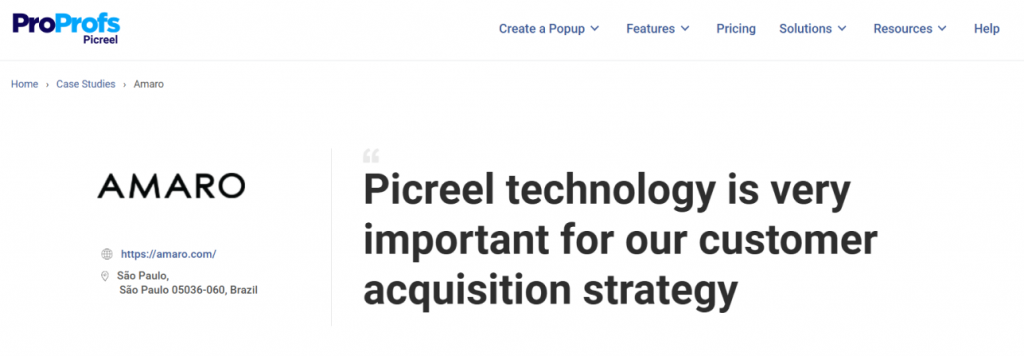
I’ll walk through the setup with Picreel, which I recommend for teams who want full targeting control, email integrations, and behavioral triggers without writing a single line of code. Don’t go with my words, hear from Amaro:
Here’s what you’ll need to achieve such results:
- WordPress site with admin access
- Picreel account
- Email marketing tool
Step1: Install and Connect Your Popup Tool
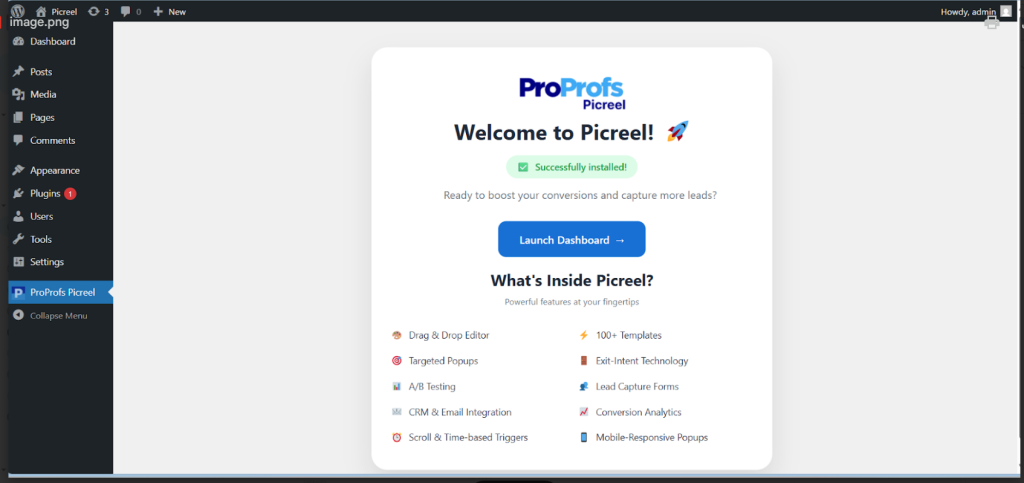
From your WordPress dashboard, go to WordPress Popup Plugins > Add New and search for Picreel.
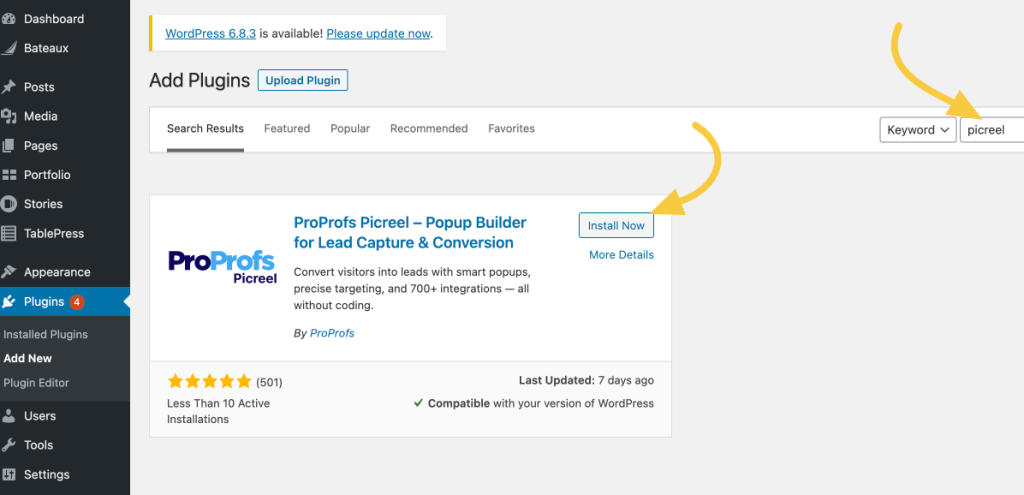
Install and activate the plugin, then log in or create your Picreel account. Once connected, your site syncs automatically.
There’s no need to:
- Edit theme files manually
- Add tracking scripts to your header or footer
- Adjust performance or caching settings just to make popups work
Step 2: Create a Custom Popup Campaign
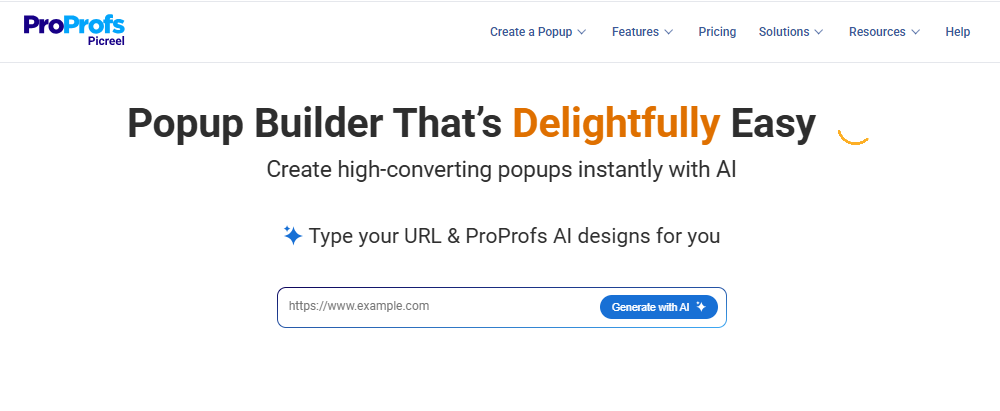
Open the Picreel dashboard and click Create Campaign. You have two setup paths depending on how hands-on you want to be:
- Picreel AI: Enter your website URL, choose a goal such as lead capture, redirect, announcement, or engagement, and answer a few short prompts. The AI generates a popup layout, copy, and CTA matched to your goal.
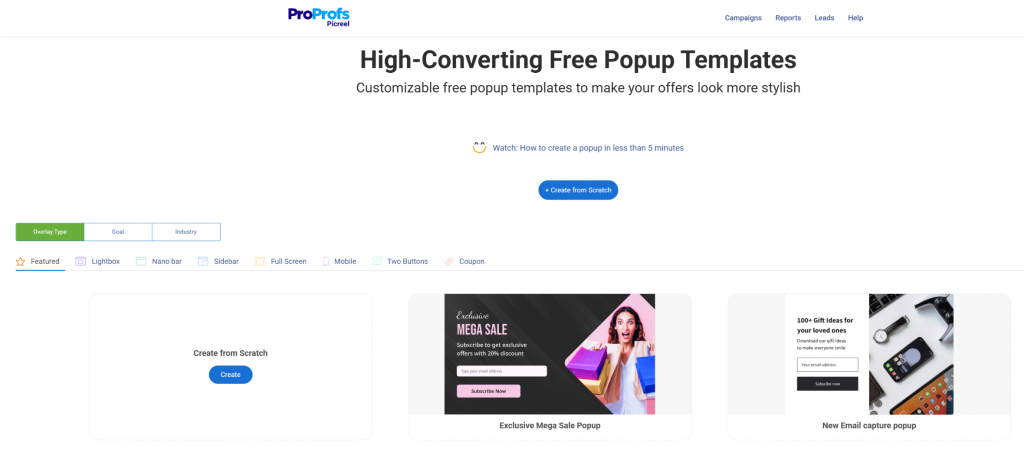
- Template library: Choose from popup templates like slide-ins, side popups, and nanobars. These are designed to stay visible without blocking content. Stick to slim, clean layouts since custom popups work best when they feel helpful, not intrusive.
Step 3: Add the Right Action for Your Goal
Keep the action clear and minimal. One headline, one value line, one CTA. The moment you try to say three things in a popup, you lose the person. Depending on your objective, you can:
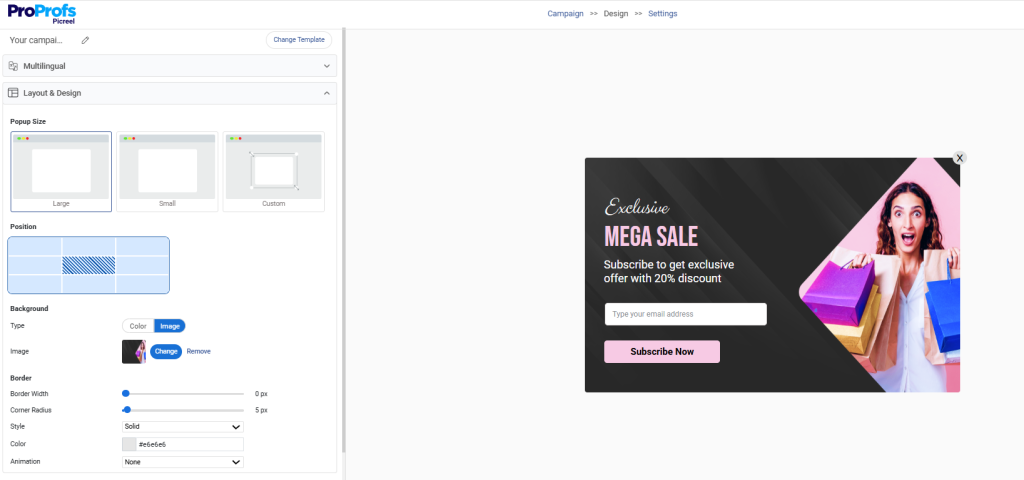
- Add a CTA button that redirects visitors to a specific page or offer (for example, a pricing page, product demo, or limited-time deal)
- Capture emails with a short single-field form (for example, “Get our free SEO checklist”)
- Display an announcement or time-sensitive reminder (for example, “Sale ends tonight” or “New feature released”)
- Promote a discount, webinar, or product launch (for example, “Register for our AI marketing webinar”)
Step 4: Control When and Where the Popup Appears
This is where custom popups really shine. Choose triggers based on visitor intent, then layer on targeting rules to keep campaigns relevant. Trigger options include:
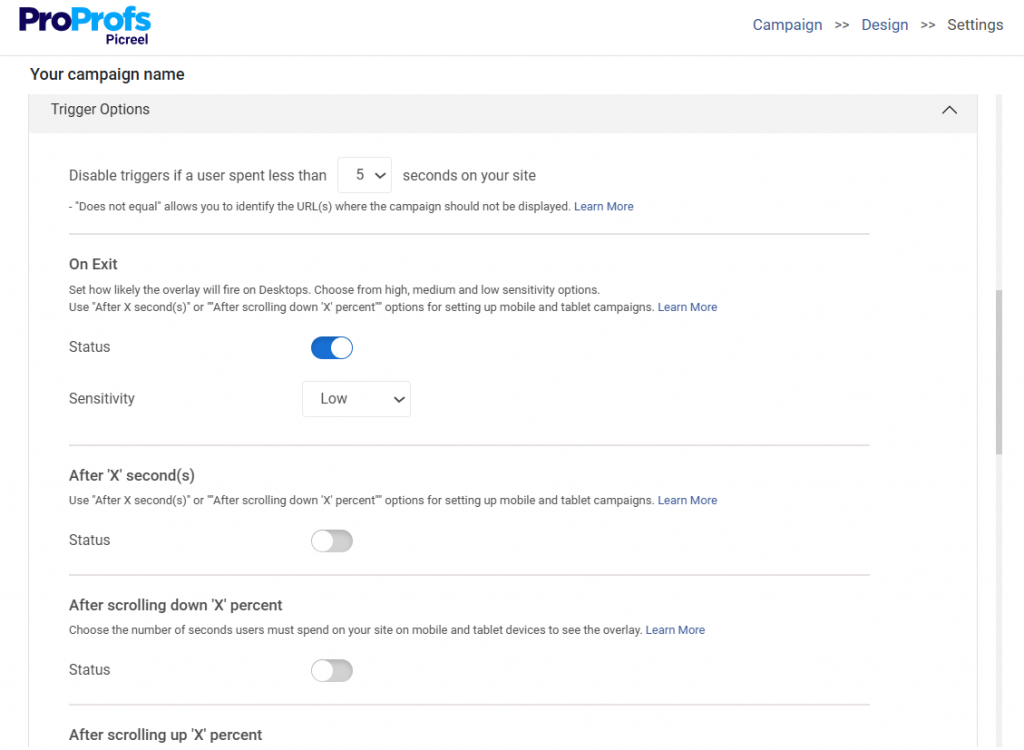
- Scroll depth or time delay for visitors actively reading content (for example, after 50% scroll or 30 seconds on page)
- Exit intent for recovery moments (for example, showing a discount when the cursor moves toward the close button). It uses AI-driven behavior detection to analyze scroll speed, mouse patterns, and browsing rhythm and predict when a visitor is about to leave, not just track cursor position.
- Click triggers for user-initiated popups (for example, “Download the guide” or “View pricing” buttons)
Beyond triggers, set your display conditions to control who sees the popup:
- Show only on specific pages or URL patterns (for example, blog posts or product pages)
- Target by visitor segment, such as new vs returning users, location, device type, or traffic source
- Suppress popups for visitors who have already converted or recently closed the popup to avoid repetition
Step 5: Check Tracking and Integrations
Before going live, confirm your integrations are connected and firing correctly. Picreel supports native integrations with Klaviyo, Mailchimp, HubSpot, ActiveCampaign, and Google Tag Manager. When set up correctly:
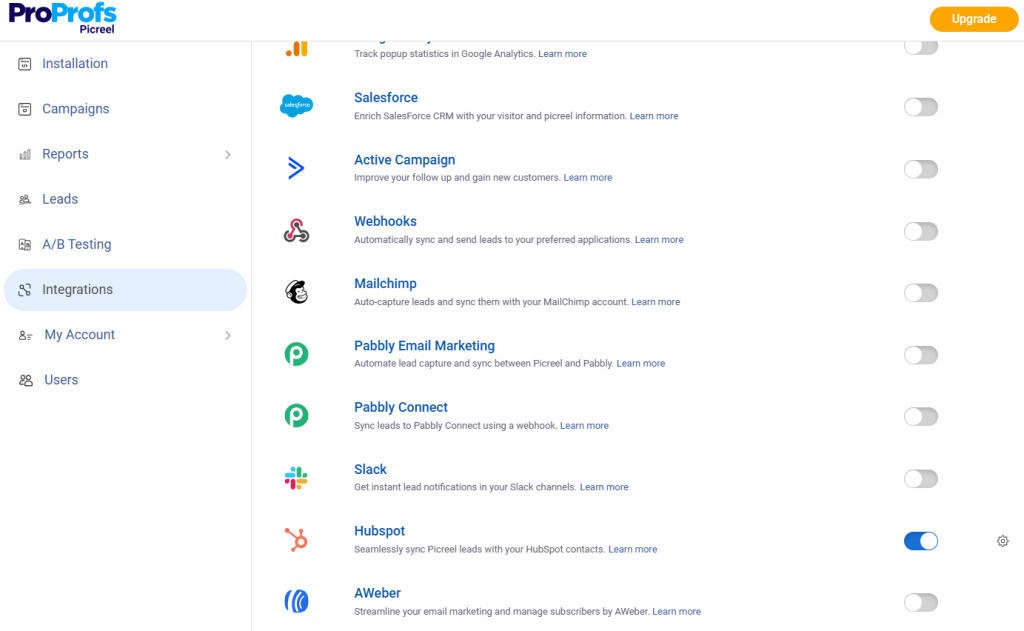
- New leads flow directly into your email platform in real time, and can then be organized and followed up through tools like BIGContacts CRM
- Conversion events pass to your analytics tools automatically
- No manual CSV exports are needed at any point
Step 6: Preview, Test, and Publish
Preview the popup on both desktop and mobile before publishing. Before you hit publish, confirm the following:
- The popup does not cover important page content
- The close button is clearly visible and easy to tap on mobile
- The layout looks natural across different screen sizes
Once everything checks out, publish. Picreel manages caching automatically, so no optimization settings need to be changed after launch.
Will a WordPress Custom Popup Hurt Your Google Rankings on Mobile?
According to Statista (2025), mobile devices account for nearly 60% of global website traffic, which makes mobile popup behavior directly tied to your search performance.
Google penalizes websites that show intrusive interstitials on mobile, specifically when those interstitials cover the main content and appear immediately on page load from organic search. Understanding what triggers this penalty matters before configuring any popup.
1. What Google Does and Does Not Penalize
The penalty applies specifically to mobile search traffic. A full-screen popup that appears immediately after a user arrives from a Google result is the primary violation. Google explicitly excludes the following from the penalty:
- Legally required notices such as cookie banners or age verification overlays
- Popups triggered by scroll depth, click, or exit-intent
- Small banners that do not cover the main page content
- Popups that fire based on a reasonable time delay after page load
2. Mobile-Specific Design Rules to Follow
Even within the rules, mobile popup design requires its own approach. The most common issues reported in community forums come down to three problems: the close button is too small to tap, the popup covers the entire screen, and it fires before the visitor has had any time to read.
To avoid all three:
- Keep mobile popups to no more than 60 percent of screen height
- Make the close button a minimum of 44×44 pixels as a touch target
- Test on real devices, not just browser emulators, since emulators miss real-world rendering gaps
- Consider a slide-in or hello bar instead of a modal for mobile visitors arriving from organic search
Picreel supports separate mobile and desktop popup configurations within the same campaign. That means you can show a full lightbox on desktop and switch to a less intrusive slide-in for mobile visitors, all without creating two separate campaigns.
How Do You Create a Custom WordPress Popup Without a Plugin?
If you prefer keeping your WordPress installation lean or want a lightweight one-off popup for a specific page, you can build a basic popup with a small amount of PHP and JavaScript. This section covers the approach without going deep into technical implementation.
1. The functions.php Approach: The Right Way to Add Scripts
Never hardcode JavaScript directly into your theme’s header.php file. The correct method is to register and load your popup assets using wp_enqueue_script and wp_enqueue_style inside functions.php. This ensures your popup assets load correctly, work with caching plugins, and can be conditionally targeted to specific pages only.
Add the popup HTML via the wp_footer action hook. Register CSS and JavaScript using wp_enqueue_script and wp_enqueue_style in functions.php. Use WordPress conditional tags such as is_front_page() or is_singular(‘post’) to control which pages display the popup.
The general structure follows this logic:
- Register and load your popup stylesheet in functions.php
- Register and load your popup JavaScript in functions.php, set to load in the footer rather than the header
- Hook the popup HTML into wp_footer using add_action
- Apply PHP conditional tags to limit which pages show the popup
- In your JavaScript, check localStorage or a cookie before firing to prevent the popup from repeating on every visit
2. Trigger Logic Without a Plugin
Without a dedicated tool, trigger logic is written in plain JavaScript. The most common approaches are:
- Timer trigger: fires the popup after a set number of seconds using a simple delay function
- Scroll trigger: monitors how far down the page a visitor has scrolled and fires at a defined threshold
- Exit-intent trigger: on desktop, watches for cursor movement toward the top of the browser viewport; on mobile, monitors page visibility changes since there is no cursor to track
- Click trigger: attaches to a specific button so the popup fires only when a visitor chooses to engage
One important distinction: mobile exit-intent is less precise than desktop because it relies on tab-switching behavior rather than cursor tracking. It still catches a meaningful share of abandonment signals, but expectations should be calibrated accordingly.
3. Persistence Logic: Preventing Repeated Popup Displays
One of the most common complaints in developer forums is popups that fire on every single page load because suppression logic was skipped entirely.
After a user closes or converts on your popup, set a cookie or localStorage item. Before showing the popup, check whether that item exists. If it does, skip the popup. Here’s how to apply the right storage type:
- localStorage for session-based suppression within a single browsing session
- Cookies with an expiry date for longer suppression windows of 15 to 30 days
This single step is what prevents your popup from feeling intrusive to visitors who have already seen it and keeps your bounce rate stable.
4. When to Use a Plugin Instead
The custom code approach works for simple, one-page use cases. The moment you need any of the following, development time compounds quickly:
- A/B testing across popup variants
- Visitor segmentation by behavior, location, or device
- Direct integrations with email platforms like Klaviyo or Mailchimp
- Cross-page display conditions managed without touching code on each page
For marketing teams, maintaining custom popup code adds up fast. I’d use the code approach for simple announcement bars or one-off redirect popups, and reach for a dedicated tool like Picreel for anything tied to lead generation or ongoing conversion goals.
Plugin vs Code: Which Approach Should You Choose?
Before you decide how to build your popup, it helps to compare both approaches side by side. The right choice depends on how much control you need versus how much time you want to spend building and maintaining it.
| Criteria | Plugin-Based Popup | Custom Code Popup |
|---|---|---|
| Setup Time | Very fast. Can go live in minutes | Slower. Requires development time |
| Trigger Options | Built-in (exit intent, scroll, time delay, click) | Must be coded manually |
| A/B Testing | Available in most tools | Requires custom implementation |
| Integrations | Native integrations with email tools and CRMs | Requires API setup and maintenance |
| Maintenance | Minimal. Managed by the tool | Ongoing updates and debugging needed |
| Flexibility | High, but within tool limits | Fully customizable |
| Best For | Marketers, small teams, fast execution | Developers, custom use cases, lightweight setups |
FREE. All Features. FOREVER!
Try our Forever FREE account with all premium features!
Why Is Your Custom WordPress Popup Not Working and How Do You Fix It?
Most popup issues fall into a handful of repeatable patterns. Here is what causes each one and how to resolve it.
1. Popup Is Not Firing on Mobile
Two causes account for most mobile popup failures:
- A JavaScript error triggered by a mobile-specific layout difference. Open your browser’s mobile developer tools, check the console for errors, and trace which line is breaking.
- CSS using viewport units that render differently on mobile, pushing the popup off-screen rather than making it invisible. Check your popup container positioning and confirm it renders within the visible viewport on smaller screen sizes.
2. Popup Keeps Appearing Despite Suppression Settings
Your cookie or localStorage item is being set but not read correctly. Common causes include:
- The cookie is set with an incorrect domain or path, so the browser cannot match it on subsequent visits
- The browser is in private or incognito mode, which blocks cookie storage entirely
- Third-party cookie restrictions in the visitor’s browser are preventing the cookie from persisting
Switch to localStorage for development testing first. Confirm the item is being written and read correctly in a standard browser session before assuming the suppression logic itself is broken.
3. Form Inside the Popup Is Not Submitting
If the page reloads on form submission inside a popup, the form is using a standard HTML submit rather than an asynchronous submission. A standard form submit reloads the page, closes the modal, loses the user’s context, and often loses the lead entirely. The fix depends on your setup:
- For WordPress custom popup plugin setups like Picreel, asynchronous form submission is handled automatically
- For custom-built popups, the form submit event needs to be intercepted and handled without a page reload, so the popup stays open and confirms the submission visually before closing
4. Popup Is Not Showing on Specific Pages
Check your display condition rules. URL match rules are case-sensitive, and an extra slash or query parameter can break a match. Quick checks to run:
- If using a plugin: preview the targeting rules in the settings panel to confirm the URL pattern covers the expected page
- If using custom code: verify the WordPress conditional tag being used actually applies to that specific page type
- Check whether a frequency cap or suppression cookie is silently preventing the popup from showing
What Popup UX Best Practices Keep Conversions High Without Hurting Bounce Rate?
The difference between a popup that builds your email list and one that drives people away is mostly UX, not technology. Five decisions matter most.
1. Use Specific, Action-Focused CTA Copy
The headline of your popup should communicate one specific benefit immediately. Vague CTAs like “Join our community” or “Stay in the loop” get dismissed.
Specific ones like “Get the 10-minute SEO audit template” or “Save 15% on your first order” convert. The visitor makes a decision in about two seconds, so every word in the headline has to earn its place.
2. Time the Popup Around Behavioral Signals
Firing a popup half a second after page load is almost always wrong. The visitor has no context for your offer yet and will dismiss it reflexively. The best-performing popups appear when the visitor has demonstrated intent:
- They’ve read far enough into an article to show genuine interest
- They’ve scrolled through a product page long enough to be evaluating it
- Their cursor is moving toward the browser bar, signaling they’re about to leave
3. Match the Offer to the Page Context
A popup showing a discount on running shoes to someone browsing hiking gear is a missed opportunity. Use display conditions to align the popup offer with the page content.
On a content site, the content upgrade model works extremely well: offer a downloadable version of the article, a related checklist, or a deeper resource that expands on what the visitor was just reading. Contextual relevance is the single biggest lever on popup conversion rates.
4. Always Make the Popup Easy to Close
Every popup should have a clearly visible close button. Hiding it or making it too small to tap on mobile destroys trust and sends visitors away from the site rather than engaging with the offer.
When visitors feel trapped, they leave. A popup that’s easy to dismiss actually converts better because it signals respect for the visitor’s choice.
5. Set Frequency Limits and Stick to Them
No one wants to see the same popup on every page or every visit. Once a visitor closes or interacts with a popup, suppress it for at least 7 to 15 days. Layer this with session-level suppression so the same popup never appears twice in one browsing session.
These rules protect user experience, keep your bounce rate stable, and make your popups feel intentional rather than aggressive.
Ready to Start Converting Your Existing Traffic?
You don’t need more visitors to grow your email list or increase conversions. You need to capture the visitors already coming to your site. That is the entire case for a well-built popup system.
Start with one goal, one trigger, and one audience segment. Build from there. Whether you use a plugin or build it yourself, the principles are the same: right message, right person, right moment.
If you want to skip the setup time and start with a proven exit-intent and popup platform built for WordPress, Picreel gets you running in minutes, with targeting logic, integrations, and mobile optimization already handled. Create one custom popup on your highest-traffic page, and check your conversion data in 7 days.
Frequently Asked Questions

Can I A/B test my WordPress popups?
Yes. A/B testing lets you compare two popup versions with different headlines, CTAs, or designs to see which performs better. Tools like Picreel provide built-in testing and real-time data to help improve conversion rates.
Can I use the same popup system across multiple WordPress sites?
Yes. SaaS popup platforms like Picreel let you manage campaigns across multiple WordPress sites from one dashboard. You can replicate campaigns, apply consistent targeting rules, and avoid rebuilding popups for each site.
Are WordPress popups GDPR compliant?
They can be. If your popup collects emails or uses tracking cookies, you must provide a privacy notice and obtain consent where required. Many GDPR compliant popup tools support consent checkboxes and cookie controls for compliance.
What type of offer converts best in a WordPress popup?
Relevant offers convert best. Content upgrades work well on blog pages, discount codes on product pages, and free trials on pricing pages. The offer should match what the visitor is already interested in.
What is the difference between a popup and a hello bar or sticky bar?
A custom popup is an overlay that interrupts the page until dismissed or acted on. A hello bar or sticky bar is a persistent banner at the top or bottom that stays visible while visitors scroll.
How do popup exit-intent campaigns reduce WooCommerce cart abandonment?
Exit-intent popups appear when visitors attempt to leave with items in their cart. They can offer discounts, free shipping, or reminders, encouraging shoppers to complete the purchase before abandoning the checkout.
Can a popup be used to show social proof instead of collecting leads?
Yes. Social proof popups show activity such as recent purchases, signups, or downloads. This builds trust and reduces hesitation, especially on product and landing pages, helping improve overall conversions.
FREE. All Features. FOREVER!
Try our Forever FREE account with all premium features!

 We'd love your feedback!
What did you like & how can we make it even better?
 Thanks for your feedback!
 Ask Your Question
Have a question? Get expert help to make your decision easier.