

If you’ve spent any time trying to add a side popup on WordPress, you’ve probably noticed how quickly things get confusing. I’ve been there too. What starts as a simple idea to gently guide visitors often turns into sorting through bulky plugins, unclear terminology, and tools that promise a lot but feel heavy once installed.
From experience, side popups work best when they stay out of the way. They slide in from the edge, let visitors keep reading, and still give you a chance to highlight an offer or next step. The problem is not the format. It’s choosing a tool that respects both your site and your visitors.
After testing multiple options and learning from real feedback shared by WordPress users, I’ve seen what holds up in everyday use and what creates friction. This guide is built around that experience. It’s meant to help you evaluate side popup tools that feel natural, load fast, and actually support growth without getting in the way.
5 Best WordPress Side Popup Plugins
Before getting into the tools, I want to be clear about how I narrowed this list down. I focused on what works in real WordPress setups, based on my own use, recent feedback from 2025, and honest conversations from people who’ve actually tried these tools. The aim was simple: side popups and slide-ins that are practical, reliable, and easy to live with.
Here’s a glance at all 5 tools with their best use case and price:
| Tool | Best For | Price |
|---|---|---|
| Picreel | Creating polished, on-brand side popups focused on leads, conversions, and sales | Free plan available (up to 5K visitors). Paid plans start at $9.99/month |
| OptinMonster | Advanced targeting and segmentation-driven side popups | Starts at $7/month |
| Thrive Leads | Structured, long-term WordPress lead generation with testing and optimization | Starts at $299/year (Thrive Suite) |
| Popup Maker | Simple, budget-friendly WordPress side popups with rule-based control | Starts at $59.40 for the first year |
| Sumo | Quick email list growth with minimal setup and smart targeting | Starts at $49/month |
1. Picreel – Best for Getting More Leads, Conversions, and Sales
I believe Picreel is the best WordPress side popup plugin because it lets me create side popups that look clean, intentional, and on-brand without touching code. The template library gives me a solid starting point, and the editor makes it easy to fine-tune spacing, colors, and layout so slide-ins sit naturally on the side instead of feeling intrusive. Everything stays responsive, so side popups behave just as smoothly on mobile as they do on desktop.
What I really like is the flexibility in how side popups are triggered and delivered. I can keep things subtle with compact slide-ins or scale up attention when needed, and leads flow straight into my CRM or email tools without extra setup. It works well when side popups need to feel polished but still performance-driven.
Pros
- Behavior-based triggers like scroll depth, time delay, inactivity, and click actions for well-timed side popups
- Advanced targeting using location, device, browser, and cookie logic to refine slide-in visibility
- Built-in analytics that track impressions, conversions, and visitor patterns for optimization
- A/B testing with live performance data to improve side popup layouts and messaging
Cons
- Cloud-only – no offline access
- No dark theme
Price
Offers a forever-free plan for up to 5K visitors (For WordPress, you may need the Enterprise account).
Paid plans start at $9.99/month, followed by Business at $39.99/month, and Enterprise at $69.99/month.
2. OptinMonster – Best for Advanced Targeting
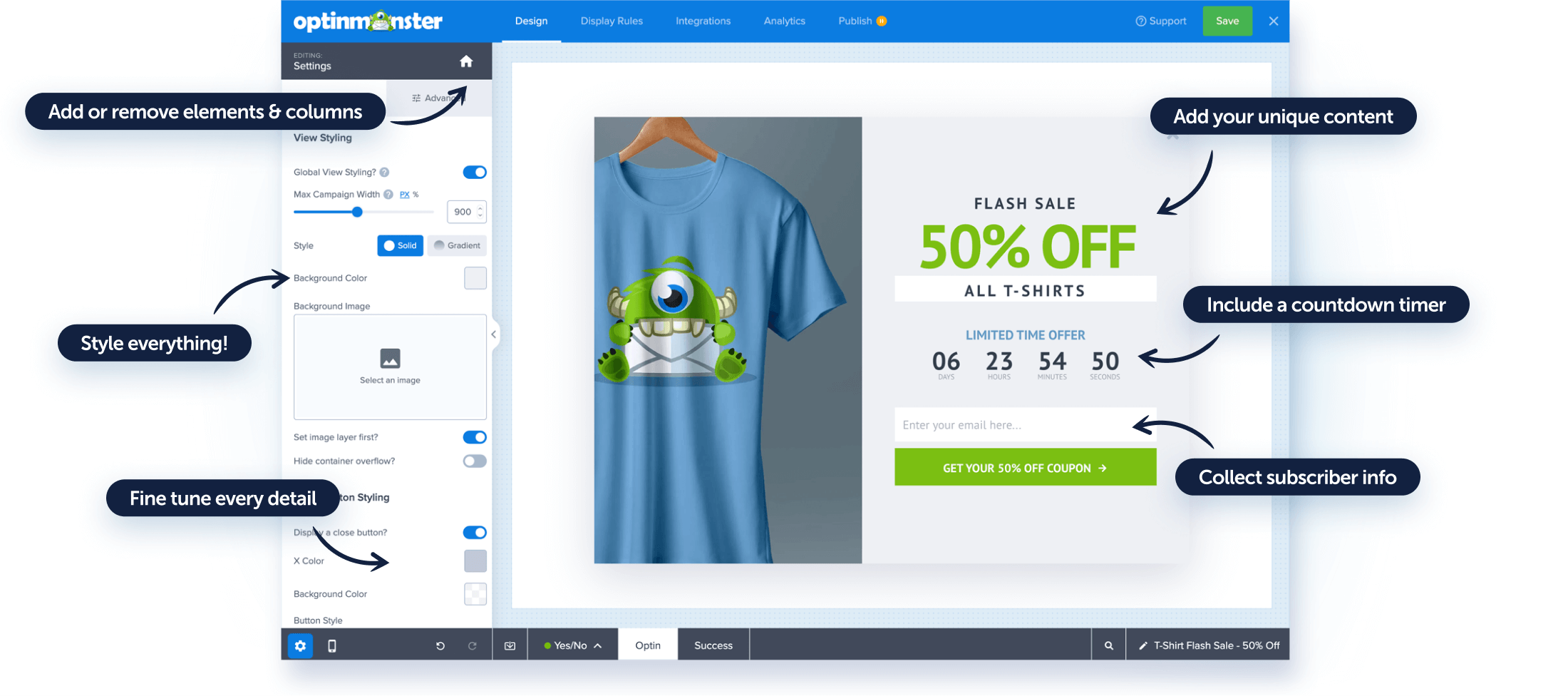
I have used OptinMonster on a few WordPress sites where simple timing rules were not enough. What I liked was the level of control it gives over how side popups appear, so they feel intentional rather than distracting.
After the initial setup, the slide-ins stayed consistent even on content-heavy pages. I found it most useful when side popups were tied to broader conversion or segmentation goals instead of being used as one-off prompts.
Pros
- Multiple slide-in and contact us popup side WordPress formats that blend naturally into page layouts
- Exit intent, scroll, and inactivity triggers that help show popups only when visitors are most likely to act
- Built-in A/B testing and conversion analytics to improve results over time instead of guessing
- Deep integrations with email tools and CRMs, so side popup leads flow directly into campaigns
Cons
- Many advanced targeting and optimization features require higher-tier plans
- Can feel like more than you need if you only want simple side popups
Price
Starts at $7/month
3. Thrive Leads – Best for Structured WordPress Lead Generation
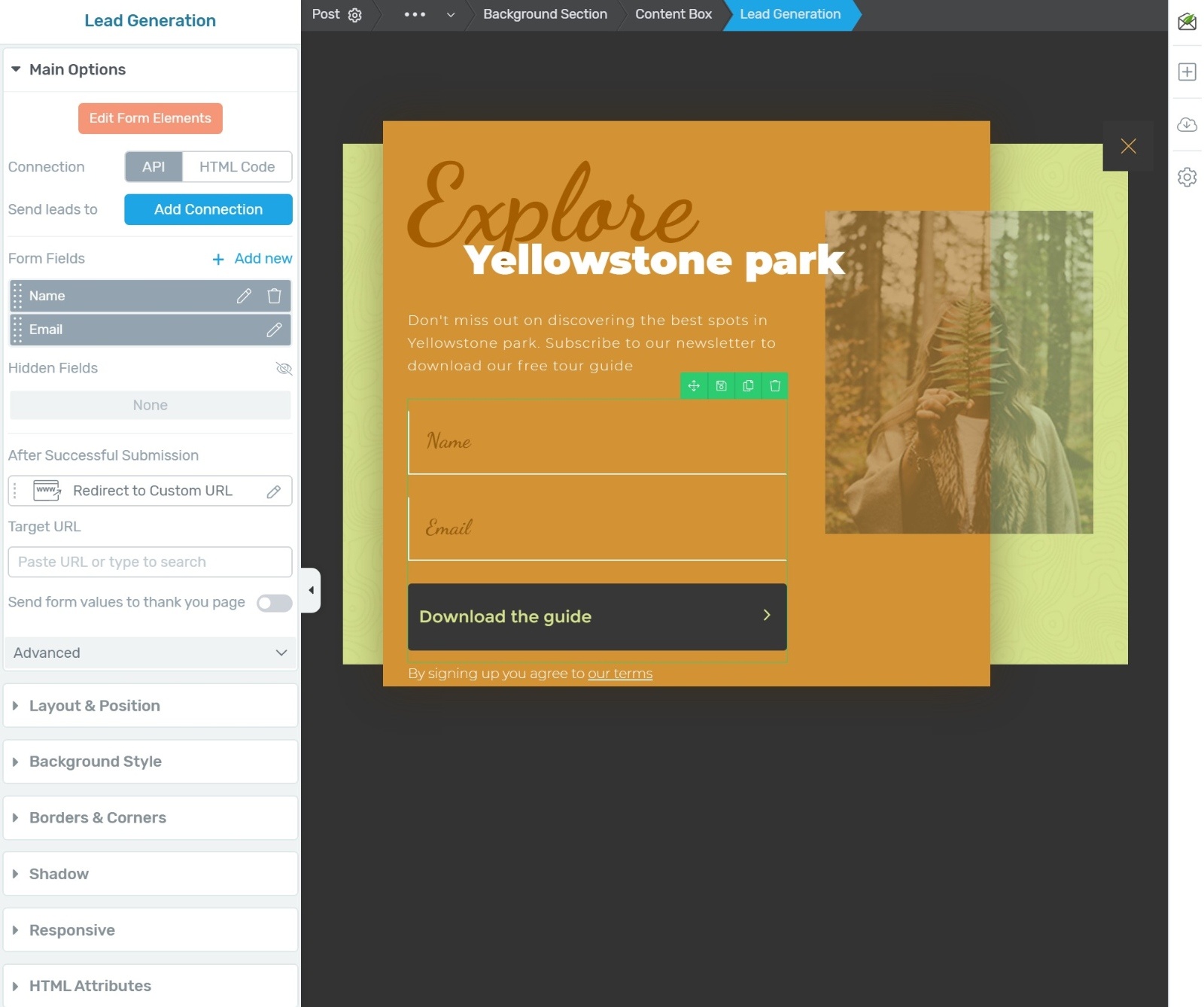
Thrive Leads is a decent option to grow lead capture, especially through side popups, and what worked for me was how they fit into a broader conversion system rather than acting as standalone elements.
Side popups could be triggered by scroll depth, time, or user behavior, which made them feel more contextual. As the site grew, I relied on built-in A/B testing and reporting to refine placements and messaging. Side popups performed best when combined with layout changes and ongoing experiments instead of fixed setups.
Pros
- SmartLinks feature to hide opt-ins from existing subscribers
- Device-specific controls to show or hide popups on desktop, tablet, or mobile
- Built-in asset delivery for content upgrades without third-party tools
- Form scheduling for time-based campaigns and promotions
Cons
- Requires time to configure if using multiple targeting and testing options
- Can impact site speed when many features are enabled
Price
Starts at $299 per year as part of the Thrive Suite
4. Popup Maker – Best for Simple, Budget-Friendly WordPress Popups
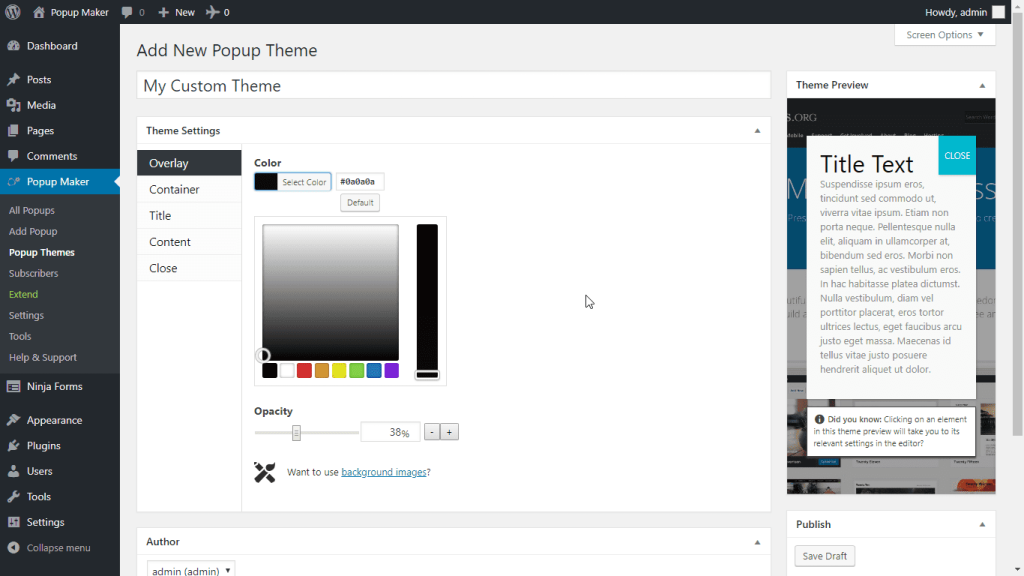
Popup Maker helped me react to what visitors were actually doing on the site. I enjoyed playing with things like exit intent, scroll triggers, and timed schedules to control exactly when a side popup showed up. It felt more like setting smart rules than just throwing a popup on the page.
I also liked how easily I could layer conditions such as device type, user status, or even location to fine-tune visibility. For cases like login prompts, terms acceptance, or simple upsell nudges, side popups stayed fast, predictable, and easy to manage without overengineering the setup.
Pros
- Event-based triggers like click-open and form submission for precise popup behavior
- Ability to assign popups to specific pages, posts, or user actions
- Strong compatibility with WordPress shortcodes and custom HTML
- Lightweight core plugin that does not overload simple sites
Cons
- Styling requires manual effort if you want polished designs
- Reporting and advanced behavior controls require paid add-ons
Price
Starts at $59.40 for 1st Year and then $99.00/year
5. Sumo- Best for Quick List Growth With Smart Targeting
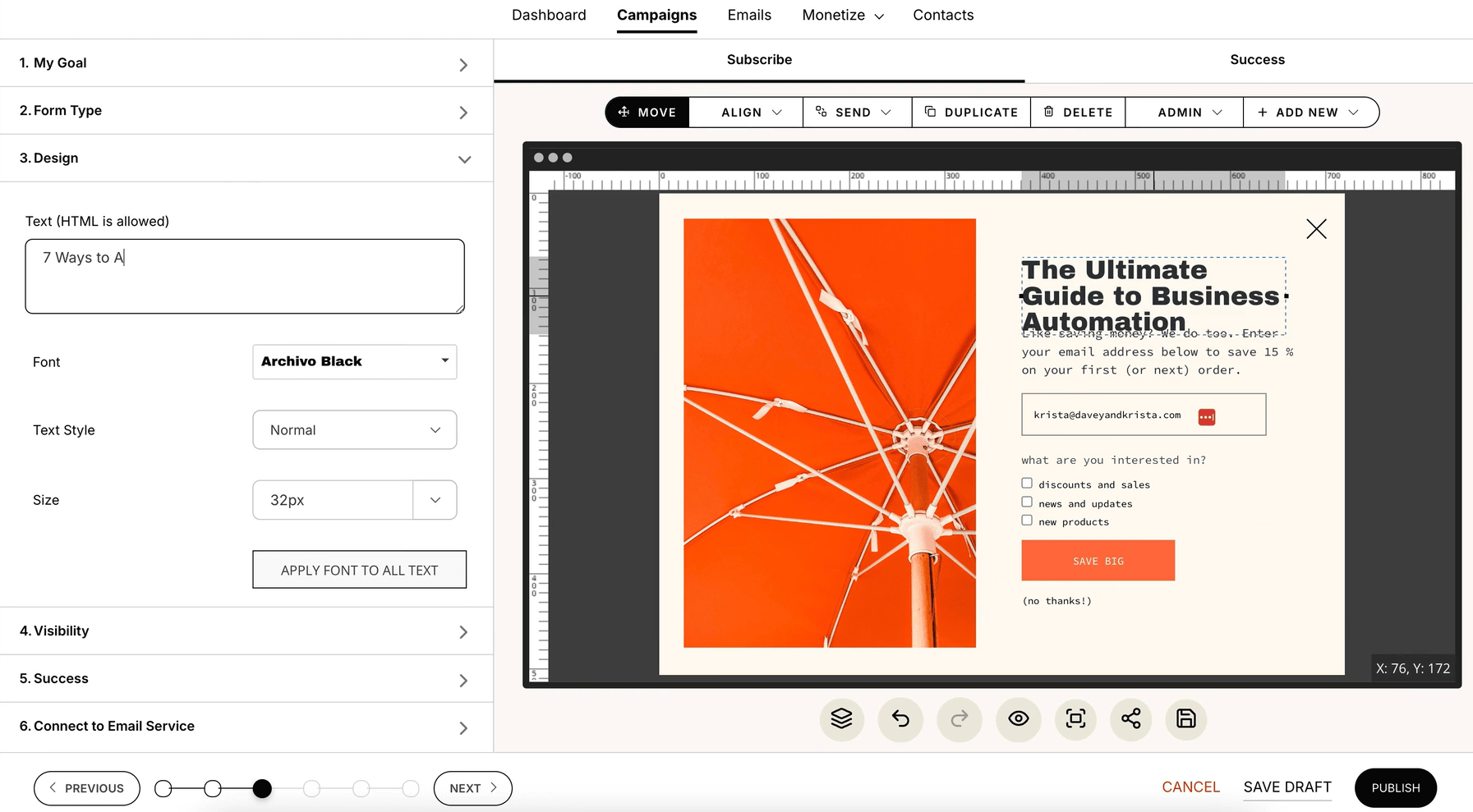
Sumo is something I have leaned on to get email capture running fast without overthinking the setup. What I liked right away was how easy it was to spin up side popups and forms that matched the site’s look. Managing multiple sites from one dashboard also saved me a lot of time.
I found Sumo especially useful when I wanted popups to adapt based on visitor behavior. Things like exit intent, page visits, or referral source made side popups feel more intentional. It worked well when the goal was steady list growth with minimal setup effort.
Pros
- Prebuilt popup and form layouts that help launch quickly without designing from scratch
- Strong visitor-based targeting using pages viewed, URLs, devices, and referrers
- Built-in A/B testing to compare designs and messaging easily
- Supports multiple opt-in formats including side popups, inline forms, and welcome mats
Cons
- Branding and advanced features are limited on the free plan
- Customization depth is lower compared to developer-focused tools
Price
Starts at $49/month
Evaluation Criteria: How To Compare WordPress Side Popup Plugins
When comparing side popup plugins for WordPress, the biggest mistake is relying solely on feature lists. What matters is how the tool behaves once it is live on your site.
We approached this the same way a real user would, by testing each plugin against everyday needs shared by WordPress users across forums, communities, and customer feedback.
Here are the key points to consider when evaluating these plugins.
1. Ease of Setup on WordPress: Start with the setup. A good plugin should enable you to go live quickly without requiring code changes or relying on a developer. Look for tools that work seamlessly with WordPress, offering simple installations or lightweight scripts, especially if you want to move quickly.
2. Side Popup and Slide-in Behavior: Not every popup tool handles side popups well. Ensure the plugin supports true slide-ins from the left or right, and that the animation feels natural. A smooth, subtle entry matters more than flashy effects.
3. Trigger and Targeting Options: Popups should appear for a reason. Exit intent, scroll triggers, page-level targeting, geo-location, UTM rules, and behavior-based conditions help ensure your popup shows up when it is actually relevant to the visitor.
4. UX Controls (Frequency, Mobile Behavior): User experience is where many popups fail. Check whether you can limit how often a popup appears, add delays, or exclude mobile users. These controls help avoid annoying repeat visitors or disrupting small screens.
5. Customization Flexibility: You should be able to adjust text, images, buttons, forms, checkboxes, or redirects without feeling overwhelmed. Drag-and-drop editors and simple templates make it easier to customize while keeping things beginner-friendly.
6. Integrations With Email and Marketing Tools: If you plan to use popups for lead generation or campaigns, integrations matter. Look for smooth connections with tools like Klaviyo, Zapier, Make, GTM, or your CRM so everything fits into your existing workflow.
7. Performance Impact: Always think about speed. A popup plugin should not slow down your site or clash with caching. Lightweight tools usually perform better than feature-heavy platforms.
8. Pricing and Value: Many users compare alternatives because of cost. When evaluating pricing, focus on whether the core features you need are included, not on how many advanced options are locked behind higher plans.
9. Multi-Site Management: If you manage more than one WordPress site, this becomes important quickly. Being able to control popups across multiple sites from one dashboard can save a lot of time and effort.
10. User Feedback and Real-World Reviews: Finally, look beyond product pages. Reviews and real user experiences often reveal how reliable a plugin is over time, how responsive the support is, and whether the tool delivers on its promises once it is in daily use.
How to Create a Side Popup in WordPress
If you are ready to move from research to action, Picreel is a solid place to start. It strikes a good balance between power and simplicity, stays lightweight, and works smoothly with WordPress. You can use it for redirection or lead generation without adding friction for visitors.
Step 1: Connect Picreel with Your WordPress Site
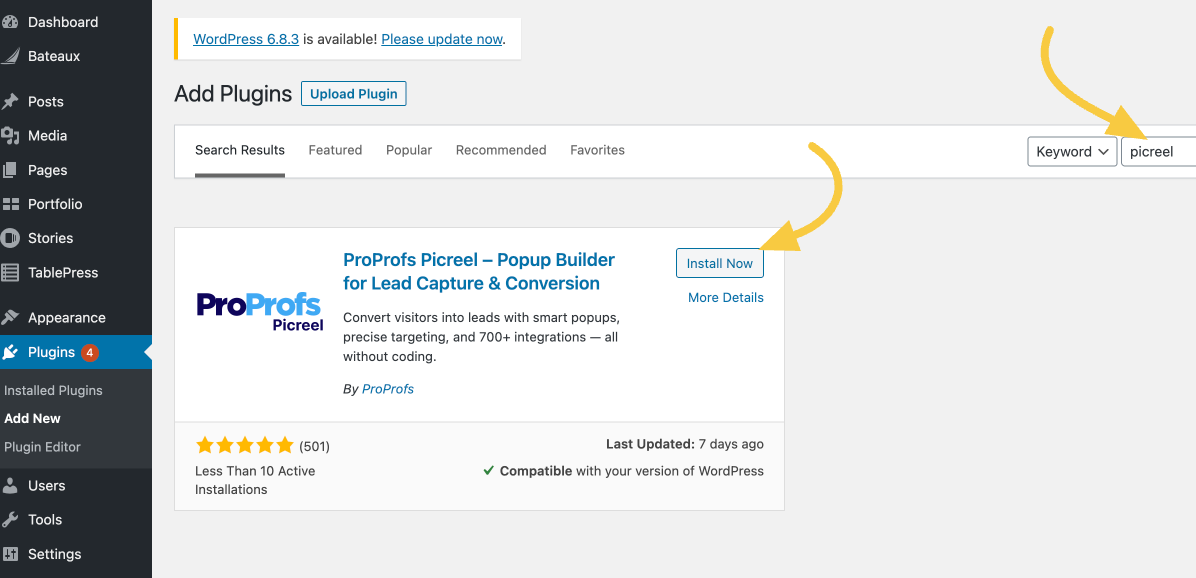
Open your WordPress dashboard, go to Plugins, then Add New, and search for your WordPress popup Picreel. Click Install Now and activate the plugin.
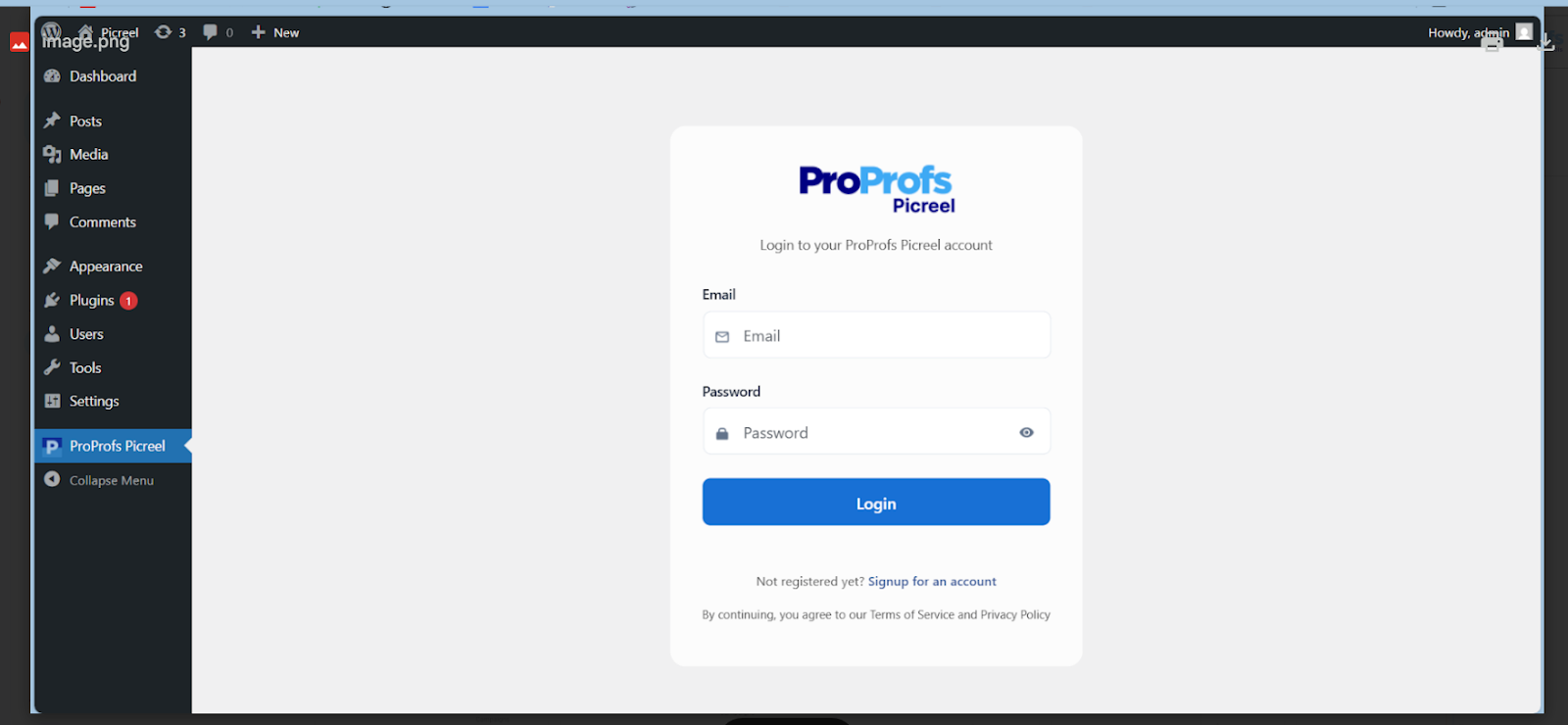
After activation, Picreel will appear in your WordPress sidebar. Click on it and log in to your Picreel account.
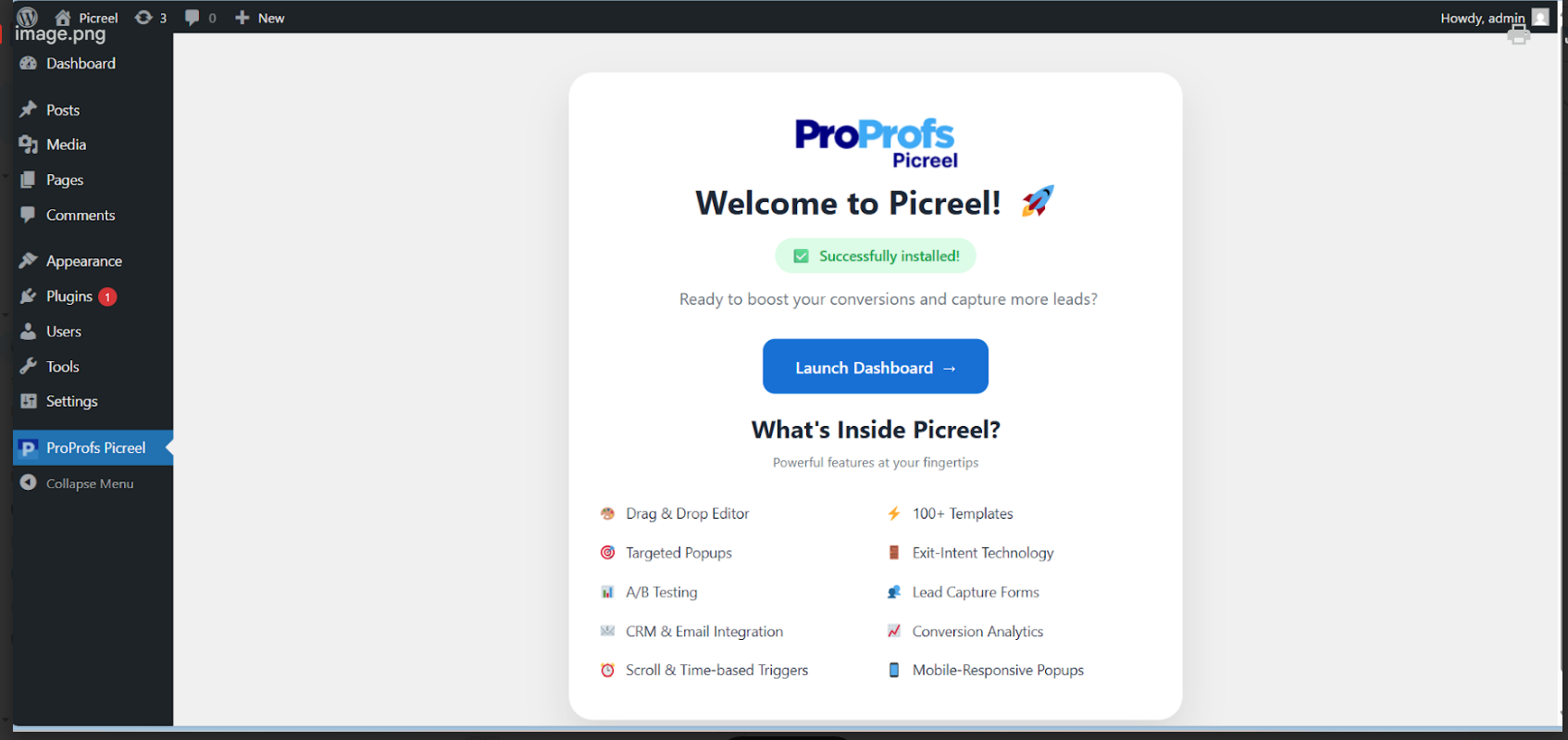
Once logged in, you will be taken to the Picreel dashboard. This is where you can create, customize, and track all your WordPress welcome popup campaigns from a single place.
Step 2: Choose a Side Popup (Slide-In) Template
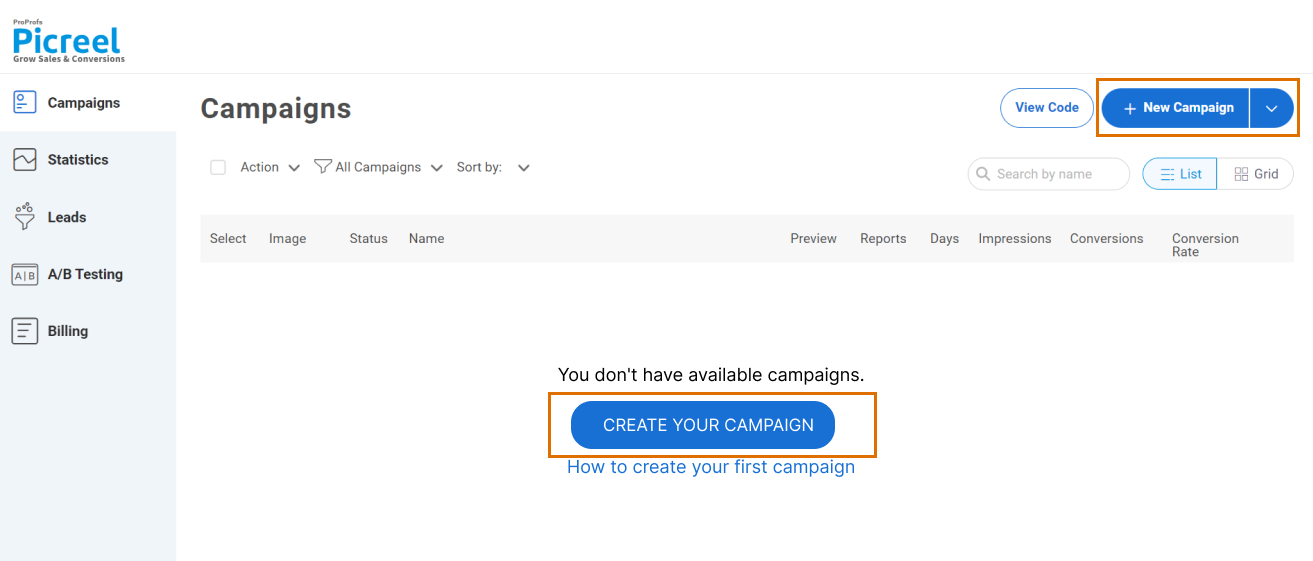
Once you’re inside Picreel, click Create New Campaign.
In the campaign builder, select a slide-in template from the ready-to-use template library.
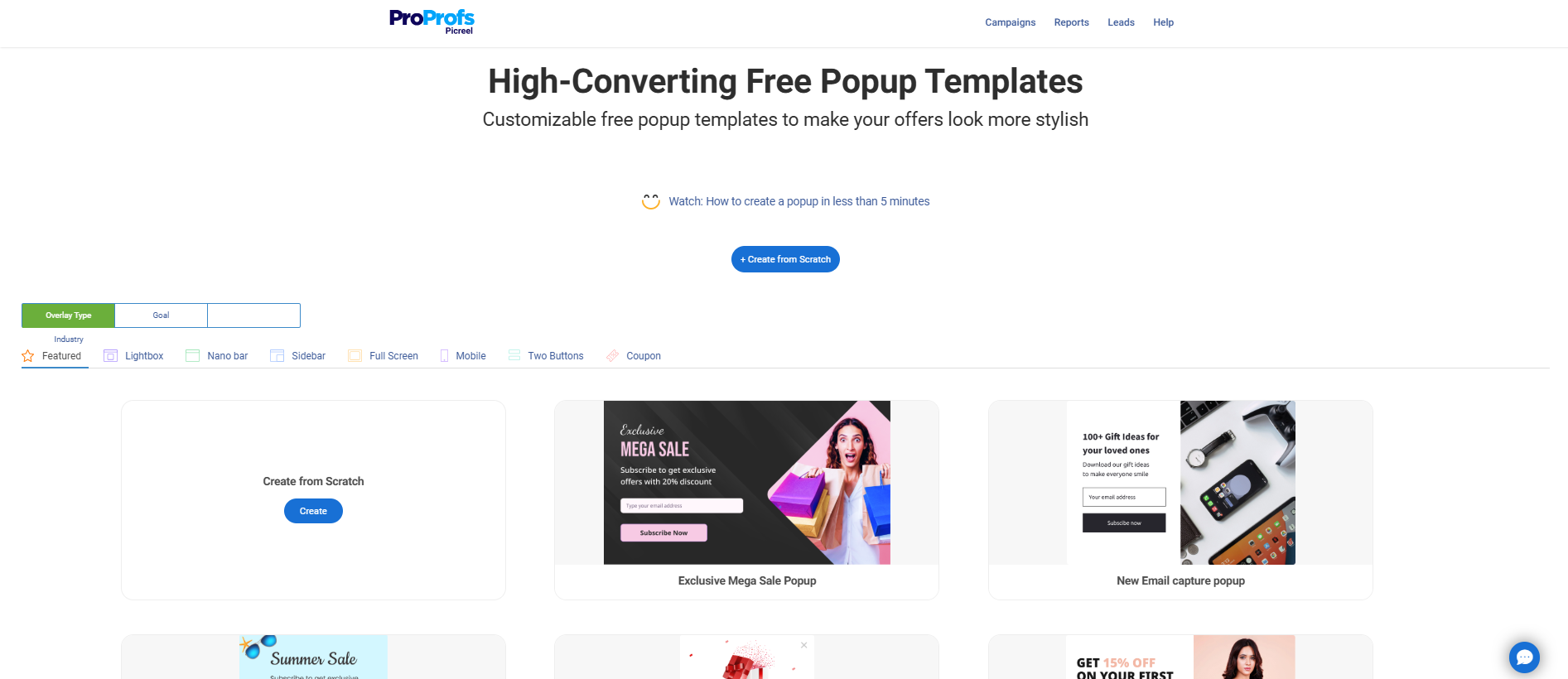
Pick left or right side placement based on your layout (e.g., right for CTAs) from the position section. Preview on desktop and mobile to confirm it slides in smoothly without overlapping content.
Step 3: Customize Popup Content
Use the drag-and-drop editor to add text, images, buttons, or forms.
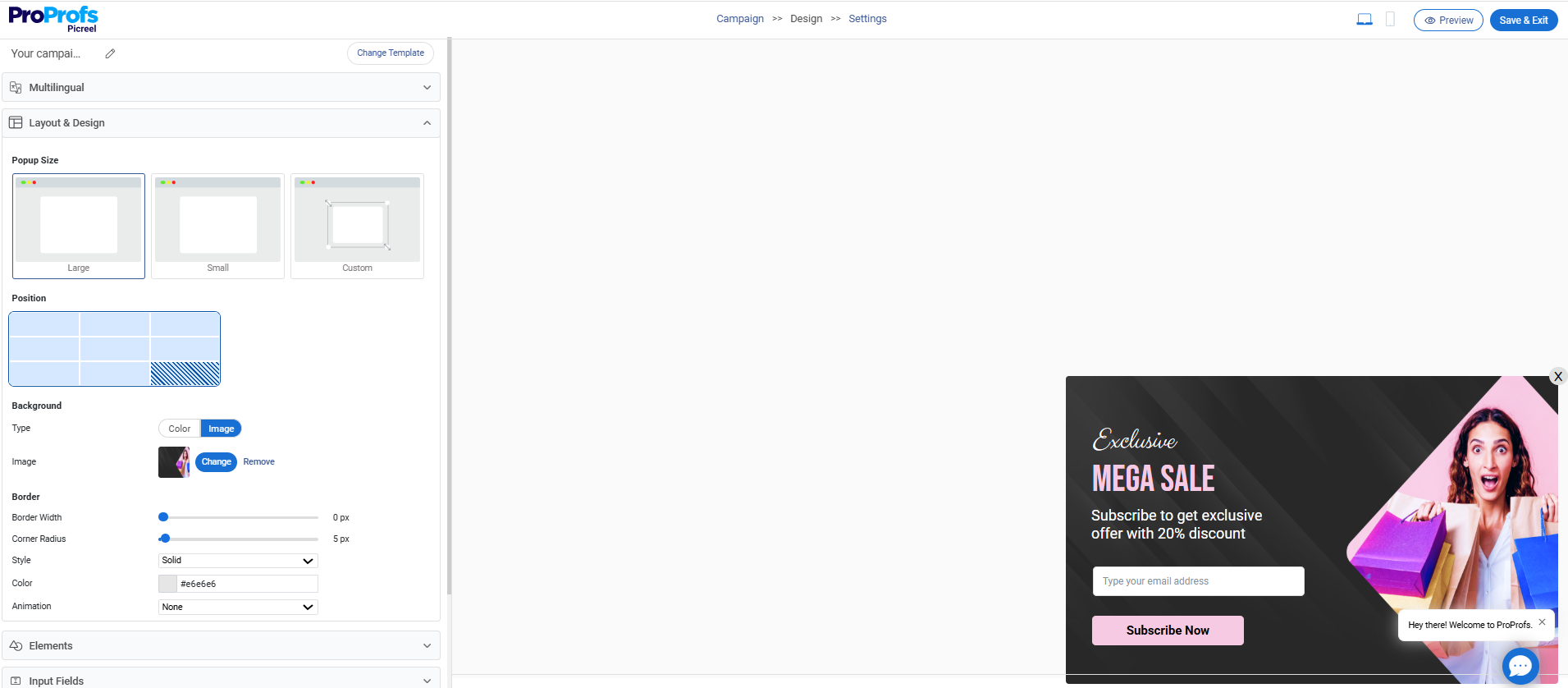
If your goal is redirection, link buttons to a target page instead of collecting emails. Keep the design simple with a clear headline, a short value message, and one primary CTA as shown in the image.
Step 4: Set Targeting and Triggers
This is where Picreel really stands out. Start by using Display Rules to show the popup only to first-time visitors, so returning users are not shown the same message again.
From there, fine-tune who sees your side popup:
- URL Targeting: Show the popup only on specific pages, such as landing pages or blog posts, where the message feels most relevant.
- Location Targeting: Perfect for region-specific offers, events, or localized pricing. This helps keep the message aligned with the visitor’s context.
- Device Targeting: Customize the experience for different devices. A simpler layout on mobile often performs better and maintains a smooth experience.
Next, decide exactly when the popup should appear. Use exit intent to catch visitors just before they leave the page, and use scroll-based triggers at around 30–50% scroll to engage readers who are already showing interest in your content.
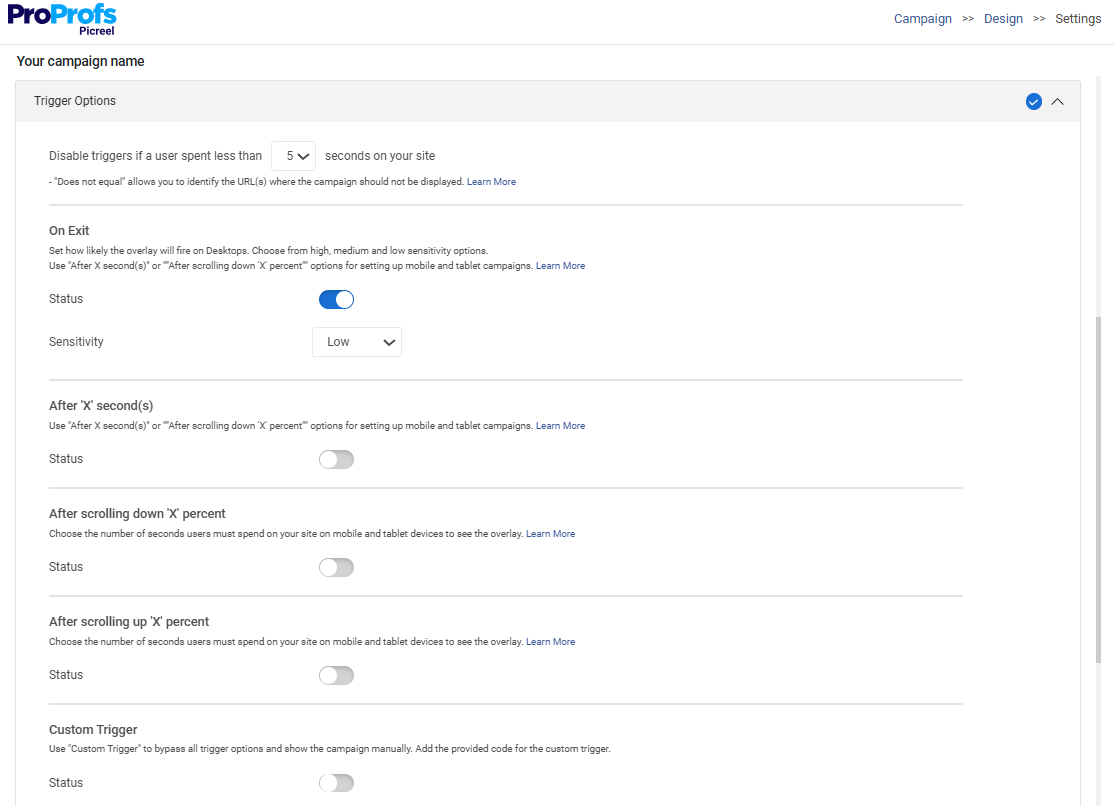
If lead quality matters more than volume, add checkboxes like “I’m interested in…” or enable multi-step forms. This lets you collect clearer insights without overwhelming visitors upfront.
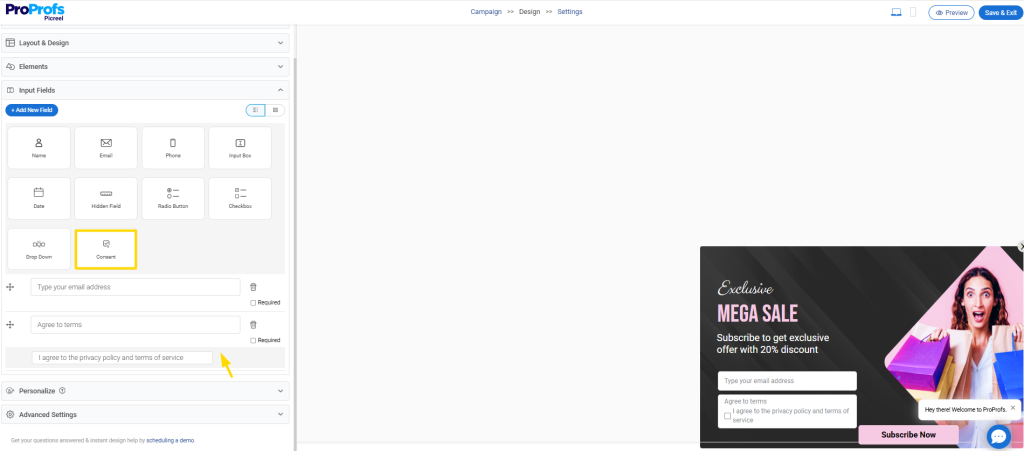
Step 5: Control User Experience
Set frequency rules so the popup appears only once per session or visitor.
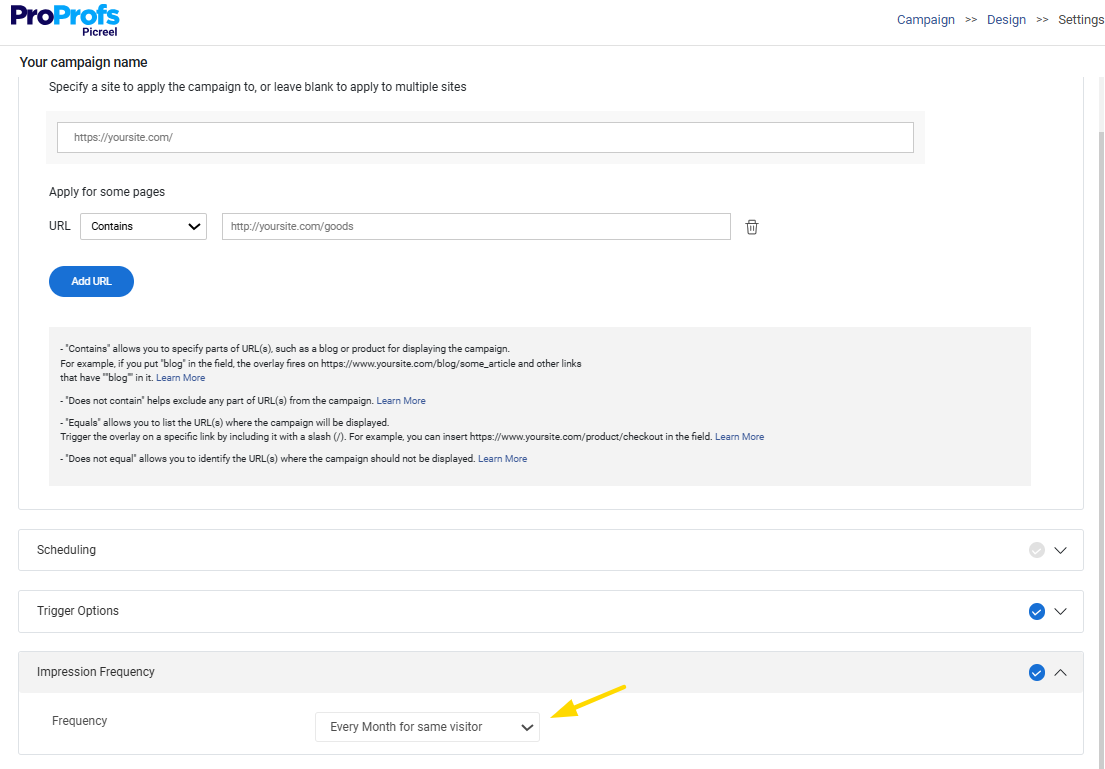
Add a short delay if needed and exclude mobile users when the layout does not fit well.
Step 6: Connect Your CRM & Email Marketing Tool
Open Picreel’s integration settings and connect your email platform, such as HubSpot or Mailchimp. Mapping fields like name, email, and preferences takes only a few seconds. Before going live, submit a test entry to confirm that data is flowing correctly into your CRM.

Once the integration is active, your side popup becomes more than just a message. Every visitor who interacts or signs up is automatically added to your follow-up workflow, helping you nurture leads or continue conversations without any manual effort.
Step 7: Track Performance
Launch and monitor via Picreel’s dashboard: views, clicks, conversions, and ROI metrics.
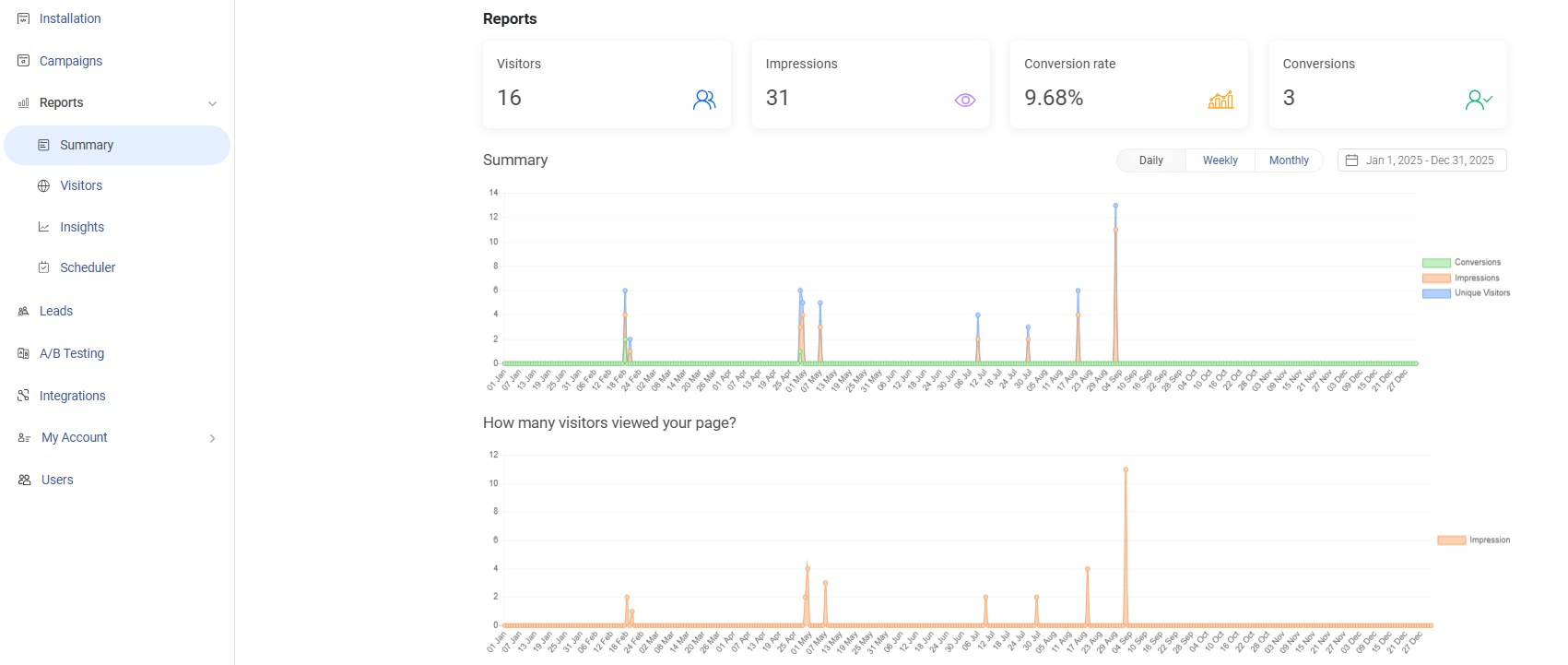
Use A/B testing to tweak elements, then optimize based on data, like adjusting triggers for higher engagement.

Why Picreel fits here? It’s engineered for behavior-based popups that respect UX, loads fast without bloating WordPress, and offers cost-effective multi-site management.
Side Popup Use Cases That Actually Work
Popups get a bad reputation, but side popups can work surprisingly well if you use them with care. The difference comes down to intent. When the goal is to add value instead of forcing attention, side popups convert without annoying visitors.
Here’s how you can use them strategically:
1. Content Upgrades: Slide in a relevant download after a visitor scrolls about halfway through the page. This works because it offers something useful at the right moment without interrupting the reading flow.
2. Limited-Time Offers: Exit-intent side popups with a discount redirect feel timely rather than pushy. For e-commerce sites, this approach helps capture interest without pressuring the visitor.
3. Redirecting Users to New Pages or Campaigns: Side popups work well for cross-promotion, like guiding blog readers to a webinar signup or a new product page. It feels natural and fits especially well for SaaS and content-driven sites.
4. Social Proof Notifications: Showing recent purchases or short testimonials from the side builds trust quietly. This is especially effective for repeat visitors who are already familiar with your brand.
5. Announcements or Notices: Use side popups to share updates, launches, or upcoming events. Frequency controls matter here, since showing it once helps keep goodwill intact.
6. Legal or Disclaimer Popups: Side placement is ideal for compliance messages that only need to be seen once. It keeps things visible without disrupting mobile users.
FREE. All Features. FOREVER!
Try our Forever FREE account with all premium features!
Common Mistakes to Avoid With Side Popups On WordPress
Experience matters here. A side popup on WordPress can help your site, but a few common mistakes can quickly turn it into a problem instead of an asset.
1. Showing Popups Repeatedly: Seeing the same popup again and again frustrates visitors. Use session limits or cookie settings so it shows once and respects their time.
2. Ignoring Mobile Experience: Side popups can break or feel awkward on small screens. Always test on mobile and either optimize the layout or exclude mobile users to avoid higher bounce rates.
3. Using Heavy Tools for Simple Needs: If you only need slide-ins, a full marketing suite is often overkill. Lightweight plugins keep your site fast and reduce the risk of conflicts.
4. Over-Designing Slide-Ins: Too many animations or elements distract from the message. Clean layouts with a single clear CTA help visitors focus without feeling overwhelmed.
5. Skipping Performance Tracking: Launching side popups on WordPress without tracking results leaves you guessing. Use built-in analytics to measure clicks and engagement, then adjust to improve real results.
Are Side Popups Worth It?
I’ll be honest. The hesitation around popups is real, and I see the same debates playing out everywhere. But from what I’ve tested and seen, side popups on WordPress still make sense today when they’re used with intent.
When they respond to behavior like scroll depth or exit intent, they can quietly lift conversions without hurting trust. The problems only start when they’re spammy, repetitive, or badly timed.
That’s why I lean toward keeping things simple. Lightweight tools, controlled frequency, and mobile-friendly behavior matter more than flashy features. For most WordPress sites, Picreel hits that balance well. It lets me create side popups on WordPress that respect the visitor while still driving real results.
If you’re on the fence, start small. Test one well-placed slide-in, track the impact, and adjust. Want to try it yourself? Set up your first side popup with Picreel and see how it performs on your site.
FREE. All Features. FOREVER!
Try our Forever FREE account with all premium features!

 We'd love your feedback!
What did you like & how can we make it even better?
 Thanks for your feedback!
 Ask Your Question
Have a question? Get expert help to make your decision easier.