
If you run a Shopify store, you’ve probably felt the pain of abandoned carts, slipping conversion rates, and shoppers leaving before checkout. I’ve seen my clients struggle with this too often. However, after working with marketers, founders, and growth teams for over 8 years, I’ve learned one thing that never fails: a Shopify countdown timer creates urgency — and urgency drives action.
Adding a Shopify countdown timer to a flash sale or free shipping promo gives shoppers a clear reason to buy now instead of later.
Of course, I also understand the hesitation. Timers often get a bad reputation because many look spammy, reset whenever the page reloads, or appear in the wrong places. But you can change that!
The difference comes down to strategy. When you use Shopify countdown timers thoughtfully, they can be powerful tools. In this blog, I’ll explain what a Shopify countdown timer is, how to implement it, and the best apps to make it work for your store.
What Is a Shopify Countdown Timer? (+Use Cases)
A Shopify countdown timer is basically a little clock on your store that shows shoppers how much time they have before a deal ends, their cart expires, or a product sells out. Here’s how it looks:
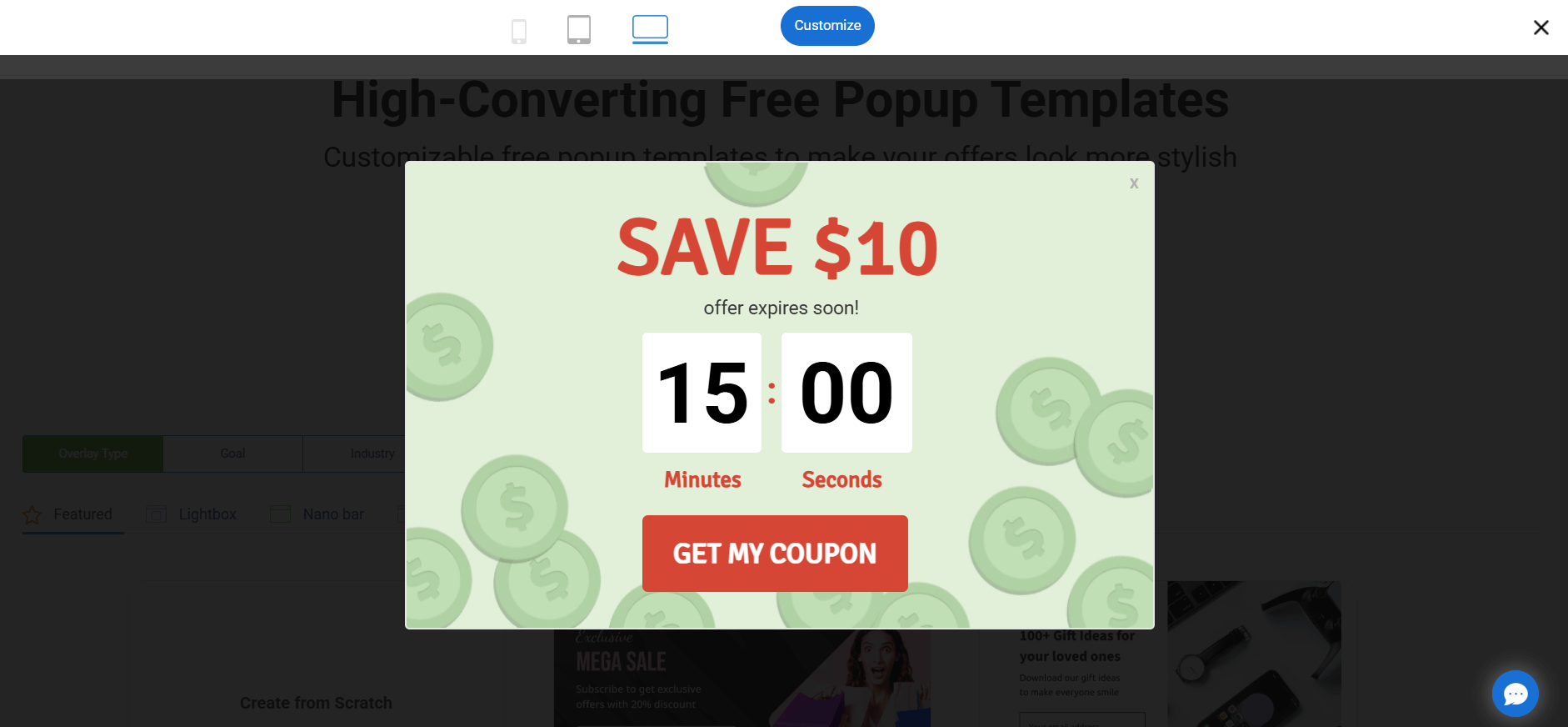
You have probably seen it during flash sales or holiday promos. It works because nobody wants to miss out on an exclusive deal. The trick is using it for real offers, not gimmicks.
Some of the most common ways stores use a countdown timer for Shopify include:
- Flash Sales: Add urgency to seasonal or limited-time discounts.
- Cart Urgency: Push shoppers to check out before their deal disappears.
- Low Stock Alerts: Let people know when items are running out.
- Pre-Launch Hype: Build excitement and grab emails before launch day.
- Exit-Intent Offers: Win back shoppers about to leave with a last-chance deal.
When done right, a countdown timer for Shopify can boost sales, capture more leads, and clarify promotions for customers. But shoppers are smart. If the timer resets every time they refresh the page or looks out of place, it feels cheap and can backfire. I suggest keeping it authentic, on-brand, and tying it to real campaigns. That is when a Shopify countdown timer actually works in your favor.
3 Best Shopify Countdown Timer Tools
I’ve tested plenty of countdown timer apps for Shopify, but these three are the ones I’ve personally used and seen real results with. They’re reliable, easy to set up, and actually move the needle on sales and signups.
1. Picreel – Best for Getting More Leads, Conversions, and Sales
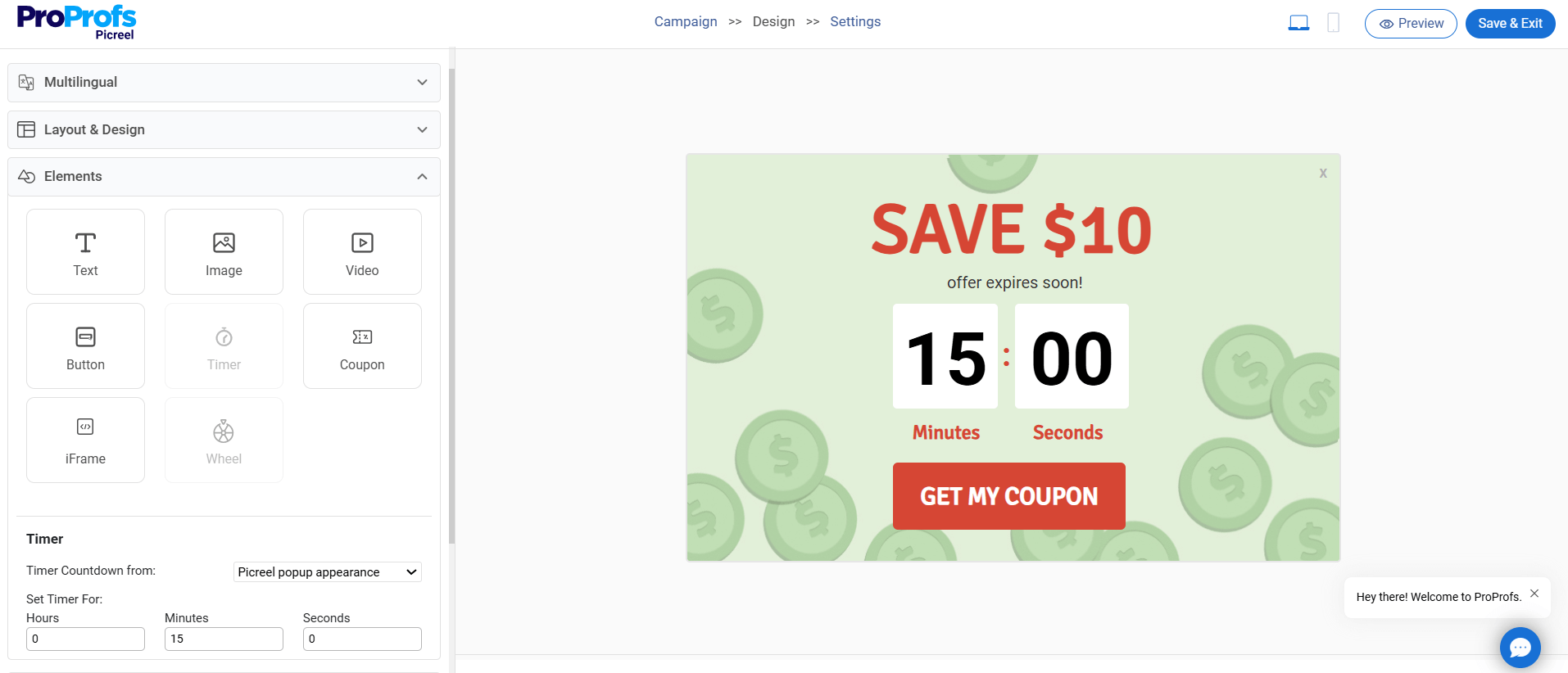
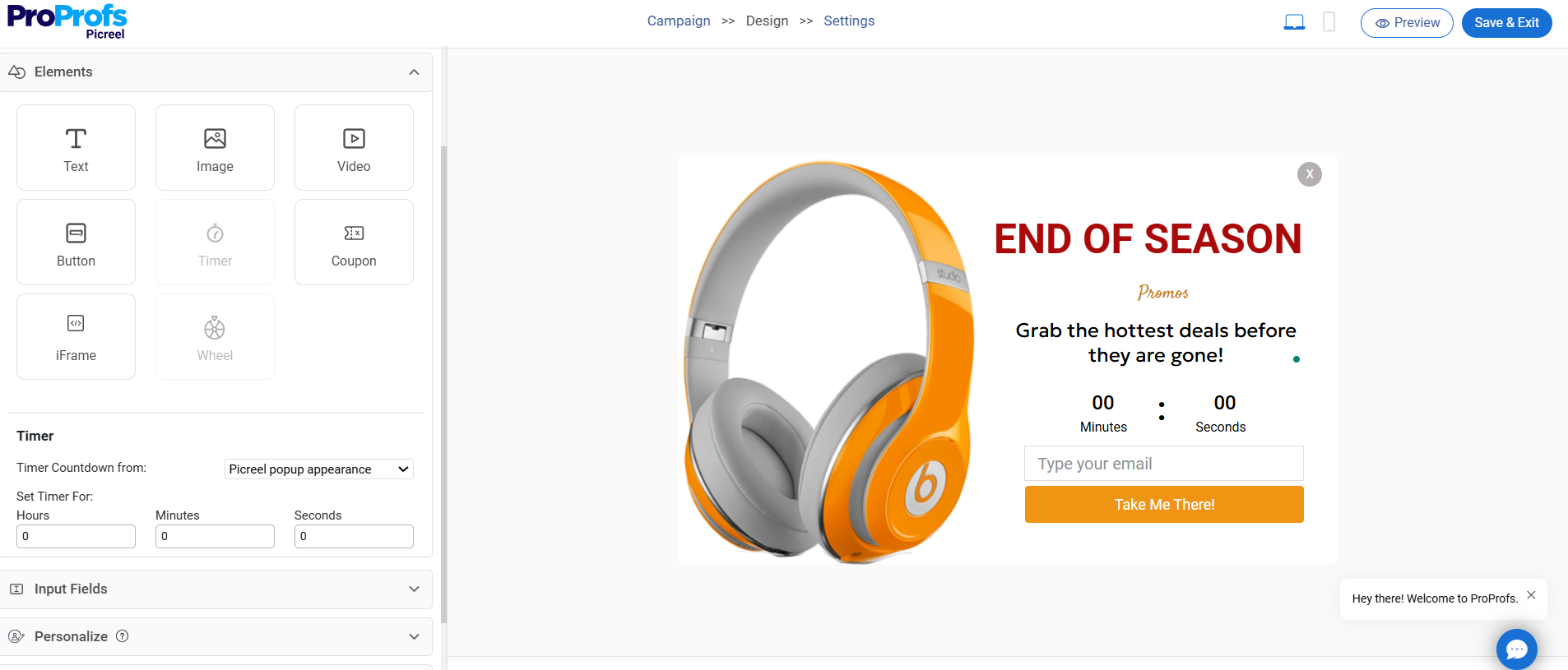
Picreel stands out in the Shopify app marketplace for its ability to convert visitors into leads with its advanced features. I like how easy it is to add countdown timers to any custom or ready-made popup design by clicking on the timer in the elements section and setting the time.
The smart triggers are a huge plus because I can show a countdown timer for Shopify at the right moment, like when someone is about to leave or after they have been idle for a while. That solves the biggest problem with unreliable apps that either look spammy or trigger at the wrong time. On top of that, Picreel’s advanced targeting and A/B testing give me control.
The best part is that it lets me stay GDPR compliant by adding a consent checkbox and information about data usage in a few clicks.
Pros
- Smart triggers to show countdowns on exit intent, inactivity, or scroll, capturing visitors before they leave.
- Advanced targeting to display timers by location, device, or traffic source for more relevant offers.
- Drag-and-drop builder to create branded countdown popups quickly without needing code.
- A/B testing and popup analytics to track designs and offers that bring the highest conversions.
- 700+ integrations to connect with HubSpot, Klaviyo, Campaign Monitor, and other tools effortlessly for better lead management and nurturing.
Cons
- No downloadable or on-premise version is available, though the cloud setup gives you instant access without installs.
- A dark user interface option is not available, yet the light theme offers a clean and easy-to-read layout.
Price
Forever free plan for up to 5,000 visitors/month with all features. Paid plan starts at $9.99/month
2. Hextom – Best for Flexible and Targeted Sales Timers
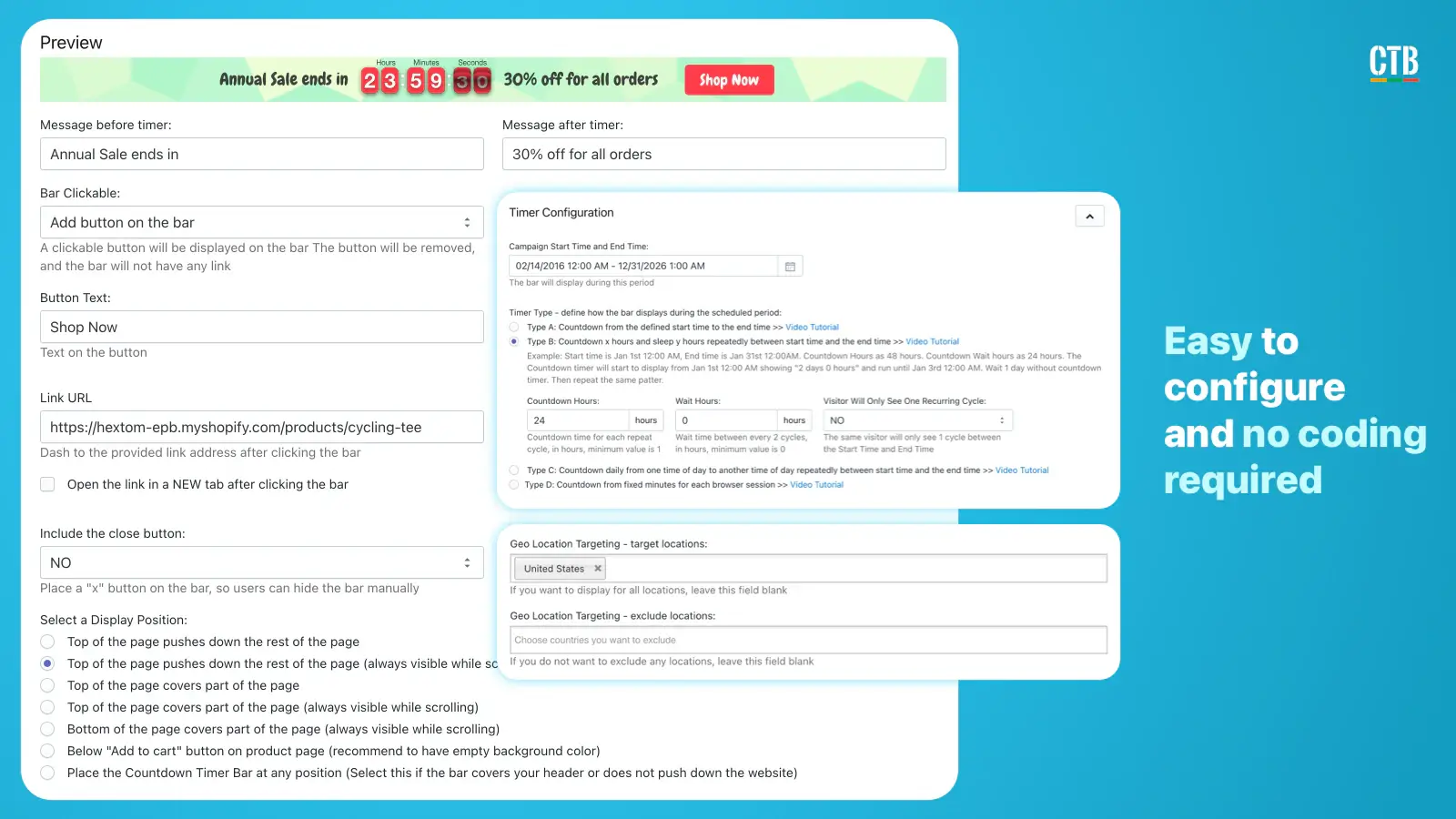
The Countdown Timer Bar by Hextom is a versatile countdown timer app for Shopify that allows store owners to display countdown timers either at the top or bottom of their websites. I like that I can set up one-time, auto-recurring, daily, or weekly timers depending on the type of promotion I’m running.
The targeting options are a big win, too. I can run countdowns for specific customers, products, devices, or even by location and Shopify markets, which helps me avoid the “one-size-fits-all” approach that turns shoppers off. I can also fully customize the look with animations, backgrounds, and text so the timer matches my store’s design.
Pros
- Multiple timer types including one-time, recurring, daily, and weekly to fit any sales event.
- Advanced targeting across location, markets, customer, product, page, and device for personalized promotions.
- Scheduling features to plan campaigns in advance for events like Black Friday.
- Customization with animations, styles, and text to align with store branding.
- Multi-language support including English, French, Chinese, Spanish, Italian, Portuguese, German, and Japanese.
Cons
- Advanced customization may require working with CSS, which could be tricky for non-technical users.
- Limited mainly to countdown timers, so it does not offer broader popup or lead capture features like some all-in-one tools.
Price
Starts at $9.99 per month
3. POWR
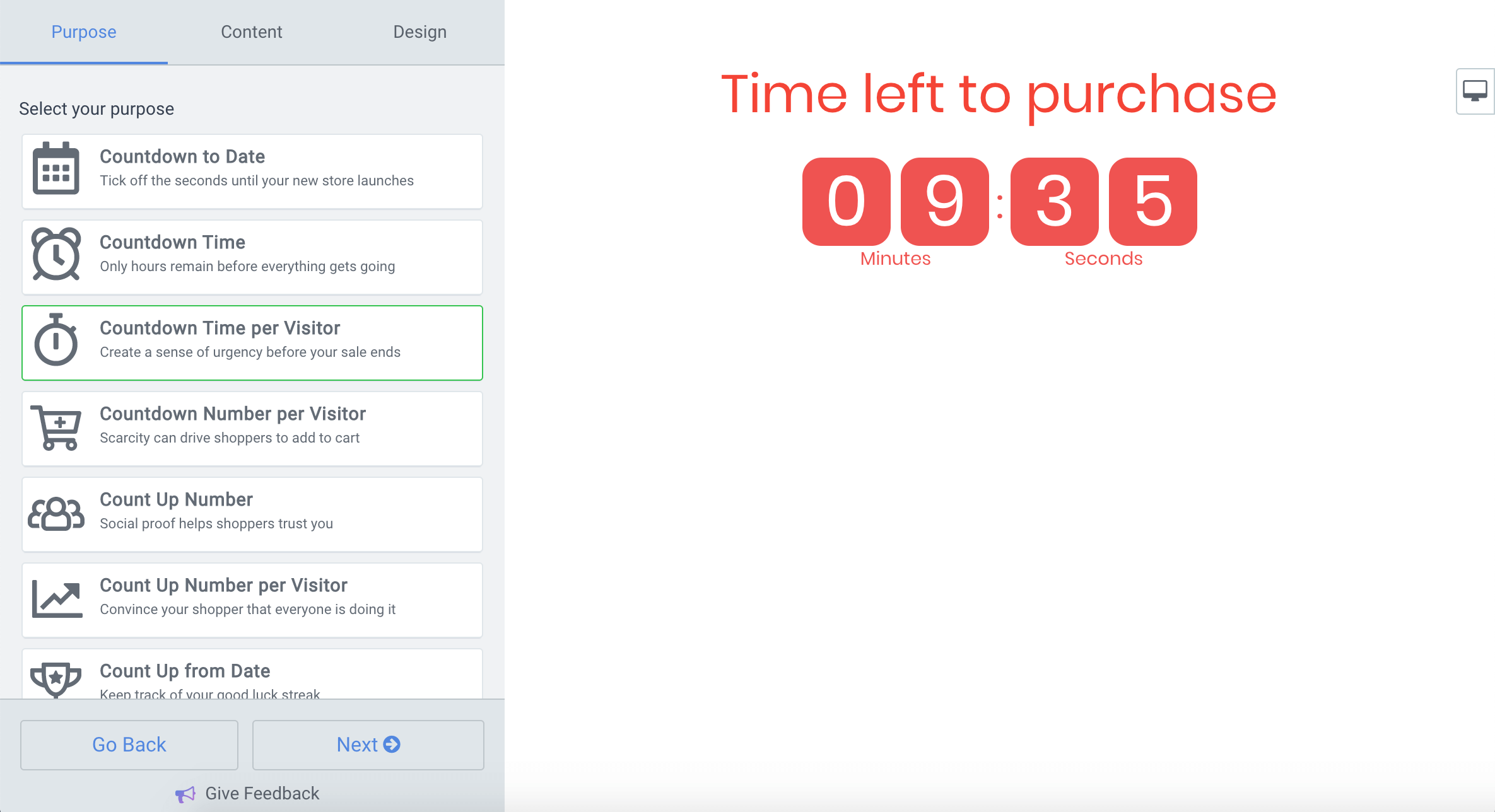
POWR Countdown Timer is a great option to quickly add urgency to sales events without spending too much time on setup. I can place a countdown timer for Shopify on product pages, carts, or landing pages to use them for flash sales, product launches, or seasonal promotions.
The pre-built templates save me time, but I also like having the freedom to customize layouts, animations, and styles so the banners fit my store design. Another helpful feature is the count-up option, which lets me show store visits to build social proof and trust. It is simple, effective, and designed for merchants who need a straightforward countdown solution for their Shopify store.
Pros
- Product countdown timers to drive urgency around launches or limited-time offers.
- Landing page countdown bars to highlight promotions on specific campaigns.
- Pre-built templates for fast setup without extra design work.
- Custom layouts with options for banners, fixed headers, and cart countdowns.
- Count-up feature to showcase visits and build customer trust.
Cons
- Timers may reactivate unexpectedly, showing content without your control.
- Customer support can be slow to resolve issues or follow up on bugs.
Price
Starts at $5.49 per month
How to Implement a Shopify Countdown Timer (Step-by-Step)
Trust me, getting started with a countdown timer is easier than you think. Follow these simple steps to set it up the right way and make sure it actually drives more sales and signups.
Step 1: Define Campaign Goal
Before you add a Shopify countdown sales timer, you need to decide what business result you want it to drive. Defining a goal means writing down one clear outcome, why it matters, and how you will measure it. Here’s how you can think about it:
- Lead Generation: To grow your list, you might want to collect 200 new emails this month. Use a popup timer with a discount or free shipping offer, and track the sign-ups in Klaviyo or HubSpot.
- Boosting Sales: You might set a goal to increase conversions by 10% during your next sale because even a small bump means more revenue. Add timers to product or cart pages and monitor completed orders.
- Improving Engagement: Suppose your goal is to keep visitors on your site longer so they are more likely to come back and buy. Place timers in banners or landing pages for events or launches, then measure clicks or time spent.
Step 2: Pick the Right Timer Type
Once you know your goal, the next step is choosing the right timer type. The timer format should match the action you want customers to take.
Here are the Shopify countdown timer formats you can take inspiration from:
- Popup Timer for Lead Generation: You must use it to capture emails or phone numbers in exchange for an offer on your home or product pages.

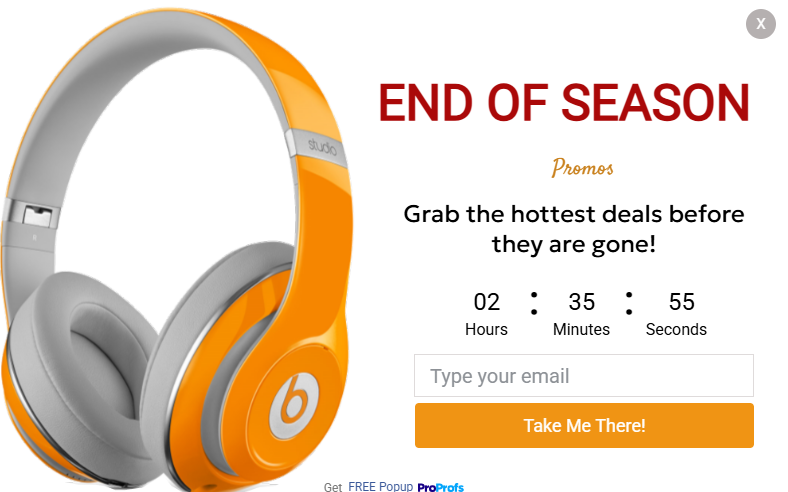
- Bar Timer for Sitewide Promotions: Place the hello bar at the top of your store during a flash sale or holiday event so every visitor sees the deadline.

Step 3: Choose an App & Estimate ROI
Now that you know your goal and the timer type, it’s time to pick the app that fits best. In the app list above, you’ve already seen three strong Shopify countdown timer options. Don’t just install one randomly.
Instead, match the app to what you need most by checking these points:
| Criteria | What to Look For |
|---|---|
| Ease of Use | An app that lets you launch timers without coding. You should be able to set it up in minutes. |
| Free Plan | A free tier with more than the basics. Look for smart triggers, email sync, or at least basic analytics. |
| Conversion-Ready Features | Exit-intent, scroll triggers, or time delays that catch shoppers at the right moment. |
| Integrations | Direct connections with tools like Klaviyo or HubSpot without messy workarounds. |
| Flexible Design Options | Control over fonts, colors, placement, and the ability to test variations so timers fit your brand. |
| Multi-Site Support | One tool to manage timers across multiple Shopify stores under a single account. |
| Privacy Tools | Built-in GDPR compliance and cookie consent to keep your campaigns safe and trustworthy. |
| Real Reviews | Verified feedback on G2 and Shopify app store to ensure the app works in real stores. |
Step 4: Customize for Branding & Compliance
Let’s assume you picked a tool like Picreel. Once you’re in, go to the campaigns and select your goal, like lead capture or seasonal promotio,n to find a massive library of ready-made custom templates.
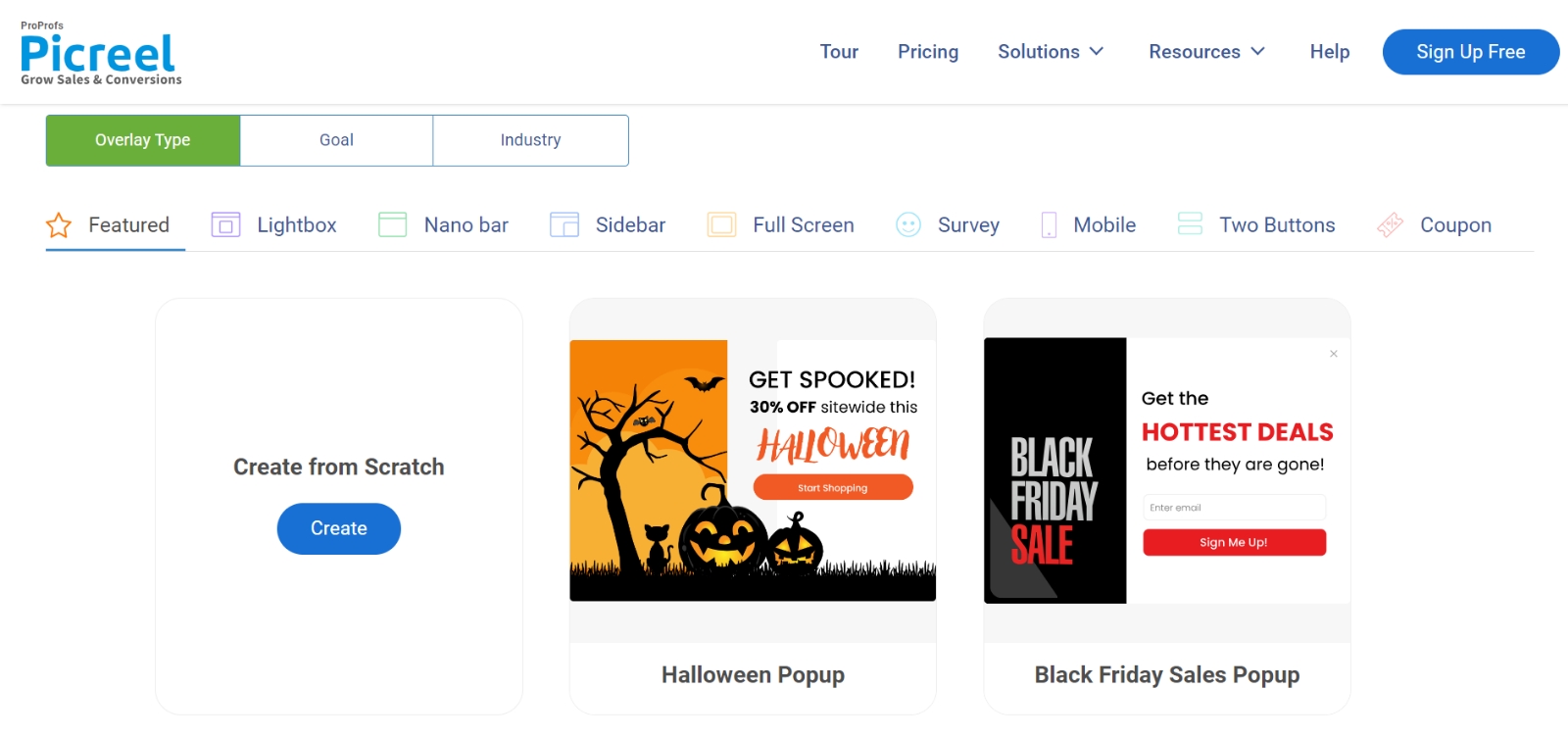 The next step is to make the Shopify countdown sales timer popup look on-brand and fully compliant. Here’s how:
-
- Layout: Choose a lightbox popup if you want all attention on a signup or discount offer. In Picreel, you can select a centered lightbox template from the design library. For a subtle approach, try a nanobar at the top of your site. This works best for sitewide events like Black Friday or free shipping deadlines.
- Design: Match your brand colors and use contrast so the timer is visible. Tools like Picreel let you easily tweak background, buttons, and borders to fit your style.
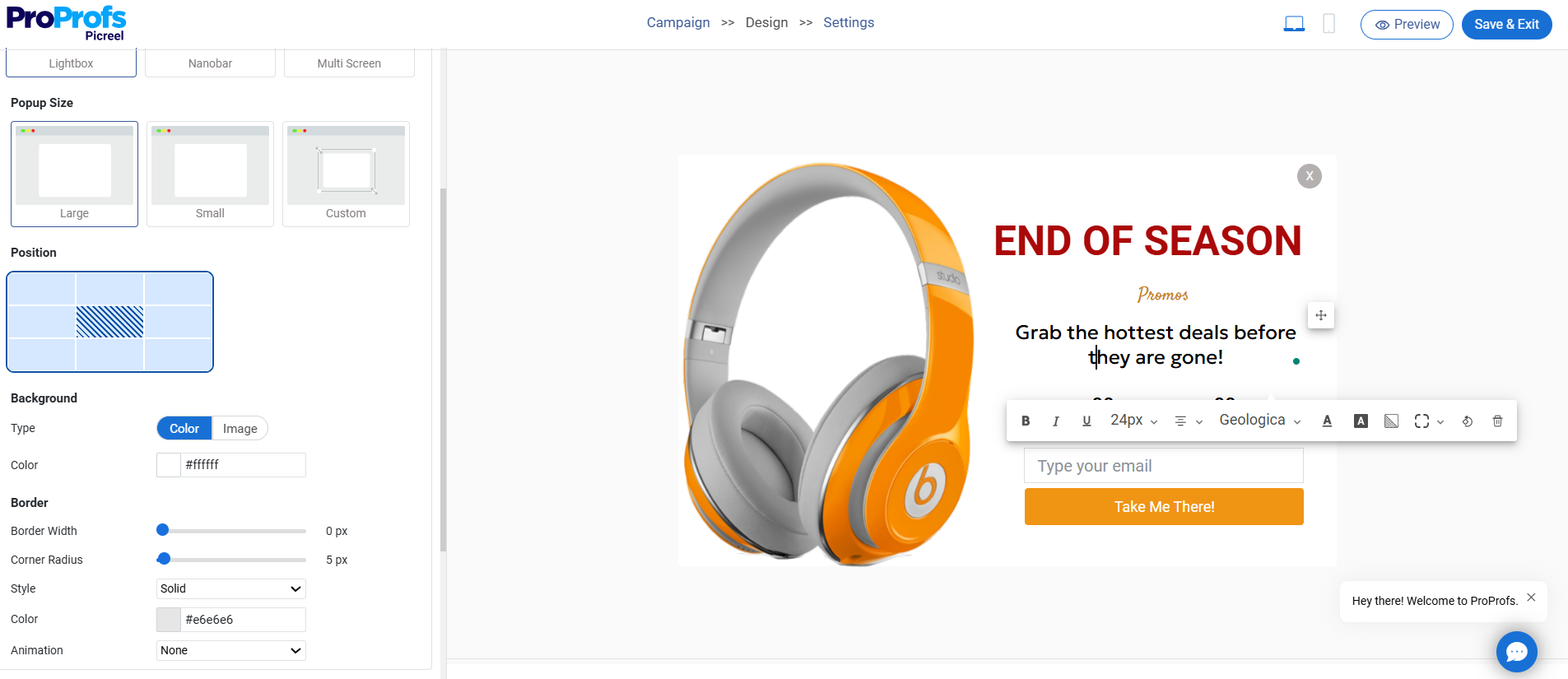
- Fonts: Stick with clean fonts like Open Sans, Roboto, or Lato. You can usually change fonts inside the editor by clicking on a particular text.
- Fields: Keep it simple with just name and email.
- Copy: Write a benefit-driven headline and a strong call-to-action. For example: “Get 10% Off Before Time Runs Out” with a button like “Claim My Deal.” If you need inspiration, use this AI prompt: “Write a persuasive popup copy to [achieve specific goal] for [target audience], offering [incentive or value], using a friendly and action-oriented tone.”
- Countdown Setup: Add the countdown timer element from the elements section. Set the date and time so it aligns with your campaign goal. This will ensure it doesn’t reset endlessly and position your offer as a limited-time deal.
- Visuals: Upload a product image, or pull free high-quality photos from Unsplash. If you want more engagement, embed a short video from Vimeo or add a GIF using GIPHY.
- Compliance: Enable GDPR consent checkboxes from the input fields section. This ensures your email collection stays compliant and builds trust with international customers.
- Personalize: Use dynamic attributes like {picreel_names}, {picreel_email}, or {picreel_city} to customize popups. This makes messages more relevant and engaging for each visitor.
Step 5: Decide Targeting & Triggers
Timers work best when they show up at the right time for the right visitor. Instead of blasting everyone, use targeting and triggers in Picreel’s campaign settings to make them feel relevant.
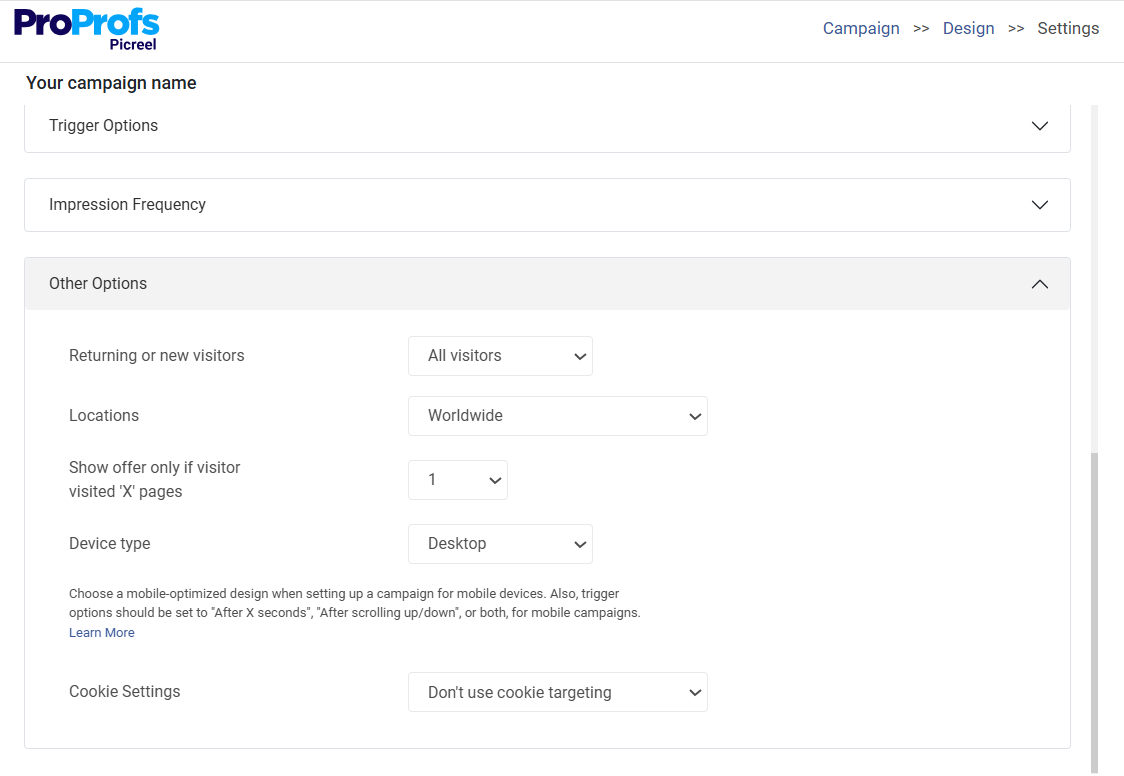
- Target by Audience: If your goal is lead generation, show timers only to new visitors, or segment by location to highlight offers in regions that bring the most sales.
- Target by Behavior: Trigger your timer after 40% scroll depth, after 10–15 seconds on a page, or when someone is about to exit. This way, you catch shoppers already engaged or about to leave.
- Target by Device: Always enable mobile targeting, since most Shopify traffic now comes from phones. Make sure the countdown displays cleanly on smaller screens.
- On Click (CSS Selector): Show the popup when visitors click a button, link, banner, or any element. Add the element’s CSS class (.class) or ID (#element_id) to trigger the popup.

Step 6: Launch & Measure Popup Success
Once you’ve customized your Shopify countdown timer popup, it’s natural to encounter this question — “How to add a countdown timer on Shopify?” To do so, just hit save in your app and head to the Install Campaign section. Copy the JavaScript snippet and paste it into your Shopify store’s theme. That’s all it takes to launch the timer on Shopify site.
After a few days, check the Reports & Analytics section in your app. Look at simple numbers first: conversions, cart abandonment, and new email signups.

If the results look flat, use built-in A/B testing to try different CTAs, colors, or offers. The goal is not to obsess over every detail but to keep testing small tweaks until your timer clearly drives results.
Turn Urgency Into Conversions With Shopify Countdown Timer
Shopify countdown timers are not cheap hacks. They’re strategic tools that, when used authentically, can turn urgency into real results. The key is to tie them to genuine campaigns, keep them on-brand, and use them to improve the shopping experience instead of hurting it.
If you’re new to timers, start small. Test one during a flash sale or cart recovery campaign, track the results, and tweak as you go. Over time, you’ll determine exactly what works for your store and customers.
If you’re looking for a tool to start with, I recommend Picreel. It lets you add countdown timers inside popups in minutes, target the right visitors with smart triggers, and stay GDPR compliant without extra effort. Plus, it integrates with Klaviyo, HubSpot, and 700+ other tools, so your leads never fall through the cracks.
So why wait? Try Picreel today and see how a Shopify countdown timer can boost your sales and help you capture more leads.
FREE. All Features. FOREVER!
Try our Forever FREE account with all premium features!

 We'd love your feedback!
What did you like & how can we make it even better?
 Thanks for your feedback!
 Ask Your Question
Have a question? Get expert help to make your decision easier.