

If you have recently installed Google Analytics, Meta Pixel, or any live chat widget on your WordPress site, your site is already setting cookies that require visitor consent.
Without a cookie popup, you are collecting data before anyone has agreed to it. That can put you at risk under GDPR, CCPA, and similar privacy laws.
One of the fastest ways to fix this in WordPress is with Picreel. It takes about 10 minutes to set up, requires no coding, and gives you a fully customizable cookie consent popup that you can control from a single dashboard.
In this guide, I will walk you through exactly how to add a cookie popup in WordPress using Picreel. You will learn how to install the plugin, configure your banner, link your cookie policy, and verify that tracking scripts are blocked before consent is given.
What Is a Cookie Popup and Why Does Your WordPress Website Need One?
But why does your WordPress website need it? Here are the primary reasons:
- Privacy laws like GDPR and CCPA require websites to get user consent before using tracking or advertising cookies.
- If you use tools like Google Analytics, Facebook Pixel, WooCommerce, YouTube embeds, or live chat widgets, your site is already setting cookies that may require permission.
- These cookies can track visitor behavior, sessions, and marketing activity.
- Beyond compliance, a transparent cookie notice helps build visitor trust, especially for e-commerce and service businesses.
- Ignoring these rules can lead to compliance risks, failed audits, and reduced trust.
Thankfully, setting up a cookie popup in WordPress usually takes only a few minutes.
How to Add a Cookie Popup in WordPress Using a Plugin
Most WordPress users rely on plugins to add a cookie popup because it keeps everything simple, compliant, and beginner-friendly. The process is almost the same across all tools, and once you understand the basic flow, you can set up your cookie notice in just a few minutes.
I am using Picreel as the example here because I have personally used it to create cookie popups and found it to be effortless and straightforward to work with.
Step 1: Install and Activate the Plugin
Go to your WordPress dashboard, then navigate to WordPress Popup Plugins → Add New. Search for your preferred cookie popup plugin. Click Install Now and then Activate.
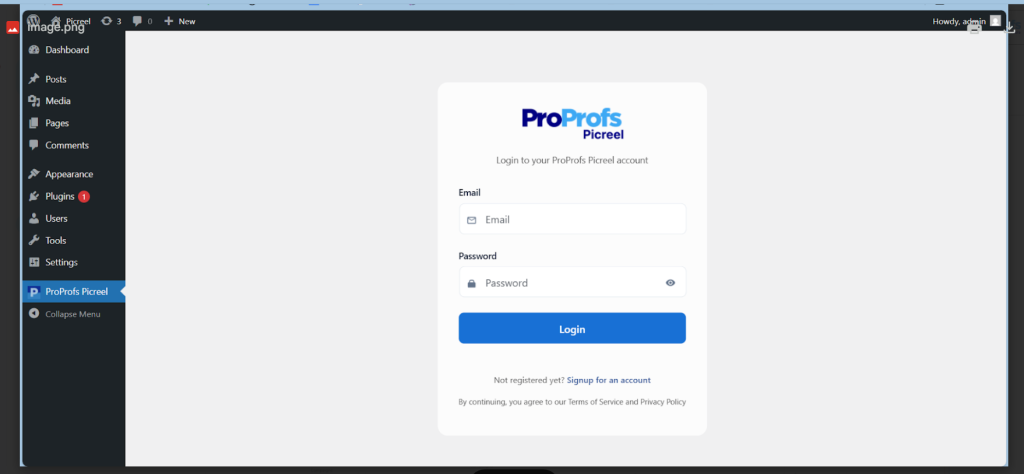
Once it is active, you will see the plugin added to your admin menu or settings panel. From there, open the plugin’s dashboard to set up and manage your cookie consent banner.
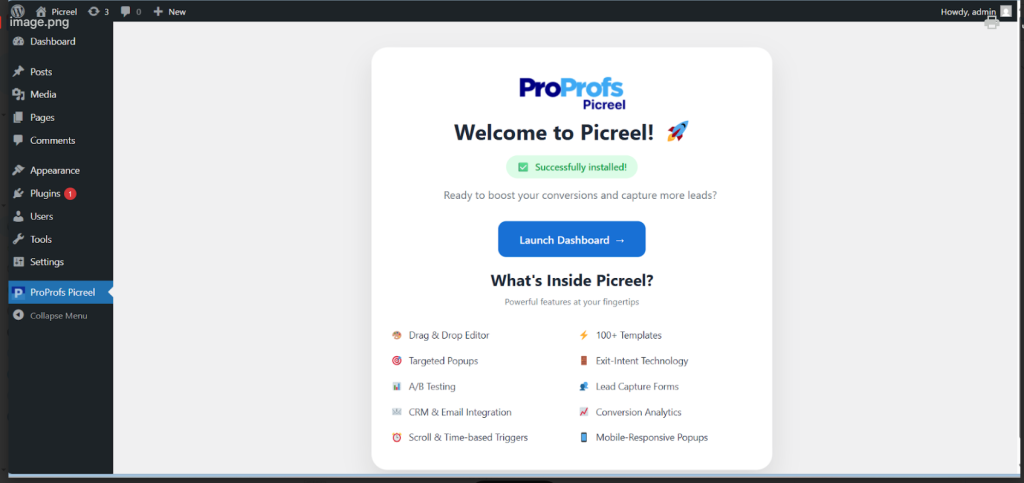
This is where you will configure the design, customize the message, add your policy link, and control how the popup behaves for your visitors.
Step 2: Configure Your Cookie Banner Message
Once you have opened the dashboard, pick a cookie consent popup template or create one from scratch. For layout, a slim bottom bar or side bar is usually better for UX than a large modal. It looks cleaner, especially on mobile, and it does not block content in a way that frustrates visitors.
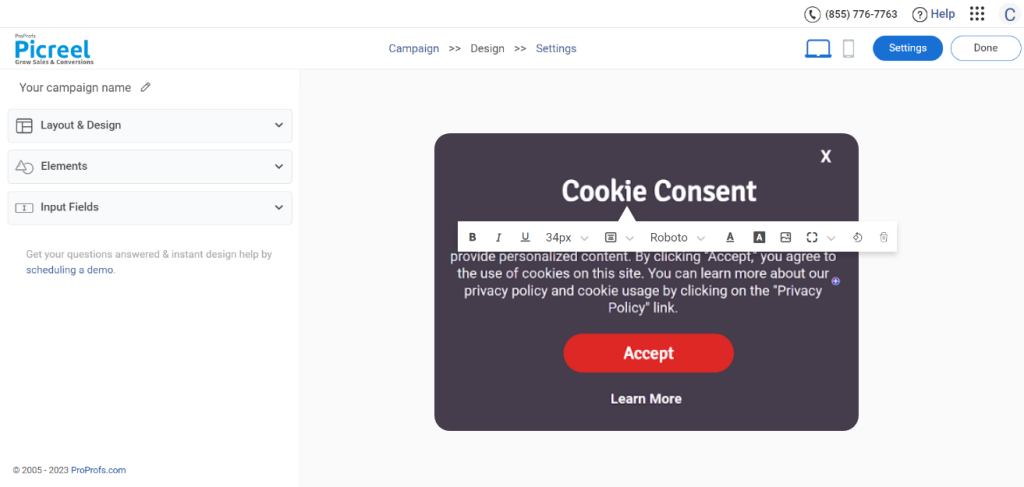
- Colors and typography: Match your banner background and button colors to your brand palette. Use the same font family your site uses, or at minimum choose something neutral that does not clash. Avoid using a default blue and white banner on a site with a completely different visual identity.
- Button text: Default text like “Got it” or “OK” does not communicate consent clearly. Use something that tells the visitor exactly what they are agreeing to. “Accept All Cookies” and “Reject Non-Essential” are clearer and more compliant than vague single-word buttons.
- Position and size: A slim bar along the bottom of the screen is the least intrusive and works well across devices. A center modal works if you want higher engagement with the consent decision, but it can feel aggressive. Side slide-ins are a good middle ground for sites that want to keep the banner visible without blocking content.
- Mobile layout: Always preview the banner on a mobile screen size before publishing. Buttons that are too small, text that wraps awkwardly, or a banner that covers too much of the screen on a phone will frustrate visitors and increase rejection rates. In the settings, choose the mobile layout to show those popups properly.
- Link Your Cookie Policy: Once your Cookie Policy page is ready (more on how to create it below), copy its URL and paste it inside your cookie popup under the Learn More, Policy, or Privacy Link field. This step is essential because regulators expect the popup to link directly to your policy page so visitors can read the full details before making a decision.
- Message tone: Write in the same voice your site uses. If your brand is casual and friendly, the cookie message should be too. try something clear like: “We use cookies to improve your experience and show you relevant content. Would you like to continue?” Friendly language increases acceptance rates and reduces visitor frustration. Legal-sounding copy makes people click away or dismiss the popup without reading it.
Step 3: Set Targeting Rules, Save, and Clear Your Cache
When your popup looks good, go to the campaign settings and set the popup to appear either immediately or just a few seconds after someone lands on your website.
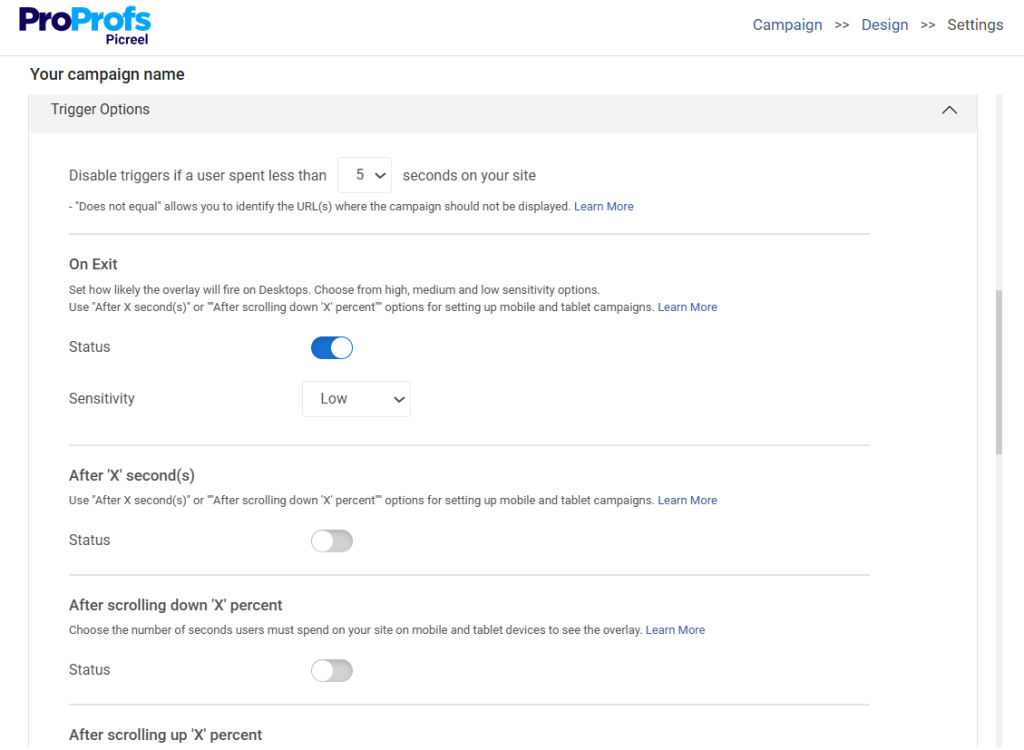
- For cookie consent specifically, I recommend showing it immediately on the first visit. Delaying it, even by a few seconds, means scripts might fire before consent is collected, which defeats the purpose.
- You can also use Picreel’s targeting options here to control which pages the popup appears on, which visitor segments see it, and whether returning visitors who have already consented see it again.
- Click Save inside the plugin, then clear your caching plugin so the banner loads properly for all visitors. If you use WP Rocket, W3 Total Cache, or any similar tool, go flush the cache now. Skipping this step is the most common reason a cookie popup does not appear right after setup.
Step 4: Test Your Cookie Popup Before Going Live
Before you consider it done, test your cookie popup the way a real visitor would. Open a private or incognito window and run through this checklist:
Appearance and behavior:
- Popup shows up immediately on the first visit
- Popup appears before any non-essential script loads
- Banner displays correctly on mobile — buttons are large enough to tap without zooming
- Popup appears the same way in incognito mode every time
- Clearing cookies and returning to the site shows the popup again
Script blocking verification:
- Open DevTools → Network tab → type “analytics” or “pixel” in the filter
- Nothing should load until you click Accept
- After clicking Accept, analytics and tracking scripts fire correctly
- After clicking Reject, tracking scripts remain blocked on every refresh
- Works correctly even with caching or minification turned on
Multilingual and edge cases:
- Banner displays correctly for multilingual visitors if your site serves multiple languages
- Popup integrates correctly with your page builder without visual conflicts
If everything passes, your setup is more compliant than the majority of WordPress sites out there. Most site owners either skip the test entirely or only check that the banner appears visually, without verifying that scripts are actually blocked before consent.
How to Create a Cookie Policy Page (And Link It Correctly)
Before your cookie popup goes live, you need a Cookie Policy page. Your cookie popup and Cookie Policy page work together. The popup gives visitors a quick summary. The Cookie Policy page gives them the full details.
You can create the page directly inside WordPress.
- Go to: WordPress Dashboard → Pages → Add New.
- Then create a page titled: Cookie Policy.
- Inside this page, explain what cookies are and how your website uses them.
- You can write this manually, or you can use tools like Complianz or CookieYes to generate a basic Cookie Policy page. These tools can scan your site, identify cookies, and create a ready-to-edit policy so you do not miss important details.
Whether you write the page yourself or use a generator, I would make sure it includes:
- What cookies are
- Types of cookies your site uses
- Why each cookie type is used
- Which third-party tools may place cookies
- How visitors can manage or withdraw consent
- A link to your Privacy Policy
- Your contact email
For example, if your WordPress site uses Google Analytics, Meta Pixel, YouTube embeds, WooCommerce, or email marketing forms, mention those categories in plain language.
You do not need to make the page unnecessarily complicated. The goal is clarity.
A simple Cookie Policy page can include sections like:
1. What Are Cookies?
Explain that cookies are small files stored in a visitor’s browser to help the site remember preferences, measure performance, or improve the browsing experience.
2. What Types of Cookies Do We Use?
Break this into categories such as:
- Necessary cookies
- Analytics cookies
- Marketing cookies
- Preference cookies
- Third-party cookies
3. Why Do We Use Cookies?
Explain the purpose behind each category.
For example:
- Necessary cookies help the website function.
- Analytics cookies help us understand how visitors use the site.
- Marketing cookies help us show relevant offers or measure ad performance.
4. How Can Visitors Manage Cookies?
Explain that visitors can accept, reject, or manage cookie preferences through your banner. You can also mention that they can clear cookies from their browser settings.
5. How Can Visitors Contact You?
Add a contact email so people know where to send questions.
Once your Cookie Policy page is ready, publish it. Then copy the page URL. Next, add it to your website footer:
- Go to: Appearance → Menus
- Add your Cookie Policy page to the footer menu or legal menu.
- Then go back to your cookie popup plugin and paste the same URL into the policy link field.
This way, visitors can access the policy from both places:
- The cookie popup
- The website footer
That is the cleanest setup.
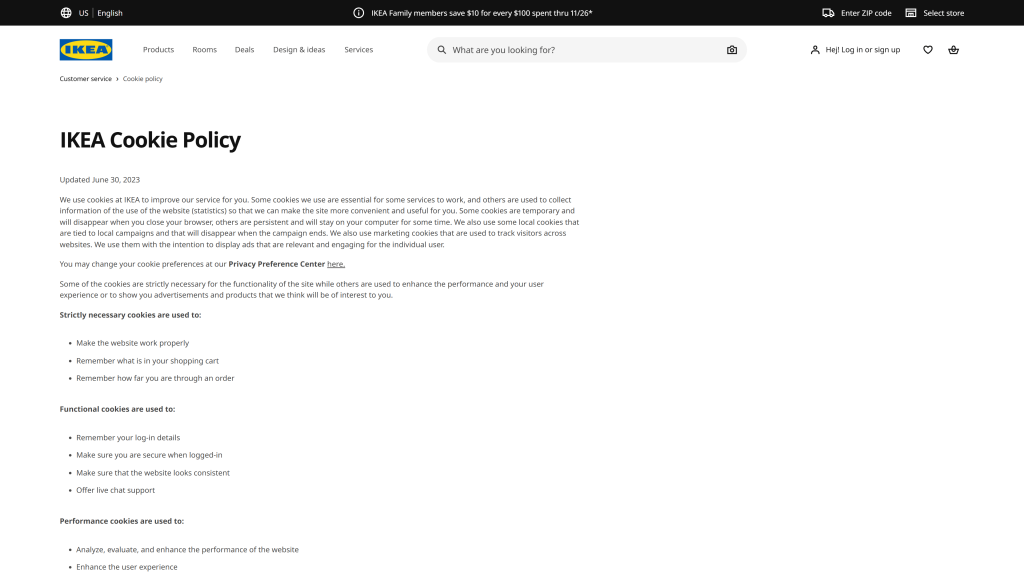
You can look at large brand cookie policy pages, such as IKEA’s, for inspiration. I would not copy them word for word, but they are useful for understanding how companies organize cookie categories, visitor choices, and policy details.
10 Common Mistakes That Make WordPress Cookie Popups Non-Compliant
I have seen many WordPress site owners assume that installing a cookie popup automatically makes their website compliant.
But in my experience, the way the banner actually functions matters just as much as having it on the site. Here are some of the most common mistakes I notice and how I would fix them.
1. Scripts Firing Before Consent
Many websites load Google Analytics, Facebook Pixel, or other tracking scripts before a visitor clicks “Accept.” This makes the banner ineffective from a compliance perspective.
Fix: Use a cookie consent plugin that blocks tracking scripts until consent is given. Test your site in incognito mode to confirm no tracking cookies load before approval.
2. No Clear Reject Button
Some banners make the “Reject” option difficult to find or less visible than the “Accept” button. Regulators consider this misleading.
Fix: Make the reject button equally visible and accessible so visitors can easily decline non-essential cookies.
3. Linking Only to a Privacy Policy
A privacy policy explains how you handle personal data, but it may not fully explain cookie usage. Visitors need specific details about the cookies being used.
Fix: Create a dedicated cookie policy or expand your privacy policy to include detailed cookie information, categories, and purposes.
4. Forgetting to Update the Banner
Adding new plugins, analytics tools, or marketing scripts can introduce new cookies without updating your consent settings.
Fix: Review your cookie categories and policy page whenever you install new tracking or third-party tools.
5. Cookie Banners Causing Layout Shift
Some banners load late and push content down the page, which negatively affects Core Web Vitals and user experience.
Fix: Choose a lightweight cookie consent plugin that loads smoothly without shifting page elements. Test performance using Google PageSpeed Insights.
6. Hidden Pricing Limits in Paid Plugins
Certain cookie consent tools charge based on page views or sessions, which can become expensive as traffic grows.
Fix: Check pricing models carefully before choosing a plugin and ensure the plan can scale affordably with your website traffic.
7. Long and Confusing Cookie Messages
Some websites overload visitors with large blocks of legal text inside the popup, making the message difficult to understand.
Fix: Keep the message short and simple. Explain what cookies are used for and provide clear options to accept, reject, or manage preferences.
8. Poor Mobile Experience
A cookie popup that works on desktop may become frustrating on mobile devices if buttons are too small, text overlaps, or the banner blocks navigation.
Fix: Test the popup on different screen sizes and make sure buttons, text, and close options are easy to use on mobile.
9. Popup Design That Feels Spammy
Cookie banners that clash with your website design can reduce trust and make the popup feel suspicious or intrusive.
Fix: Match the popup design with your brand colors, fonts, and button styles so it feels like a natural part of your website.
10. Too Many Popups Appearing Together
Visitors can quickly become overwhelmed if they see a cookie banner alongside newsletter popups, chat widgets, discount offers, and browser notification prompts at the same time.
Fix: Use popup targeting and timing controls to avoid overwhelming visitors. Show the right message at the right moment instead of displaying every popup immediately.
FREE. All Features. FOREVER!
Try our Forever FREE account with all premium features!
How to Block Cookies Before User Consent in WordPress
I have noticed that many WordPress site owners think installing a cookie popup is enough. But if analytics or advertising scripts load before a visitor accepts cookies, the setup may still be non-compliant.
This usually happens in the background without people realizing it. The banner appears correctly, but tools like Google Analytics or Meta Pixel may already be tracking visitors before consent is given.
Here is how I look at it:
- Necessary cookies help the website function and can usually load automatically.
- Non-essential cookies like analytics and marketing trackers should only load after consent.
To block these scripts before consent, I usually recommend:
- A cookie consent plugin with script blocking
- Google Tag Manager consent settings
- A consent management platform
If you are a beginner, starting with a plugin is the easiest option.
After setup, I always test the website manually:
- Open the site in incognito mode
- Open DevTools and go to the Network tab
- Refresh the page before accepting cookies
- Check whether tracking scripts load
- Accept cookies and test again
For me, the goal is not just showing a cookie banner. It is making sure the visitor’s choice is actually respected before tracking begins.
WordPress Cookie Popup Compliance Checklist
Use this checklist every time you set up or update your cookie popup. Keep it saved somewhere you can come back to whenever you add new tools or make changes to your site.
Initial Setup
- [ ] Cookie consent plugin installed and activated
- [ ] Consent mode configured for GDPR and/or CCPA as relevant
- [ ] All three buttons present: Accept All, Reject Non-Essential, Preferences
- [ ] Accept and Reject buttons equally visible and accessible
- [ ] Cookie Policy page created and published
- [ ] Cookie Policy URL linked inside the popup
- [ ] Cookie Policy URL added to footer menu
Technical Verification
- [ ] Scripts blocked before consent verified in incognito mode
- [ ] Analytics fires correctly only after Accept is clicked
- [ ] Tracking remains blocked after Reject across page refreshes
- [ ] Banner loads without causing layout shift (CLS tested)
- [ ] Site cache cleared after plugin setup
- [ ] Popup displays correctly on mobile
Ongoing Maintenance
- [ ] Cookie categories and policy page updated when new tracking tools are added
- [ ] Popup design reviewed if site theme or branding changes
- [ ] Compliance setup re-tested after major WordPress or plugin updates
- [ ] Pricing model of the plugin reviewed if traffic grows significantly
Build a Cookie Experience Your Visitors Can Trust
Adding a cookie popup in WordPress should not stop at simply displaying a banner. The real goal is making sure your tracking scripts, consent settings, and privacy messaging actually work the way visitors expect them to.
Throughout this guide, we covered how to create a compliant cookie banner, block scripts before consent, avoid common setup mistakes, and properly connect your Cookie Policy page. We also looked at ways to keep the experience fast, mobile-friendly, and less intrusive for users.
If you need more flexibility than a basic cookie notice plugin offers, Picreel is worth exploring. It gives you better control over targeting, popup behavior, customization, reporting, and WordPress integration while helping you balance compliance with user engagement.
Before making changes, test your current setup in incognito mode. Open your browser’s Network tab and reload the page before accepting cookies. If tools like Google Analytics, Meta Pixel, or ad scripts start loading before consent is given, your current setup likely is not compliant. That is exactly the gap this guide is designed to help you fix.
Frequently Asked Questions
Do I need a cookie popup on my WordPress site?
Yes, if your site uses any non-essential cookies such as analytics, advertising, or behavioral tracking, you are legally required to collect consent before those cookies run under GDPR, CCPA, and similar privacy laws. Even if your visitors are not primarily from Europe or California, most hosting providers and ad platforms now expect compliance. Adding a cookie popup is the standard first step.
Is there a free plugin to add a cookie popup in WordPress?
Yes. Complianz, CookieYes, and Picreel all offer free tiers that cover the core compliance requirements for most WordPress sites. The free versions allow you to add a consent banner, set cookie categories, and link your policy page. Paid versions typically unlock advanced customization, A/B testing, detailed analytics, and additional targeting features.
How do I make my WordPress cookie popup GDPR compliant?
A GDPR compliant cookie popup must include a clear Accept All option, an equally visible Reject Non-Essential option, and a Preferences panel where visitors can manage categories. It must also link to your Cookie Policy page and ensure that non-essential tracking scripts do not load until after the visitor clicks Accept. Test in incognito mode to verify script blocking is working.
Will a cookie popup slow down my WordPress site?
It depends on the plugin. Heavy or poorly optimized consent management platforms can affect page speed and cause Cumulative Layout Shift. Lightweight plugins like Picreel are designed to load fast without affecting Core Web Vitals. After setup, run your site through Google PageSpeed Insights to check for any performance impact from the new banner.
Can I add a cookie popup in WordPress without a plugin?
Yes, but it requires adding custom code to your theme's functions.php file or using a header script manager. You would need to write the HTML for the banner, handle the consent logic in JavaScript, and ensure scripts are blocked before consent. This approach gives you full control but is not recommended for non-developers. For most site owners, a plugin is faster, safer, and easier to maintain.
How do I block cookies before a user gives consent in WordPress?
Most reputable cookie consent plugins handle this automatically by wrapping third-party scripts in conditional loading logic. In Picreel and similar tools, you configure which scripts belong to which cookie category, and the plugin ensures those scripts do not load until the corresponding consent is given. You can verify this is working by opening DevTools in an incognito window and checking that no analytics or pixel scripts fire on page load before you click Accept.
What is the difference between a cookie banner and a cookie popup?
A cookie banner is typically a slim bar that appears at the bottom or top of the screen and stays in the background while the visitor browses. A cookie popup is a more prominent overlay or modal that appears in the center of the screen and may require interaction before the visitor can continue. Both can be compliant. Banners are less intrusive while popups tend to get higher engagement rates with the consent decision.
Can I use one plugin for both cookie consent and lead generation?
Yes. Tools like Picreel are built specifically for lead generation and cookie consent. Picreel handles cookie consent compliance while also giving you exit intent popups, URL-based targeting, behavioral triggers, and lead capture forms. This means you can manage both your compliance requirements and your conversion goals from a single plugin dashboard, which simplifies your WordPress setup considerably.
FREE. All Features. FOREVER!
Try our Forever FREE account with all premium features!

 We'd love your feedback!
What did you like & how can we make it even better?
 Thanks for your feedback!
 Ask Your Question
Have a question? Get expert help to make your decision easier.