

In conversations with business heads and marketing leaders, a common challenge keeps emerging: how to maintain user engagement without sacrificing website performance. Many are frustrated by traditional popups that either disrupt the browsing experience or slow down their site.
That’s when I started considering adding embeds and iframe popups on WordPress. They allow you to embed content such as videos, forms, or search modules directly on the page, keeping users engaged without leaving the site.
It’s a great way to interact with users. They also boost site performance by offloading heavy content to external servers, ensuring your WordPress site remains fast and responsive.
In this blog, I’ll guide you through the top iframe popup plugins, show you how to set them up, share best practices, and explain how they can drive better results for your WordPress site.
Technical Setup: How to Implement Iframe Popups in WordPress
While I believe using a popup plugin offers the most ease and flexibility for setting up iframe popups in WordPress quickly, I’ve included the Gutenberg Block Editor and Classic Editor methods as alternatives for those who prefer more manual control or are working within specific constraints.
Iframe content can be both embedded directly into the page or triggered as popups, and I’m showing both methods here for a more holistic understanding. You can choose whichever approach fits your goals whether it’s a seamless embed or a dynamic popup based on user actions.
Method 1: Creating Iframes Using the Popup Plugin
If you’re looking to boost user engagement with minimal effort, creating iframe popups using a plugin is one of the easiest and most effective methods. No coding required, just follow these simple steps to get started:
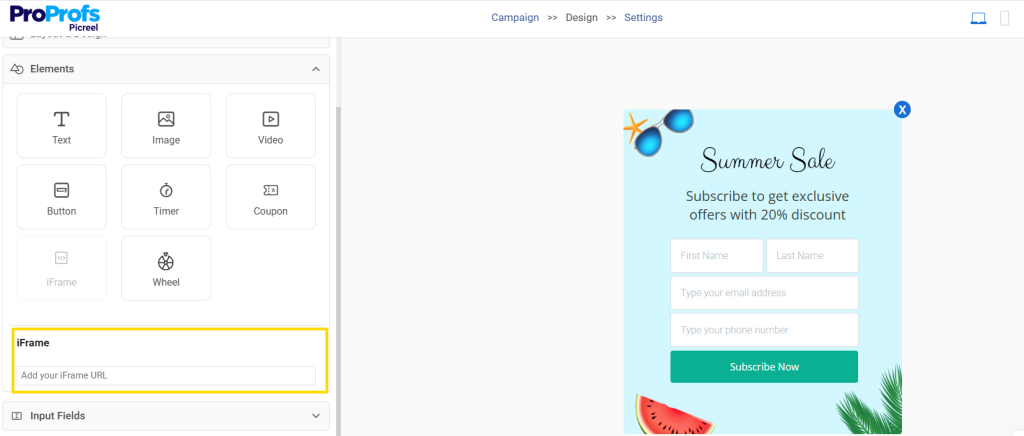
Step 1. Setting Up Your CampaignOnce you’re logged into your popup plugin (like Picreel), create a new campaign. The interface is intuitive, and when setting up the popup, choose the Iframe option to easily integrate external content like forms, videos, or maps directly into your site.
2. Customization OptionsWhat I love about this method is how easy it is to customize your iframe popup without any coding:
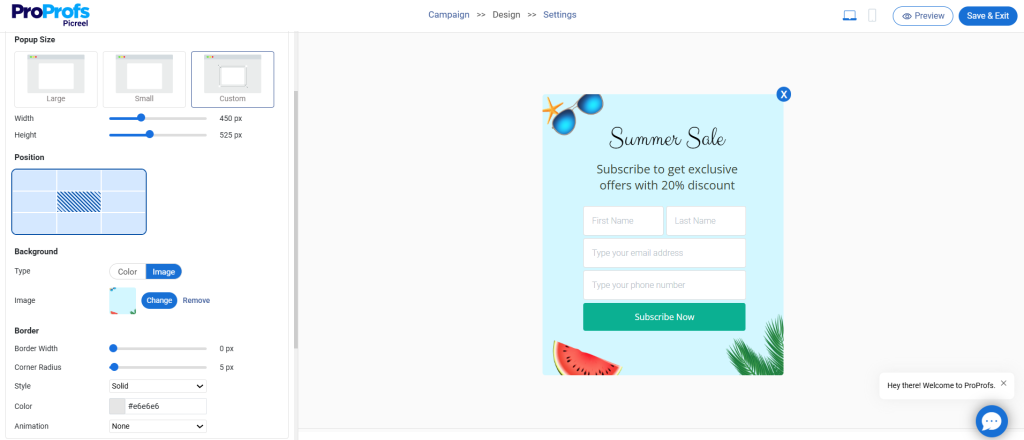
- Adjust the popup size (large, small, or custom), making it fit perfectly with your website layout.
- Choose its position on the page, whether you want it centered or placed in a specific area like the top or bottom.
- For the background, you can select a solid color or upload an image, ensuring your iframe popup aligns with your website’s branding.
- Adjust the border width and corner radius to make the popup look more polished and cohesive with your site’s overall design.
This level of flexibility allows you to create a popup that feels like a natural part of your site, making the user experience seamless and visually appealing.
3. Targeting and TriggersWith iframe popups, you get precise control over when and how your popup appears, ensuring it’s shown at the most impactful moment. Here’s how you can fine-tune the popup triggers for your iframe popup:
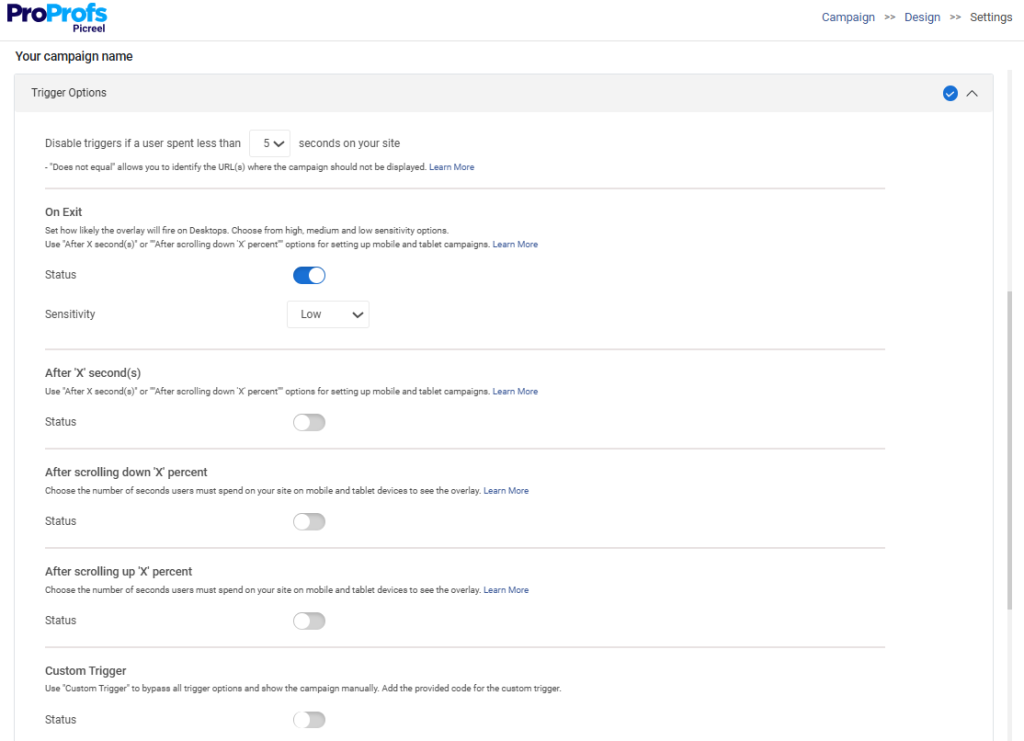
- Exit Intent: Trigger the popup when a user moves their cursor toward the top of the page, indicating they might leave. Perfect for capturing attention before they exit.
- Time on Page: Set the popup to appear after a user has spent a specific amount of time on your page (e.g., after 10 seconds).
- Scroll Depth: Show the popup after a user scrolls a certain percentage of the page, ensuring it’s seen by engaged visitors.
- Specific Pages: Control which pages the iframe popup will appear on, such as only on product or landing pages.

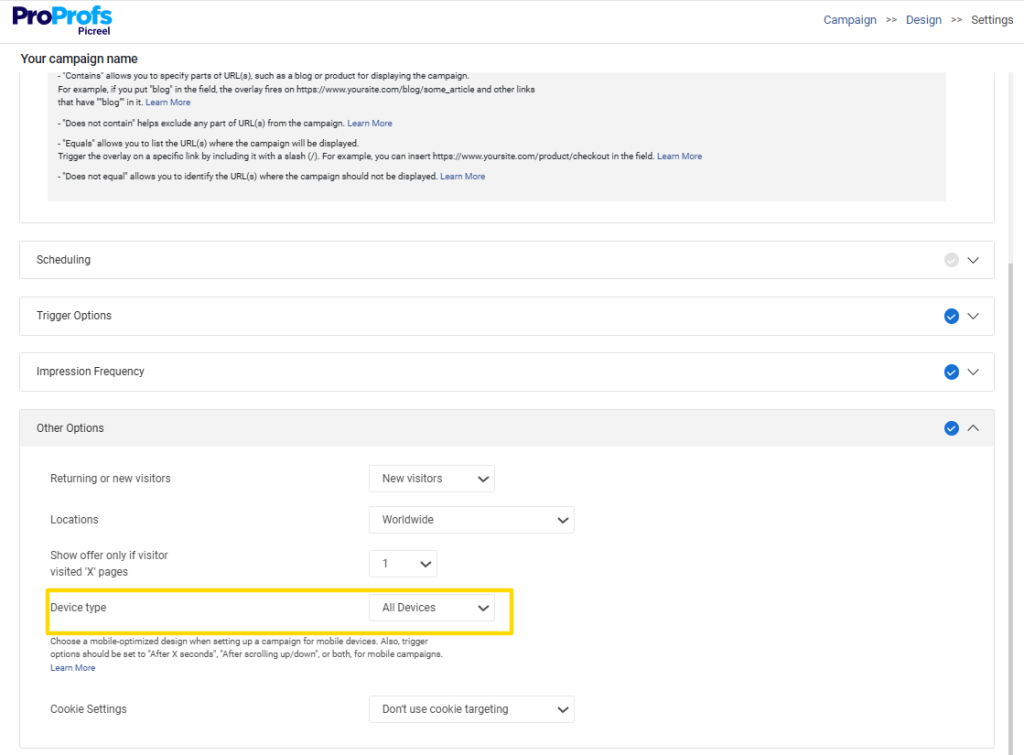
- Device Type: You can also set the popup to trigger based on whether the user is on a mobile or desktop device.
4. Email Marketing Integration
If you’re using email marketing platforms like Mailchimp, the integration is smooth.
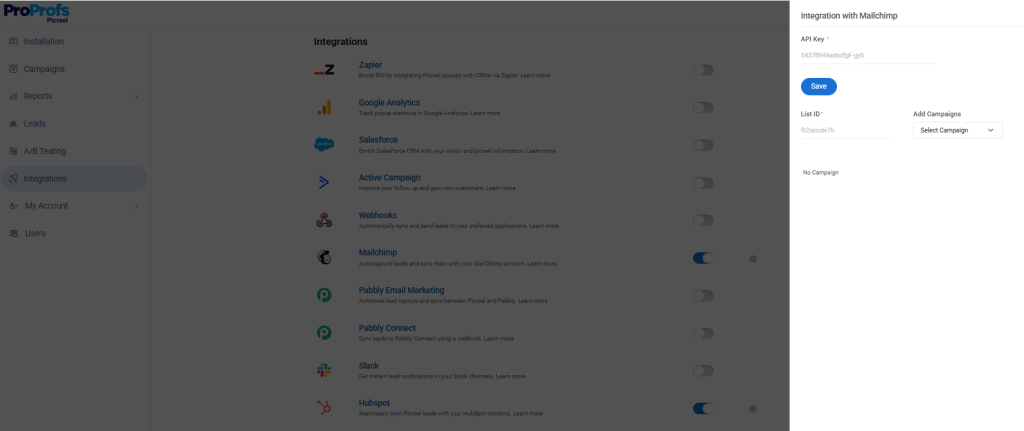
You can effortlessly capture leads from the iframe popups and sync them directly to your email lists, automating follow-ups and conversions. This creates a streamlined process, saving you time while boosting engagement.
5. Advanced Settings
For even more control over your iframe popups, there are advanced settings that let you customize how the popup behaves and interacts with your users:
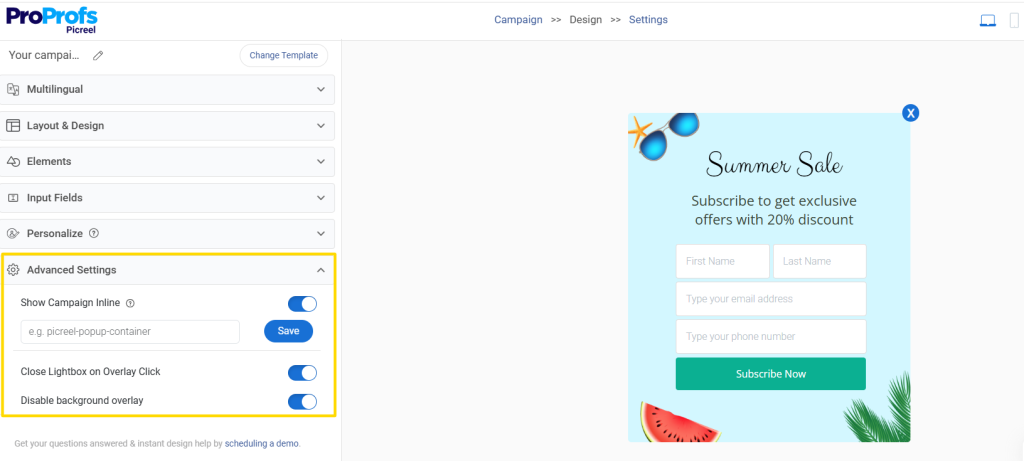
- Background Overlay: Choose whether to enable or disable the background overlay, which dims the content behind the popup for better focus.
- Inline Display: Decide if the iframe popup should appear as a traditional modal or inline within the page content, giving it a smoother, less intrusive feel.
- Cookie Settings: Adjust cookie settings to control how often the popup appears to a user. For example, you can limit how many times it shows to the same user, ensuring you don’t annoy repeat visitors.
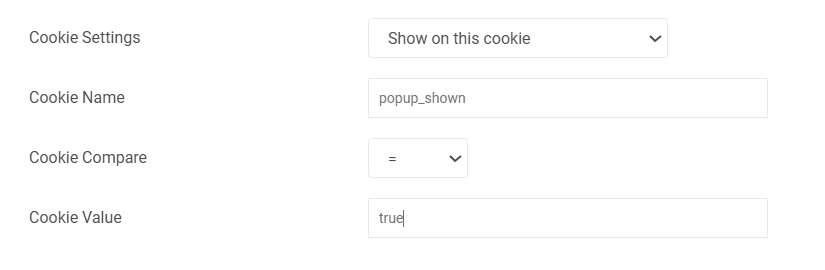
These settings provide the flexibility to tailor your iframe popups to different audiences while ensuring compliance with privacy regulations.
Method 2: Using the Gutenberg Block Editor
Adding iframe content to your WordPress site is easy with the Gutenberg Block Editor. Here’s a simple, step-by-step guide to get you started:
- Create a New Post/Page: Open the WordPress editor and create or edit the page where you want to embed the iframe.
- Add Custom HTML Block: Click the + button, search for “Custom HTML,” and add the block to your page.
- Embed the Iframe Code: Paste the iframe code (from Google Maps, YouTube, or a form) into the Custom HTML block. This will embed the content directly into your page.
- Save and Publish: Preview the page to ensure everything looks good, then publish it once you’re happy with the setup.
Method 3: Classic Editor and Shortcodes
For those using the Classic Editor in WordPress, you can manually add iframe tags directly through the Text tab. Here’s how:
- Open the Post/Page: Go to the page or post where you want to embed the iframe.
- Switch to Text Tab: In the WordPress editor, switch from the Visual tab to the Text tab.
- Insert the Iframe Code: Paste the iframe code (e.g., YouTube, Google Maps) directly where you want the content to appear on the page.
- Save and Publish: After adding the code, save and publish your content.
Top 3 Plugins for Iframe Popups
After testing out a few different tools, here are the top 3 iframe popup WordPress plugins I recommend for creating iframe popups on your WordPress site. Each offers a unique set of features and has proven to be the most effective at boosting user engagement and conversions.
1. Picreel-Best for Getting More Leads, Conversions, and Sales
I find Picreel to be an incredibly powerful iframe popup WordPress plugin that has helped me significantly increase conversions. It allows me to create polished, on-brand popups without any technical expertise.
The platform offers both ready-made templates and the option to create popups from scratch, with an intuitive editor that lets me easily adjust layouts, colors, and elements until everything looks just right. The mobile-friendly design ensures the popups function smoothly across any device, providing a seamless experience for users.
What I love most about Picreel is the variety of popup formats I can choose from—whether I need something subtle like a hello bar or something more attention-grabbing like a full-screen overlay. Once the popup is ready, integrating with my CRM or email marketing tools like Klaviyo and Mailchimp is effortless, allowing me to capture and nurture leads with ease.
Pros:
- Smart triggers like exit intent, inactivity, time delay, scroll depth, click, and page count ensure popups are shown at the most opportune moments, increasing conversions.
- Advanced targeting options, including geo-location, browser, and OS targeting, let me focus on the right audience while cookie rules offer even more precise control.
- In-depth analytics provide valuable insights into visitor behavior, conversion tracking, and trends, helping me fine-tune my campaigns.
- A/B testing with real-time data allows me to compare variations and identify the highest-converting popup in no time.
Cons:
- Cloud-only – no offline access
- No dark theme
Pricing: Offers a forever-free plan for up to 5K visitors (For WordPress, you may need the Enterprise account).
Paid plans start at $9.99/month.
2. Popup Maker-Best for Custom Triggers and Flexibility
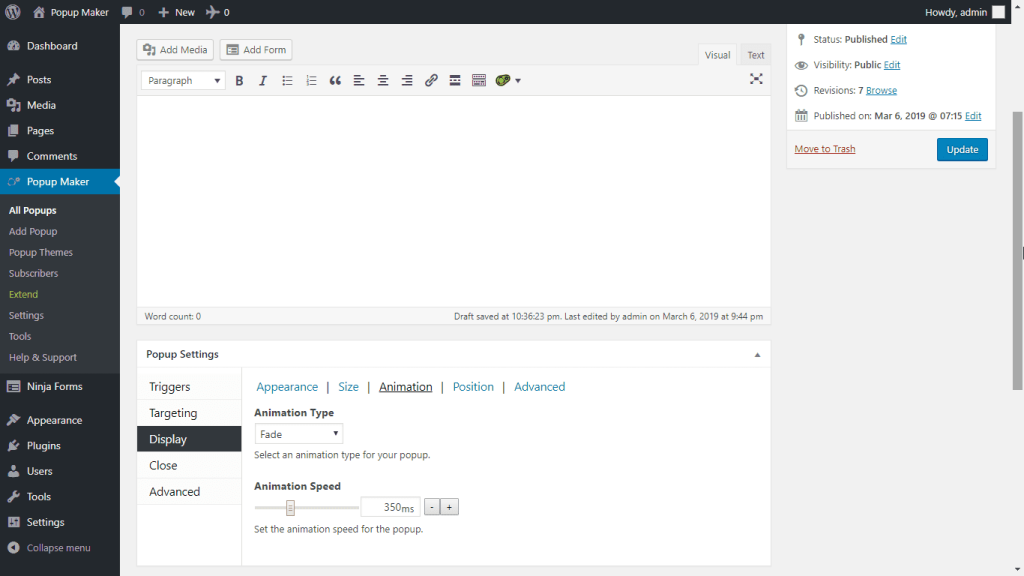
Popup Maker is a versatile WordPress plugin that I find incredibly useful for complete customization of popup triggers and targeting. It works with any WordPress theme, making it a flexible option for tailoring iframe popups to specific user actions and behaviors.
Pros:
- Custom triggers to set popups based on user behavior, ensuring they appear at the perfect moment.
- Theme compatibility to work seamlessly with any WordPress theme, maintaining design consistency.
- Comprehensive targeting to fine-tune which pages and devices see the popup, improving relevancy.
Cons:
- Steeper learning curve to fully utilize all features, requiring a bit of a time investment.
- Limited advanced features in free plan to unlock premium options, restricting some functionality.
Pricing: Starts at $87/year.
3. Advanced iFrame-Best for Full Control Over iFrame Customization
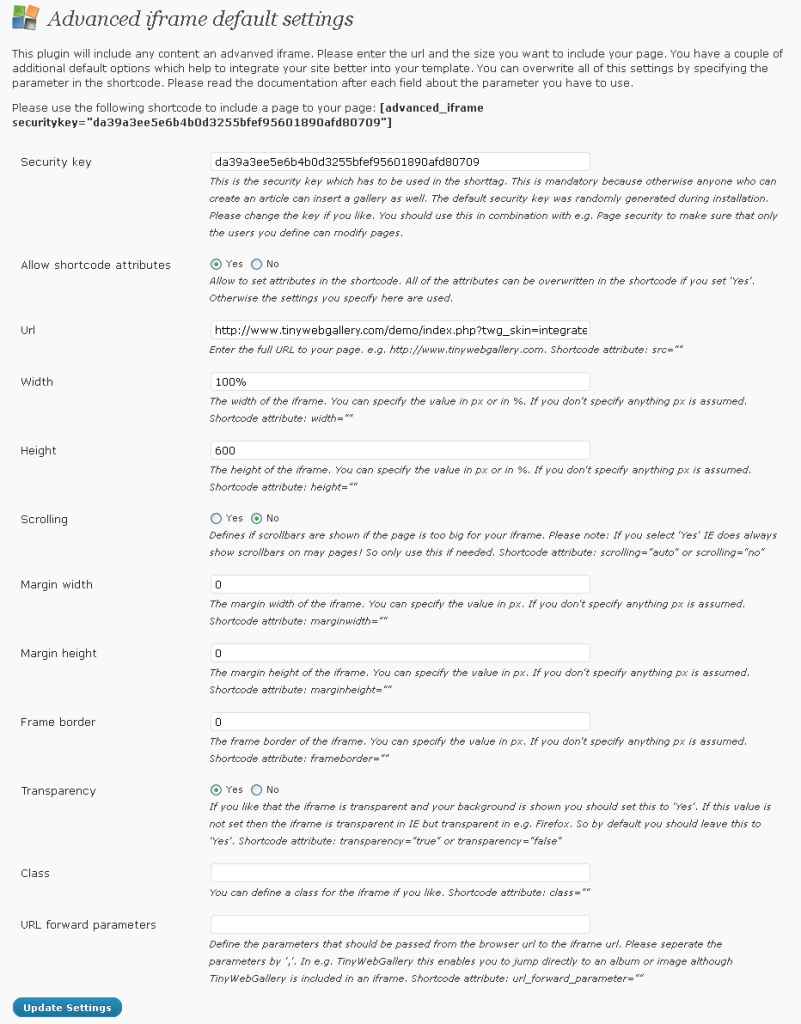
I personally use Advanced iFrame for its advanced customization options when embedding content securely. It provides responsive resizing for mobile optimization, supports embedding external content, and includes custom CSS options, making it perfect when I need complete control over my iframe popups.
Pros:
- Responsive design to ensure popups automatically adjust for different screen sizes, improving user experience.
- Security features to safely embed external content, protecting my website from vulnerabilities.
- Highly customizable settings to control iframe dimensions, scrolling, and behavior, offering flexibility.
- Custom CSS support to add personalized styles, ensuring the popup matches my website’s branding.
Cons:
- Can be complex to fully customize, requiring technical knowledge for advanced settings.
- Limited pre-built templates to choose from, making it less beginner-friendly.
Pricing: Starts at $19/year
Best Practices for Using Iframe Popups
To use iframe popups effectively on your WordPress site, here are some best practices:
1. Personalization
Tailor iframe popups to engage visitors more effectively. Personalization can be achieved by dynamically changing the content based on factors like user search terms or specific data.
For example, you could customize an offer or content inside the iframe based on what the user is browsing. With WordPress plugins, this can often be done by adding dynamic parameters to the iframe embed code. It will increase relevance, thus boosting user interaction.
2. Triggering Popups
You don’t want your iframe popups to be intrusive, so control when they appear. There are several ways to trigger them:
- Auto-open after a delay: Set a timer for the popup to appear after a user has spent a few seconds on your page.
- User actions: You can set an iframe popup on click on WordPress to open based on specific actions, like when a user clicks on a button, shows exit intent (when they move the cursor toward the top of the screen to leave), or scrolls to a certain point on the page. Many WordPress plugins for popups will let you define these triggers easily.
3. Speed Optimization
Lazy loading helps improve page speed by deferring the loading of the iframe until it’s needed. This will not only make your site load faster but also improve user experience. For instance, with WordPress plugins, lazy loading can often be turned on with a simple setting. This prevents iframe content from slowing down the initial page load.
4. Responsive Design
To ensure that your iframe popups look good on all screen sizes, especially mobile, you can use CSS tricks to make them responsive. For videos, you can maintain the right aspect ratio by adding something like:
| iframe { padding-top: 56.25%;} |
This keeps your video iframe’s aspect ratio consistent across all devices. Many popup plugins for WordPress allow you to set the sizing from the dashboard itself, as shown in the previous section.
5. Fixing Scroll and Overflow Issues
To avoid horizontal scrolling or page layout issues, especially on mobile, you’ll want to ensure that the iframe doesn’t overflow or break your page’s design. You can fix this by applying a simple CSS rule:
| iframe { max-width: 100%; height: auto;} |
This ensures the iframe fits within the screen width, even on smaller screens. If you’re using a WordPress iframe plugin, you just need to select the all devices option from the settings to keep the popup responsive.
6. SEO Implications
Iframe content doesn’t directly affect SEO, but search engines will not index the content inside an iframe. If it’s important for your SEO, include relevant links outside the iframe, such as text links or a call-to-action that points to the page hosting the iframe. You can also use the title attribute on the iframe to provide better context for its content.
7. HTTPS Compliance
If your website uses HTTPS, ensure that the iframe you’re embedding is also served over HTTPS. Mixing HTTP and HTTPS can cause security issues or trigger browser warnings. Always double-check that external content embedded in iframes is secure and trusted.
8. Use Trusted Sources
When embedding third-party content, always use trusted and secure sources. This helps avoid embedding malicious or unsafe code. For instance, make sure the URL in the iframe is from a reputable provider and check any security protocols related to embedding content. Using well-known, secure platforms will help mitigate the risk.
9. Avoiding Malicious Code
Before embedding content from external sources, always review their code for potential risks. Look for any unusual scripts or code that could compromise security. Some WordPress plugins offer security checks for embedded content to help identify harmful elements.
Use Cases: When and Why Should You Use Iframe Popups?
Iframe popups are incredibly versatile and can be used in many ways to enhance your website’s functionality. Here’s how they can benefit your business:
1. Lead Generation: Capturing Leads with Ease
Lead generation is the foremost goal that Iframe popups help you achieve. Imagine you’re running a campaign or offering something valuable, like an eBook or discount code, but you don’t want to clutter your page. You can use iframe popups to display lead capture forms (like those from Google Forms or Typeform) without disrupting the user experience.
For instance, a SaaS company might use an iframe popup to show a sign-up form after a visitor spends a few seconds on their site. When the popup appears, the user can easily fill out the form and submit it without any page reload or interruptions. It’s quick and seamless, which means you’re more likely to capture that lead.
2. Displaying External Content: Keep It Dynamic and Engaging
Iframe popups allow you to embed external content without making users leave your page. Whether it’s Google Maps, YouTube videos, or social media posts, you can use iframe popups to show dynamic content in an engaging way.
For example:
- Google Maps: Need to show your business location? Instead of just listing your address, you can embed an interactive map inside a popup.
- YouTube Videos: Want to share a product demo or tutorial? Embed a YouTube video in an iframe popup to keep users on your site and engaged.
- Social Media: Display your latest tweets, Instagram posts, or Facebook feed in an iframe popup, giving users a quick glance at your social presence without navigating away from your site.
This approach helps to keep users on your site longer while providing them with relevant, engaging content.
3. Legal Content Sharing: Sharing Without the Risk
If you’re concerned about copyright laws but want to share external content, iframe popups are a great solution. Rather than embedding copyrighted content directly on your site, you can use iframes to display it in a way that respects the original source’s rights.
For example, if you want to display a legal disclaimer, terms of service, or even third-party articles, you can embed those external pages in an iframe popup. This method allows you to share important legal or reference materials without violating copyright laws, as you’re merely displaying the content from the original source rather than copying or redistributing it.
By using iframe popups this way, you keep your site’s content fresh, informative, and compliant with copyright regulations. It’s a win-win for both your business and your users.
FREE. All Features. FOREVER!
Try our Forever FREE account with all premium features!
How Iframe Popups Can Boost Your WordPress Website
Iframe popups are a powerful way to boost user engagement and drive conversions on your WordPress site.
They offer seamless integration for lead generation, display dynamic external content, and enhance mobile optimization, all while improving site performance with smart triggers and customization options.
Whether you’re looking to capture leads through forms or to provide rich, interactive content like videos and maps, popup iframe on WordPress lets you do so without disrupting the user experience.
So, if you’re looking to maximize these benefits, tools like Picreel make the setup and integration process incredibly easy. If you’re ready to take your site to the next level, consider using iframe popups to enhance user interaction and drive results.
Ready to get started? Give popup iframe on WordPress a try and see the difference it can make for your site!
Frequently Asked Questions

Can I use an iFrame popup to display content from another domain securely?
Yes, you can, as long as the external site allows embedding. Most trusted platforms like YouTube, Google Maps, or Typeform work well. The key is to only embed content from reliable sources so your site stays secure.
How do I prevent iframe popups from being blocked by browser security policies?
Some websites block iframe embedding for security reasons using settings like X-Frame-Options. If that happens, the popup may appear blank. In those cases, you’ll need to use an alternative embed method or link out instead.
Can I use an iframe popup for multi-step forms or appointment booking tools?
Definitely. iFrame popups work really well for booking calendars, sign-up flows, or multi-step forms. Visitors can complete the process without leaving your site, which often improves conversions.
How do I make iframe popups load faster on high-traffic WordPress sites?
The best approach is to lazy-load the iframe, so it only loads when the popup opens. Also, keep the embedded content lightweight. This helps your site stay fast even when traffic is high.
Can iframe popups be used without affecting Core Web Vitals?
Yes, if they’re implemented carefully. Popups that load only on interaction and don’t block the main page content are usually fine. Avoid auto-loading heavy iframe content on page load.
How do I control iframe popup behavior across multiple WordPress sites from one dashboard?
If you manage multiple domains, using a popup platform that supports multi-site control is the easiest way. For instance, Picreel lets you reuse the same popup design and targeting rules without rebuilding everything site by site.
Can I trigger iframe popups based on UTM campaigns or referral sources?
Yes, many popup tools like Picreel let you target visitors based on traffic source, URL parameters, or campaign tags. This is great for showing different popups to users coming from ads, email, or specific landing pages.
How do I embed an iframe popup without collecting user data or triggering compliance issues?
You can keep iframe popups purely informational or redirect-focused without asking for emails or personal details. This works well when the goal is awareness or navigation rather than lead capture.
Can iframe popups integrate with Zapier or Make for automation workflows?
They can, especially if the embedded form or tool supports automation. For example, submissions from an iframe form can trigger workflows in Zapier or Make, connecting directly to CRMs or email systems.
What should I do if an iframe popup doesn’t display correctly on mobile Safari or iOS devices?
Mobile Safari can be picky with iframe sizing and scrolling. The fix is usually responsive popup sizing and avoiding fixed-height embeds. Testing on real devices before launch helps prevent surprises.
FREE. All Features. FOREVER!
Try our Forever FREE account with all premium features!

 We'd love your feedback!
What did you like & how can we make it even better?
 Thanks for your feedback!
 Ask Your Question
Have a question? Get expert help to make your decision easier.