

I have noticed that most visitors simply do not notice important updates unless you place the message where their attention naturally lands.
That is why an announcement popup on WordPress becomes such a reliable tool. It cuts through the noise and puts your news exactly where people will see it.
I have watched the shift results almost immediately. Bloggers get more clicks, ecommerce teams recover abandoned carts, agencies redirect clients to new work without chasing them, and everyday updates finally stop going unnoticed. When the announcement appears at the right moment, the impact is hard to miss.
So let’s build an announcement popup that works consistently without slowing down your site or frustrating mobile visitors. I’ll also cover what to look for in a popup tool, real examples you can get inspired from, and simple troubleshooting steps to keep everything running smoothly.
What Should You Look For Before Choosing an Announcement Popup Tool
Before you create your announcement popup on WordPress, it helps to know what really matters in the long run.
- Multi-Site Flexibility: If you manage several sites, you should be able to handle all popups from one dashboard without repeating the same setup again and again.
- Simple Redirect Options: Sometimes your goal is not to collect emails. You might just want visitors to move to a new page or a new domain. A good tool should let you redirect them instantly with a single click.
- Smart Targeting Controls: Your popup should appear when it is actually useful. Options like exit intent, scroll triggers, time delays, URL or UTM matching, device targeting, and even location-based targeting help you show messages that feel relevant rather than random.
- Smooth Integrations: If you use platforms like Klaviyo or Zapier, the popup tool should connect cleanly and let you capture interests through simple checkbox selections. This makes segmentation effortless.
- Strong Performance: The code should be light and load asynchronously so your Core Web Vitals stay healthy. High-traffic sites cannot afford slowdowns caused by heavy scripts.
- Mobile-Friendly Design: Most visitors arrive on phones, so your popup should fit comfortably on smaller screens, stay easy to close, and avoid the kind of intrusive layouts that Google flags.
No matter which tool you go with, keeping these checks in mind makes the actual setup smoother and helps you create a popup announcement on WordPress effectively.
I think Picreel aligns naturally with these needs and fits in easily when you are ready to build your announcement popup.
How to Create an Announcement Popup in WordPress
Creating an announcement popup in WordPress is a simple, guided process when you use a dedicated popup WordPress plugin like Picreel. The setup is clean, fast, and intuitive, even if this is your first time working with popups. Follow the steps below, and you will have your announcement live in just a few minutes.
Step 1: Install and Activate Picreel
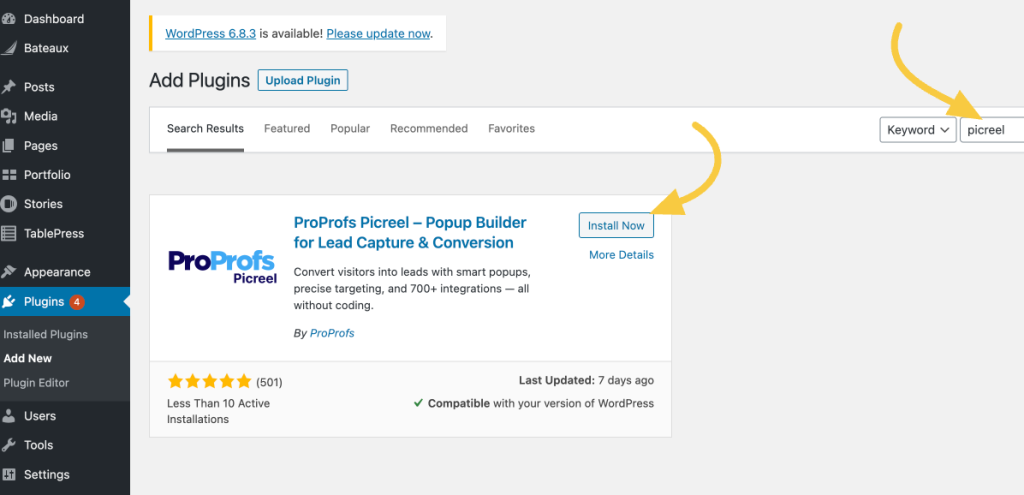
Go to your WordPress dashboard and open the Plugins menu. Select Add New and search for a WordPress announcement popup plugin like Picreel. Click Install Now, then Activate.
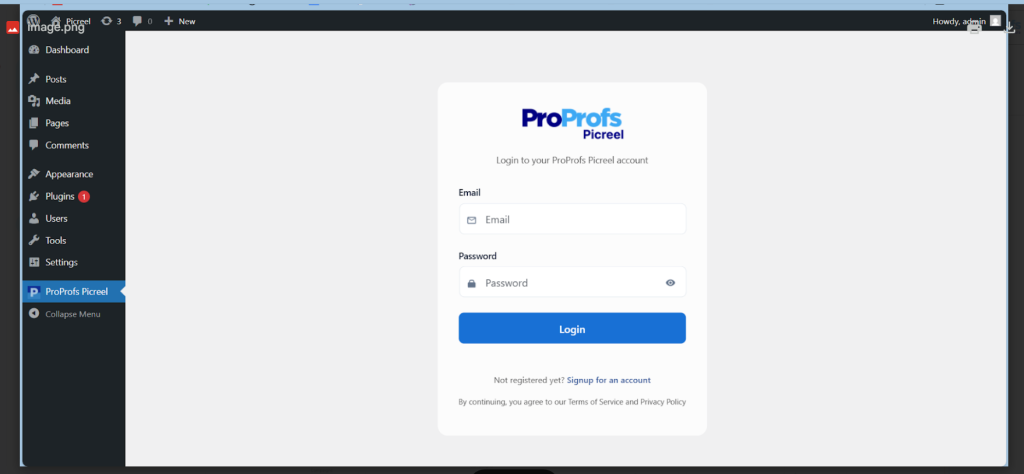
Once your WordPress popup announcement plugin appears in your sidebar, open it and log in to your Picreel account.
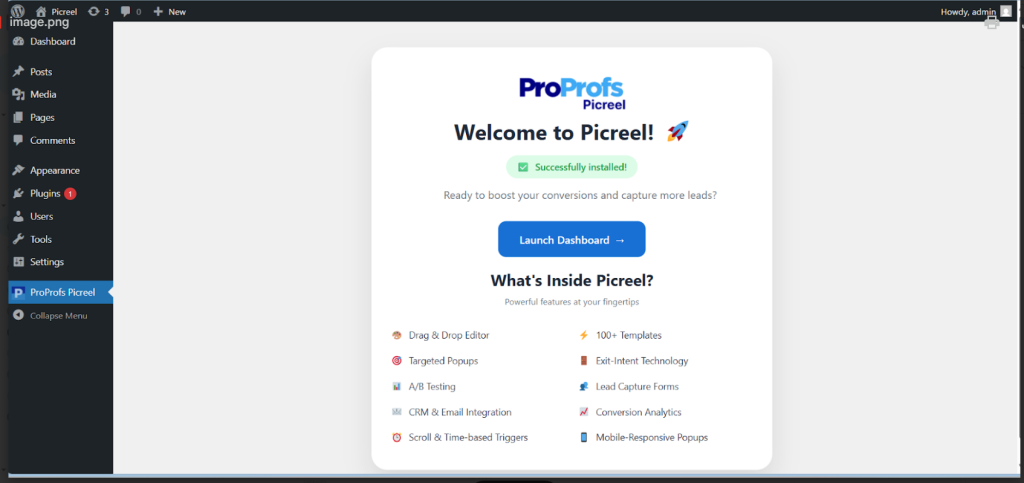
Now, it’s time to launch your Picreel dashboard, which is where you will create and manage all of your announcement popups from one place.
Step 2: Pick an Announcement Template
Inside the Picreel dashboard, click Create New Campaign.
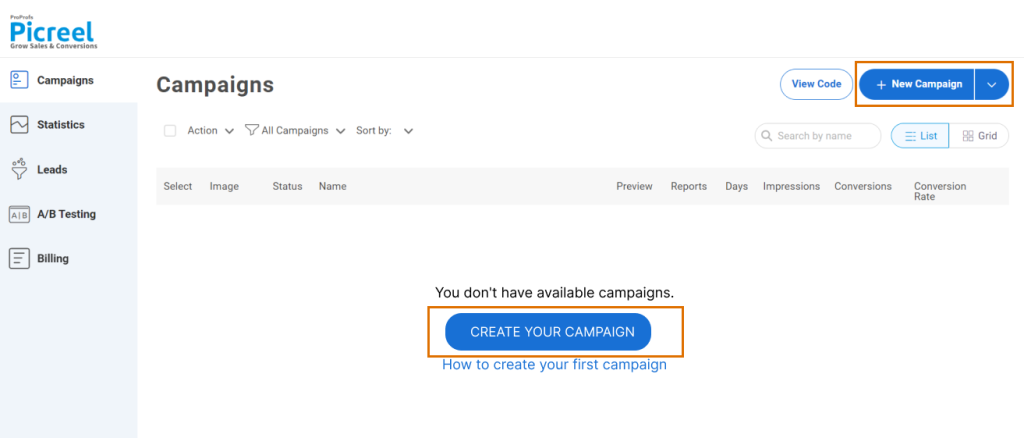
You will see a variety of templates designed for announcements, updates, launches, and promotional messages.
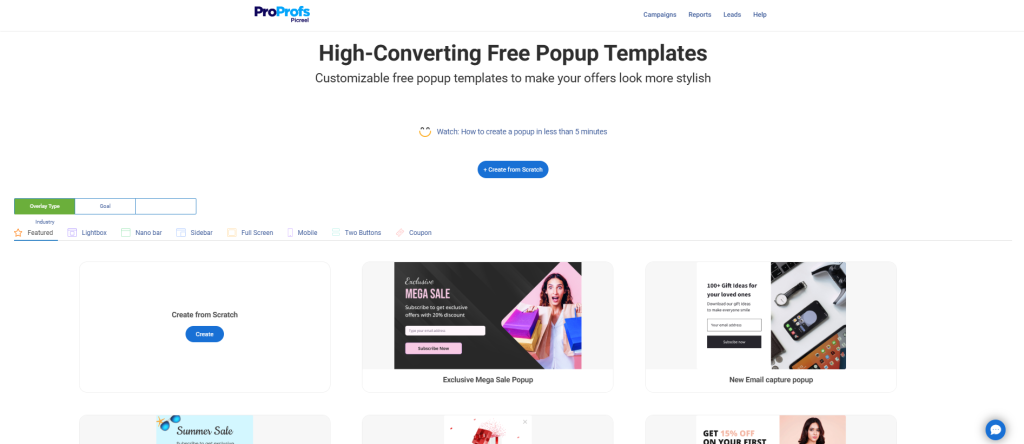
Choose a layout that fits the style and tone of your message. For example:
- A simple announcement bar, if you want a subtle alert across the top or bottom of your site
- A modal popup if you want to highlight something important, like a new website launch, a major update, or an upcoming event
Select a design that feels natural for your audience, allowing the announcement to blend seamlessly with your brand.
Step 3: Customize Your Announcement Popup
This is where your popup becomes your own. Adjust the headline, colors, and visuals so it feels like it belongs on your site.
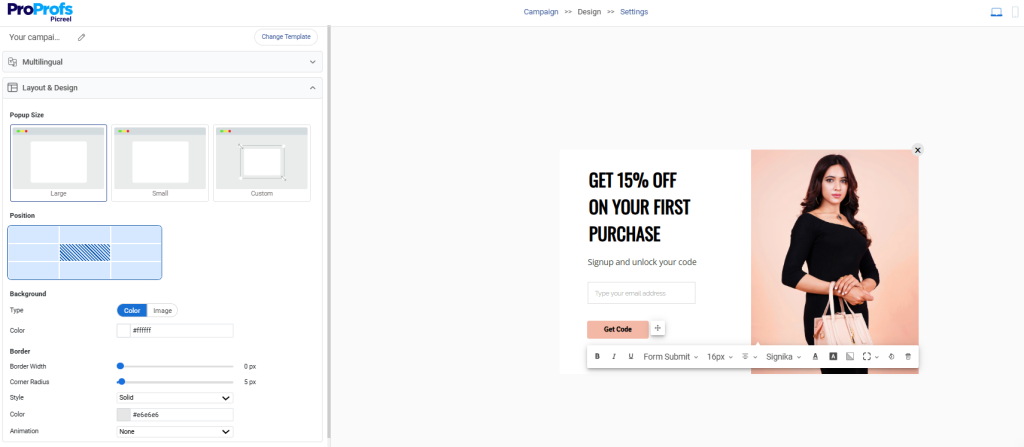
A short, clear headline works best because it is easy to read and immediately tells visitors what the announcement is about.
Here are some examples that work well:
- “We just launched our new site. Take a look.”
- “Holiday hours updated. See the schedule.”
- “Limited time offer. Save 20% today.”
Add your call-to-action button and choose what happens when someone clicks it. If you want to redirect visitors to a new page or domain, simply add the button, open the action settings, and paste the URL you want people to reach.
If your goal is to collect leads instead, you can add an email field and optional interest checkboxes so visitors can choose what they want to receive. Picreel integrates seamlessly with Klaviyo, allowing information to flow directly into your lists.
Step 4: Set Smart Targeting and Display Rules
Targeting controls how, when, and where your announcement appears. Picreel keeps this simple while giving you enough flexibility to match different situations.
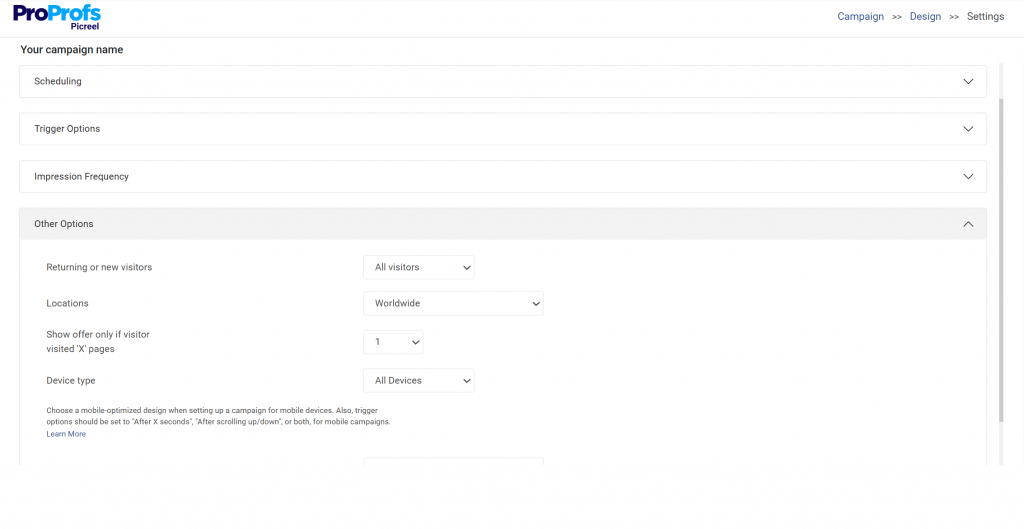
You can target by:
- Visitor behavior, like scrolling halfway through a page or trying to exit
- Time spent on the page, such as ten or fifteen seconds
- Page type, such as blog posts, checkout pages, or specific URLs
- Traffic source, such as showing an announcement only to organic visitors
- Device type, so mobile users see a smaller, lighter layout
These rules make your popup feel thoughtful rather than intrusive and help it appear at the moment your visitor is most likely to notice it.
Step 5: Choose the Right Triggers
Triggers decide when the announcement appears. Here are a few that work well for different goals:
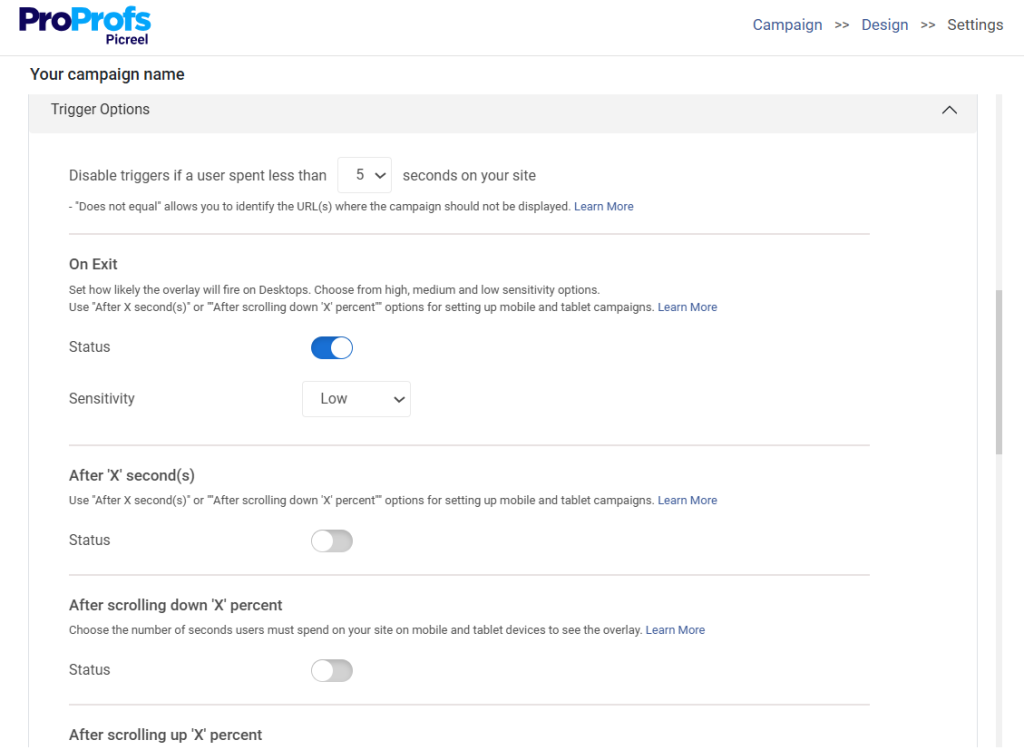
- Use exit intent technology for e-commerce announcements and cart reminders
- Use a gentle ten to fifteen-second delay for blog readers
- Use a scroll trigger for long-form content
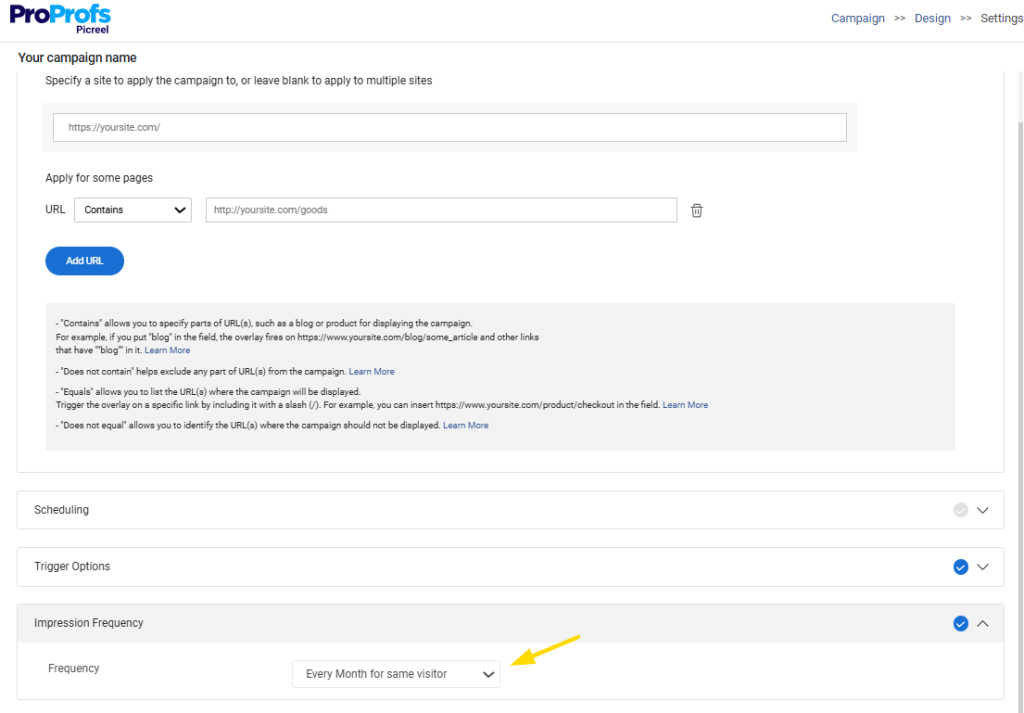
Set your frequency so the announcement does not appear every time someone returns. Showing it once every seven to fourteen days keeps the experience comfortable.
Step 6: Connect Your Email Tool If You Are Collecting Leads
If your announcement includes an email field, open the integration settings and connect your platform of choice, such as Klaviyo or Mailchimp.
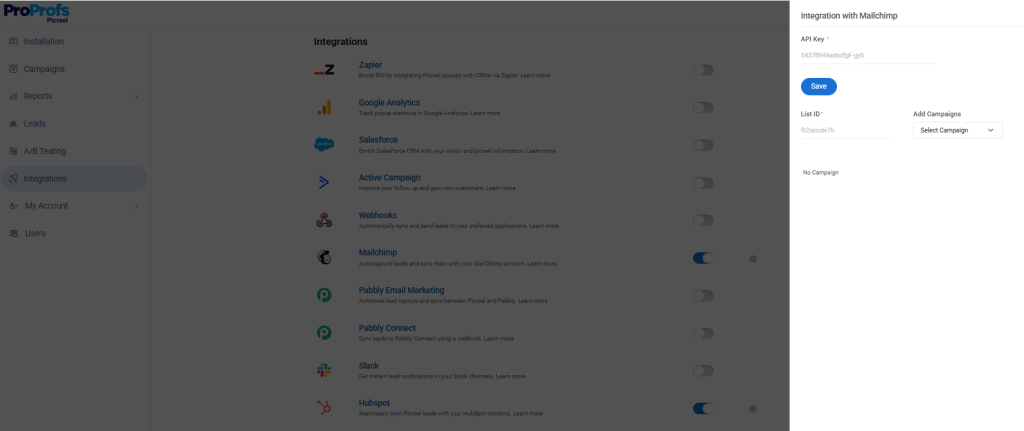
Map the fields, send a test entry, and confirm it reaches your list.
Once the integration is active, every new subscriber will automatically enter your welcome or follow-up sequence.
Step 7: Publish and Test Across Devices
Click Publish to make your announcement live. Clear your site cache and refresh the page to see the latest version.
Check the popup on desktop, tablet, and mobile to make sure the layout, close button, and timing all work the way you expect. Opening your site in an incognito window helps you test it as a first time visitor.
Once everything looks good, monitor your results in the Picreel popup analytics dashboard.
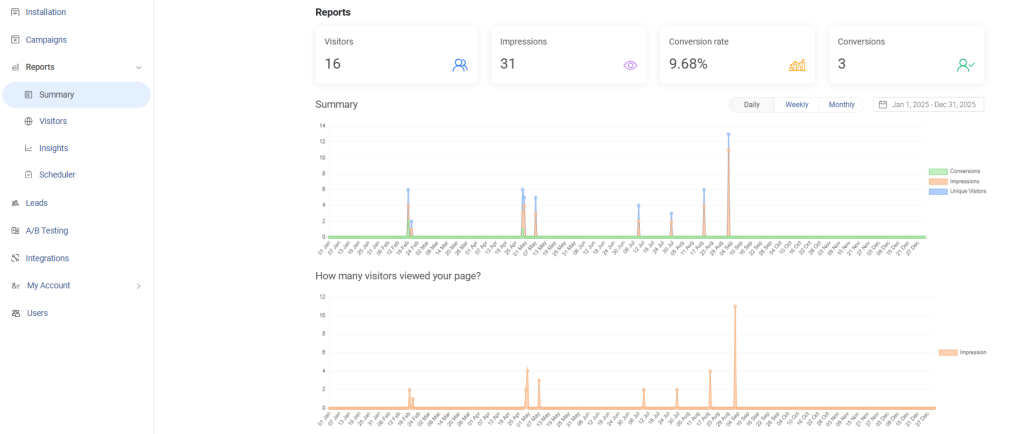
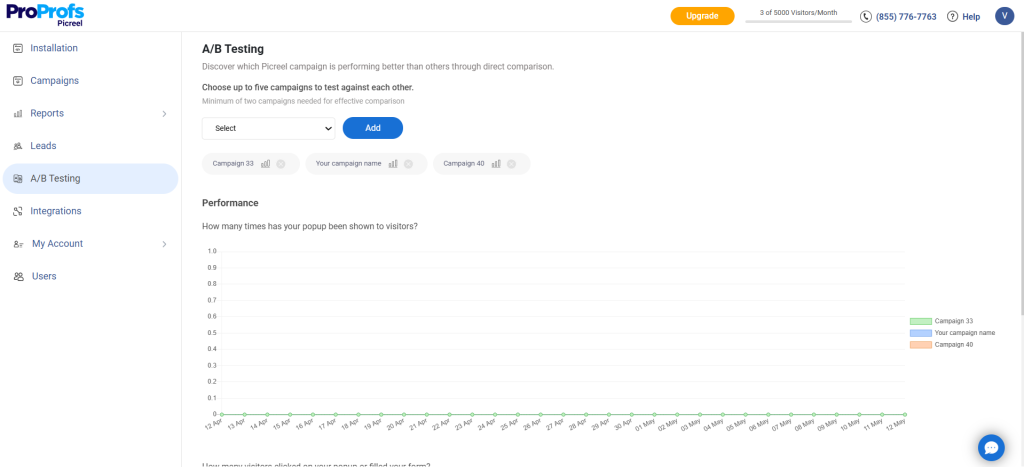
Small adjustments like rewriting the headline, changing the button color, or shifting the timing can improve engagement noticeably. You can test different versions using Picreel’s built in A/B testing tools.
6 Best Announcement Popup Examples (+Templates)
Announcement popups are incredibly flexible, and people use them in all kinds of smart and practical ways. Here are a few examples that work well across different types of WordPress sites.
1. Launching a New Website

Many site owners use an announcement popup to guide visitors to a new domain or a new product hub. A simple popup with a clear message and a “Take Me There” button can move traffic instantly without asking for an email. It is one of the easiest ways to redirect existing traffic during a launch.
2. Running a Flash Sale
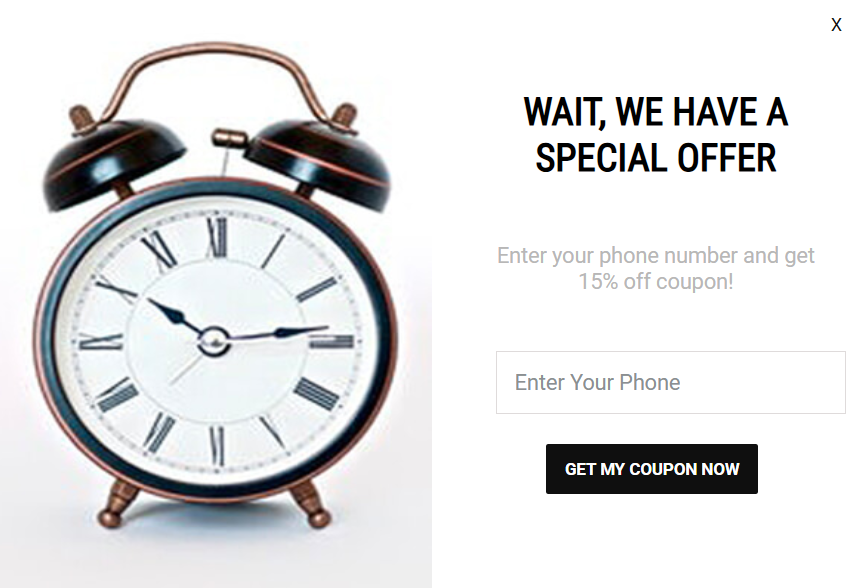
Ecommerce teams often use an exit intent popup during a sale. When a visitor starts to leave, a message appears with the discount and a short countdown. This adds urgency and consistently reduces cart abandonment. A 15% offer with a timer is a common pattern because it converts well without feeling aggressive.
3. Showing Targeted Offers to Organic Visitors

If you get steady search traffic, a source-based trigger can show a lead magnet only to organic visitors. It feels relevant because these visitors are often information seekers. A simple guide or checklist offered at the right moment can turn cold traffic into warm subscribers.
4. Reducing Cart Abandonment
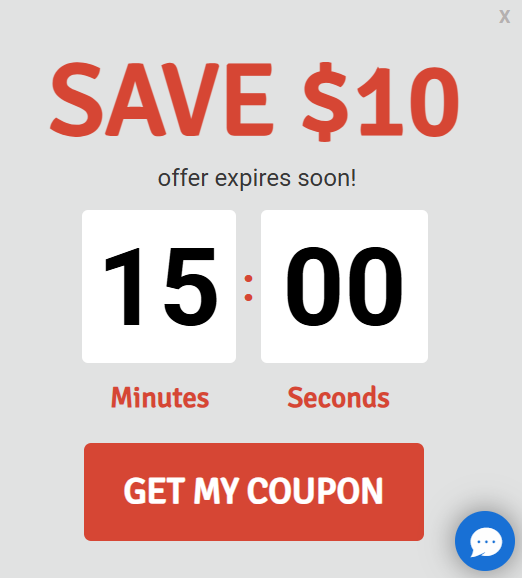
Online stores regularly use a last-minute popup that offers something small but meaningful, such as free shipping if the visitor completes the checkout. This type of announcement stops the scroll, gives the shopper a reason to stay, and often saves the sale.
5. Helping Local Visitors Find Updated Information
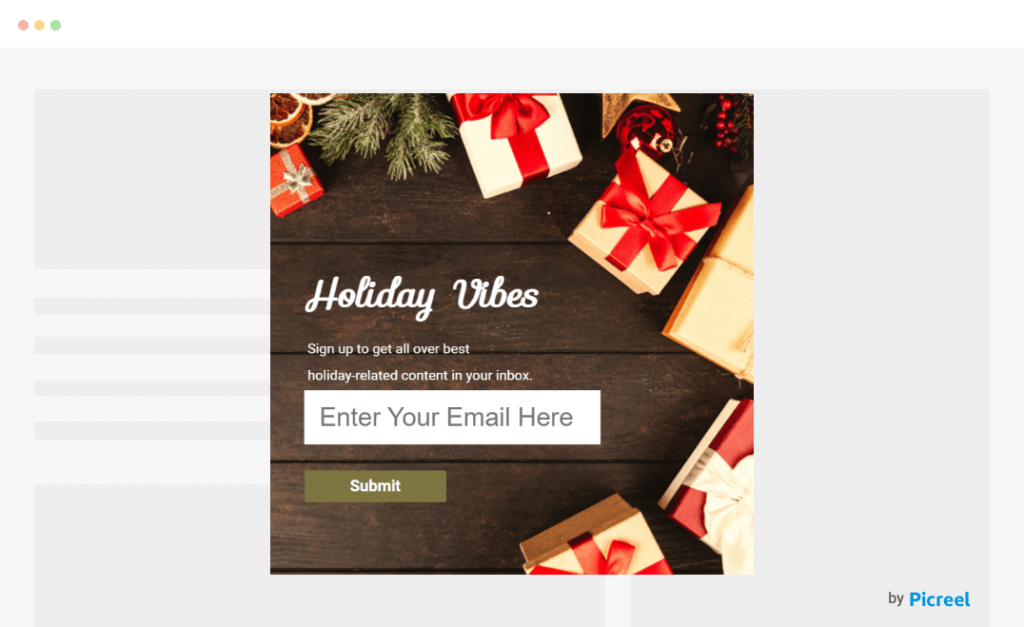
Local businesses use announcement bars to communicate quick updates such as holiday hours or temporary closures. A small bar at the top of the site that links to the updated schedule keeps customers informed without interrupting their browsing.
6. Sending the Right Message to the Right Group

Community and membership based sites often use page specific popups. For example, parents visiting a resources page may see an announcement that leads to new materials or events. Pairing this with interest tags in Klaviyo helps the site send more relevant email updates later.
Troubleshooting and Best Practices for WordPress Announcement Popups
A few small adjustments can fix most popup issues and keep everything running smoothly.
1. Popup Not Showing Up
Your popup may not appear because your site is still showing an older, cached version of the page.
- Clear your cache inside WordPress by going to your caching plugin’s settings and clicking the clear cache button. If you use Cloudflare, open your Cloudflare dashboard and purge the cache there, too.
- Check your caching plugin settings for an “Exclude” or “Never cache these URLs or scripts” option. Add your popup plugin’s script folder to that list so the popup loads correctly each time.
- If you use tools like Rocket Loader or Autoptimize, open their settings and temporarily turn off features such as JavaScript optimization or aggregation. These tools sometimes combine or delay scripts in a way that stops popups from appearing.
- On mobile, refresh the page or open it in a private tab because mobile browsers often hold on to cached versions longer than desktop browsers.
2. Popup Looks Incorrect on Mobile
Mobile layouts behave differently, so your popup needs to be tested on smaller screens.
- Avoid full-screen popups on phones because they often shift, resize, or block important elements. Instead, choose a top bar, bottom bar, or small centered popup inside your popup builder.
- Keep a visible close button by selecting the “Show close button” option inside your popup design settings. This keeps the experience simple and avoids frustration.
- Turn on “Close on background click” so users can tap outside the popup to dismiss it. You will find this inside the popup’s behavior or display settings.
- Test your popup using your phone and your browser’s responsive preview mode, which is available in Chrome’s Developer Tools under “Inspect”.
3. Site Speed Seems Slower
Most popup tools load small scripts, so slowdowns usually come from something else on the site.
- Use a popup tool that loads scripts asynchronously so it does not delay your page. Tools like Picreel are designed this way.
- Open your WordPress Plugins page and review your installed plugins. Deactivate any that you no longer use because every active plugin adds some load to your site.
- Search “PageSpeed Insights” and run a quick test. This will show if another script or plugin is causing the slowdown.
- Check your optimization plugin settings for features like “Delay JavaScript” or “Combine JavaScript”. These settings can sometimes interfere with popup behavior. Turning them off for testing helps identify the issue.
4. Popup Is Showing Too Often
A popup that appears repeatedly feels intrusive, especially for returning visitors.
- In your popup settings, look for “Frequency”, “Display rules”, or “How often to show”. Set it to something gentle, such as once every fourteen days.
- Turn on cookie-based visibility. This is usually labeled as “Do not show again for X days”. It prevents the popup from appearing again for the same visitor.
- Adjust your targeting rules so the popup only appears where it matters, such as on specific pages or only when users are about to exit.
FREE. All Features. FOREVER!
Try our Forever FREE account with all premium features!
Start Getting Your Message Seen
Announcement popups are one of the simplest ways to share important updates, guide visitors to the right place, and lift engagement across your WordPress site. When you choose the right tool and set up smart targeting, timing, and frequency, the experience feels natural for your visitors and works quietly in the background to support your goals.
Picreel is one of the best popup plugins for announcements for WordPress. It makes the entire process easier with clean templates, smooth WordPress integration, and the kind of targeting features that help your message land at exactly the right moment. If you are planning to add an announcement popup to your site, this is one of the fastest ways to do it well.
If you want to try it yourself, set up your first announcement in Picreel and see how quickly it fits into your workflow.
FREE. All Features. FOREVER!
Try our Forever FREE account with all premium features!

 We'd love your feedback!
What did you like & how can we make it even better?
 Thanks for your feedback!
 Ask Your Question
Have a question? Get expert help to make your decision easier.