

WordPress websites using well-designed popup forms can see up to 42.35% conversion on average.
If you’re not seeing those numbers, your popups are probably interrupting visitors instead of guiding them.
It’s only when designed and targeted strategically that popup forms help you collect leads, grow your email list, and boost conversions without feeling pushy or intrusive.
From conversations with business owners and marketers in my network, I’ve noticed a common struggle.
Setting up a simple popup form in WordPress often turns into a complicated process. Between limited design flexibility, confusing triggers, and complex integrations, many people give up before they even get it right.
That’s why I’ve put together this guide on how to add a popup form in WordPress. You’ll learn how to design one that feels seamless, looks professional, and actually converts — all without touching a single line of code.
6 Common Challenges in Creating WordPress Popup Forms
Before we get into how to design popup forms that actually convert, let’s talk about a few challenges you might’ve faced while setting them up on your WordPress site.
If any of these sound familiar, you’re not alone, because most business owners and marketers I know encounter the same hurdles.
1. Complex Setup Without Technical Help: You want a simple, no-code way to create popups, but most tools expect you to know your way around settings, shortcodes, or even snippets of code. It shouldn’t be that hard to launch a basic form, right?
2. Missing Essential Marketing Features: Features like exit intent, time delay, or cookie-based targeting make a big difference in conversions, but they’re often locked behind pricey plans. That can be frustrating when you just want to test what works.
3. Popups That Do More Harm Than Good: You’ve seen it happen when a popup appears too soon, covers half the screen, and instantly drives visitors away. You want your popups to feel natural and helpful, not pushy.
4. Poor Mobile Experience: Maybe your popup looks perfect on desktop, but completely breaks on mobile. Text overlaps, buttons vanish, or it loads too slowly. Since most of your visitors are on phones, that’s a deal-breaker.
5. Integration Headaches: You probably already use tools like Mailchimp, HubSpot, or Klaviyo, but connecting them smoothly with your popup forms can feel like a technical puzzle.
6. No Clear Data or Direction: You launch a popup and hope it works, but without analytics or conversion tracking, you’re guessing. You can’t fix what you don’t measure.
The good news is that every one of these challenges has a simple fix. Once you focus on clean design, smart timing, and easy integrations, creating popups that work for your business and your visitors becomes much easier.
How to Add a Popup Form in WordPress (Step-by-Step Guide)
Creating a popup form in WordPress doesn’t need to be complicated. If you’ve been wondering how to add a contact form popup in WordPress, the process is simpler than you might think.
With a WordPress popup registration form plugin like Picreel, you can design, launch, and automate professional-looking forms in just a few minutes without touching a single line of code. Here’s a simple, step-by-step guide to help you get started.
Step 1: Install and Activate the Plugin
Go to your WordPress dashboard → Plugins → Add New, and search for your chosen WordPress popup plugin (for example, Picreel). Click Install Now and then Activate. Once it’s active, you’ll find the WordPress popup form plugin under your admin menu or settings section.
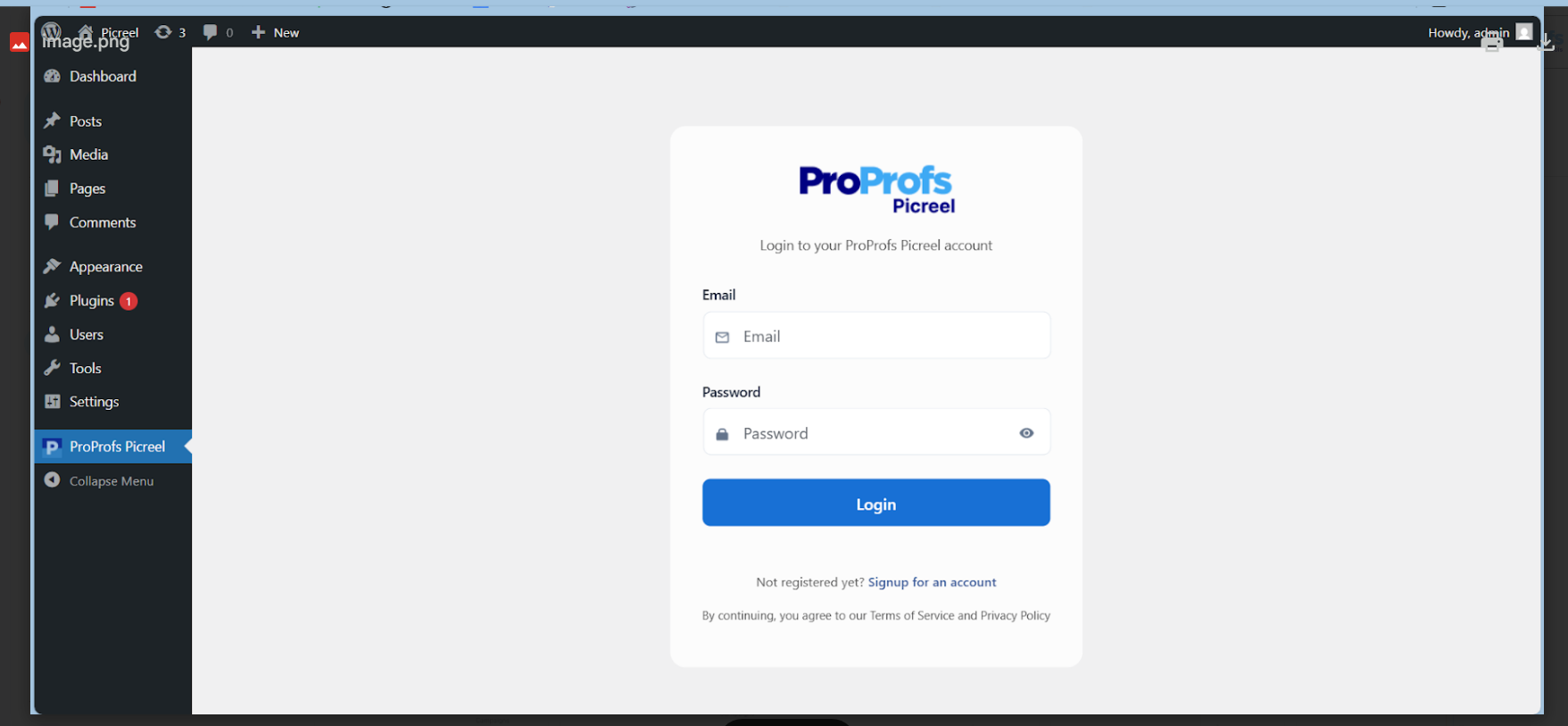
Now log in with your enterprise account to access your Picreel dashboard. This is where you’ll create, design, and manage all your popup login and registration forms in WordPress from one place.
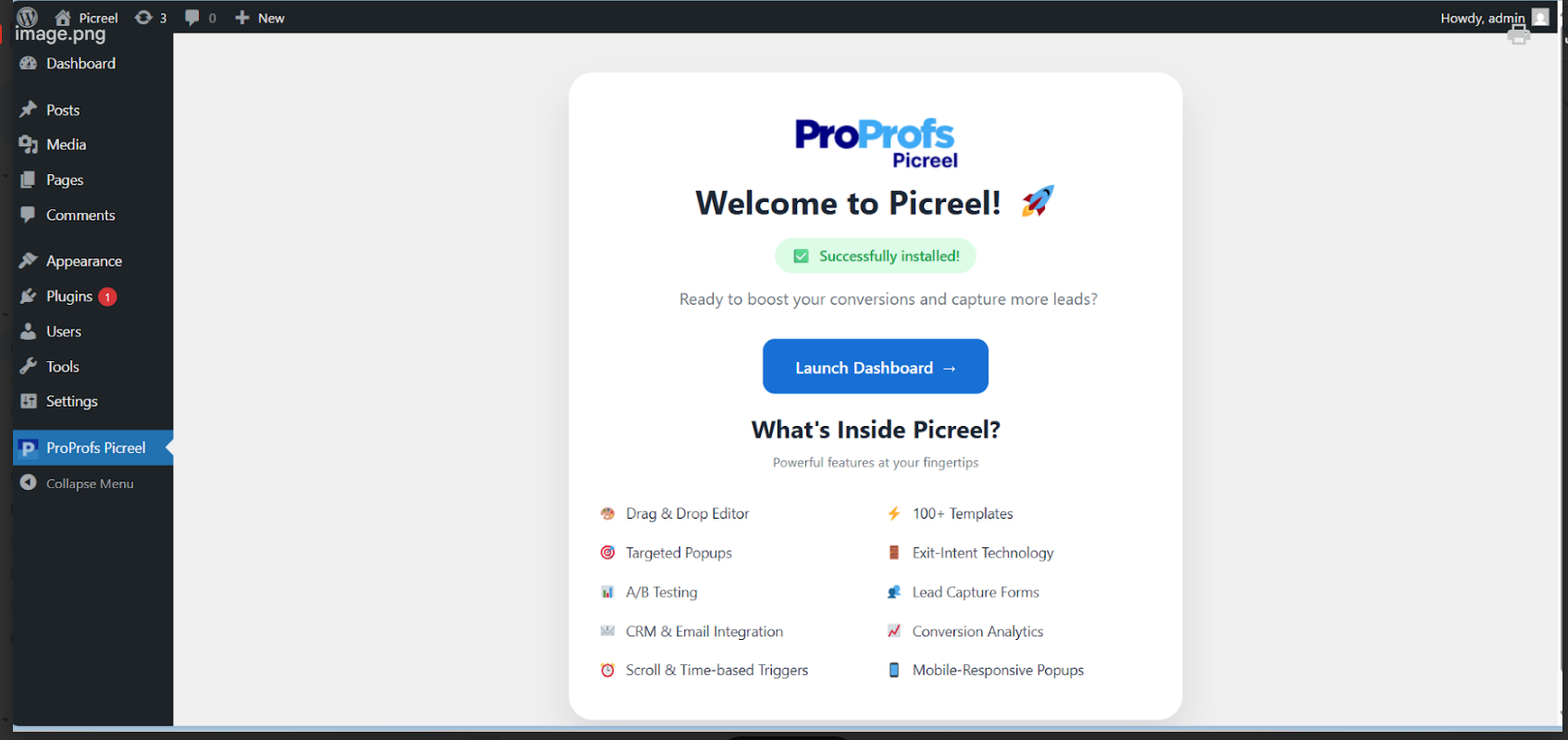
Step 2: Design Your Popup Form
Next, head to your plugin’s dashboard and click Create New Campaign or Add Popup. Choose a form-style template — such as a contact form, signup form, or feedback form. Then, customize it to suit your brand and purpose:

Match Your Brand: Add your logo, use your brand colors and fonts for consistency.
Keep the Message Clear: Use concise headlines like “Sign Up for Updates” or “Contact Us Today.”
Add a Strong CTA: Encourage users with buttons like “Submit,” “Join Now,” or “Send Message.”
Keep It Clean: Make the close button easy to find so visitors don’t feel stuck.
Expert Advice: Well-designed and customer-centric forms build trust and drive stronger engagement. In fact, 66% of consumers say they’ll stop engaging with a brand if their experience isn’t personalized, which makes thoughtful form design more important than ever.
Keep your message conversational, use simple fields, and let your visitors know what they’ll get in return — whether it’s updates, access, or support.
Step 3: Personalize Your Popup Form
Now it’s time to make your popup form truly personalized. You can find the settings for all these customizations in the left panel of your dashboard:
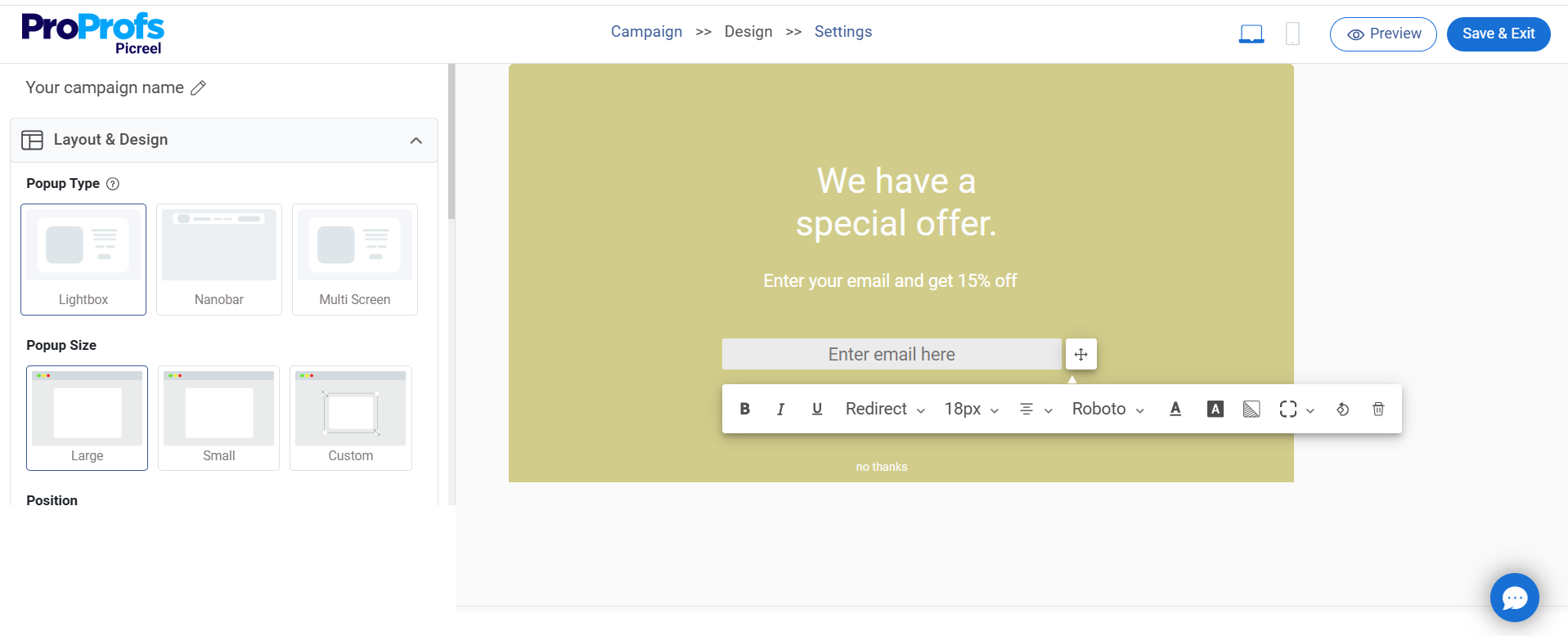
Design: Pick a layout that complements your website — minimal and modern for blogs, bold and colorful for eCommerce sites. You can use a solid background, an image, or even subtle animation to grab attention. Keep the close button visible to maintain user control.
Fields: Keep your form short and relevant. Only ask for what’s needed — name, email, or message. Fewer fields lead to higher completion rates. I suggest adding 2 fields as it delivers around 3.31% conversion.
Options: Decide how the popup behaves. Add animations (fade, slide, or zoom), choose its placement (center or bottom corner), and set how long it stays visible. These small adjustments can make a big difference in engagement.
Fonts: Use readable, modern fonts that fit your brand style. Keep labels short and clear so visitors can quickly fill them out.
Personalization: This is where your form can really shine. Integrate your popup tool with your CRM, email marketing platform, or automation tools like Mailchimp or HubSpot. Greet users by name, trigger different forms for new vs returning visitors, or show topic-specific forms based on the pages they browse. Personalized popup forms generally outperform generic ones in conversions.
Step 4: Configure When and Where Your Popup Form Appears
With your design ready, it’s time to control how your form appears. The right timing and targeting ensure your popup feels helpful, not disruptive.
Here’s how to fine-tune the settings of your popup registration form:
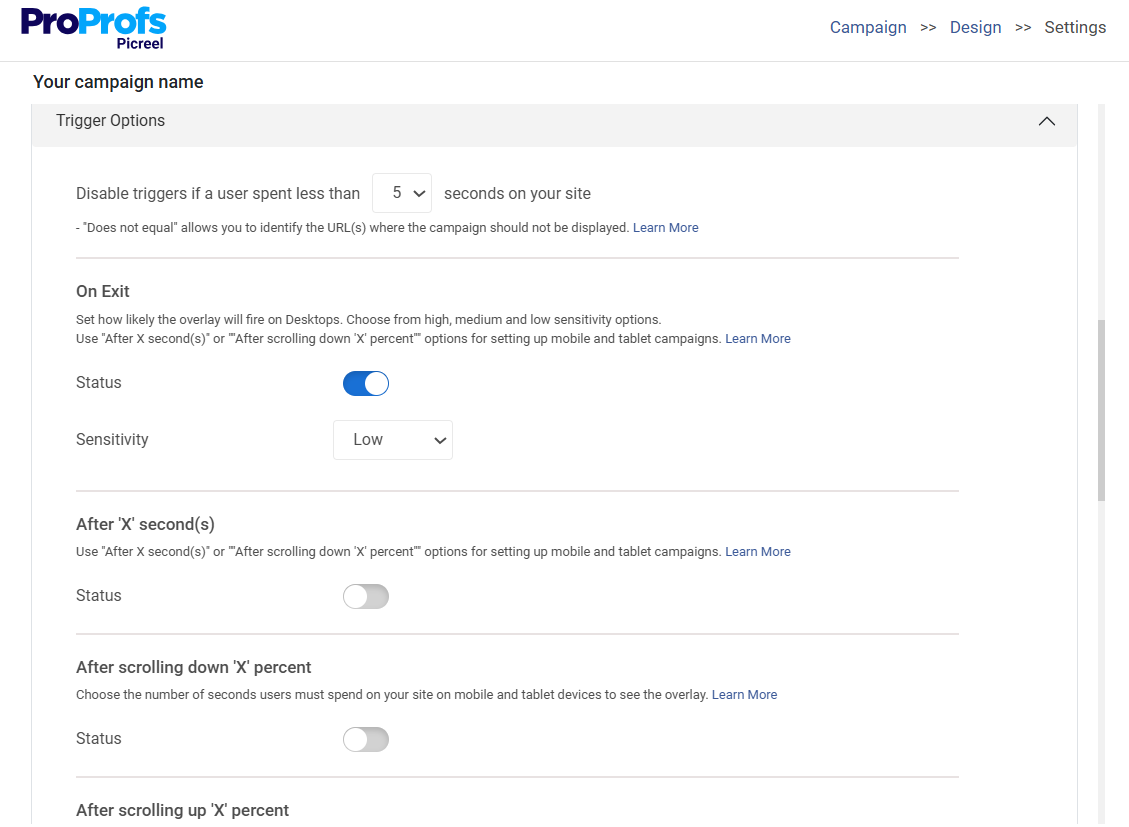
Basic Settings: Choose where the popup form should appear, for instance, on your homepage, blog, or contact page.
Popup Timing: Use smart triggers to display your form at just the right moment:
- Exit Intent: Capture users before they leave your site.
- Time Delay: Show the form after 10–20 seconds on the page.
- Scroll Percentage: Trigger it after users scroll 50% down the page.
- On Click: Let users open the form by clicking a “Contact” or “Subscribe” button.
Impression Frequency: Avoid overwhelming visitors. Show your form once per session or once every few days.
Targeting Rules: Display your popup forms to the right audience for maximum impact.
- New vs Returning Visitors: Show a welcome form for new users and a feedback form for returning ones.
- Visitor Source: Customize your message for visitors from social media, ads, or newsletters.
- Geo-Targeting: Show location-based forms, such as regional contact or event signups.
- Device-Based Targeting: Ensure your popup forms are optimized for both mobile and desktop users.
- Cookie Targeting: Use browsing data to trigger context-specific forms for example, showing a subscription form to blog readers who’ve viewed multiple posts.
Step 5: Publish and Test Your Popup Form
Once your popup form is ready, click Publish and test it across devices. Make sure it looks great on both desktop and mobile. Then, head to your plugin’s analytics dashboard to monitor key metrics like views, submissions, and conversion rates.

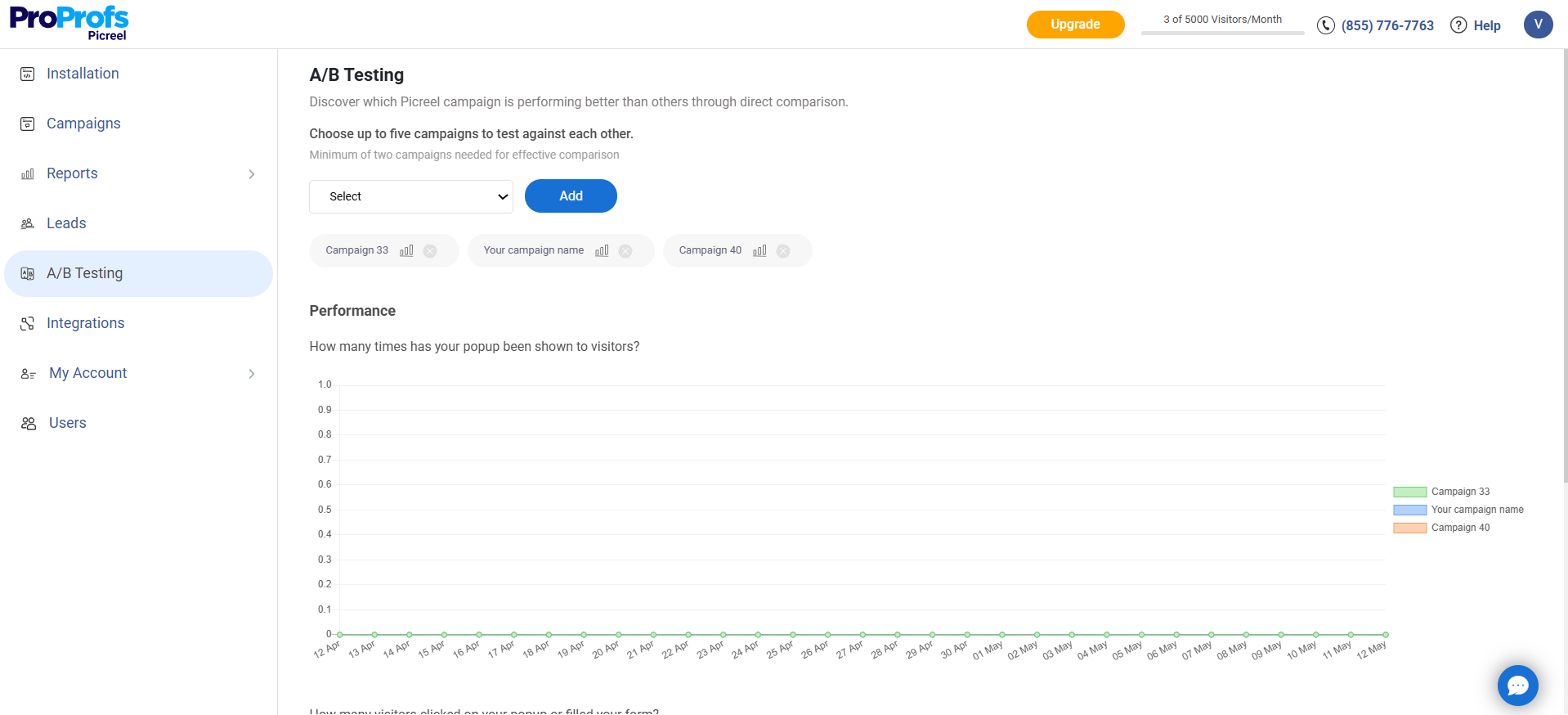
Additionally, experiment with different headline formats, button colors, or CTAs to determine which one performs best using A/B testing. Even small tweaks can significantly increase engagement.
Create Popups That Work, Not Annoy
Creating popup registration form WordPress that convert isn’t about using the flashiest design or the most advanced plugin — it’s about understanding your visitors and giving them the right prompt at the right time.
When done well, popups can capture leads, gather feedback, and strengthen customer relationships without disrupting the browsing experience.
Keep your forms short, mobile-friendly, and relevant to the visitor’s intent. Utilize smart triggers, such as exit intent or scroll depth, to make every interaction feel natural, and continually test your designs to determine what resonates best.
If you’ve been wondering how to add a popup contact form in WordPress that looks great and performs even better, try setting up your first one with Picreel. It’s simple to use, integrates seamlessly with your marketing tools, and helps you turn everyday visitors into lasting customers.
FREE. All Features. FOREVER!
Try our Forever FREE account with all premium features!

 We'd love your feedback!
What did you like & how can we make it even better?
 Thanks for your feedback!
 Ask Your Question
Have a question? Get expert help to make your decision easier.