
Most WordPress site owners don’t ignore privacy on purpose. They ignore it because it feels confusing, technical, and honestly a bit intimidating. One plugin says you are compliant. Another says you are not. Then come the popups that annoy users and slow down your site. Sound familiar?
If you are trying to figure out how to set up a privacy policy popup that WordPress users actually accept, you are not alone. I have encountered this challenge across various blogs, e-commerce stores, and marketing sites. Everyone wants to do the right thing. No one wants to hurt conversions or deal with legal headaches later.
The truth is, privacy compliance is not about adding more banners or legal pages. It is about understanding what actually matters, what is required, and how to implement it without hurting trust or performance.
In this guide, I break down what a privacy policy popup really is, what it must include, how it differs from cookie consent, the UX mistakes to avoid, and how to set it up cleanly on WordPress using Picreel.
What Is a Privacy Policy Popup in WordPress (And Why Most Sites Need One)
Let’s keep this simple. If your WordPress site collects any kind of user data like cookies, IP addresses, or analytics, a privacy policy popup isn’t optional anymore.
A privacy policy popup is the notice visitors see when they land on your site. It explains how data is used and asks for consent upfront. This matters because a privacy policy link in the footer is easy to miss and does not count as consent.
Laws like GDPR, CCPA, and UK GDPR require clear permission before loading non-essential cookies. And no, “I don’t target those regions” won’t protect you.
If you use analytics, ads, or tracking, a popup is the safest way to stay compliant and build trust.
How to Create a Privacy Policy Popup in WordPress
To create a Privacy Policy popup in WordPress, it’s essential to first establish your Privacy Policy page. Head to Settings → Privacy in your WordPress dashboard, and use the built-in generator to create a clear and comprehensive Privacy Policy.
Be sure to include details on how you collect data, whether through analytics, embeds, or third-party tools. This page is critical as your popup will link directly to it, so it must be set up first before proceeding.
Once the Privacy Policy page is ready, a reliable plugin like Picreel can streamline the process of transforming your policy into a compliant, non-intrusive popup.
With Picreel, you can ensure your privacy notices are fast, functional, and legally sound without impacting your site’s performance or requiring any coding knowledge.
Step 1: Install and Connect Your Popup Tool
From your WordPress dashboard, head to WordPress popup plugins → Add New and search for your WordPress popup plugin like Picreel.
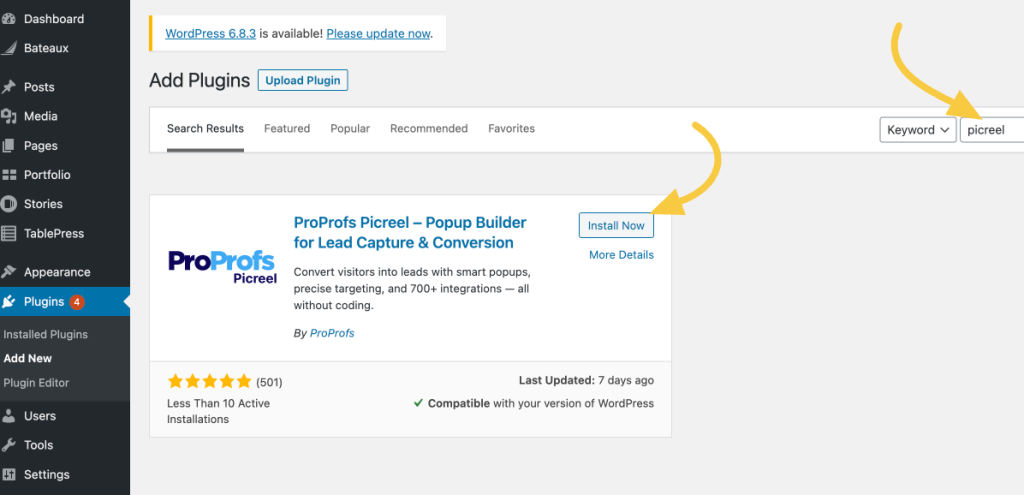
Install and activate the plugin, then log in or create a Picreel account.
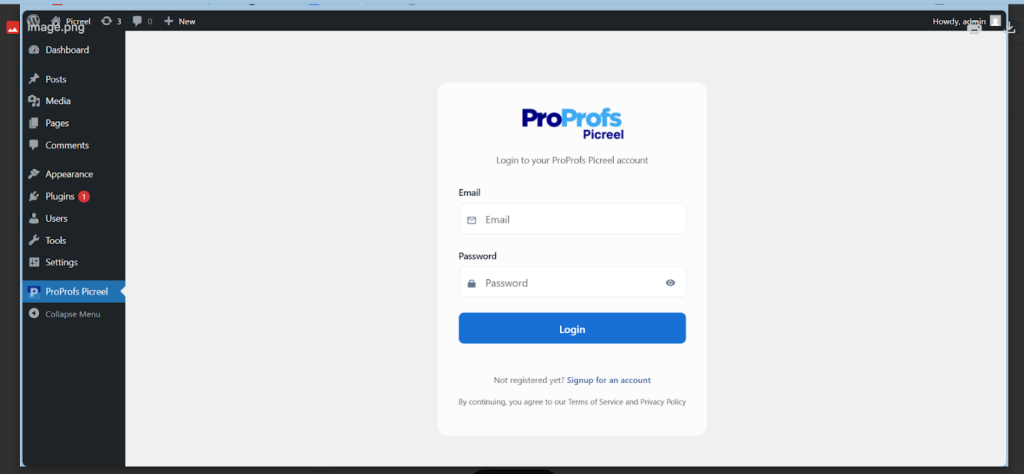
Now, launch your Picreel dashboard.
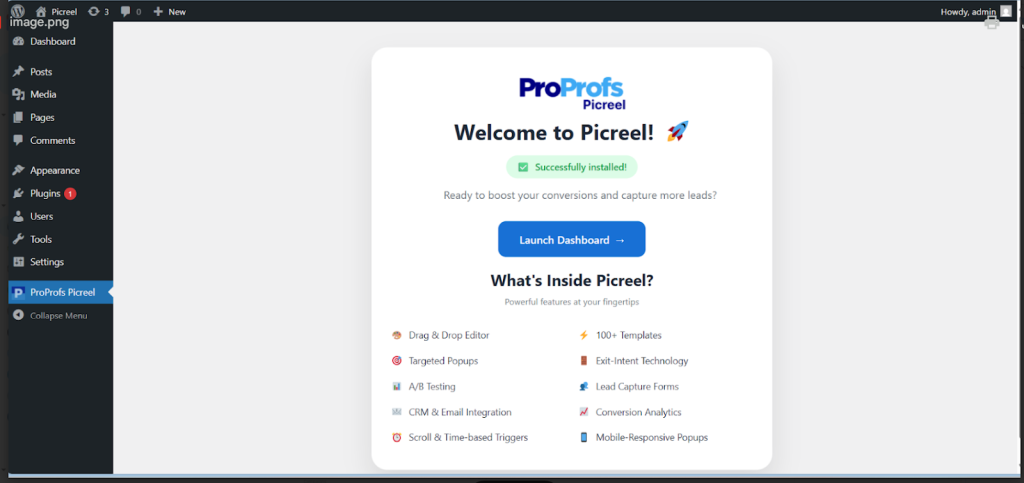
Once connected, your site is set up automatically. There’s no need to edit theme files or add scripts manually.
Step 2: Create a Privacy-Focused Popup Campaign
Open the Picreel dashboard and click Create Campaign.
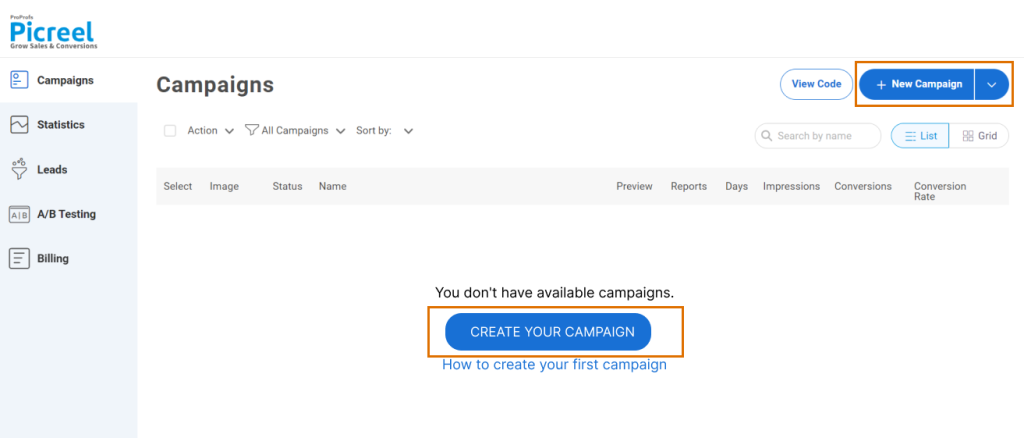
You can create a privacy policy popup in two straightforward ways, depending on how quickly you want to move.
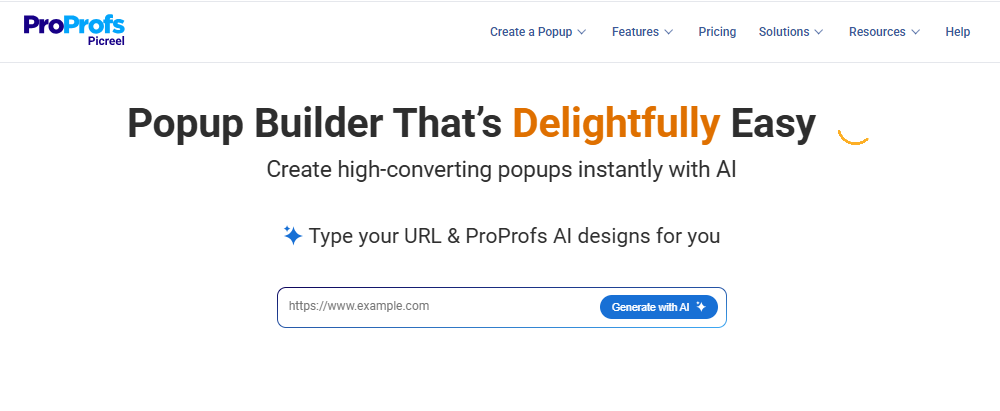
If you want the fastest setup, start with Picreel AI. Add your website URL, choose a privacy or consent-related goal, answer a few short questions, and apply your brand colors. Picreel will automatically generate a simple privacy popup with ready-to-use copy and layout, so you don’t have to build anything from scratch.
If you’d rather customize things, pick from Picreel’s collection of pre-built popup templates. Choose designs meant for consent notices, redirects, or short informational messages that show on page load or after a brief delay.
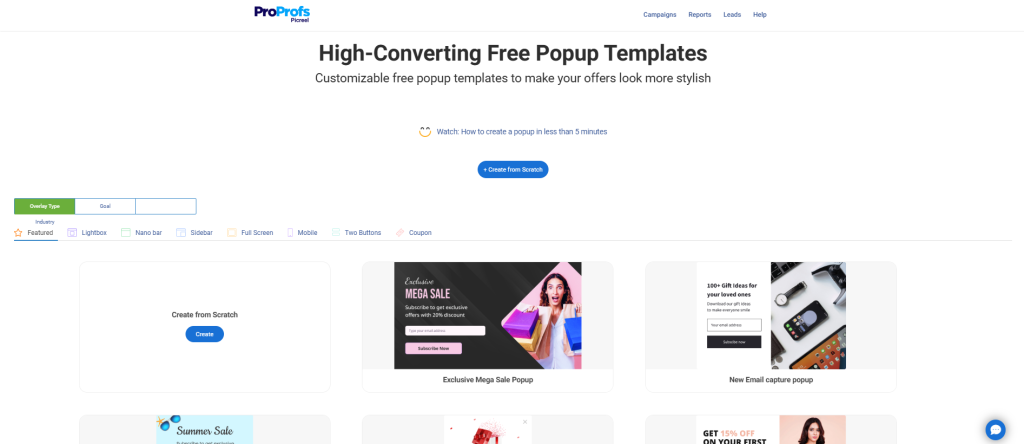
Whichever option you choose, stick to clean modal or lightbox layouts. Simple designs feel less intrusive and help users understand and act on the message without frustration.
Step 3: Add Consent Options
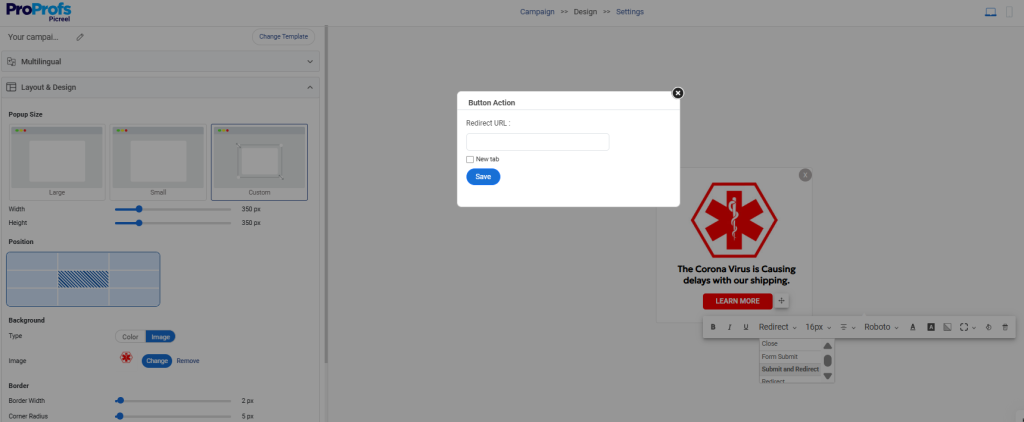
This popup is about compliance, not emails. So, it’s essential to use clear buttons like Accept, Reject, and Manage preferences.
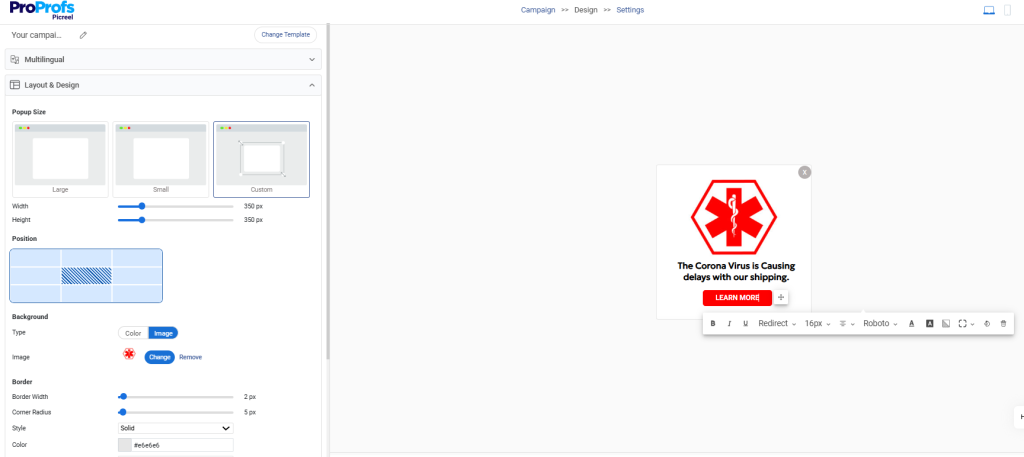
Link them directly to your Privacy Policy or Cookie Policy pages. No forms. No friction.
Step 4: Control When and Where It Appears
Decide exactly when the privacy popup should appear. For strict compliance, show it on page load.
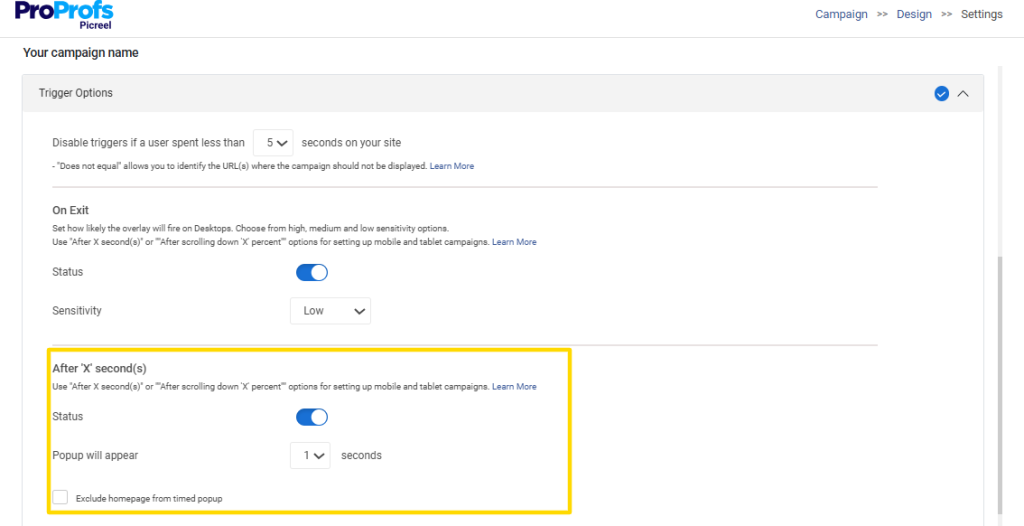
If you want a softer first impression, add a short delay of a few seconds so visitors can see the page before the popup appears.
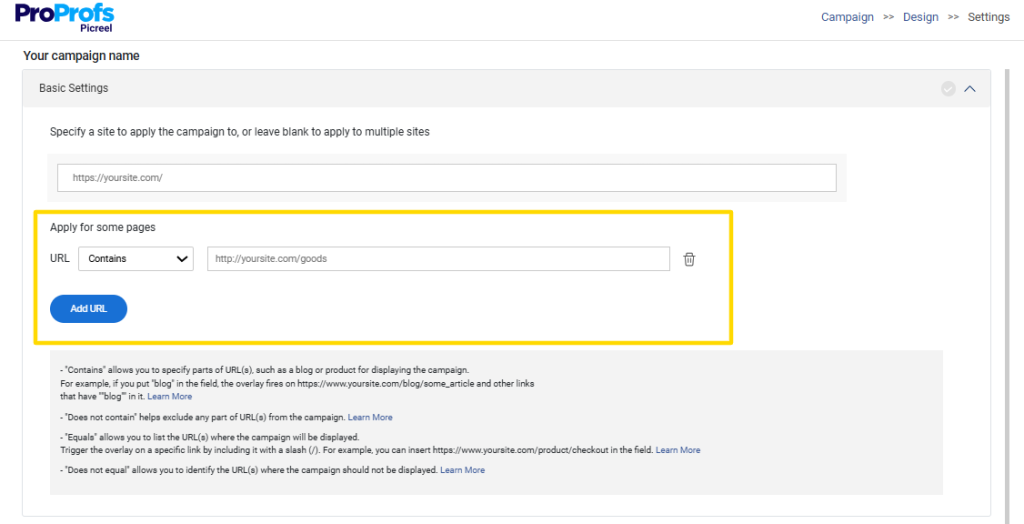
Next, control where and to whom it shows. Use location-based targeting to display the popup only to visitors from GDPR or CCPA regions instead of every user.
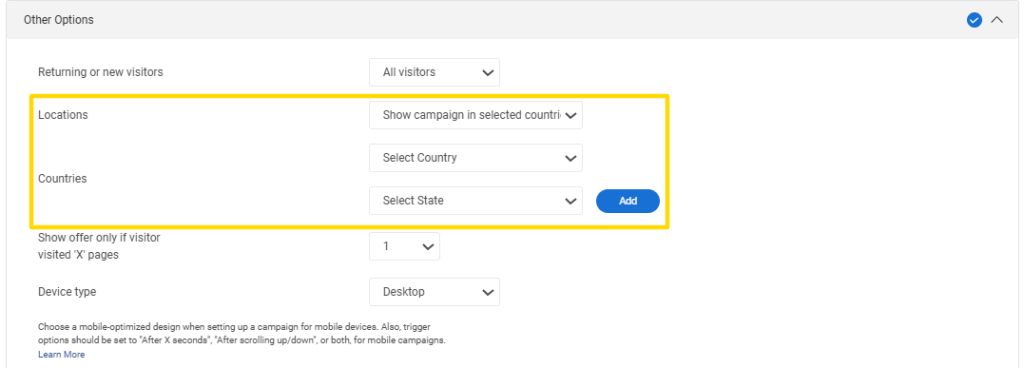
You can also restrict it to specific pages like blog posts or checkout pages, keeping the consent message relevant and non-intrusive.
Step 5: Block Tracking Until Consent Is Given
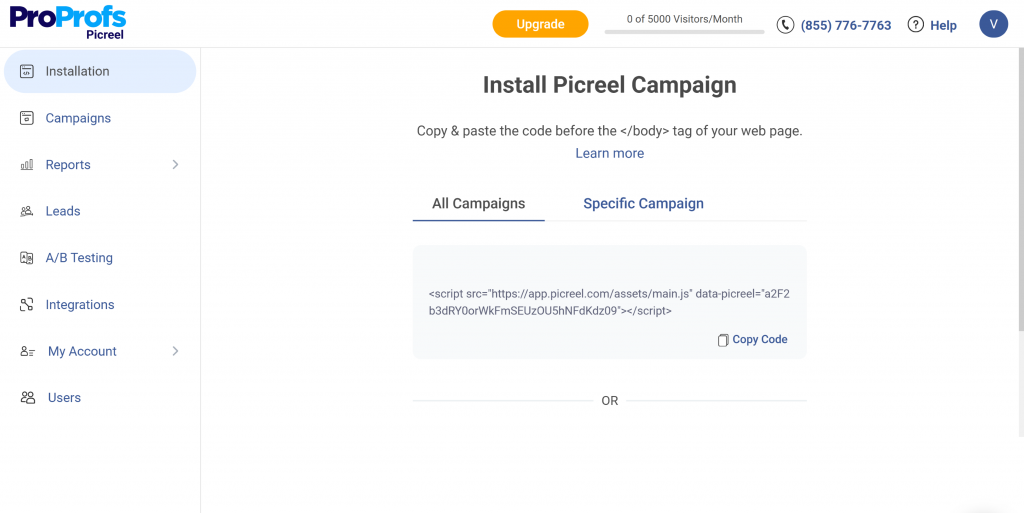
If you use Google Tag Manager, Picreel connects with it to ensure non-essential scripts don’t fire before consent. This is critical for GDPR compliance and often missed by basic popup tools.
Step 6: Preview, Test, and Publish
Preview the popup on desktop and mobile. Make sure it’s easy to read, easy to close, and doesn’t cover important content. Picreel handles caching automatically, so performance stays smooth.
What a Compliant Privacy Policy Popup Must Include
This is where most sites get it wrong. A privacy policy popup isn’t just there to “look compliant.” It needs a few non-negotiables to actually protect you.
- Clear explanation of cookie usage: Tell visitors what data you collect and why. Session cookies, analytics, ads. Keep it simple and human. If users can’t understand it, it doesn’t count.
- Consent before non-essential cookies load: Tracking scripts should stay off until users say yes. A proper popup gives options to accept all, reject non-essential cookies, or manage preferences. A reliable WordPress cookies popup privacy policy plugin should also ensure cookies stay blocked until consent is given.
- Direct links to your policy pages: Your popup should link straight to your Privacy Policy and Cookie Policy. One click, no searching.
- Easy way to change or revoke consent later: Users must be able to update their choice anytime. A footer link or small floating icon does the job and keeps you compliant.
- Disclosure of third-party tools: If cookies come from analytics tools, ad networks, or embedded services, users need to know. You don’t have to list everything in the popup, but there should be an easy way to access this information.
- Clear identification of who’s collecting the data: Visitors should know who runs the site and who’s responsible for their data. This usually means your business name and a contact email for privacy-related requests.
Privacy Policy Popup vs Cookie Consent Popup
If you’ve ever wondered whether a privacy policy popup and a cookie popup are the same thing, you’re not alone. Most WordPress site owners mix them up. The fix is simple once you see the difference.
Think of it this way: one explains the rules, the other asks for permission. Here’s how they actually differ.
| Basis | Privacy Policy | Cookie Consent Popup |
|---|---|---|
| Primary purpose | Explain how your site collects, uses, and shares data | Get user permission before cookies or trackers run |
| Type of content | Detailed legal and informational content | Short, action-focused summary |
| Data covered | Emails, IP addresses, forms, user rights, and cookies | Cookies and tracking scripts only |
| Format | Full page on your website | Popup or banner shown on first visit |
| User action required | None. Meant to be read | Yes. Accept, reject, or manage preferences |
| Placement | Footer or linked from forms and popups | Front and center when users land |
| Relationship to compliance | Fulfills disclosure requirements | Fulfills consent requirements |
FREE. All Features. FOREVER!
Try our Forever FREE account with all premium features!
User Experience Challenges With Privacy Popups
Let’s be honest. Nobody loves privacy popups. To stay compliant, you need a well-designed WordPress privacy policy popup that feels informative, not disruptive.
Also, poor UX is what turns a legal requirement into a conversion problem. The good news is you can stay compliant without annoying your visitors.
- Avoid aggressive, full-screen popups: Large modals that block the entire page frustrate users and increase bounce rates. A slim top or bottom hello bar is easier to notice without getting in the way.
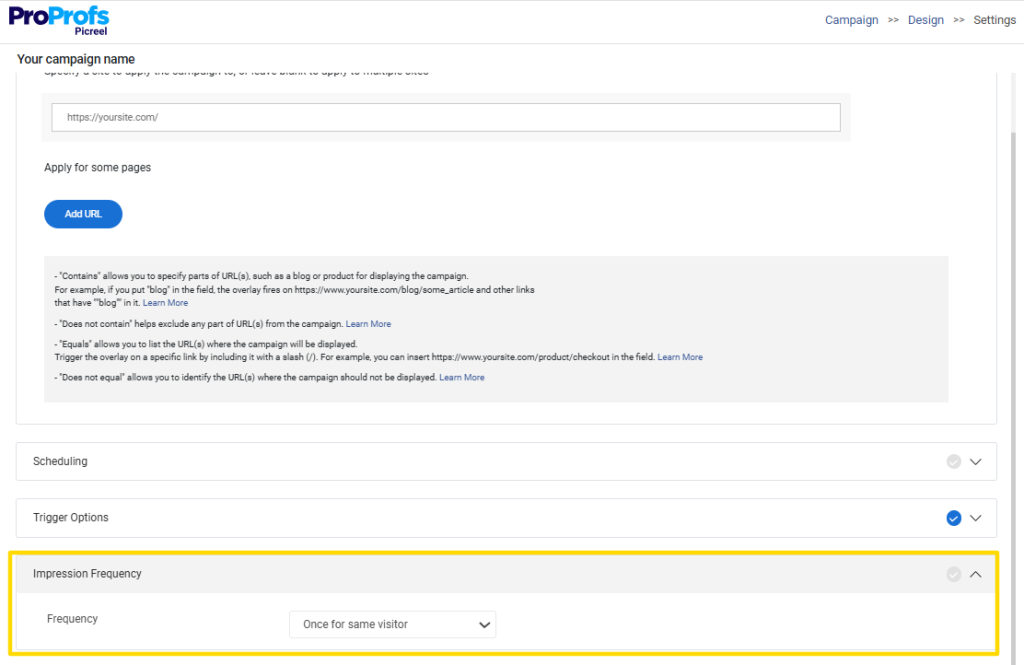
- Don’t ask the same question again and again: Once a user gives consent, remember it for months. Repeating the popup on every visit feels pushy and breaks trust.
- Get the timing and placement right: Show the popup early enough to stay compliant, but don’t rush it in a way that disrupts the first interaction. Keep it clean, visible, and easy to dismiss.
- Make choices clear and readable: Use simple buttons like “Accept,” “Reject,” and “Manage preferences.” No tricks, no confusing language. What users see should match what actually happens.
- Explain the why, not just the rule: A short line explaining how consent improves the experience helps reduce resistance. Transparency turns compliance into a trust signal.
Stay Compliant Without Hurting Trust or Speed
Privacy compliance on WordPress doesn’t have to feel overwhelming or intrusive. Once you understand the difference between a privacy policy and a consent popup, the path forward becomes clear. A compliant setup comes down to a few essentials: clear disclosure, real consent before tracking, easy access to policies, and a user-friendly experience that respects choice.
Just as important, how you implement the popup matters. Aggressive designs and heavy plugins can hurt trust and slow your site, which defeats the purpose. That’s where a lightweight, flexible solution makes a real difference.
With Picreel, you can create fast, compliant privacy policy popups without writing code or sacrificing performance. From consent-focused templates to location-based targeting and script control, it gives you everything you need to stay compliant as your site grows.
Ready to set up a privacy policy popup that actually works? Start with Picreel and get compliant without slowing your site down.
FREE. All Features. FOREVER!
Try our Forever FREE account with all premium features!

 We'd love your feedback!
What did you like & how can we make it even better?
 Thanks for your feedback!
 Ask Your Question
Have a question? Get expert help to make your decision easier.