
I’ve seen this play out on countless WordPress sites. A visitor lands on a page, and before they can even read a headline, a popup jumps in their face. Most of the time, they leave immediately. That is not lead generation. That is lost trust.
Auto popups interrupt the experience, get blocked by browsers and ad tools, and push users away instead of pulling them in. They also come with hidden costs. Heavy scripts slow down pages, Core Web Vitals take a hit, and suddenly your SEO starts slipping.
To make matters worse, many on-click popup wordpress plugins charge based on traffic or lock basic features behind upgrades, which is frustrating when all you want is something that just works.
On-click popups take a different approach. They appear only when someone chooses to engage by clicking a button, link, or image. That simple shift respects intent, keeps your site fast, and leads to better conversions without annoying visitors.
If auto popups have been hurting your WordPress site, it’s time to rethink how you use them.
In this guide, you’ll learn:
- Why you need on-click popups
- The non-negotiables of an on-click popup WordPress plugin
- How to create an on-click popup in WordPress using Picreel
- Real on-click popup use cases for businesses
- A smarter way to use popups on WordPress
Why You Need On-Click Popups
If auto popups feel like they are hurting more than helping, that’s because they often are. More business owners are moving to on-click popups for a simpler and more effective reason.
- Auto Popups Break Trust: Auto popups interrupt visitors without permission. In contrast, a popup on click WordPress plugin shows messages only when someone chooses to engage, which feels more natural and builds trust instead of resistance.
- Intent Drives Better Conversions: These popups trigger when a visitor clicks a button, link, or image. That click shows real interest. You are no longer guessing when to show an offer.
- Clean Pages Convert Better: Your site stays uncluttered with no forced overlays. You can promote offers or capture leads without disrupting the reading or shopping experience.
- Mobile Experience Improves Instantly: On-click popups do not take over small screens. Users scroll freely and interact only when ready, which reduces drop-offs on phones and tablets.
On-click popups let you convert engaged visitors while keeping your site fast, clean, and user-friendly.
What an On-Click Popup WordPress Plugin Must Do (Non-Negotiables)
Before installing any on-click popup plugin, I learned the hard way that it’s important to focus on what actually works in real-world use.
I’ve seen tools that looked great at first but created issues once they were live on a WordPress site. Over time, a few fundamentals stood out as non-negotiable from day one.
1. True Click-Based Triggers
An on-click popup should open only when a visitor clicks a button, link, image, or text CTA. No popups on page load. No forced interruptions.
Click triggers should rely on clear user actions, with precise element targeting through selectors. If a popup fires without real intent, it breaks trust instantly.
2. Fast and Lightweight Performance
Many popup plugins add scripts and animations that slow sites down. Performance cannot be optional.
A solid plugin should run with minimal scripts and have no impact on Core Web Vitals. If installing it noticeably slows your site, it is already doing more harm than good.
3. Native WordPress Compatibility
Popup tools should work the way WordPress users work. That means simple setup, no coding, and smooth compatibility with Gutenberg, Elementor, and custom themes. Time should be spent on campaigns and content, not troubleshooting plugin conflicts.
4. Support for Multiple Websites
A large number of WordPress users manage more than one site. Per-site and traffic-based pricing is a common frustration.
Any practical solution should support multiple domains without forcing you to juggle tools or licenses as you grow.
5. Privacy Safe Usage
Not every popup needs to collect data. Many businesses use click-based popups purely for redirection or announcements.
This is especially important for regulated industries, where a plugin must allow these use cases without hidden tracking or forced form captures.
Picreel includes all of these essentials, so you can set up on-click popups quickly, keep your site fast, and use the same solution across multiple WordPress sites without added complexity.
How to Create an On-Click Popup in WordPress (Step-by-Step)
Creating an on-click popup in WordPress does not require custom code or stacking multiple plugins. With Picreel, you can set up a lightweight popup that opens only when users click, keeping the experience clean and intent-driven.
Step 1: Connect Your Tool to Your WordPress Site
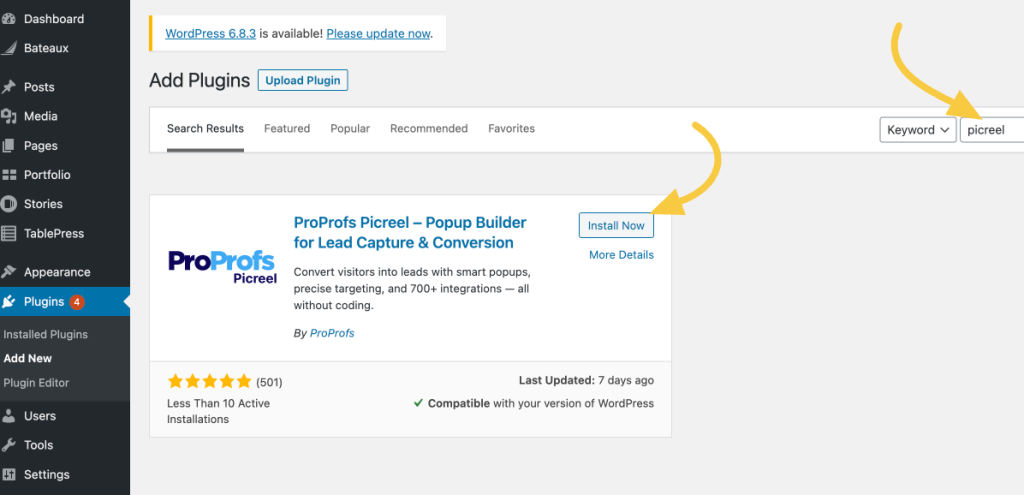
Go to your WordPress dashboard and navigate to WordPress popup plugins → Add New. Search for Picreel WordPress Popup Plugin, then click Install Now and Activate.
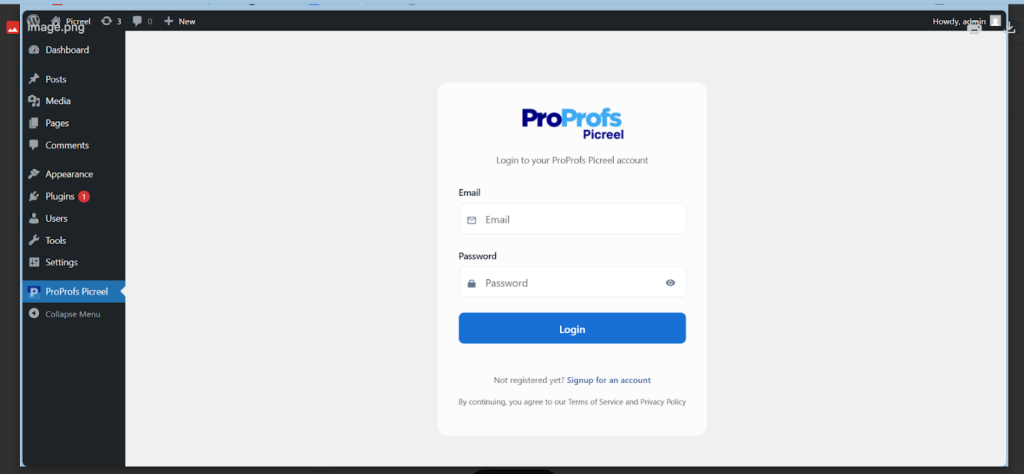
Once activated, Picreel will appear in your WordPress sidebar. Click it and log in to your Picreel account.
This opens the Picreel dashboard, where you can manage all popup campaigns from one place.
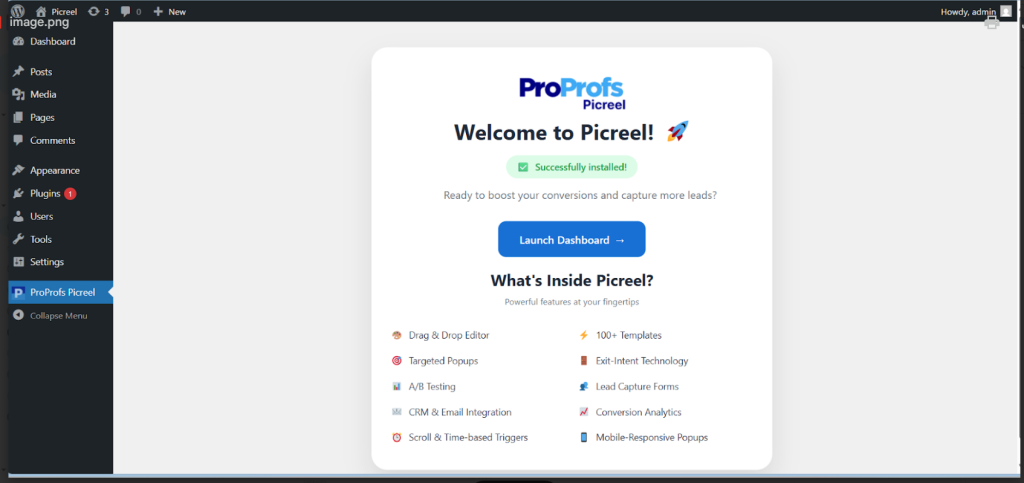
The setup stays lightweight and avoids the performance issues commonly associated with traditional popup plugins.
Step 2: Create Your Popup Content
Inside the Picreel dashboard, click Create New Campaign.
You can start in two ways:
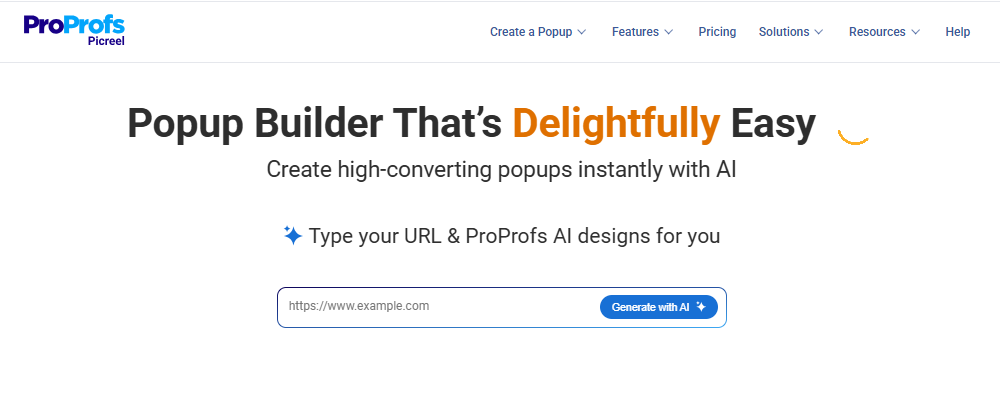
- Use Picreel AI for a faster setup. Enter your website URL, choose your goal, answer a few questions, and apply your brand colors. Picreel generates a ready-to-use popup layout and copy.
- Or choose from ready-made templates if you want more control over the design.
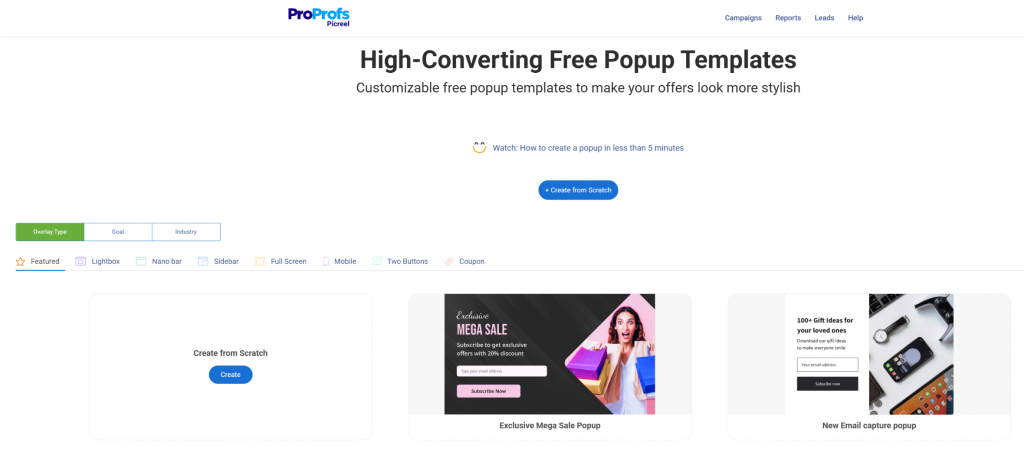
At this stage, decide how the popup will be used:
- Lead forms for email capture
- Redirect CTAs for sending users to another page
- Announcements or updates
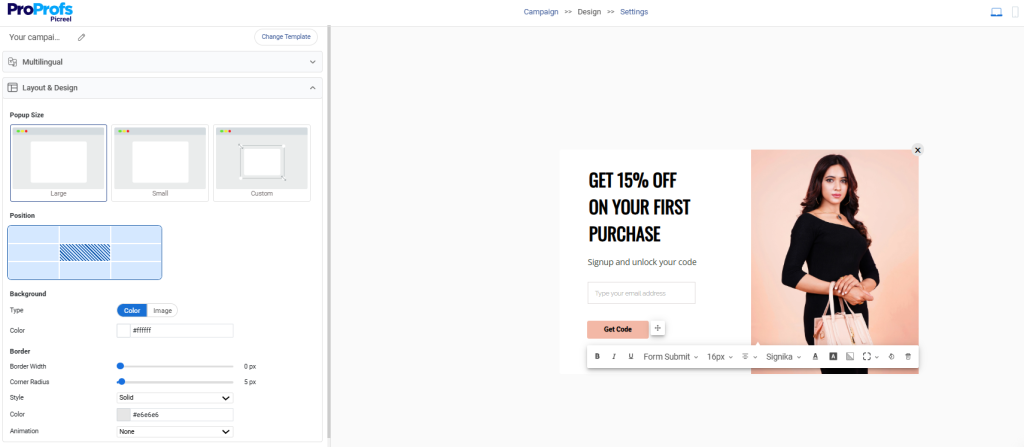
Next, customize the popup with text, images, form fields, and basic personalization if needed. Keep the message value-driven so users feel motivated to click. Save your campaign once the design is ready.
Step 3: Set the Click Trigger
Now go to Settings, scroll to triggers inside your campaign.
Head to the On Click section and enable it. You will see a field labeled CSS Selector.
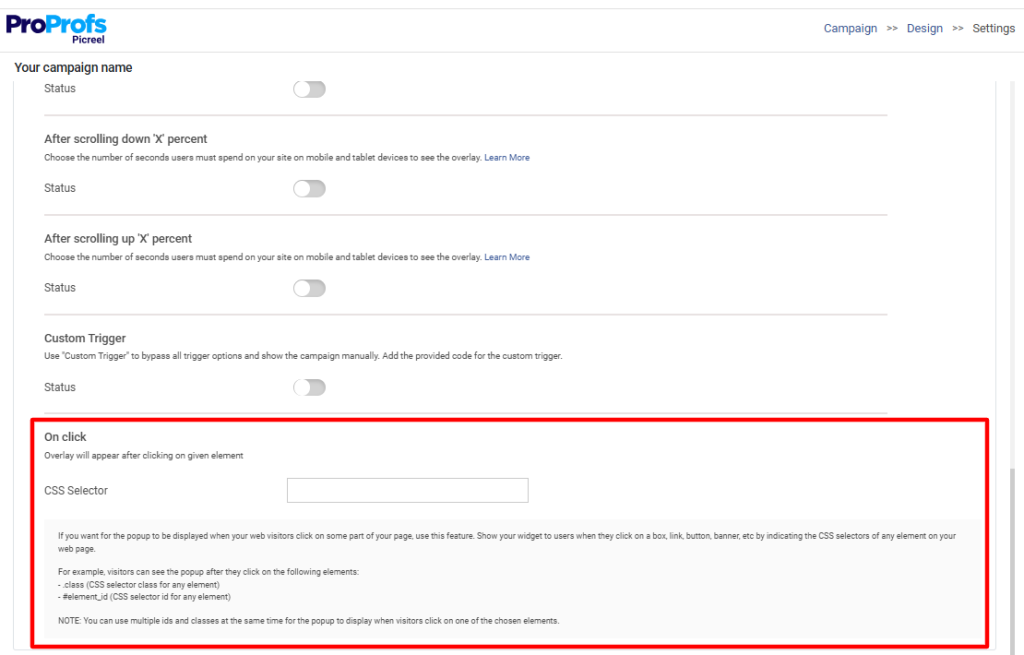
This is where you tell Picreel which element on your page should open the popup.
Step 4: Add a CSS Selector to Your WordPress Element
A CSS selector identifies the exact button, link, or image that users will click.
Common examples:
- .cta-button targets a button with that class
- #signup-link targets a specific element by ID
Now add the same class or ID to the clickable element in WordPress:
- In Gutenberg, add it under Advanced → Additional CSS class
- In Elementor, add it under Advanced → CSS Classes
- For links or images, apply the class directly in the editor
For example, if you enter .my-cta-button in Picreel, add my-cta-button as the class on the button or link you want users to click.
When a visitor clicks that element, the popup will open.
Step 5: Configure Display Rules
Next, control where the on-click popup should appear.
You can:

- Adjust behavior for desktop and mobile
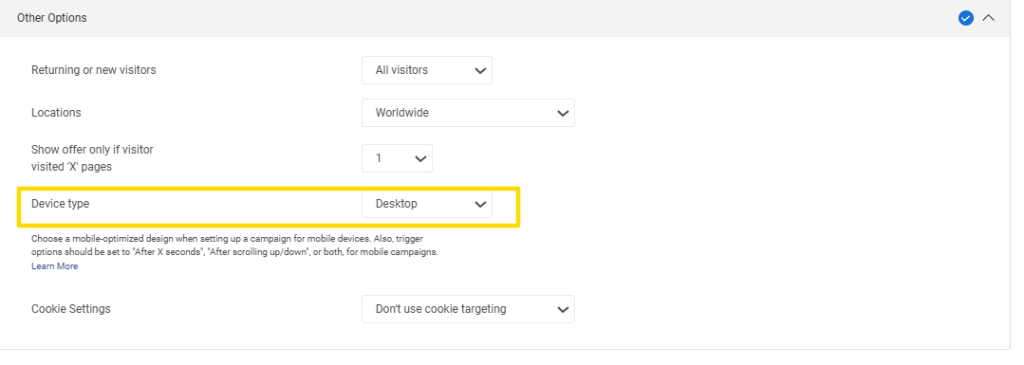
This ensures the popup appears only where it makes sense and does not feel out of place.
Step 6: Preview, Test, and Publish
Use Picreel’s live preview to check desktop and mobile views. Test clicks across browsers and devices to catch any issues. Once satisfied, hit publish, and the popup goes live instantly.
After launch, use reporting to track performance:
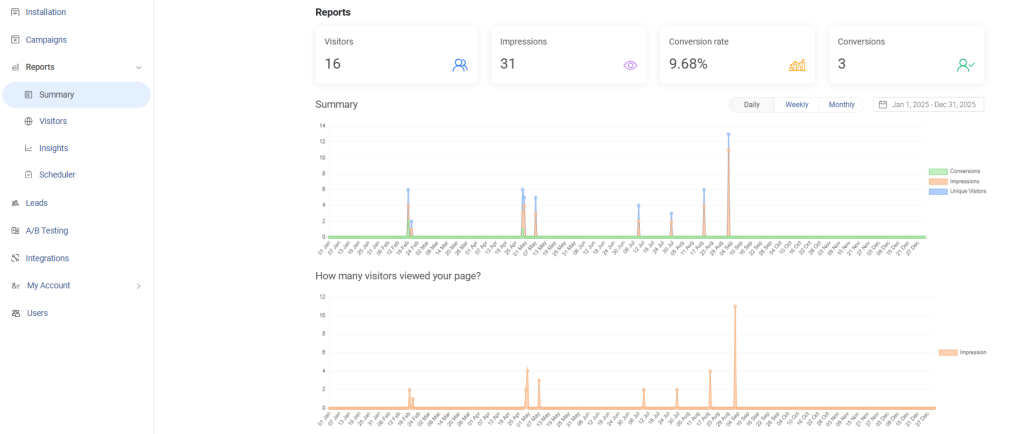
- CTA clicks to measure engagement
- Conversions like form submissions or redirects
- Performance by page or campaign
This visibility helps you improve results over time without guessing.
Real Business Use Cases for On-Click Popups
On-click popups aren’t theoretical; they drive real results for businesses like yours. Here are grounded examples from e-commerce to SaaS.
1. Email Lead Magnets: Trigger a signup form on a “Download Guide” button, capturing subscribers without interrupting reading. This builds your list organically from interested visitors.
2. Demo and Trial CTAs: On product pages, link a “Book Demo” button to a popup form, streamlining signups and qualifying leads faster.
3. Product Launches: Use click-triggered announcements to reveal details or redirects, building hype without spoiling the main page.
4. Redirecting Traffic During Site Migrations: Click a banner to seamlessly send users to a new domain, maintaining flow during transitions.
5. WooCommerce Offers: Tie popups to cart buttons for upsell discounts, increasing average order value on e-commerce sites.
6. Privacy-Safe Announcements: In regulated fields, use simple redirects or messages that avoid data collection, ensuring compliance.
FREE. All Features. FOREVER!
Try our Forever FREE account with all premium features!
A Smarter Way to Use Popups on WordPress
On-click popups give you a smarter way to convert visitors without hurting trust, performance, or user experience. Instead of interrupting people at random, they let you engage users only when they show real intent by clicking a button, link, or image.
That simple shift leads to cleaner pages, better mobile experiences, and higher-quality conversions.
To work well, an on-click popup solution needs a few non-negotiables: true click triggers, lightweight performance, smooth WordPress compatibility, flexible multi-site support, and privacy-safe usage. When those basics are in place, popups stop feeling intrusive and start feeling useful.
Picreel brings all of this together in one simple setup, making it easy to launch fast, intent-driven popups that scale with your business.
If you’re ready to turn clicks into meaningful engagement, start creating your on-click popup with Picreel today.
FREE. All Features. FOREVER!
Try our Forever FREE account with all premium features!

 We'd love your feedback!
What did you like & how can we make it even better?
 Thanks for your feedback!
 Ask Your Question
Have a question? Get expert help to make your decision easier.