

Let’s get straight to it. If you run a WordPress site, conversions do not just “happen.” You need to create them through deliberate actions, and one of the simplest ways to do that is with a call-to-action popup on WordPress.
When used the right way, CTA popups on WordPress help turn casual visitors into subscribers, leads, or customers instead of letting them leave unnoticed.
The issue is not the concept. It is the execution. I have seen many beginners end up with popups that feel intrusive, load poorly on mobile, or require technical skills they do not have. That is where they get stuck and give up.
To save your from that chaos, I have created this guide. You will learn why CTA popups fail and how to fix them, how to add a call to action popup on WordPress without code, the best popup plugins to use, and the exact criteria to choose the right tool with confidence.
Why Most CTA Popups Fail to Convert (and How to Fix Them)
CTA Popups get a bad reputation for being annoying. But the real problem is rarely the popup itself. It is how and when it is used.
Most CTA popups on WordPress fail because they ignore user behavior, offer little value, or feel poorly designed. When that happens, visitors bounce instead of converting. The good news is that each of these issues is easy to fix if you know what to look for.
1. Bad Timing & Intrusive Behavior
Showing a popup the moment someone lands on your page is a fast way to lose trust. It interrupts the experience and feels aggressive.
Fix it: Trigger popups based on behavior. Show them after a visitor scrolls halfway, stays idle for a few seconds, or shows exit intent. This makes the popup feel timely and helpful, not disruptive.
2. Weak or Generic Value Exchange
CTAs like “Subscribe Now” rarely work because they ask without offering anything meaningful.
Fix it: Lead with value. Offer a discount, checklist, or free resource that matches the page context. When the benefit is clear, opt-ins feel like a fair trade.
3. Poor Design & Mobile Unfriendliness
Cluttered layouts and tiny buttons hurt conversions, especially on mobile devices.
Fix it: Use responsive designs, fast-loading popups, and thumb-friendly buttons. Simple, clean design goes a long way.
4. Difficulty Managing CTA Popups Across Many Posts
Manually updating popups across dozens of pages wastes time and causes inconsistencies.
Fix it: Use centralized tools that let you create once and apply everywhere.
5. Complicated Setup & Poor Integrations
Tools that require code or don’t integrate well slow everything down.
Fix it: Choose no-code WordPress-friendly builders with easy CRM integrations.
6. Lack of Targeting & Personalization
Showing the same popup to everyone lowers relevance and conversions.Fix it: Personalize based on page, device, or behavior to make CTAs feel tailored and engaging.
How to Add a Call to Action Popup on WordPress
If you want to add a call to action popup to your WordPress site without touching code, the process is simpler than it sounds. With no-code popup builders like Picreel, you can create, customize, and launch a CTA popup in minutes. Follow these steps to set it up the right way.
Step 1: Install a No-Code Popup Builder
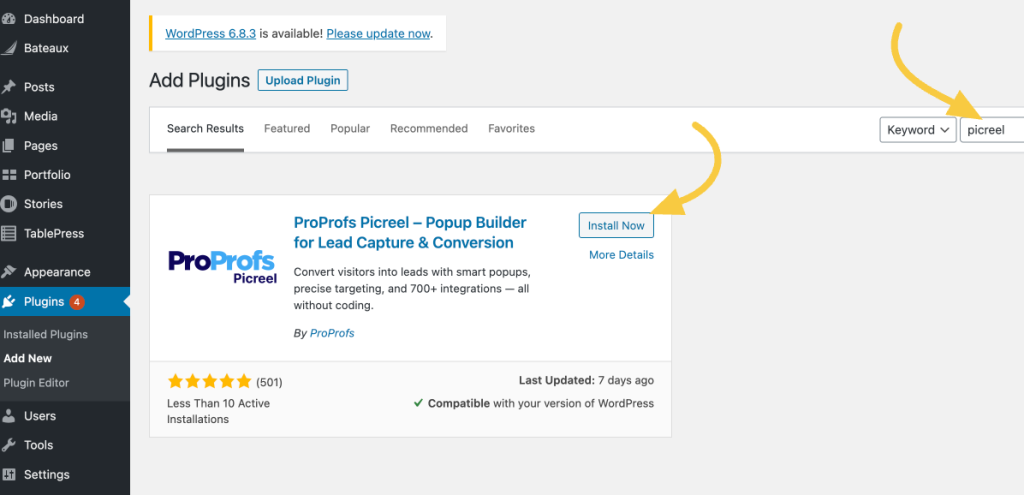
Start from your WordPress dashboard. Go to Plugins, click Add New, and search for a no-code popup plugin such as Picreel. Install and activate it.
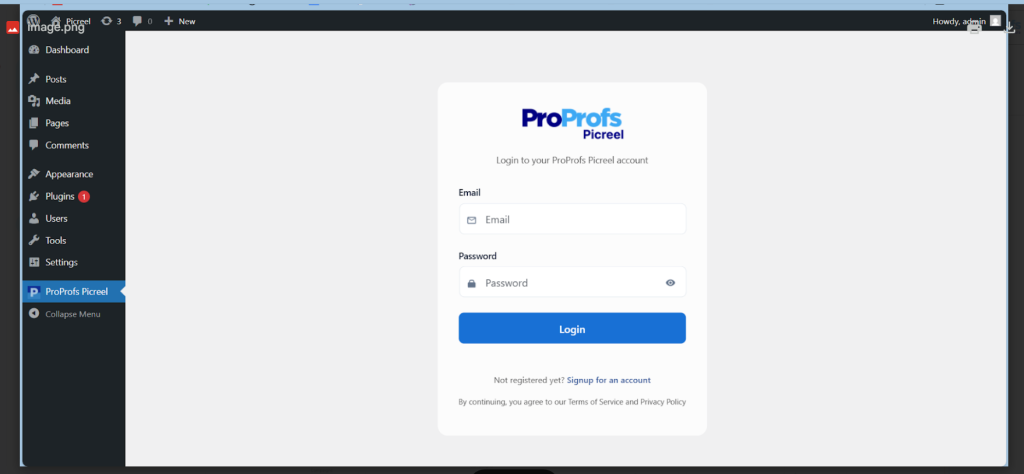
Once activated, the plugin will appear in your WordPress sidebar. Open it and sign in to your account.
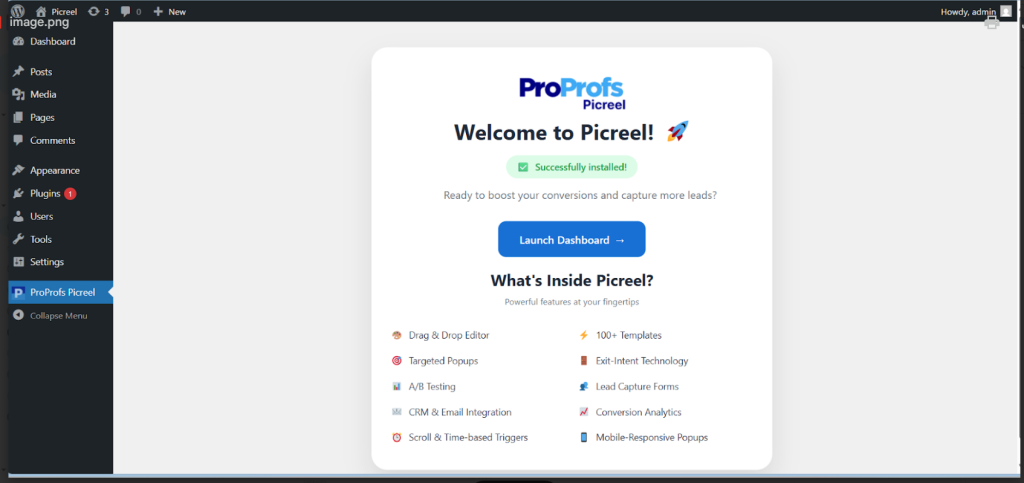
Now launch the dashboard. It becomes your central place to create, manage, and monitor all CTA popups across your site.
If you run multiple sites, this is also a good time to confirm that the plugin supports multi-site usage.
Step 2: Choose a CTA Template
Inside the popup dashboard, click Create New Campaign.
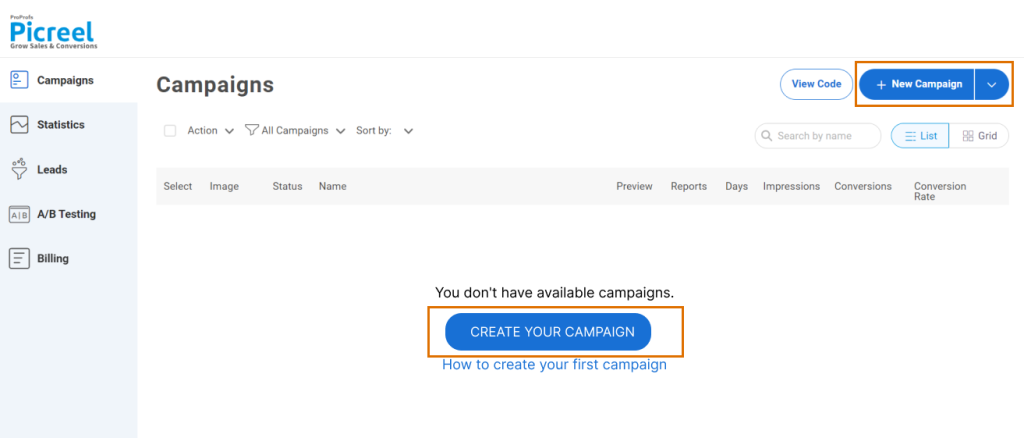
You will see a library of ready-made templates designed for different goals. Choose one based on what you want to achieve:
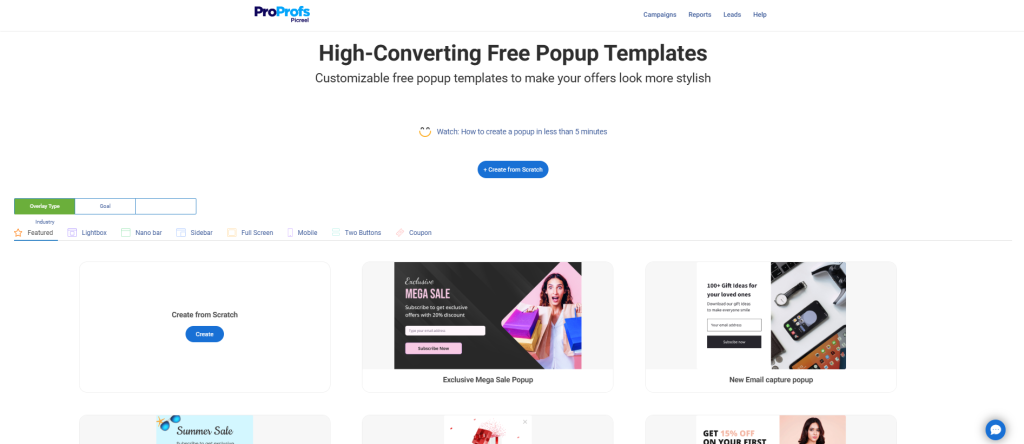
- Lead-generation templates for email signups
- Redirect CTAs to send users to a landing or product page
- Offer-based CTAs for discounts, freebies, or gated content
For example, if you run an eCommerce store, a cart recovery or discount popup works better than a generic signup form.
Step 3: Customize Design & Copy
Now, tailor the popup to match your site.
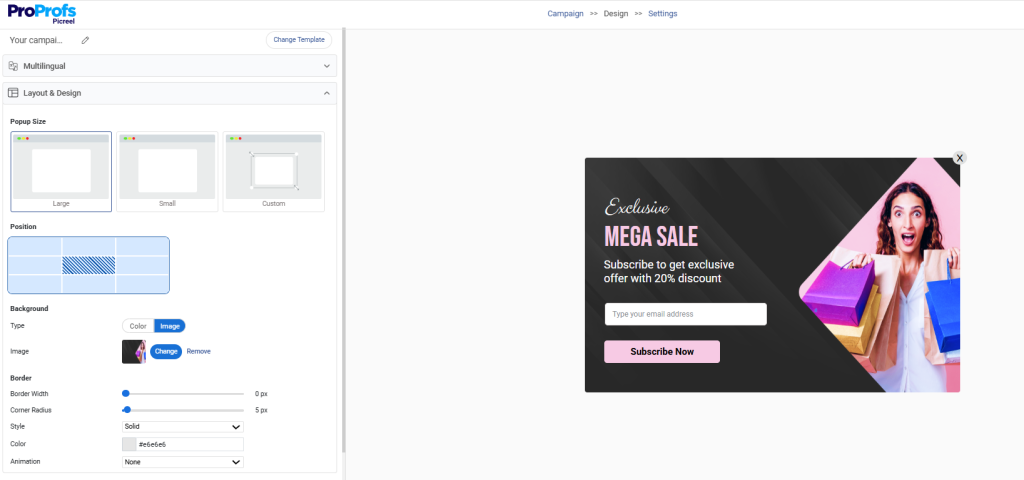
Update the headline with clear value, such as “Get 20% Off Your First Order.” Keep the message short and benefit-focused.
You can:
- Adjust colors, fonts, and spacing to match your brand
- Change button text to something action-oriented
- Preview and fine-tune the layout for mobile devices
Make sure that your WordPress popup call to action buttons are easy to tap and nothing overlaps on smaller screens.
Step 4: Set Targeting & Triggers
Next, define when and where the popup should appear. Choose triggers like scroll percentage, time delay, or exit intent to avoid interrupting users too early.
You can also:
- Show popups only on specific URLs or pages
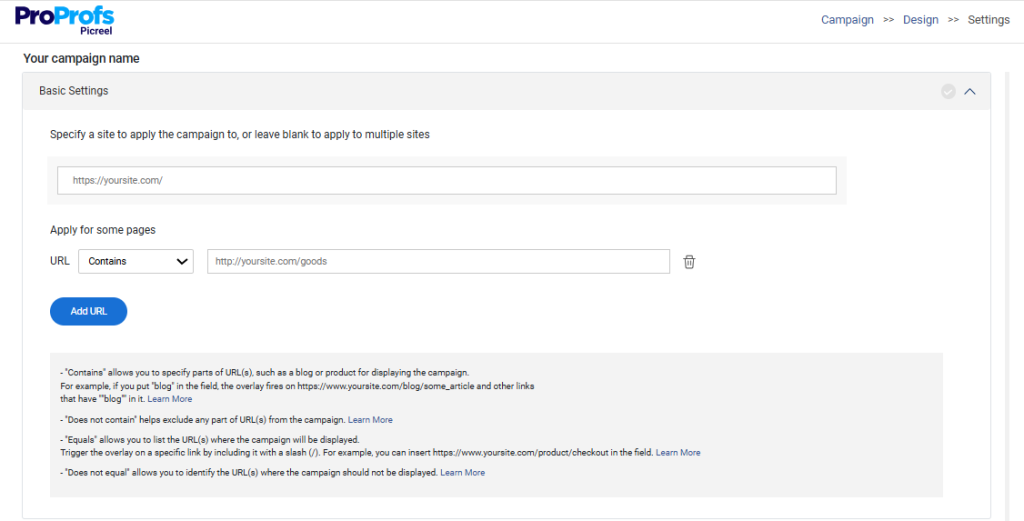
- Target visitors based on device type or location
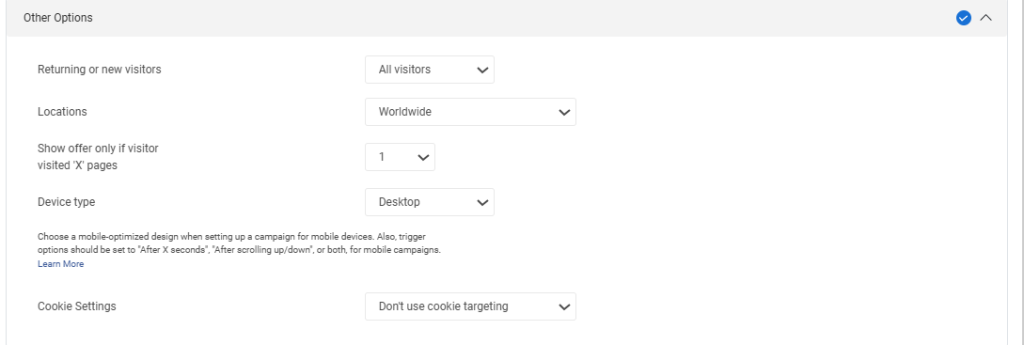
- Use UTM rules to match campaigns from ads or emails
Test one trigger at a time so you can clearly see what performs best.
Step 5: Connect Your Email/CRM Tool
Go to the integrations section and connect your email or CRM tool, such as Mailchimp, Klaviyo, or HubSpot.
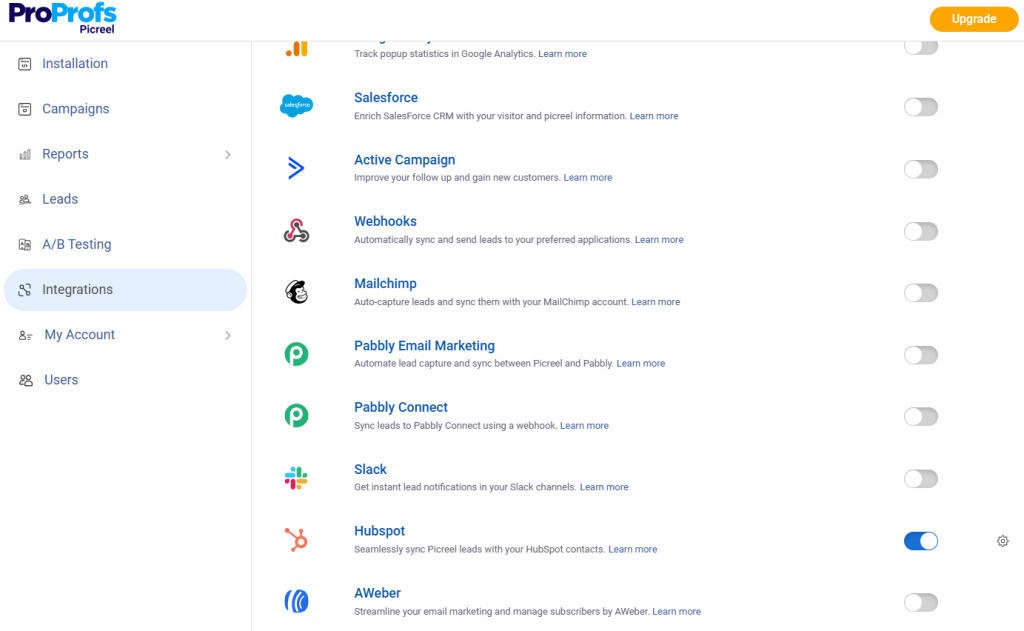
Map the form fields so email addresses and user data sync automatically. This ensures every signup flows directly into your follow-up or nurture campaigns without manual work.
Step 6: Publish and Test
Once everything is set, publish the popup. Clear your site cache and test it in an incognito window to see how it behaves for first-time visitors.
Check the popup on desktop, tablet, and mobile. Make sure it loads quickly, buttons work properly, and there are no layout issues. After launch, monitor views and conversions from the analytics dashboard.
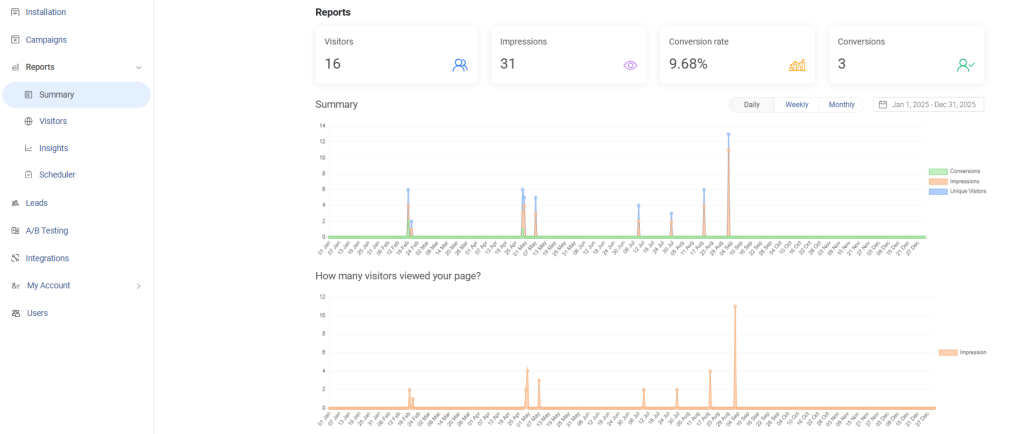
Then tweak copy, design, or triggers based on real data.
5 Best CTA Popup Plugins for WordPress
Not all popup plugins are built the same. Some focus on design, others on targeting, and a few strike the right balance between ease and performance. Here are the tools that consistently stand out for WordPress users.
Before we get into the details, here’s a quick overview of the tools covered below.
| Tool | Best For | Price |
|---|---|---|
| Picreel | Customizable, high-converting CTA popups with advanced targeting | Free plan available; Paid plans start at $9.99/month |
| Convert Pro | Design-heavy popups that load fast and look on-brand | Starts at $89 |
| OptinMonster | Advanced targeting and behavioral automation | Starts at $7/month |
| Ninja Popups | Experimenting with a wide variety of popup styles | Starts at $59.40/year |
| Icegram Engage | Beginners testing simple CTA popups | Starts at $129/year |
1. Picreel-Best for Customizable, High-Converting CTA Popups
I think Picreel stands out when you want full control over how your WordPress call to action popup looks and behaves, without getting stuck in technical details. I could set up anything from a simple signup popup to a full-screen offer or discount wheel, all using drag-and-drop. It never felt restrictive, which is rare with no-code tools.
What really helped was the balance between flexibility and ease. I could start with ready-made templates or design a CTA from scratch, tweak colors and layouts, and make sure it looked great on mobile. Features like cookies ensured visitors did not keep seeing the same popup, and connecting the form to my CRM felt smooth from start to finish.
Pros
- Advanced page, URL, device, and geo-targeting to show CTAs only where they make sense
- Wide range of popup types including lightboxes, nanobars, full-screen overlays, and gamified offers
- Smart triggers like exit intent, scroll depth, inactivity, and click-based actions
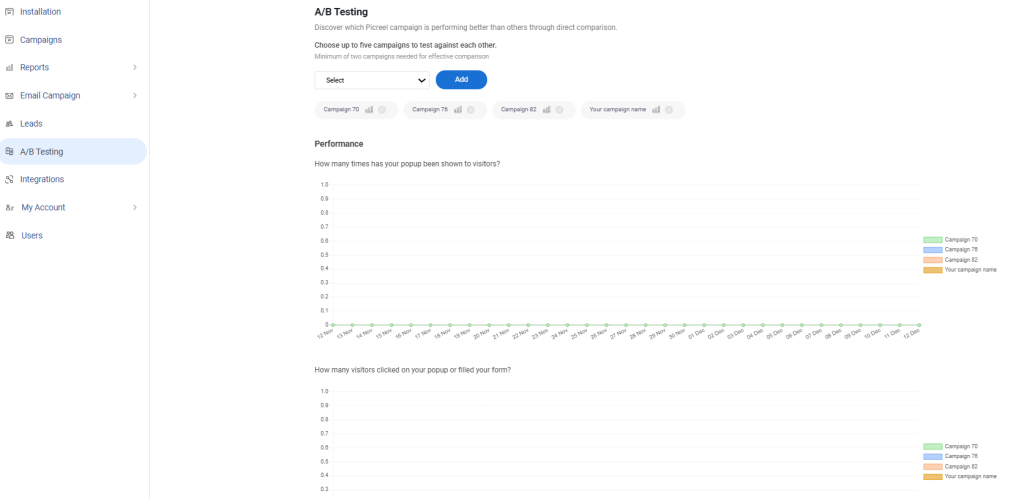
- Built-in analytics and A/B testing to optimize CTA copy, design, and timing
Cons
- Cloud-only platform with no offline access
- No dark theme option in the editor
Price
Offers a forever-free plan for up to 5K visitors (for WordPress, you may need the Enterprise account).
Paid plans start at $9.99/month, followed by Business at $39.99/month, and Enterprise at $69.99/month.
2. Convert Pro-Best for Design-Heavy Popups That Load Fast

Convert Pro is what I reach for when I care more about how a popup looks than how many rules I can attach to it. It feels noticeably lighter than most popup plugins, and that matters when you are trying to keep WordPress pages fast. I did not have to fight the tool to get something clean and on-brand live.
What I enjoyed most was the freedom of design. I could start from a template, rip it apart, and rebuild it the way I wanted, especially for mobile. The editor gives you room to experiment without things breaking. It feels less like a marketing machine and more like a design tool that just happens to convert.
Pros
- Visual canvas builder that lets you design popups from scratch without layout restrictions.
- Separate mobile editor for precise control over popup layouts on smaller screens.
- Cookie-based controls to avoid repeatedly showing the same popup to users.
- Native integrations with popular email marketing tools for easy list building.
Cons
- Using too many popups or heavy designs can impact site speed if not managed carefully
- Overusing multiple popups across pages can feel intrusive and overwhelm visitors
Price
Starts at $89
3. OptinMonster-Best for Advanced Targeting and Behavioral Automation
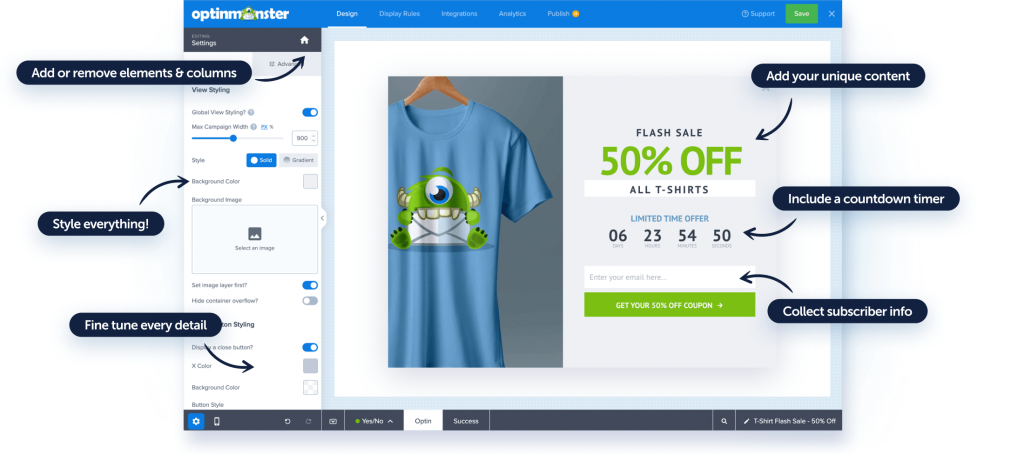
I like how much control OptinMonster gives over when popups appear, not just how they look. Instead of showing a popup the moment someone lands on a page, it lets me wait until visitors are actually engaged. Things like exit intent and scroll-based triggers felt practical right away, especially for blog and checkout pages.
What I also appreciate is how well it grows with you. I have used it for quick email opt-ins, limited-time discounts, and even urgency-driven campaigns with countdown timers. None of it feels complicated once you get going. The drag-and-drop builder helps a lot here, especially when testing different popup styles or placements without touching code.
Pros
- Wide variety of campaign formats, like coupon wheels and content lockers for different marketing goals.
- Easy-to-use drag-and-drop builder that lets you launch campaigns quickly without technical help.
- Built-in A/B testing and analytics to improve popup performance over time.
- Strong ecosystem of templates and playbooks inspired by real, high-performing campaigns.
Cons
- The interface has a learning curve, especially if you are new to popup tools.
- Customizing more advanced popup designs can take extra time to get right.
Price
Starts at $7/month
4. Ninja Popups-Best for Experimenting With Many Popup Styles
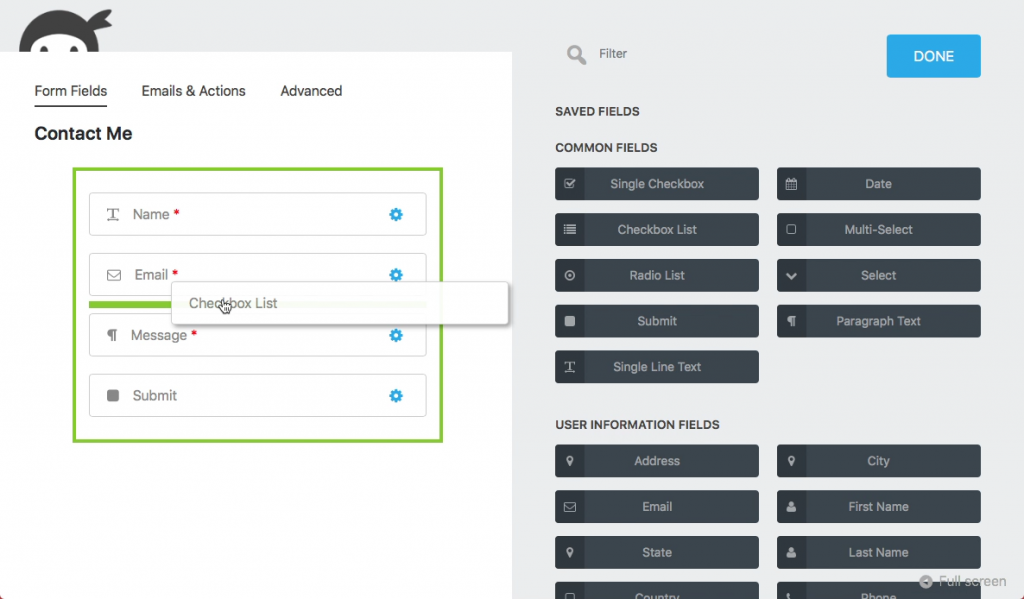
Ninja Popups feels like a playground if you enjoy trying different popup ideas without committing to one strict approach. I looked at it for options like slide-ins, full-screen takeovers, animated modals, and bars. It gives you a lot to work with, which makes it easy to test what actually catches attention on your site.
It is not trying to be overly smart or automated, and that is part of its appeal. You focus more on visual impact and less on setting up complex logic. For bloggers or small site owners who want flexibility and variety without digging into advanced marketing workflows, Ninja Popups does what it promises.
Pros
- Supports a wide range of form fields to build detailed opt-ins, surveys, or lead capture popups
- Built-in calculation logic to create interactive popups like quizzes, pricing estimators, or score-based offers
- Flexible post-submission actions to redirect users, show success messages, or deliver downloadable lead magnets
- Strong submission management to view, filter, export, and manage popup leads directly inside WordPress
Cons
- Performance may take a hit when using multiple popups or heavy designs.
- Interface feels dated in places and may be confusing initially.
Price
Starts at $59.40/year
5. Icegram Engage-Best for Beginners Starting With Simple CTA Popups
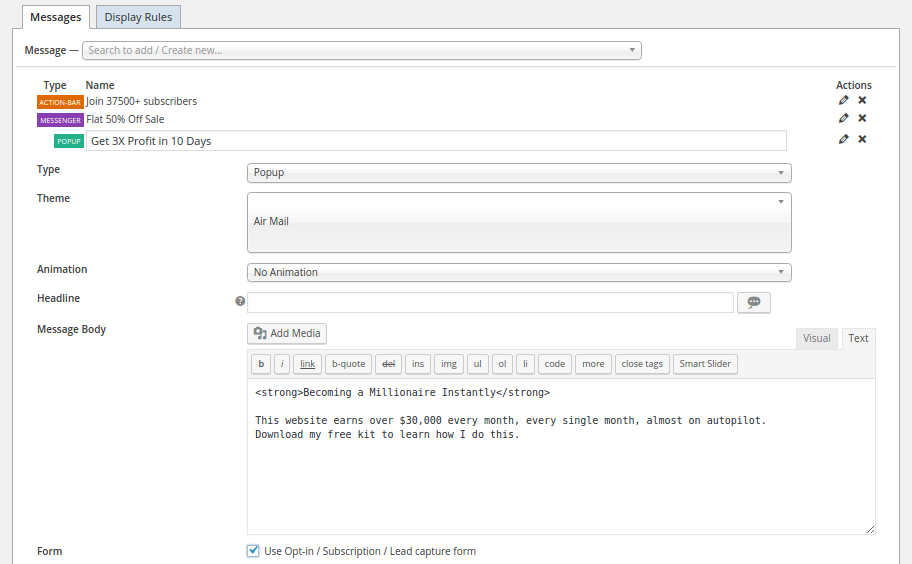
Icegram Engage feels like the easiest place to start if you are completely new to WordPress popups. When I first tried it, I did not feel overwhelmed by settings or complicated workflows. You install it, pick a template, tweak a few things, and you’re live. That simplicity is its biggest strength.
What I like is that it covers the basics really well without pushing you into advanced marketing setups. You get clean popups, action bars, and toast notifications that feel non-intrusive. It works nicely for bloggers or small site owners who just want to test CTAs, build an email list, or reduce bounce without committing too much time or effort.
Pros
- Custom animation effects to match different brand styles and tones.
- Exit and bounce catch messages to retain visitors who are about to leave.
- Message sequencing to display multiple CTAs in a planned order.
- Retargeting options to show different messages to returning visitors.
Cons
- Risk of site slowdown when multiple campaigns run simultaneously.
- Updates may require manual adjustments to maintain compatibility.
Price
Starts at $129/year
How to Choose the Right CTA Popup Plugin (Evaluation Criteria)
| Evaluation Criteria | What to Look For & Why It Matters |
|---|---|
| WordPress Compatibility | Make sure the plugin works smoothly with your theme, page builders like Elementor, and caching plugins. Poor compatibility can lead to layout breaks or site crashes. |
| No-Code Builder & Ready Templates | Look for drag-and-drop builders and professionally designed templates so you can launch popups quickly without touching code. Ideal for beginners and non-technical users. |
| Smart Targeting & Behavior Triggers | Features like scroll depth, exit intent, inactivity, device type, URL, and UTM targeting help show popups at the right moment to the right audience. |
| Integrations That Matter | Native integrations with tools like Klaviyo, HubSpot, Mailchimp, or CRMs ensure leads flow automatically into your marketing and follow-up workflows. |
| Multi-Site Support | If you manage multiple websites, choose plugins that allow easy deployment across sites without repetitive setup or extra friction. |
| Analytics & A/B Testing | Built-in analytics and split testing help track views, clicks, and conversions so you can optimize popups using real data instead of guesswork. |
| Performance & Mobile Responsiveness | The plugin should be lightweight, fast-loading, and fully responsive, with mobile-friendly buttons that work smoothly on touch devices. |
| Reviews & Ratings | Check real user reviews and ratings to spot recurring issues around performance, support, or reliability before committing to a plugin. |
FREE. All Features. FOREVER!
Try our Forever FREE account with all premium features!
Build High-Converting WordPress Popups Without Coding
If there is one takeaway from this guide, it is that CTA popups when they are poorly timed, badly designed, or disconnected from user intent. When done right, they can quietly guide visitors toward taking action without hurting the experience.
The key is choosing a call to action popup WordPress plugin that matches how you work. Beginners may prefer something simple, while advanced marketers might want deeper control and automation. For most WordPress users, though, a flexible no-code tool that balances ease, targeting, and performance is the sweet spot.
That is where Picreel really stands out. It gives you full design freedom, smart targeting, built-in analytics, and CRM integrations without making things complicated. Whether you are collecting leads, promoting offers, or driving clicks, it adapts well as your needs grow.
If you are ready to stop guessing and start converting, try building your first CTA popup today and test what actually works for your audience.
FREE. All Features. FOREVER!
Try our Forever FREE account with all premium features!

 We'd love your feedback!
What did you like & how can we make it even better?
 Thanks for your feedback!
 Ask Your Question
Have a question? Get expert help to make your decision easier.