
I’ve worked on enough WordPress sites to see this pattern again and again. You get traffic, your content performs well, but the one update, offer, or action you care about gets missed. Visitors scroll past it or leave before noticing it.
That’s where I suggest using a WordPress alert popup. I believe it’s a reliable way to get attention without hurting the experience.
Once you implement it, you’ll quickly realize that alert popups work when you use them with intent. They fail when they’re rushed, intrusive, or poorly timed. Most guides either overcomplicate the setup or skip over why popups stop converting.
So, in this guide, I’ll walk you through what alert popups really are, why you might need one, how to create them properly in WordPress, and how to avoid the mistakes that turn a helpful message into an annoyance.
What Is an Alert Popup Message in WordPress?
An alert popup in WordPress is a small on-screen message that grabs attention without taking over the entire page. It typically displays a short message, a button, or a link based on how a visitor interacts with your site.
Unlike notification bars that stay fixed at the top or full-screen popups that block everything, alert popups are meant to feel timely, not intrusive. They work well for quick announcements, limited-time offers, gentle redirects, or simple email signups.
If you want to guide visitors or share something important without hurting the user experience, alert popups are a smart place to start.
6 Common Reasons People Want to Add Alert Popups on WordPress
People usually look for alert popups when they want to fix something specific on their site. These are the most common, practical reasons.
1. Announcing a new page, offer, or product: When you launch something new, you want it seen right away. An alert popup helps highlight it without relying on visitors to scroll or hunt through menus. It puts your update front and center and drives instant clicks.
2. Redirecting traffic to another site or landing page: If a page is outdated or no longer relevant, an alert popup can guide visitors to the right place. This keeps users informed and avoids sudden redirects that feel confusing or hurt engagement.
3. Capturing email leads without cluttering pages: Static forms often get ignored. Alert popups appear at the right moment, like after someone finishes reading a post, making it easier to collect emails without disturbing your page layout.
4. Reducing cart abandonment: For online stores, alert popups can gently remind shoppers about items left in their cart. Adding a simple message or incentive at the exit stage can bring users back and recover lost sales.
5. Showing warnings or confirmations: Alerts are useful for confirming actions or showing important warnings, such as low stock or form submission messages. They reduce mistakes and help users feel more confident while navigating your site.
6. Displaying updates or notices without editing theme files: Need to share a temporary update, like maintenance or policy changes. Alert popups let you do this quickly without touching code or risking theme issues.
How to Make an Alert Popup Message in WordPress
Creating an alert popup in WordPress doesn’t need to be technical or time-consuming. If you’re looking for the wordpress best popup alert setup, focus on tools that let you control timing, targeting, and design without requiring custom code or developer help.
In this walkthrough, I’ll use Picreel as an example to show how this works in practice. Below is a simple guide to get your first alert popup live.
Step 1: Install and Connect Picreel
From your WordPress dashboard, go to plugins, click Add New, and search for your WordPress popup plugin Picreel.
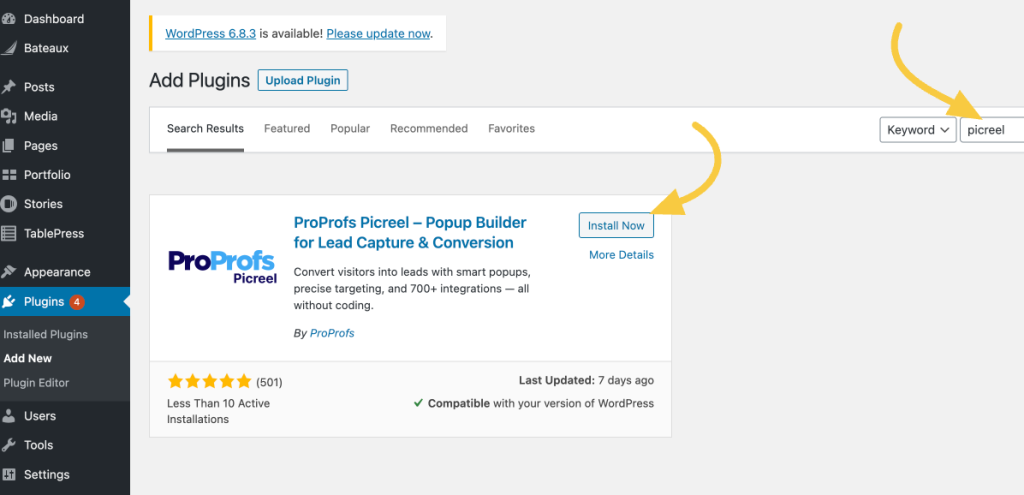
Install and activate the WordPress alert popup plugin. Once activated, log in or create a Picreel account.
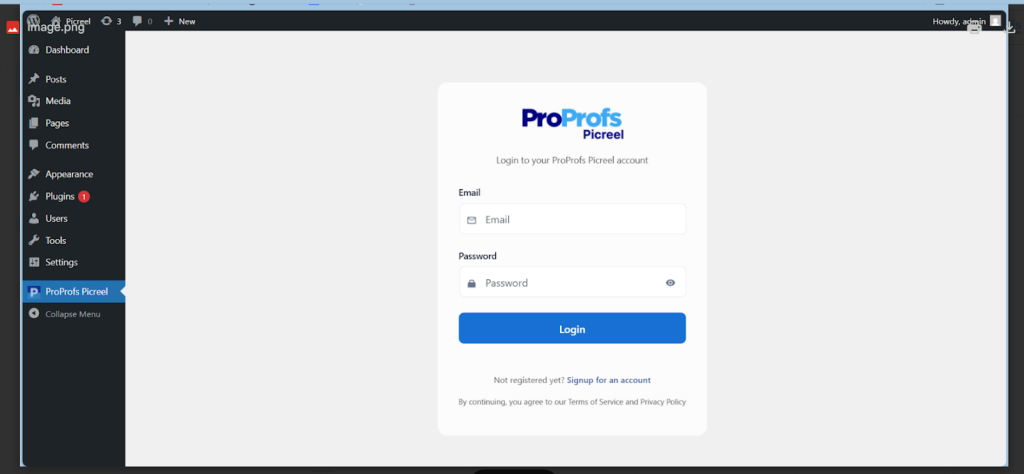
This connects your site automatically, with no need to edit theme files or add scripts manually. Now, open the Picreel dashboard.
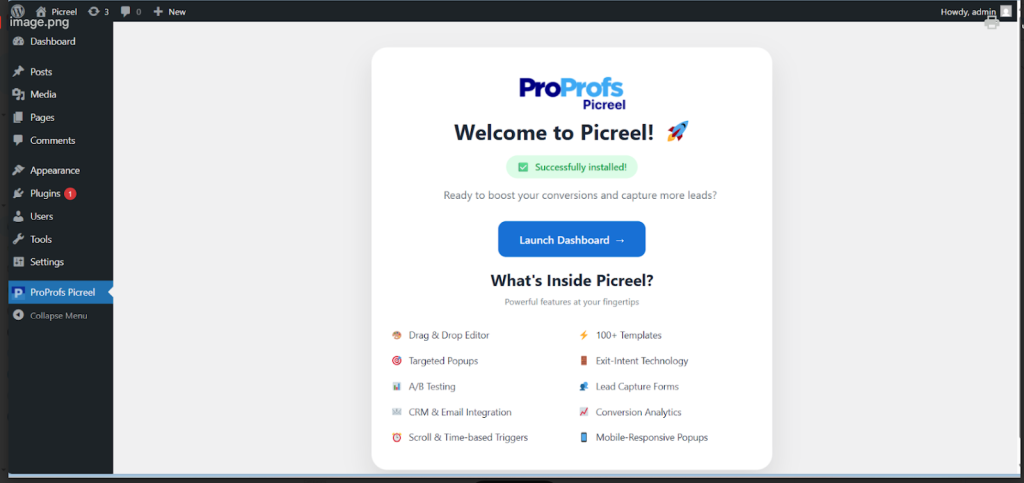
Step 2: Create a New Popup Campaign
Inside Picreel, click Create New Campaign.
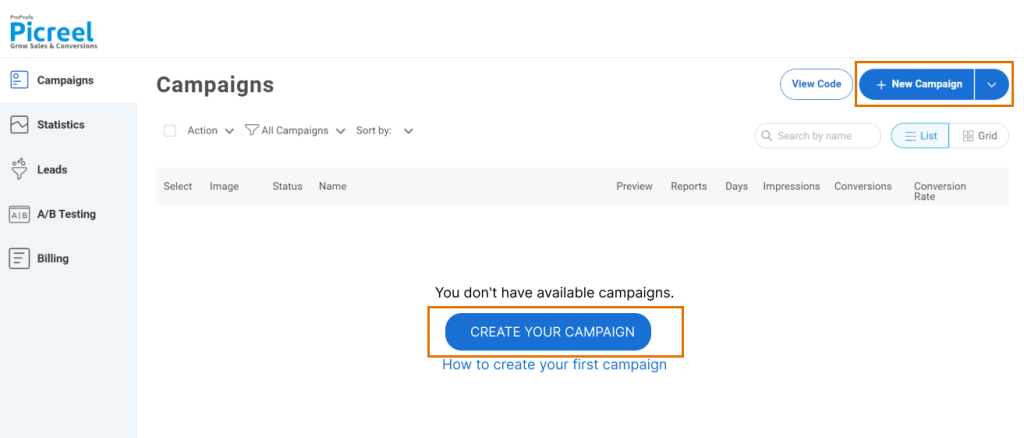
You can start in two simple ways.
If speed is your priority, use Picreel AI. Enter your website URL, choose your goal, answer a few quick questions, and apply your brand colors. Picreel automatically generates an alert popup layout and copy tailored to your site, giving you a fast starting point without building anything from scratch.
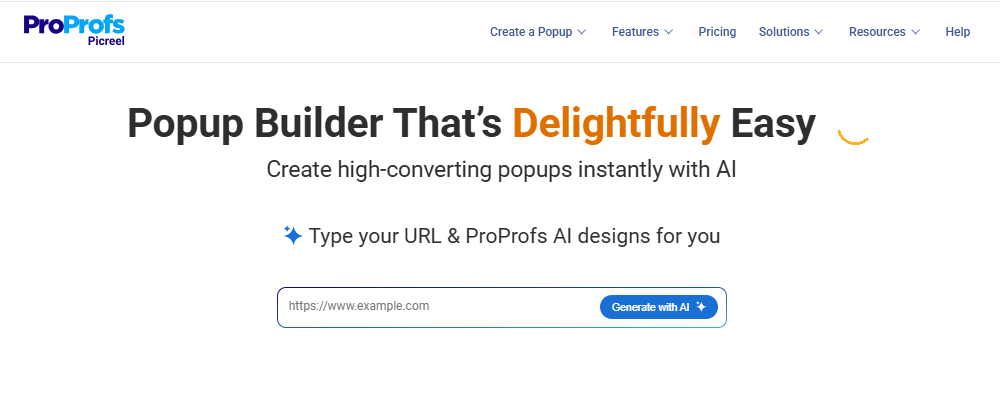
If you want more control, choose from Picreel’s library of ready-made alert popup templates. Look for layouts designed for announcements, redirects, or simple messages that appear on page load or after a short delay.
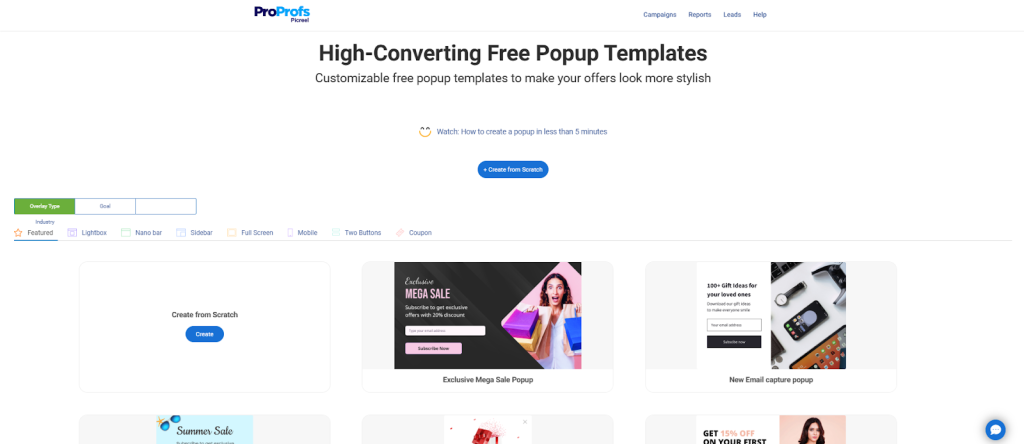
When selecting a template, stick to clean modal or lightbox designs. Avoid complex layouts, as simple alerts feel less intrusive and are more likely to get attention without frustrating visitors.
Step 3: Write Your Message and CTA
Add a short, clear message that explains what the alert is about. This could be a limited-time offer, a redirect to updated content, or an announcement. Then add one clear button. For example, “View Updated Guide” or “Shop Now.”
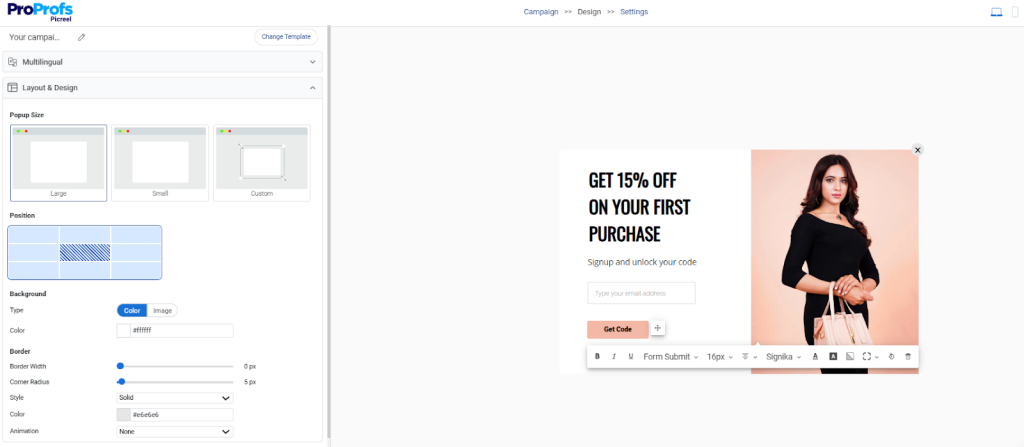
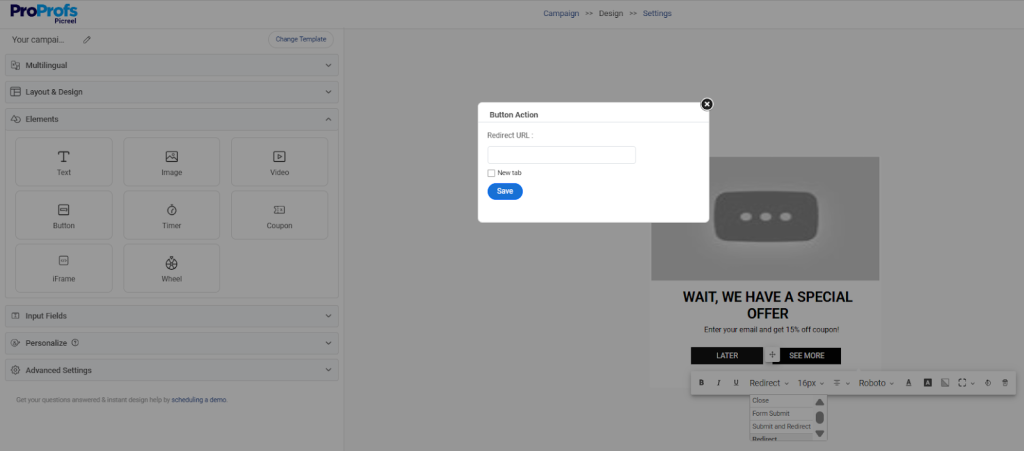
If your goal is redirection, simply link the button to the page you want visitors to visit next.
Step 4: Set Where and When It Appears
Next, decide when the popup should show. You can trigger it after about 5 seconds on the page, when someone scrolls up to 50%, or when they’re about to leave.
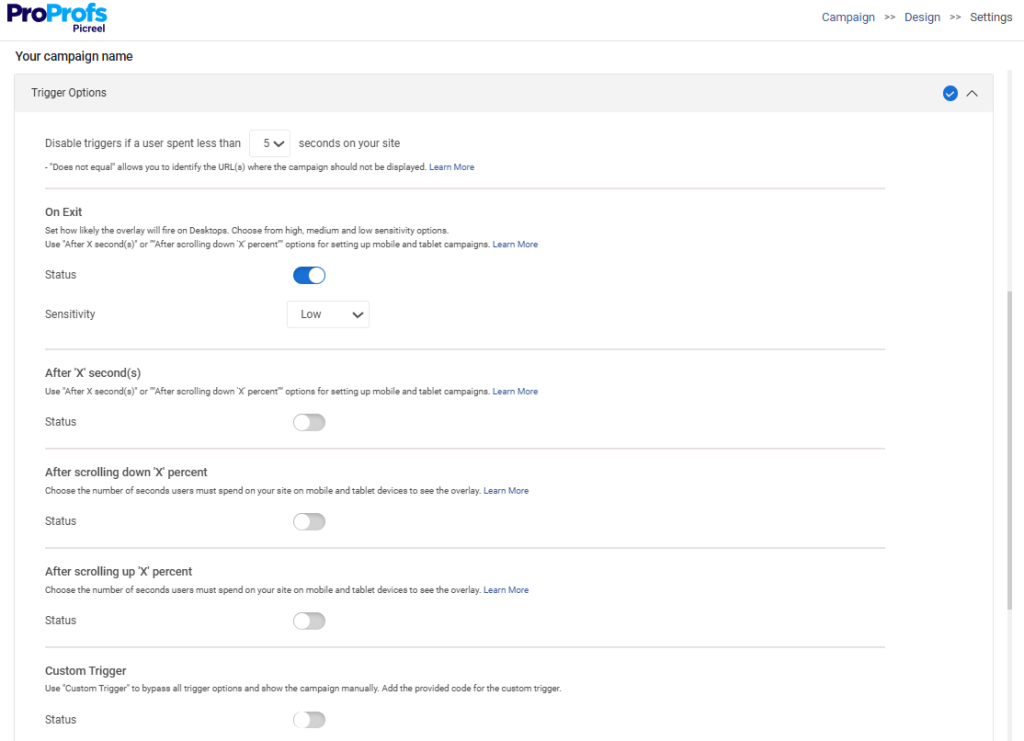
You can also limit it to specific pages, such as blog posts or product pages, so the message stays relevant.
Step 5: Preview and Publish
Before going live, preview the popup on desktop and mobile. Make sure it’s easy to read, easy to close, and doesn’t block important content. Once you’re happy, publish the campaign. Picreel handles caching automatically, so the popup displays reliably without extra setup.
Customizing Alert Popups for Different Visitor Actions
One of the biggest reasons people struggle with popups is poor targeting. When alerts feel random, users ignore them. When they match visitor behavior, they convert. That’s where smart customization makes all the difference.
Here’s how you can tailor alert popups based on what visitors are actually doing on your WordPress site.
| Visitor Action | How to Use the Alert Popup | When It Works Best |
|---|---|---|
| Visiting specific pages | Show alerts based on page URLs, like blog posts or product pages | Keeps messages relevant to the page content |
| Scrolling through blog posts | Trigger an alert after readers scroll partway through the article | Ideal for newsletter signups or content upgrades |
| Leaving product pages | Use exit intent alerts with a reminder or small incentive | Helps reduce cart abandonment |
| Spending time on a page | Trigger alerts after a set time on page | Works well for engaged readers |
| Exploring new launches | Show a redirect alert pointing to a new page or feature | Guides traffic without sudden redirects |
| Informational notices | Display alerts without forms or data collection | Perfect for updates, announcements, or maintenance notices |
FREE. All Features. FOREVER!
Try our Forever FREE account with all premium features!
Real-World Examples of Alert Popups That Actually Work
Seeing alert popups in action demystifies their power. Here are proven setups from real sites, kept practical for quick inspiration.
1. Blog Traffic to Newsletter Alert
PCMag focuses on converting readers who are already engaged, not everyone who lands on the page. The newsletter popup only appears after users spend some time reading, which makes the ask feel natural.
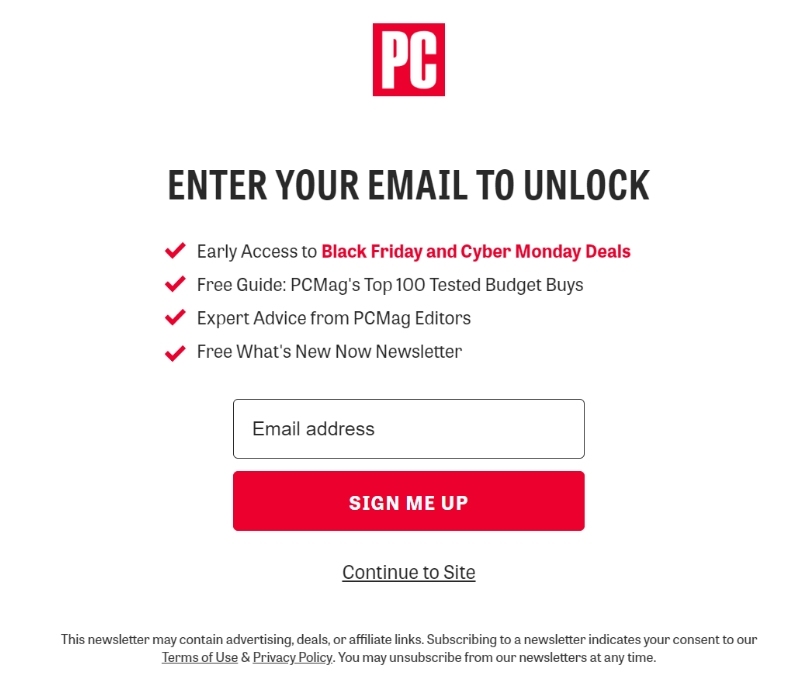
Instead of a vague signup message, the popup clearly lists what subscribers get. Early access to deals, expert advice, and a free newsletter are spelled out upfront.
The layout does most of the work here. Short bullet points, one email field, and a single CTA keep things simple.
The “Continue to Site” option is equally important. It reassures visitors they’re in control, which builds trust and improves opt-in rates.
2. Old Content Redirect Popup
This Picreel alert popup template is designed for pages that no longer reflect your most up-to-date content. Instead of forcing an automatic redirect, the popup clearly informs visitors that a newer, more relevant guide is available and invites them to continue.
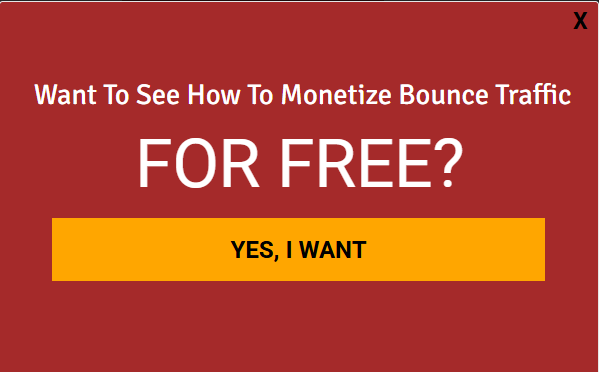
The message focuses on value, not interruption, giving users the choice to explore better content without feeling pushed. This approach keeps expectations clear, improves engagement, and helps move traffic from outdated pages to fresher resources while protecting user experience and SEO.
3. Exit-Intent Reminder
Press uses exit-intent popups as a second chance, not a hard stop. When a shopper is about to leave, the popup appears with a friendly reminder and a clear incentive.
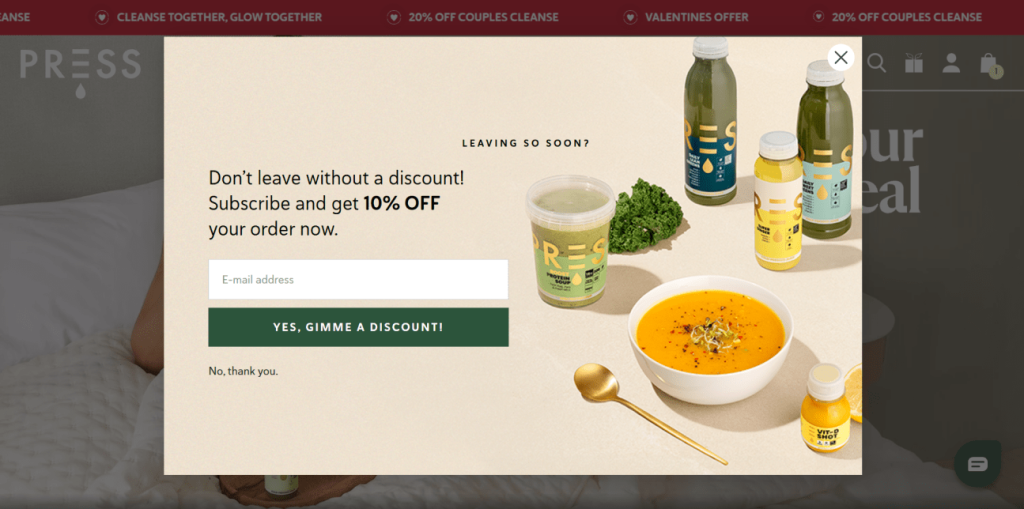
The copy doesn’t pressure the user. It simply acknowledges hesitation and offers a reason to stay, like a limited-time discount.
The CTA takes shoppers straight back to their cart, removing friction. Just as important, the opt-out option is easy to spot, which keeps the interaction respectful rather than pushy.
4. Site-Wide Notice: Temporary Alert
During major sales events, Vinatís uses a timed site-wide alert popup to make sure no visitor misses the offer. The popup appears briefly, delivers the message, and then gets out of the way.
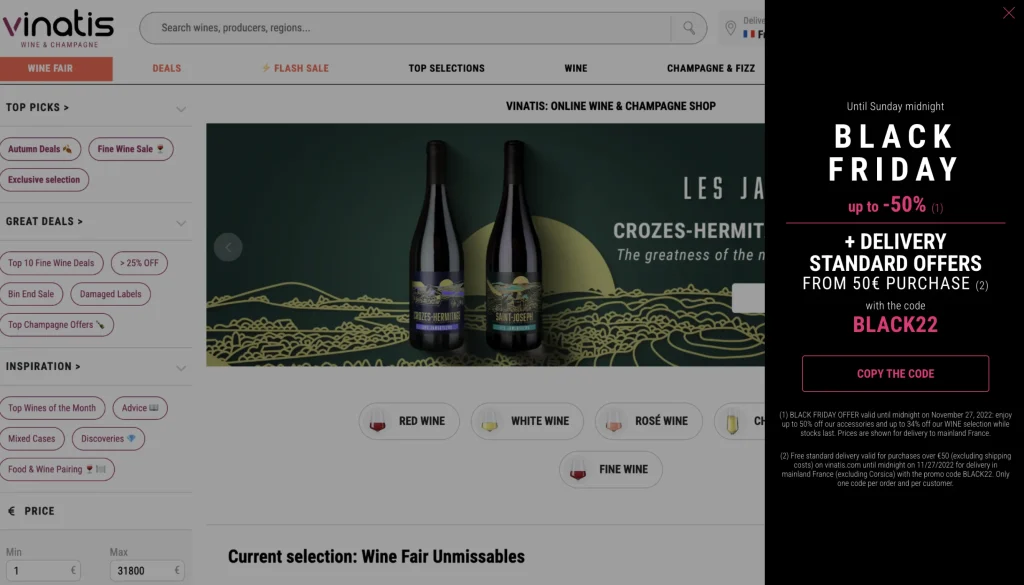
The focus is on clarity and urgency. A bold headline, the discount details, and a visible promo code are all front and center. Because the popup is time-bound and not shown repeatedly, it avoids fatigue.
Matching the popup design with the site’s branding also helps it feel like a natural part of the experience, not an interruption.
5. Launch Announcement Timed Popup (Sunbasket)
Sunbasket takes a softer approach to announcements. Instead of showing a popup the moment someone lands, the alert appears after a short delay.
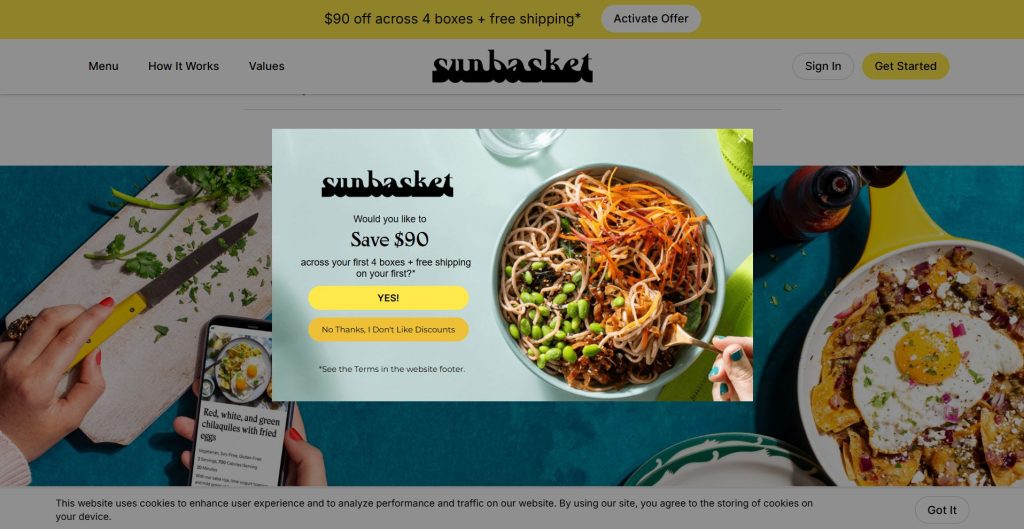
The message highlights what’s new and why it matters, in this case, a strong savings offer with free shipping.
The CTA is bold and action-oriented, but users can easily decline if they’re not interested. This timing choice makes the popup feel informative rather than disruptive, which helps drive curiosity and early engagement around new launches.
Alert Popups vs Notification Bars vs Banners
Before choosing an alert popup, it helps to understand how it compares with other common message formats so you use the right one for the right situation.
Not every message on your site needs the same level of attention. The right format depends on how urgent your message is and what you want visitors to do next.
Here’s a quick way to decide what works best for your goal.
| Format | Best Used For | Why It Works |
|---|---|---|
| Alert popups | Urgent actions, redirects, limited time offers | Grabs full attention and pauses scrolling |
| Notification bars | Ongoing updates, cookie notices, announcements | Visible but less disruptive |
| Banners | Promotions, internal links, reminders | Blends into the page layout naturally |
Alert popups are ideal when you need a decision right now. Notification or hello bars and banners work better for passive messages that don’t require immediate action. If conversions matter more than visibility, alert popups usually deliver stronger results.
5 Common Alert Popup Problems on WordPress (And How to Avoid Them)
Alert popups usually fail for a few predictable reasons. Once you know what they are, fixing them becomes straightforward.
1. Popups not showing up: Caching is often the reason behind this. When your site serves an older version of a page, the popup never loads.
Fix: Clear your site cache after publishing a popup and use a popup tool that works reliably with cached pages.
2. Theme or plugin conflicts: Outdated themes or plugins can interfere with how popups behave or stop them from working altogether.
Fix: Keep everything updated and test popups after any major theme or plugin change.
3. Bad mobile experience: A popup that looks fine on desktop can feel oversized or intrusive on mobile devices.
Fix: Always preview popups on mobile and adjust size, layout, or triggers for smaller screens.
4. Too many popups: Showing multiple alerts in one visit overwhelms users and increases bounce rates.
Fix: Limit popups to one per session and trigger them only on meaningful user actions.
5. Popups that feel spammy: Generic designs and aggressive copy can make visitors lose trust.
Fix: Use clean branding, simple messaging, and a clear close button to keep popups friendly and credible.
Best Practices for Using Alert Popups Without Annoying Visitors
Alert popups work best when they feel helpful, not forceful. A few smart choices can make a big difference in how visitors respond.
1. Keep the Message Short and Clear
Visitors scan, they don’t read. Keep your alert message under 20 words and get straight to the point. The faster someone understands the value, the more likely they are to act.
2. Focus on One Clear Action
Every popup should have a single goal. One button, one decision, one next step. This removes confusion and makes it easier for visitors to respond without overthinking.
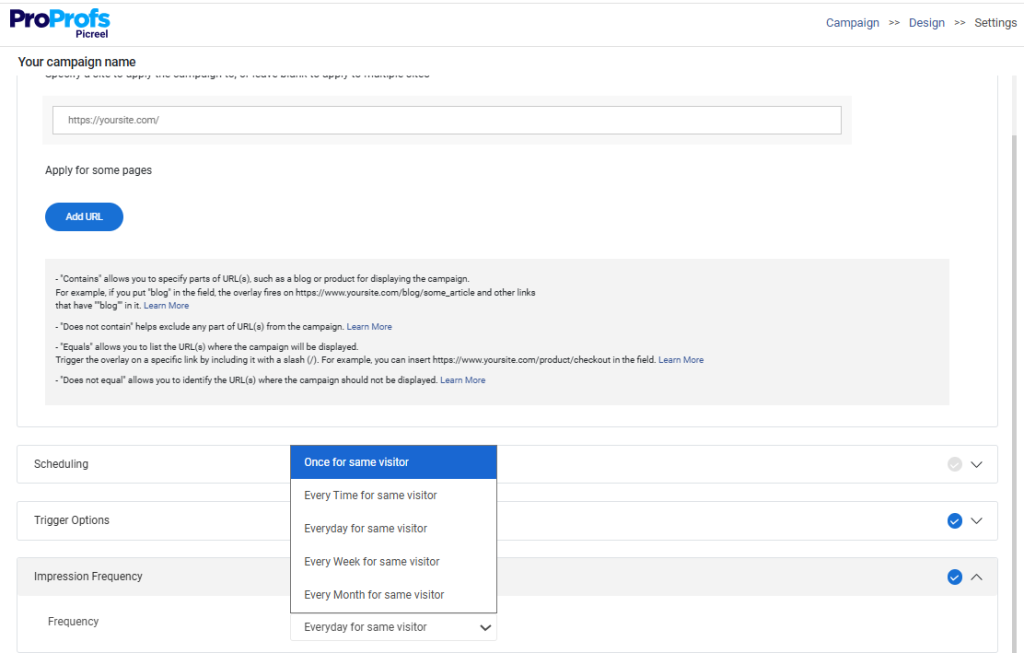
3. Limit How Often Popups Appear
Seeing the same popup again and again frustrates users. Show it once per visit and remember when someone dismisses it. This keeps your site feeling respectful, not repetitive.
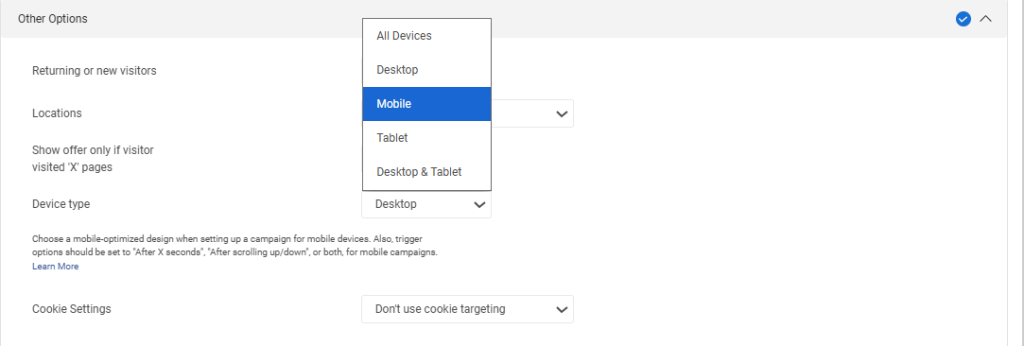
4. Design With Mobile Users in Mind
A large popup can ruin the experience on smaller screens. Make sure your alerts resize properly, are easy to close, and don’t block essential content on mobile.
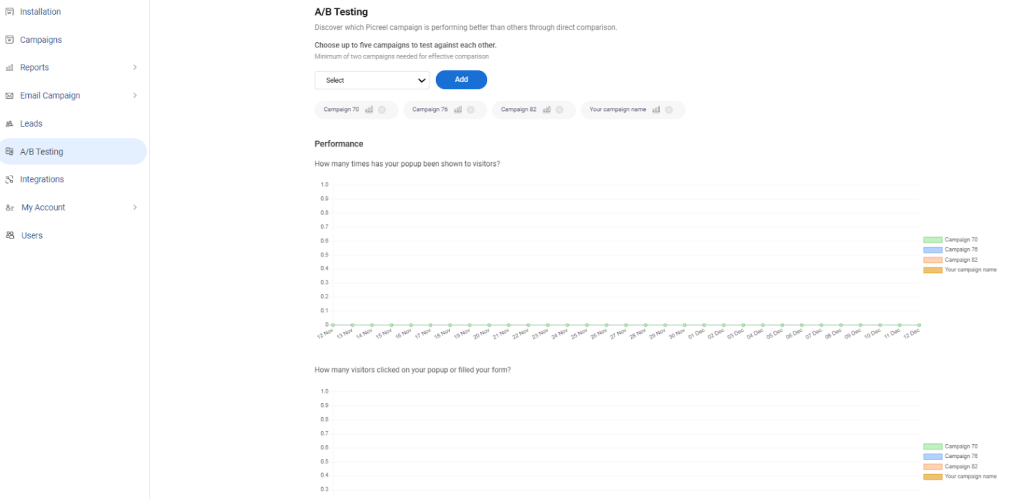
5. Test Before Scaling
Don’t assume what works. A/B test different timing, copy, or triggers with small changes. Watch what converts, then apply it across your site with confidence.
FREE. All Features. FOREVER!
Try our Forever FREE account with all premium features!
Final Thoughts: Turning Simple Alert Popups Into Real Results
Alert popups work best when they feel intentional, not forced. When done right, they help you guide visitors, highlight important updates, and turn existing traffic into real results without hurting the user experience. The key is keeping things simple.
Show the right message at the right moment, use clear language, and avoid overwhelming people with too many interruptions.
If you want an easy way to do this on WordPress, Picreel is a solid place to start. It lets you create alert popups without code, control when and where they appear, and customize them based on real visitor behavior.
You can handle announcements, redirects, lead capture, and exit reminders from one dashboard while tracking what actually works.
Start with one alert popup, test it, and refine from there. If you’re ready to create alert popups that feel helpful and convert better, try Picreel and see the difference for yourself.
FREE. All Features. FOREVER!
Try our Forever FREE account with all premium features!

 We'd love your feedback!
What did you like & how can we make it even better?
 Thanks for your feedback!
 Ask Your Question
Have a question? Get expert help to make your decision easier.