
Every time a poorly timed or irrelevant popup appears, you’re losing out on valuable opportunities to engage visitors.
It’s true that popups have become a staple for lead generation, conversion optimization, and growing email lists on WordPress websites.
But let’s face it, not all popups are created equal.
The truth is, many websites struggle to find that sweet spot where popups are effective but non-intrusive.
I’ve seen it firsthand—too many times popups either overwhelm visitors with poor timing or fail to capture attention due to weak design and limited targeting options.
But how to add a popup in WordPress that actually convert without annoying your visitors?
It’s all about strategic design, smart triggers, and ensuring they blend seamlessly into your user experience. Ready to unlock the secret to popups that work? Let’s dive in!
How to Add a Popup Window in WordPress Without Annoying Your Visitors
Creating a popup on your WordPress site can significantly boost engagement, capture leads, and improve conversions. Here’s a simple step-by-step guide to help you set up your first popup.
Step 1: Create Your First Popup Campaign
Once you’ve installed the plugin (for example, Picreel) on your WordPress, logged in, and launched the dashboard, navigate to the Campaigns tab and click on “Add Campaign” to begin building your WordPress popup. This is where the magic begins!

Step 2: Choose the Popup Design
You’ll find a wide variety of popup templates to choose from. Browse through the collection and select the one that suits your needs best. Once you’ve selected your template, click on “Customize” to tailor it to your preferences.

Step 3: Edit the Popup Design
Now it’s time to personalize the design to match your website’s aesthetic and branding. Oh, and this makes 81% of customers happy too as they prefer companies that deliver personalized experiences. There are several customization options to make the popup your own:
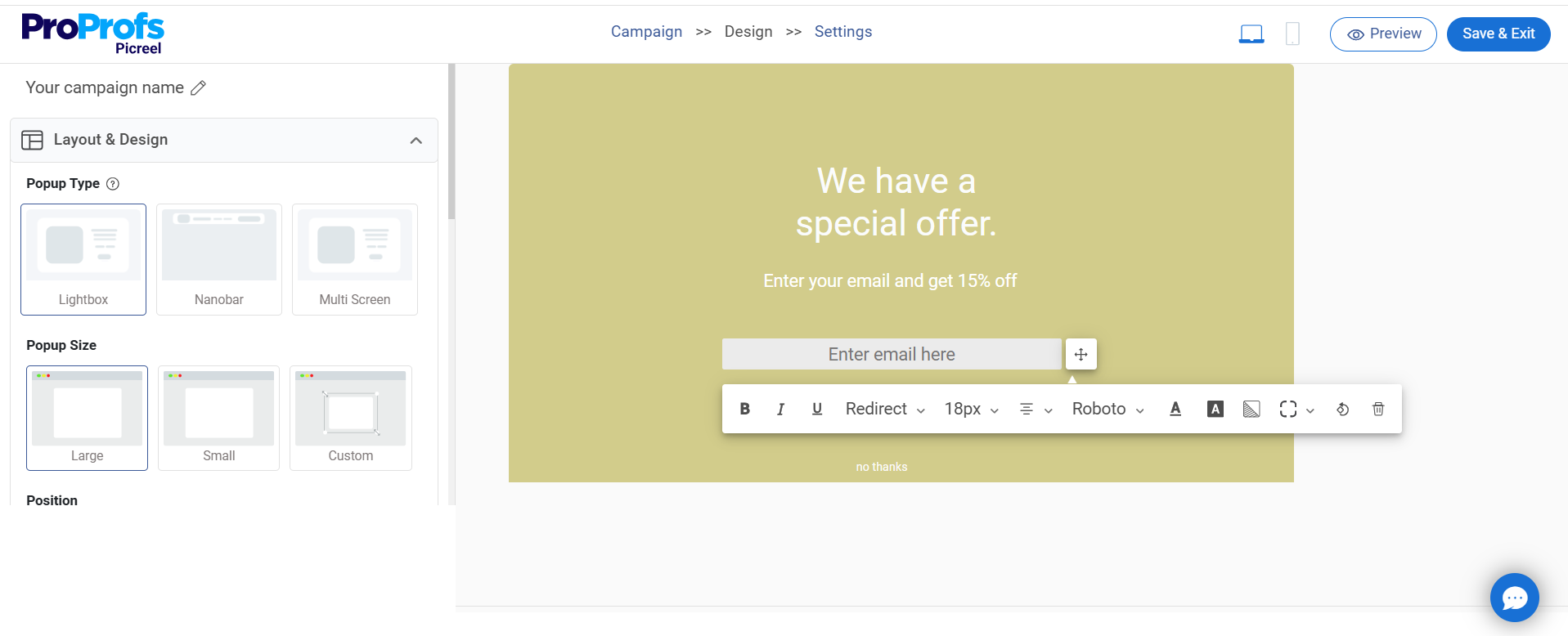
- Design: Select your background (image, solid color, or GIF) and adjust text and button colors. It’s important to keep the close button visible, so visitors have control over their experience, building trust.
- Fields: Add your CTA (Call to Action), messaging, and links. If you’re collecting information, customize fields to ask for the user’s name, email, or phone number.
- Options: Choose an animation effect for your popup (such as fade or slide). Then, decide where the popup will appear on the screen, when it should hide, and how rounded the corners should be.
- Fonts: Pick the right font style, size, and weight for your overlay text. You can upload custom fonts via a CSS file if needed.
- Personalization Settings: Use data from your CRM to personalize the popup (e.g., greet users by name, display location-based offers). You can even show dynamic content like recently viewed products.
Once you’re happy with the design, click “Save” to store your changes.
Step 4: Configure Popup Settings
With the design set, it’s time to configure how and when your popup will appear. Here’s how to fine-tune your settings:
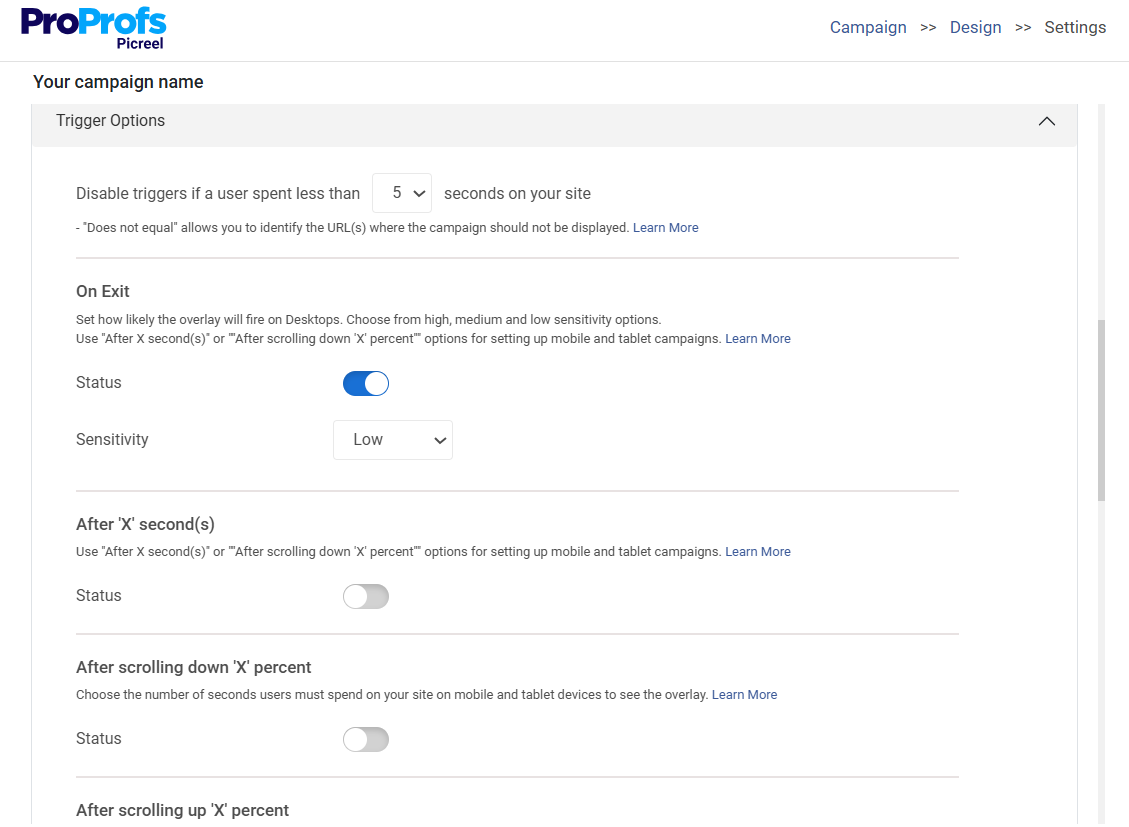
- Basic Settings: Enter the URL of your WordPress site where you want the popup to appear. You can add specific pages or across the entire website.
- Popup Timing: Choose when the popup will appear. You can use the following popup triggers:
- Exit Intent: Show the popup when users attempt to leave the page.
- Time Delay: Display the popup after users have spent a certain amount of time on the page.
- Scroll Percentage: Trigger the popup once a user scrolls through a set percentage of the page.
- On Click: Make the popup appear when a visitor clicks a specific element (like a button or link).
- Impression Frequency: Control how often the popup will appear to a visitor (e.g., once per session or after a set number of interactions).
- Targeting Rules: These rules help you target the right audience:
- New vs Returning Visitors: Show the popup to new visitors, returning ones, or both.
- Visitor Source: Trigger the popup based on the visitor’s entry point (e.g., search engine, social media).
- Geo-Targeting: Display the popup for users in specific locations.
- Device-Based Targeting: Set up popups for specific devices like desktop, mobile, or tablet.
- Cookie Targeting: Show the popup based on users’ previous behavior or cookies.
Once these settings are configured, hit “Save” to finalize your popup campaign.
Step 5: Track Performance and Optimize
Once your popups are up and running, it’s crucial to track performance to see how they’re performing. Most popup tools offer analytics dashboards where you can monitor:

- Views, clicks, conversions, and form submissions.
- Identify which CTAs are the most effective and which triggers are driving the highest engagement.
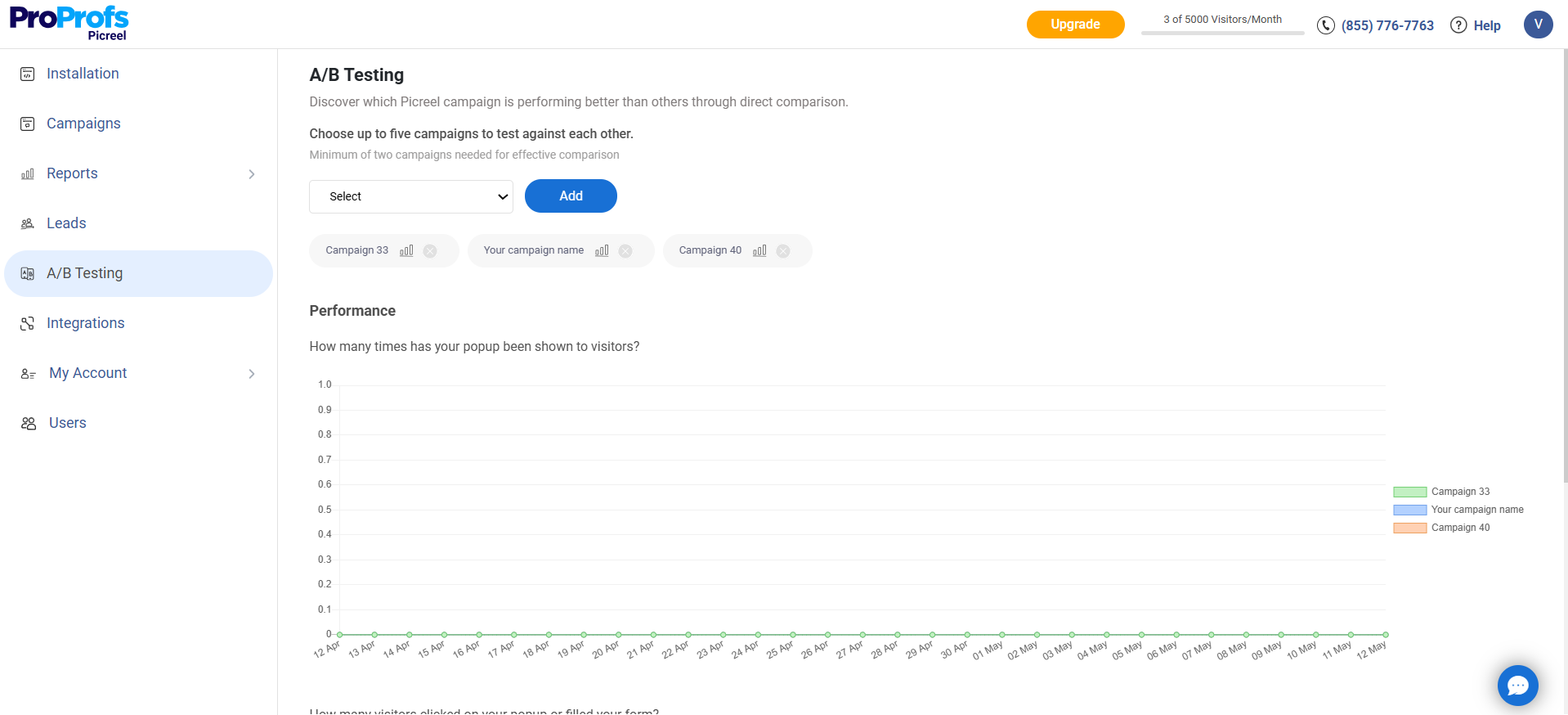
Use A/B testing to test different designs, messages, or offers. Refine your popups based on performance data to ensure you’re always optimizing for better results.
9 Popup Templates for Major Use Cases
Now that you know how to add a popup in WordPress, remember that while popups are a great way to engage with your visitors, choosing the right type and design is key. You can implement popups in various forms, such as a sidebar, a lightbox, or a Hello Bar.
Here’s a breakdown of different popup types, and when you might want to use them for your WordPress site:
1. Lead Generation Popups
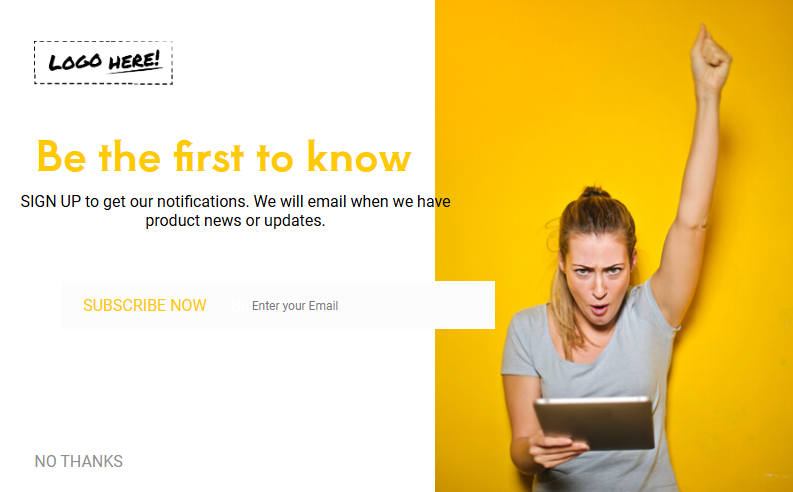
Lead generation popups are perfect when you want to grow your email list or get visitors to sign up for your services. If you’re offering a discount, freebie, or exclusive content, popups are a great way to collect those details in exchange.
You can trigger them when a user is about to leave or after they’ve been on your site for a while.
2. Promotional Popups
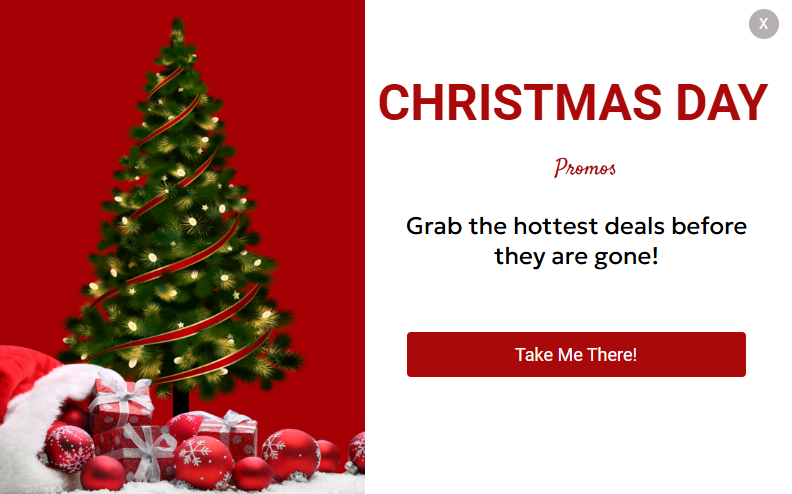
If you’re running a flash sale or promoting a special offer, a promotional popup is the way to go. You can trigger these popups when someone’s about to leave the page or after they’ve added something to their cart.
Offering a discount or free shipping can get them to complete the purchase. In fact, popups that include a discount can increase signups by as much as 123% compared to those without an offer.
3. Content Upgrade Popups
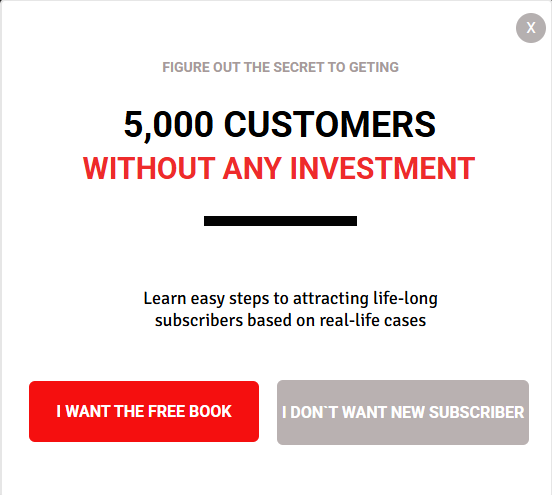
Content upgrade popups are ideal when you want to offer something extra, like an ebook, guide, or checklist. These work best on blog pages or articles.
After your visitors have engaged with the content, offer them a resource they’ll find useful in exchange for their contact info. It’s a great way to build your email list.
4. Exit-Intent Popups
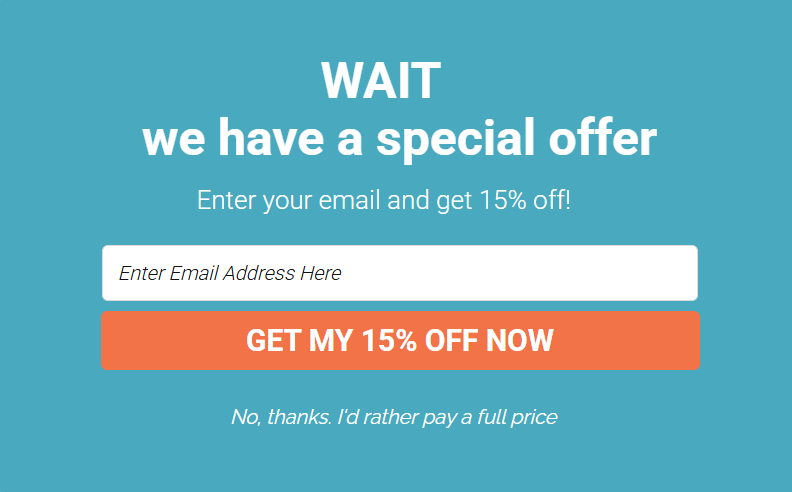
Exit-intent popups are shown when a user shows signs of leaving, like moving their mouse toward the back button or address bar.
Use this moment to offer a final discount or remind them to subscribe before they leave. It’s your last chance to keep them engaged!
5. Contact Form Popups
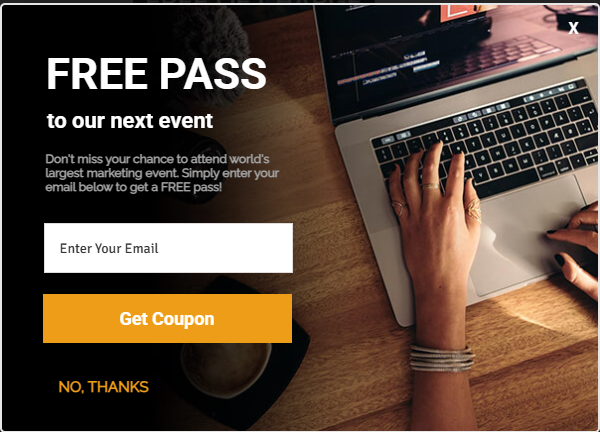
Contact form popups are great for encouraging direct communication. Whether it’s to ask a question or get more information, these popups are perfect for support pages, product inquiries, or customer feedback.
A simple form that asks for a name, email, and message is all you need to get started.
6. Survey or Feedback Popups
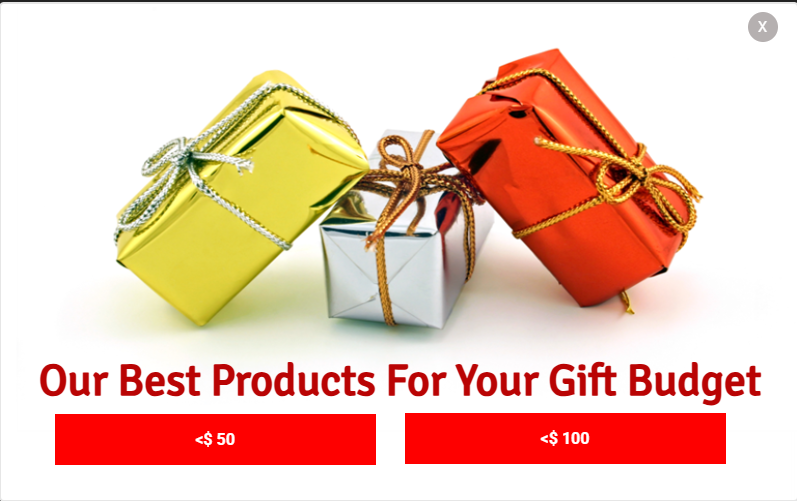
Survey popups are perfect for collecting feedback, whether it’s about your site’s user experience or how a customer feels about their recent purchase.
Trigger these popups after a user has spent a certain amount of time on your site or completed a specific action, such as making a purchase or visiting multiple pages. Ask a simple question, or use a rating system to make it easy for them to respond.
7. Announcement Popups

If you’ve got something exciting to share, like a new product launch or an upcoming event—use an announcement popup to make sure visitors see it.
These are ideal for sitewide notifications that require immediate attention. Ensure the message is concise and clear so visitors can quickly grasp the announcement.
8. Gamification Popups
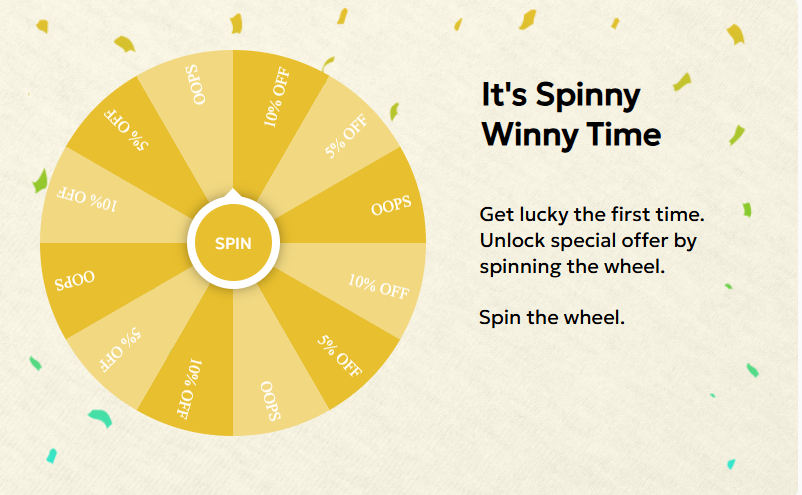
Gamification popups add an element of fun to your site by offering quizzes, challenges, or rewards in exchange for user actions like subscribing or completing a form.
This is a great way to turn mundane actions into an interactive experience. You can offer discounts, points, or even a prize to encourage participation without a doubt as gamified popups have a conversion of around 13%.
9. Product Recommendation Popups

Product recommendation popups are great when you want to suggest products that visitors may be interested in based on their browsing behavior.
For example, if a user is browsing a particular category or item, suggest complementary products or best-sellers to enhance their experience. This type of popup helps visitors discover new products they might not have noticed otherwise.
If you’re still unsure how to add a pop-up button in WordPress, watch this quick video tutorial:
5 Best Practices for Optimizing Your Popups and Increasing Conversions
To ensure your popups are working as effectively as possible, applying these actionable best practices will help you optimize them for better user engagement and higher conversions.
1. Experiment and Refine for Better Results
A/B testing is crucial for determining what resonates best with your audience. It allows you to compare different versions of your popup and see which one performs better.
How to Implement:
- Choose Elements to Test: Begin by testing key components, such as the headline, call-to-action (CTA) button text, and design layout.
- Run the Test: Use tools like Google Optimize or the built-in A/B testing features in your popup tool to split your traffic between the two versions.
- Analyze Results: Track conversion rates and refine your popup design based on which version yields the highest engagement.
2. Triggers Popups at the Perfect Moment
Using smart triggers ensures that popups appear when visitors are most likely to engage with them, without disrupting their browsing experience.
How to Implement:
- Exit-Intent Triggers: Set up exit-intent popups that appear when the system detects a user is about to leave your site. This is perfect for offering a final discount or encouraging them to subscribe.
- Time Delay Triggers: Show a popup after a visitor has spent a set amount of time on your page. For example, after 10 seconds, you might display a content upgrade offer.
- Scroll Triggers: Set your popup to trigger after a user has scrolled a certain percentage down the page, signaling they are engaged with your content.
3. Consolidate Popups Into a Single Platform
If you manage multiple sites or popup tools, consolidating them into a single platform helps maintain consistent branding and save time.
How to Implement:
- Use a centralized popup management tool like Picreel to control popups across all your websites from one dashboard.
- Ensure that the platform supports multi-site integration to help you streamline popup management while maintaining brand consistency across all your pages.
4. Integrate Popups With Email Marketing Tools
Integrating your popups with email marketing tools ensures a seamless flow from lead capture to nurturing.
How to Implement:
- Connect your popups with tools like Mailchimp or Klaviyo to automatically add captured leads to your email lists.
- Set up automated email sequences that trigger as soon as a visitor submits their information via a popup, allowing you to nurture leads right away.
5. Ensure Privacy Compliance
Make sure your popups adhere to privacy laws like GDPR to protect user data and stay compliant.
How to Implement:
- Use cookie consent popups to ensure visitors are aware of your data collection practices.
- Enable data protection features in your popup tool, like clear opt-in boxes to comply with privacy regulations.
Get Started with Popups to Boost Engagement and Conversions
Now you know how to add a popup window in WordPress. Popups are a powerful tool for boosting engagement and conversions on your WordPress site, but they need to be implemented thoughtfully. Ensure that your popups are non-intrusive, relevant, and well-timed to enhance the user experience.
Personalize them to match your site’s branding and ensure integration with your email marketing tool for seamless lead nurturing.
If you’re looking for a simple way to manage all your popups, Picreel can help streamline the process across multiple sites, ensuring consistency and ease. Start experimenting today, and see how it can boost your results!
FREE. All Features. FOREVER!
Try our Forever FREE account with all premium features!

 We'd love your feedback!
What did you like & how can we make it even better?
 Thanks for your feedback!
 Ask Your Question
Have a question? Get expert help to make your decision easier.