

Losing visitors before they even reach your content is detrimental, but losing their trust is even more damaging.
A recent report found that 75% of consumers will not purchase from brands they do not trust with their personal data.
That alone explains why learning how to add a cookie popup in WordPress is no longer just a compliance chore. It is a direct factor in whether people stay, engage, and eventually buy from you.
Cookie popups exist to clearly inform visitors about what you collect and why. GDPR in Europe, along with CCPA and CPRA in California, all require this kind of transparency. Ignoring these rules can lead to unexpected penalties, takedown notices, and a real drop in visitor confidence.
I know the rules feel complicated, and cookie banners can be annoying or even affect performance if set up poorly. The good news is you do not need to be a developer to add one correctly.
In this blog, I walk you through what cookies are, why they matter, how to set up your popup, how to stay compliant, and the common mistakes you should avoid as a WordPress site owner.
What a Cookie Consent Popup Is and How It Works
Cookies themselves are simple. They are tiny files stored in a visitor’s browser. Some are essential, such as keeping someone logged in or remembering what is in their cart. Others are non-essential, such as analytics, ads, and tracking tools that follow people across the internet.
A proper cookie popup appears before anything loads, explains things in plain language, and only activates those non-essential scripts if the visitor clicks Accept. If they click Reject or close the banner, those tracking cookies remain fully blocked.
This is called prior blocking, and it is the real difference between compliance and risk. Without it, the banner is only a visual element. With it, you are transparent, legally safe, and building trust from the very first interaction.
When you are running a website, you are not just sharing content. You are operating inside real privacy laws. GDPR can result in a 4% deduction of your global revenue, and rules like CCPA and CPRA carry substantial fines, even for small WordPress sites. This is why cookie popups are no longer optional. They show visitors what you collect, why you collect it, and give them control.
Scan Your Cookies Before You Add a Cookie Popup in WordPress
Before you add a cookie popup to your WordPress site, you need to know exactly what cookies your site is using. Most site owners skip this part, which is why banners often end up misconfigured or non-compliant. Regulators expect accuracy, not guesses.
The easiest way to check is through your browser.
- Open your website in Chrome, right-click, and select “Inspect.”
- At the top, choose the “Application” tab.
- In the left sidebar, expand “Cookies” and click your domain.
- Refresh the page a couple of times and watch the list update.
This shows every cookie that is being set, including essential and non-essential ones. You may see items like _ga or _gid from analytics tools, _fbp from Facebook Pixel, or cookies from chat widgets, ad networks, social embeds, and even page builders that load external fonts.
If you prefer automated help, cookie scanners can crawl your site and list everything for you. Both methods help you avoid mistakes and ensure your popup blocks the right scripts until visitors give consent. This simple step gives you a clear picture and keeps your setup compliant from the start.
How to Add a Cookie Popup in WordPress Using a Plugin (Step-by-Step Guide)
Most WordPress users rely on plugins to add a cookie popup because it keeps everything simple, compliant, and beginner-friendly. The process is almost the same across all tools, and once you understand the basic flow, you can set up your cookie notice in just a few minutes.
I am using Picreel as an example plugin here because I have personally used it to create cookie popups and found it to be effortless and straightforward to work with.
Step 1: Install and Activate a Cookie Consent Plugin
Go to your WordPress dashboard → Plugins → Add New, and search for your preferred WordPress popup plugin that creates cookies. Click Install Now and then Activate. Once it is active, you will see the plugin added to your admin menu or settings panel.
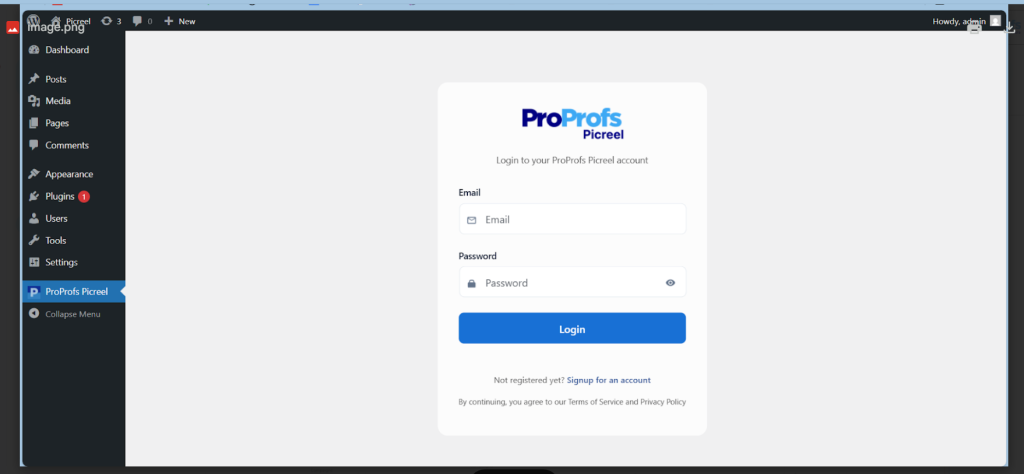
From there, open the plugin’s dashboard to set up and manage your cookie consent banner. This is where you will configure the design, customize the message, add your policy link, and control how the popup behaves for your visitors.
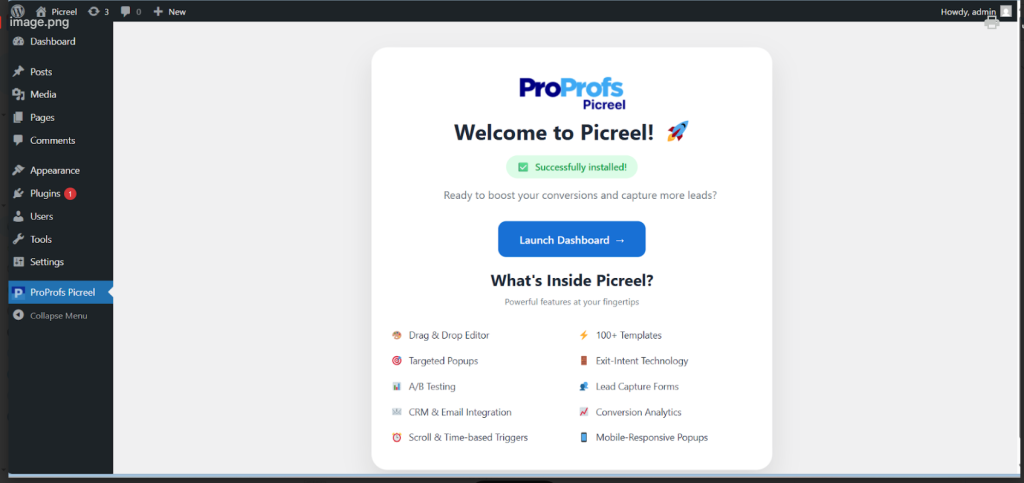
Step 2: Configure Your Cookie Banner Message
Once you’ve opened the dashboard, pick a cookie-consent popup template or create one from scratch. For layout, a slim bottom or side bar is usually better for UX than a big modal. It looks cleaner, especially on mobile.
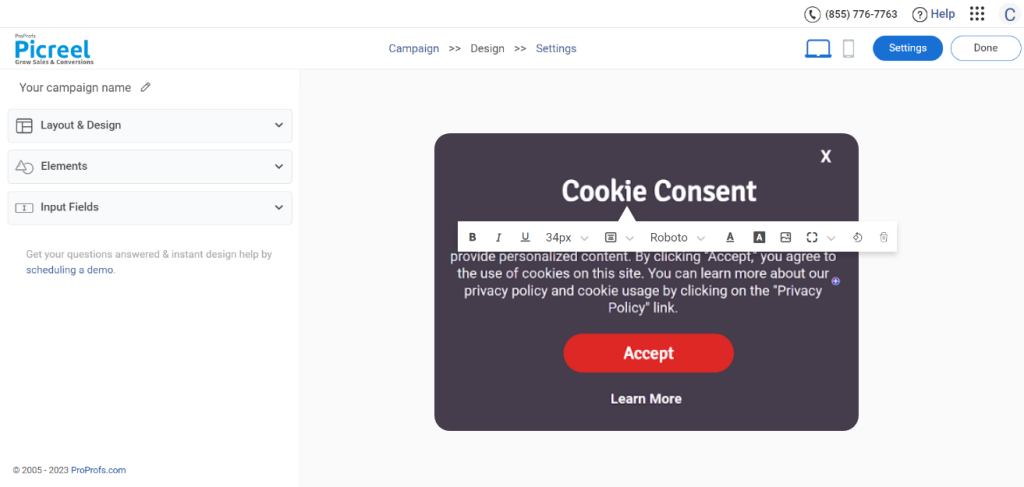
- Keep your message simple and human. Instead of legal wording, try something clear like:
“We use cookies to improve your experience and show you relevant content. Would you like to continue?” I believe friendly language increases acceptance and reduces visitor frustration. - Customize the Buttons and Layout. Every compliant cookie popup should include three buttons: Accept All, Reject Non-Essential, Preferences or Settings. This gives visitors control and keeps your site aligned with privacy guidelines.
- Once your Cookie Policy page is ready, copy its URL. Paste this link inside your cookie popup under the Learn More, Policy, or Privacy Link field. This step is essential because regulators expect the popup to link directly to your policy page.
Step 3: Target, Save, & Clear Your Cache
When your popup looks good, go to the campaign settings and set the popup to appear either immediately or just a few seconds after someone lands on your website
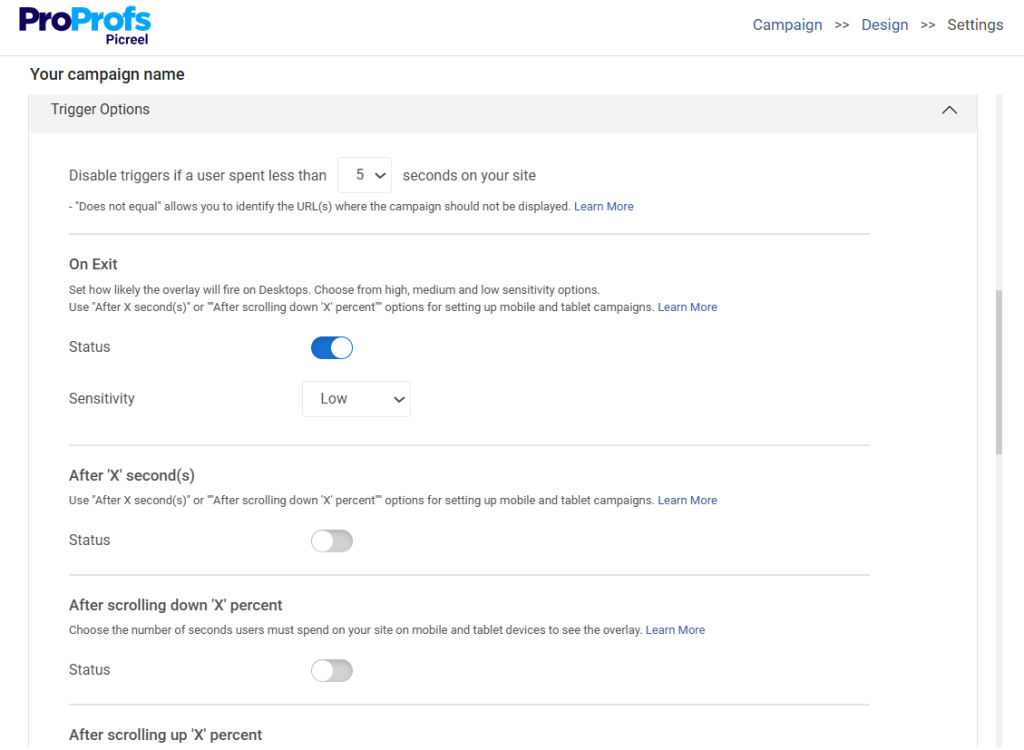
Click Save inside the cookie plugin, then clear your caching plugin so the banner loads properly for all visitors.
Step 4: Test Your Cookie Popup
Before you consider it done, test your cookie popup like a visitor would. For that, open a private/incognito window and run this checklist:
- Popup shows up immediately on the first visit
- Popup appears before any non-essential script loads
- Open DevTools → Network tab → type “analytics” or “pixel” in the filter. Nothing should load until you click Accept
- Do analytics and tracking scripts fire only after clicking Accept?
- Click Reject → refresh → tracking scripts still blocked? Perfect
- Reject button keeps everything blocked on every refresh? Great
- Works fine even with caching or minification turned on?
- Banner displays correctly for multilingual users?
- Try on your phone: Buttons big enough to tap without zooming
- Popup shows correctly on different screen sizes
- Clear cookies → come back → popup appears again (means it’s working)
- Popup appears the same way in incognito mode every time
If everything passes, congratulations, you’re safer than 90% of sites out there.
How to Create a Cookie Policy Page (And Link It Correctly)
Before your cookie popup goes live, you need a Cookie Policy page. You can create it on any platform. Just that your popup must link to this page, or the setup is considered incomplete.
Here is the simplest way to create it.
In your WordPress dashboard, go to Pages and click Add New. This opens a blank page where you can build your Cookie Policy.
You can write it manually, or if you want help with the structure, plugins like Complianz or CookieYes can generate a basic policy for you. Both scan your site, identify the cookies in use, and create a ready-to-edit Cookie Policy page so you do not miss anything important.
Whether you write it yourself or use a generator, make sure the page includes:
- What cookies are
- Types of cookies your site uses
- Why is each cookie used
- How visitors can withdraw consent
- Your contact email
Here’s an example of Ikea’s cookie policy page for better understanding:
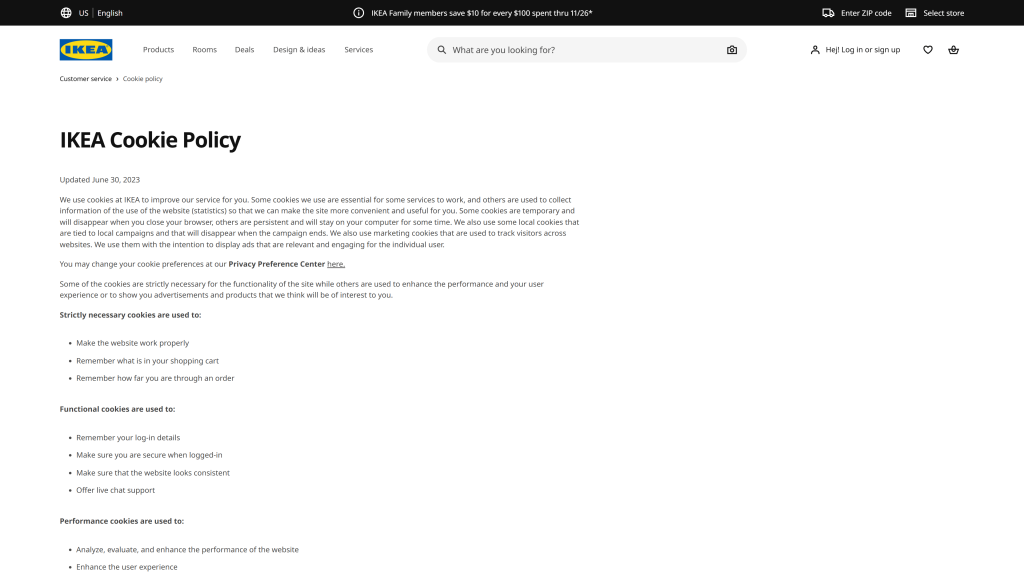
After you publish the page, copy its URL. Add it to your footer menu under Appearance → Menus. Then paste the same link inside your cookie popup under the Learn More, Policy Link, or similar field.
Once both links are in place, your cookie popup and policy page work together the way regulators expect, and visitors always know where to find the details.
FREE. All Features. FOREVER!
Try our Forever FREE account with all premium features!
5 Common Problems With Cookie Popups
Every WordPress site I have worked with runs into the same cookie popup issues sooner or later. The good news is that once you know what to look for, these problems are easy to fix.
- Misconfigured Banners: This happens when the popup shows up, but tracking scripts still fire before consent. The cause is usually an incomplete setup. Double-check that consent mode or auto-blocking is actually turned on.
- Scripts Firing Before Consent: Even a small script left outside the blocking settings can load too early. Review your analytics, ad scripts, and embed codes to make sure they are all routed through the consent controls.
- Caching Plugin Conflicts: Caching can make your popup disappear or behave inconsistently. Go into your caching plugin and exclude the cookie banner’s JavaScript file so it is never cached.
- Translation and Multilingual Issues: WPML and Polylang users often see a single-language popup on a multi-language site. Ensure your cookie solution supports translation files, so each visitor sees the correct message.
- UX Impact and Conversion Drops: Popups that take over the entire screen can feel intrusive. A small bottom bar with clear wording typically performs better and maintains stable conversions on both mobile and desktop devices.
These are the most common hurdles, and fixing them early keeps your popup compliant, consistent, and user-friendly.
Adding a Cookie Consent Popup to WordPress Made Easy
Now I hope you know how to add a cookie popup in WordPress. I hope you’ve also taken the big steps to make your WordPress site compliant, transparent, and more trustworthy for every visitor.
Cookie popups can look intimidating from the outside, but once you understand how they work, the setup becomes something you can confidently handle in a single sitting. Compliance really is manageable when you break it down the right way.
And now that the legal part is out of the way, you can focus on improving your overall visitor experience. If you want an easier way to create clean, customizable cookie popups without tech headaches, Picreel is a solid option to explore. I’ve used it myself, and it keeps the process simple while giving you room to grow into other popup experiences whenever you need them.
Set aside twenty minutes and finish your setup today. Your site, your visitors, and your future self will all be glad you did.
FREE. All Features. FOREVER!
Try our Forever FREE account with all premium features!

 We'd love your feedback!
What did you like & how can we make it even better?
 Thanks for your feedback!
 Ask Your Question
Have a question? Get expert help to make your decision easier.