
If you are planning to add a popup on page load in WordPress, here’s the uncomfortable truth.
The same popup can either increase your leads overnight or quietly push visitors away before they even read a headline.
The difference is not the idea. It is timing, setup, and the tool you choose.
Most WordPress users I have worked with lose conversions because their popup loads too fast, feels intrusive, or slows the site down.
That cost shows up as higher bounce rates, lower trust, and missed revenue.
To help you avoid that, I built this guide.
Here, I will show you when page-load popups actually drive conversions, how to set them up easily, and how to optimize performance, targeting, and tracking so your popup works as a growth lever, not a liability. Let’s go!
Page-Load Popups in WordPress: Best Use Cases
Page-load popups can work well when they align with what visitors expect the moment they land on your site. The real issue starts when they interrupt instead of helping. The goal is simple. Show a message that feels useful right away, or do not show it at all.
Page-load popups are effective in situations where immediate attention adds value:
- First-time visitor offers, where new users are more open to discounts or gated content
- Product or website announcements that should not get lost in navigation
- Limited-time discounts that rely on urgency from the start
- Language or region selection popups that help global visitors find the right version quickly
- Compliance or age verification popups that are expected and required
How to Create a Popup on Page Load in WordPress (Step-by-Step)
Setting up a page-load popup in WordPress does not have to mean stacking WordPress popup on page load plugins or writing custom code.
With Picreel, you can launch a lightweight, conversion-ready popup that loads smoothly and stays easy to manage as your site grows. The setup is straightforward and designed for marketers, not developers.
Step 1: Connect Your Tool to Your WordPress Site
Head to your WordPress dashboard and Plugins → Add New. Search for WordPress Popup plugins Picreel, then click Install Now and Activate.
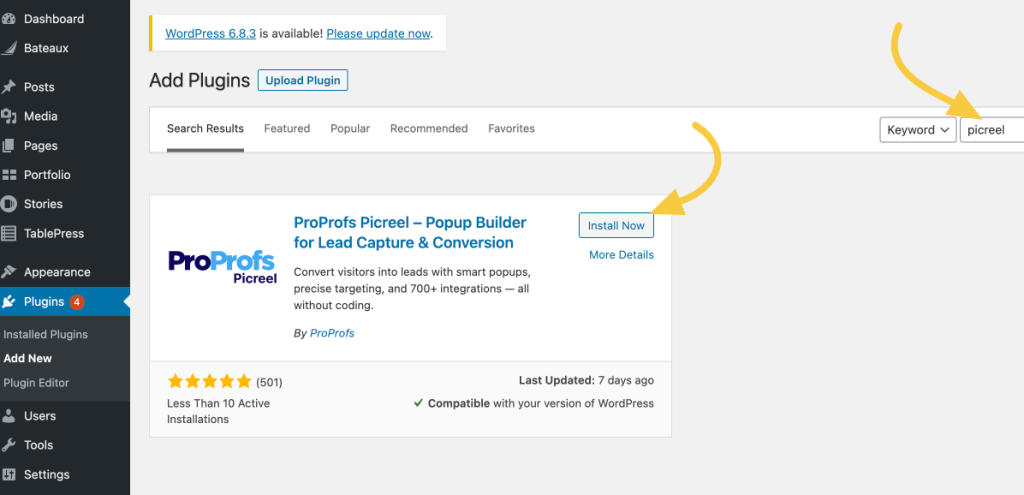
Once activated, Picreel will appear in your WordPress sidebar.
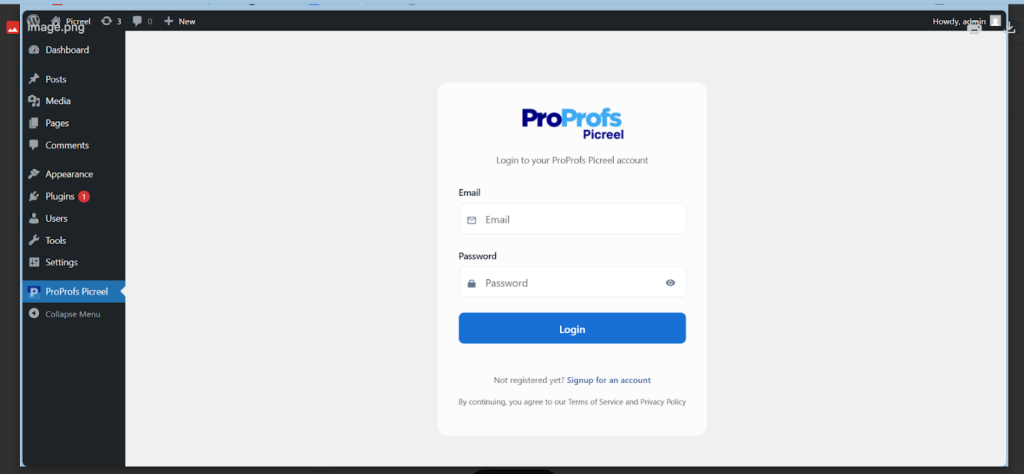
Click it and log in to your Picreel account.
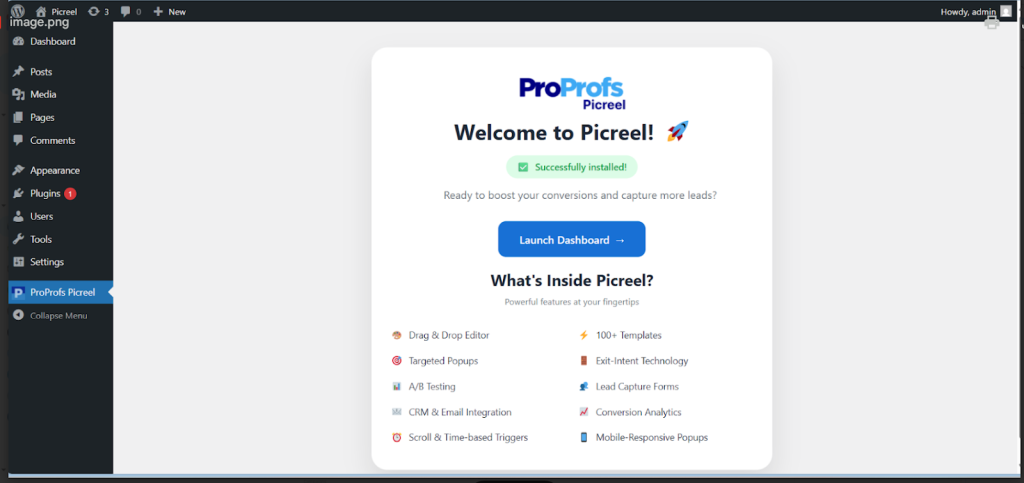
This opens the Picreel dashboard, where you can create, customize, and track all your popup campaigns from one place. This setup keeps things lightweight and avoids the performance issues that often come with traditional popup plugins.
Step 2: Create a New Popup Campaign
Inside Picreel, click Create New Campaign.
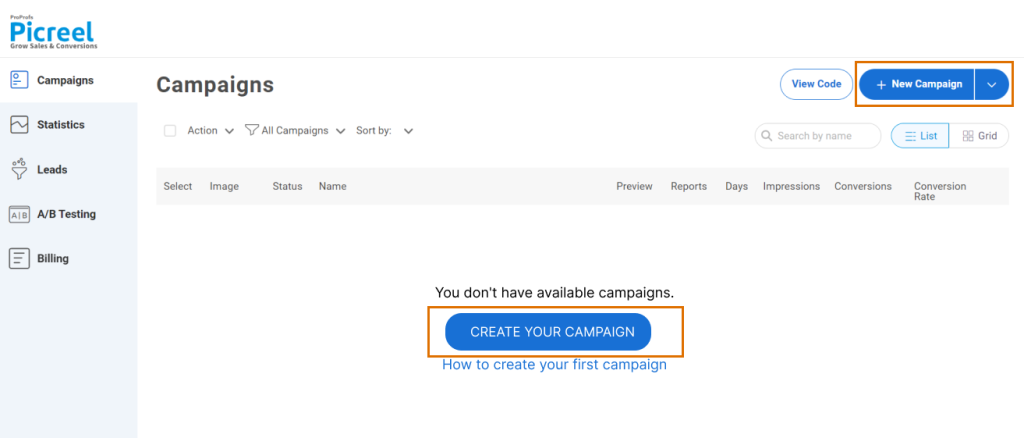
You can start in two ways.
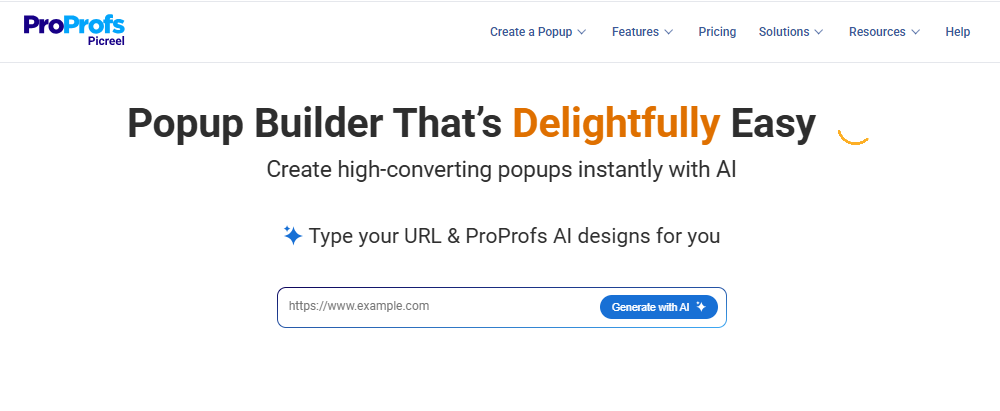
- If you want speed, use Picreel AI. Simply enter your website URL, choose your goal, answer a few quick questions, and apply your brand colors. Picreel automatically generates a popup layout and copy tailored to your site, which is ideal if you want a fast starting point without designing from scratch.
- In case you prefer more control, choose from Picreel’s library of ready-made templates. Look for layouts that work well for page-load scenarios, such as announcements, first-visit offers, lead capture popups, or redirection messages.
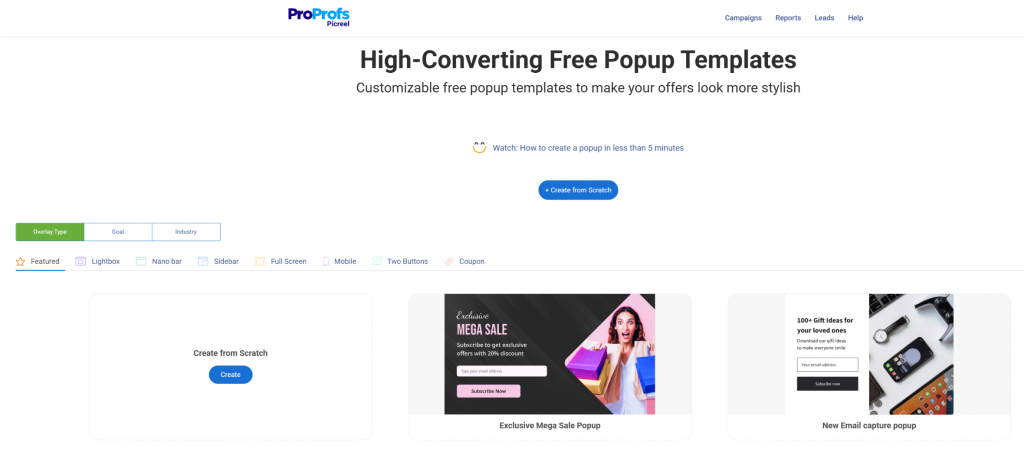
When picking a template, use simple modal or lightbox designs for page-load popups. Also, make sure to avoid overly complex layouts that can feel intrusive on entry
Step 3: Create a Popup Campaign for Page Load
Now, align the layout with your goal. Use form fields if you are capturing leads and connecting them to your CRM.
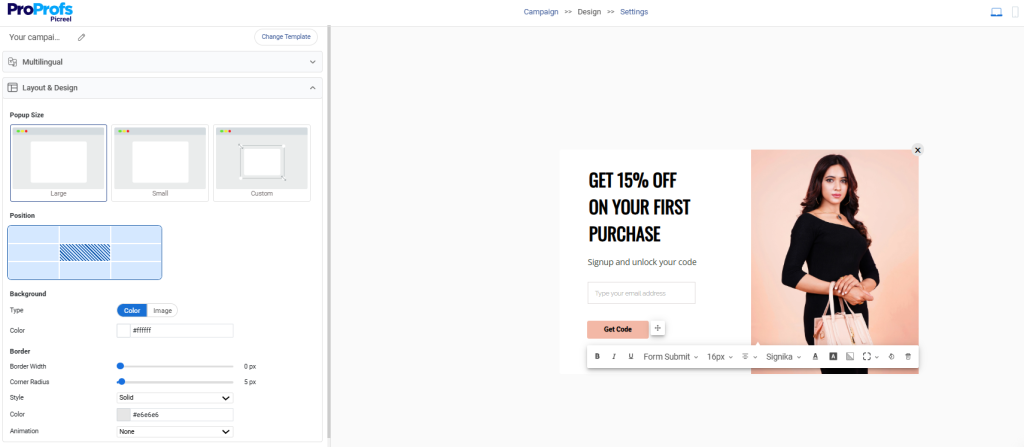
- For announcements, focus on a clear headline and a strong call to action.
- If the goal is redirection, keep the message short and guide users to the right page.
- Content upgrades work best on blog posts.
- Discounts and offers make more sense on pricing or cart pages where intent is higher.
Pre-built templates help you move quickly, and the drag-and-drop editor makes it easy to customize colors, text, and layout without touching code.
Step 4: Set the Page-Load Trigger
Next, head to the Settings> Triggers section and select 1 second under the “After X Seconds”. This ensures the popup appears once the page has fully loaded.
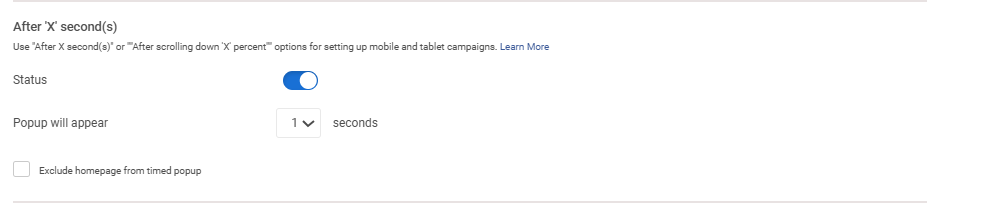
To avoid disrupting visitors too early, add a short delay of three to five seconds. This gives users a moment to orient themselves before the popup appears. Open your website in incognito mode to test the timing and make sure it feels natural rather than intrusive.
Step 5: Configure Display Rules
This is where precision matters. Set targeting rules to control exactly where and when your popup appears.
- Target specific URLs or pages instead of showing it site-wide.

- Limit the popup to first-time visitors so returning users are not interrupted again.
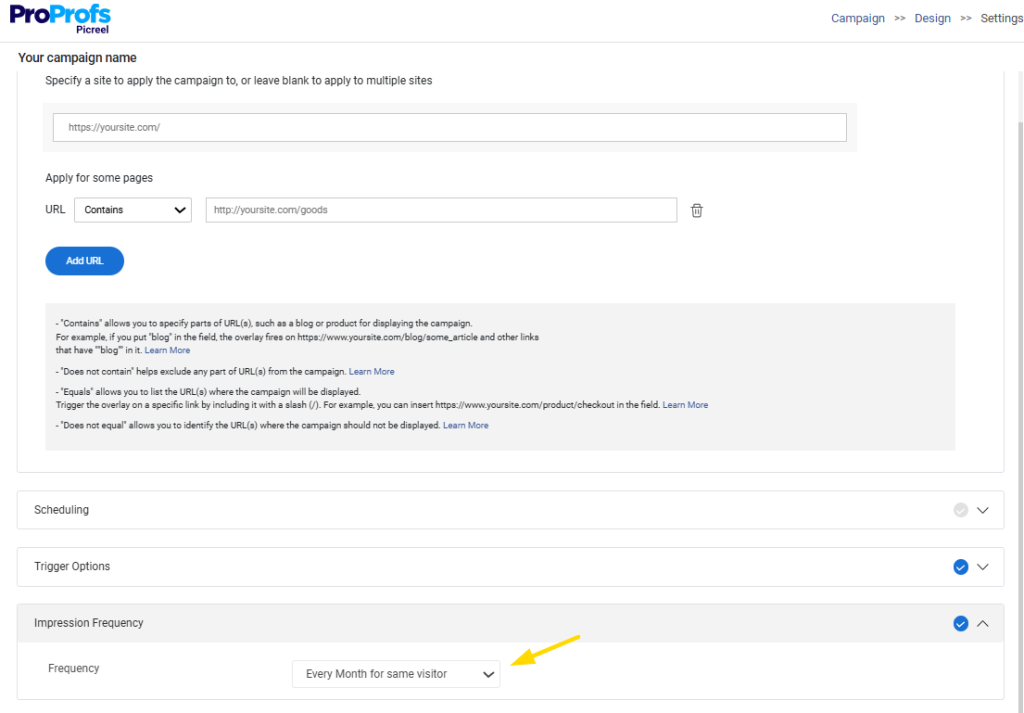
- You can also adjust behavior by device. For example, use a full popup on desktop and a simpler version on mobile.
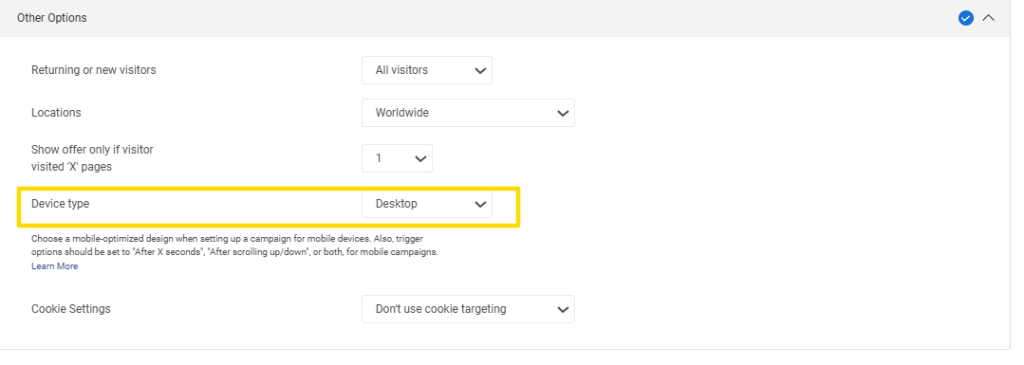
These rules help keep the popup relevant and focused on high-intent visitors.
Step 6: Publish and Test
Once everything is set, publish the campaign and test it thoroughly. Check first visits versus refreshes, review mobile and desktop behavior, and test logged-in and logged-out views.
Use an incognito window to simulate a new visitor and confirm the popup loads smoothly before rolling it out fully.
4 Common Mistakes with Page-Load Popups (and How to Fix Them)
1. Showing popups without clear intent: When the message does not match why someone landed on the page, it feels intrusive.
Fix: Trigger page-load popups only when the message is immediately relevant to the page or visitor.
2. Interrupting content discovery too early: On blogs or content-heavy pages, instant popups stop users before they can even scan the intro.
Fix: Use scroll-based or time-delay triggers for content pages instead of page load.
3. Overusing full-screen popups on mobile: On smaller screens, page-load popups take over the experience and break the reading flow.
Fix: Use mobile-friendly formats or limit page-load popups on mobile devices.
4. Showing the same popup to returning visitors: Repeated popups frustrate users and reduce trust in the brand.
Fix: Set frequency limits and exclude returning visitors from seeing the same popup repeatedly.
How to Avoid Performance, Compatibility, and Privacy Issues with Popups
Popups should support your site, not weaken it. If performance drops, layouts break, or privacy rules are ignored, even a well-designed popup can backfire. That is why these three areas need deliberate attention from the start.
1. Performance
- Only load one popup campaign per page to avoid unnecessary script overload.
- Keep popup content lightweight by limiting images and avoiding heavy fonts.
- On mobile, disable animations since they slow down load times and hurt Core Web Vitals.
- Regularly test pages using tools like Google PageSpeed so performance issues do not go unnoticed.
2. Compatibility
- WordPress sites often rely on page builders and themes, which makes testing essential.
- Check how your popups behave with builders like Elementor or Gutenberg and across different templates.
- Avoid overlapping triggers or global display rules that can cause conflicts and unexpected behavior.
3. Privacy
- Privacy is not optional. Make sure consent notices appear before any data collection.
- When possible, use popups to redirect users instead of collecting personal information.
- Always include clear close buttons and opt-out options so users can easily dismiss the popup without frustration.
- When performance, compatibility, and privacy are handled well, popups feel reliable, compliant, and user-friendly.
FREE. All Features. FOREVER!
Try our Forever FREE account with all premium features!
How to Optimize and Scale Page-Load Popups for Better Conversions
Launching a page-load popup is not the finish line. It is the starting point. If you are not measuring performance, you are relying on assumptions instead of results. This section helps you turn popups into a repeatable growth lever.
1. Measure What Actually Matters
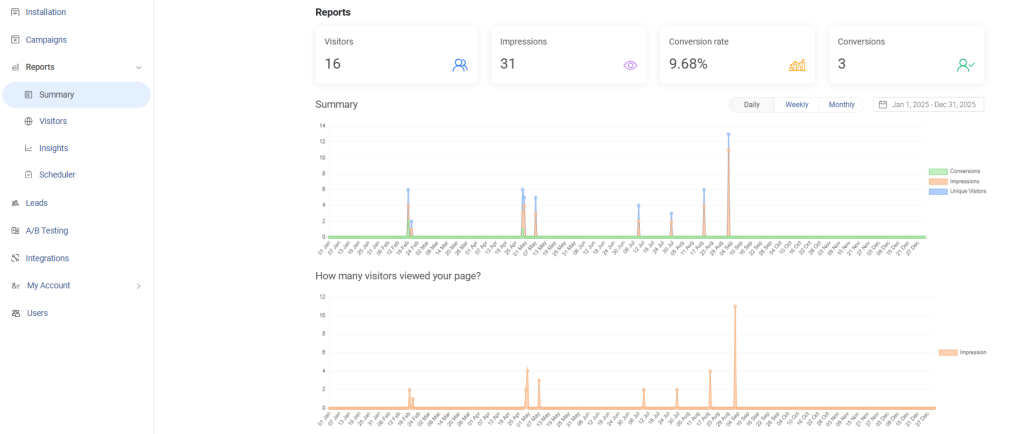
Focus on metrics that tie directly to conversions, not vanity numbers. Track how many people see the popup to understand reach. Look at engagement, like clicks or interactions, to gauge interest.
Most importantly, watch conversion rates to see if the popup is driving real action. These insights tell you whether the popup is helping or just taking up space.
Find them all on Picreel’s analytics dashboard:
2. Optimize Before You Redesign
Before changing layouts or visuals, A/B test smaller levers.
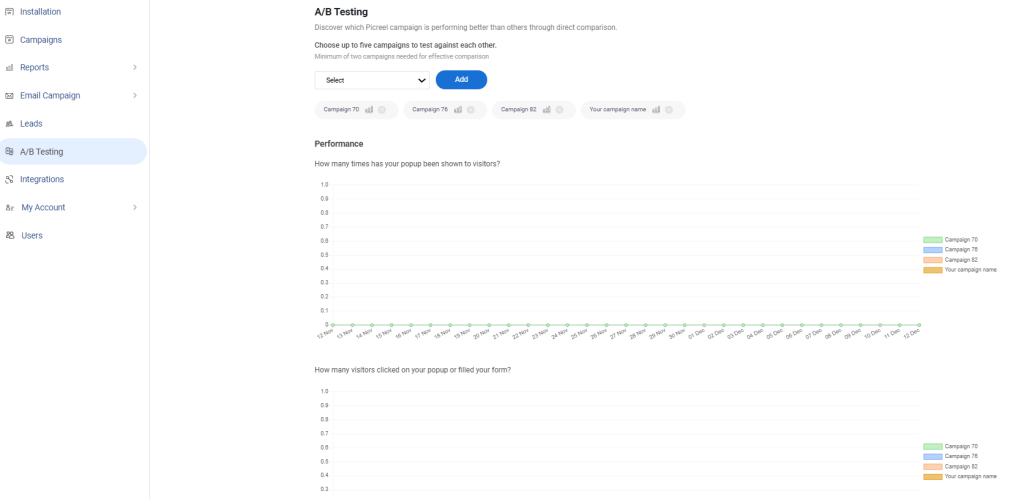
Compare a short delay versus an instant load to find what feels natural. Experiment with messaging or offers first. In many cases, a clearer headline or stronger value proposition outperforms design changes.
3. Scale What Works
Once a popup performs well, expand it thoughtfully. Apply it to similar high-intent pages where the same message makes sense. If you manage multiple WordPress sites, reuse proven campaigns instead of starting from scratch.
When results begin to plateau, evolve the trigger. Move from page-load to exit intent or behavior-based popups to keep engagement high without increasing friction.
Turn Page-Load Popups Into Conversions
WordPress popup on page load work best when they are intentional, not automatic. When timing, targeting, and frequency are set with care, they become helpful prompts instead of distractions. The key takeaway is simple. Match the popup to user intent, keep the experience lightweight, and always respect how people browse on desktop and mobile.
If you want a setup that gives you control without adding complexity, Picreel makes this process easier. It lets you launch page-load popups that are fast, flexible, and built for real conversion goals, not just design.
From smart triggers to display rules and analytics, everything stays in one place so you can test, improve, and scale with confidence. If you are serious about improving engagement without hurting performance or trust, now is the right time to act.
Set up your first page-load popup with Picreel, test it thoughtfully, and turn first impressions into measurable results.
FREE. All Features. FOREVER!
Try our Forever FREE account with all premium features!

 We'd love your feedback!
What did you like & how can we make it even better?
 Thanks for your feedback!
 Ask Your Question
Have a question? Get expert help to make your decision easier.